


GitHub Copilot Account in 2026: Plans, AI Credits, Free and Student Access, Billing, Seats and Security Explained
A GitHub Copilot account is not a separate login. It is a license attached to your GitHub account, either for you as an individual or through an organization or enterprise that pays for seats. That simple fact explains most of the confusion people have: which account is billed, why the editor says Copilot is not enabled, who can change the plan and why a colleague has different limits. In 2026 there is another change to understand: on June 1, 2026, GitHub replaced premium requests with GitHub AI Credits and moved Copilot to usage-based billing. This guide explains the plans, the credit system, the free options, billing management and security for the Copilot account, using the official GitHub documentation as of October 2026. Plans and numbers change, so confirm them on the pricing page before you buy. For the earlier price breakdown, see our GitHub Copilot pricing guide.
How the Copilot license is attached to your account
When you subscribe as an individual, Copilot is enabled on your personal GitHub account and billed to the payment method on that account. When you receive a seat from an organization or enterprise, the license comes from the organization, and billing and policies are managed by its administrators. If you have both, the organization seat normally takes priority, and you should not pay for a personal plan as well. Check the Copilot section of your settings to see where your access comes from.
Plans for individuals
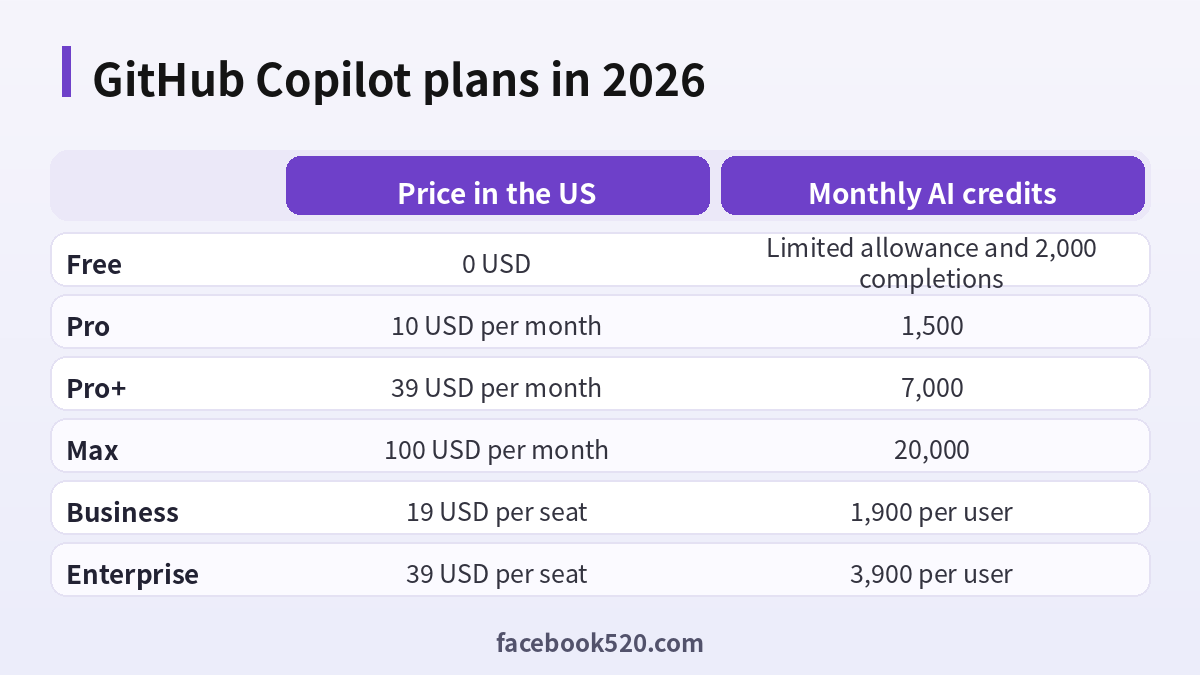
Copilot Free is for individual developers who do not have Copilot through an organization. It has limited features, an allowance of AI credits, automatic model selection and up to 2,000 inline completions a month. Copilot Student is free for verified students. Verified teachers and maintainers of popular open source projects may be eligible for free Copilot Pro. Copilot Pro costs 10 USD per month and includes 1,500 AI credits, made up of 1,000 base credits and 500 flexible credits. Pro+ costs 39 USD per month and includes 7,000 credits, and Max costs 100 USD per month with 20,000 credits.
| Plan | Price in the US | Monthly AI credits |
|---|---|---|
| Free | 0 USD | Limited allowance and 2,000 completions |
| Pro | 10 USD per month | 1,500 |
| Pro+ | 39 USD per month | 7,000 |
| Max | 100 USD per month | 20,000 |
| Business | 19 USD per seat | 1,900 per user |
| Enterprise | 39 USD per seat | 3,900 per user |
What GitHub AI Credits mean
AI credits are the unit of usage for chat, agents and other features that call models. Inline code suggestions and next edit suggestions are included and do not consume credits on paid plans. Chat messages, agent sessions and code reviews use credits according to the model and the amount of work, so a long agent session costs more than a short question. For organizations, credits are pooled across seats, and usage beyond the pool is billed at 0.01 USD per credit. Individuals can set a budget so that extra usage is allowed only up to a limit that you choose. Check your budget setting: with a budget of zero or an enforced spending limit, usage of credit-based features stops when the allowance runs out, while inline suggestions continue.
How to set up Copilot
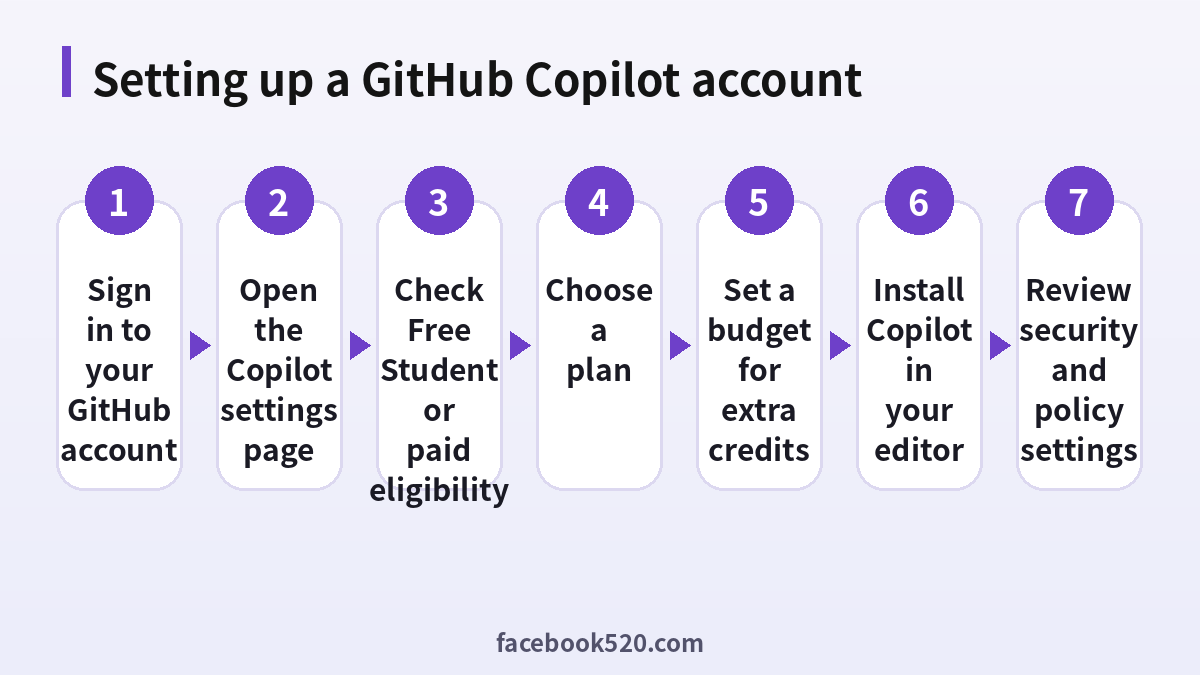
- Sign in to GitHub and enable two-factor authentication under the security settings.
- Open the Copilot page in your settings and see which plan is available to you.
- If you are a student, teacher or open source maintainer, apply for the free access first.
- Choose Free, Pro, Pro+ or Max, and select monthly or yearly billing where offered.
- Add a payment method and read the price and the renewal date.
- Install the Copilot extension in your editor or the Copilot app and sign in with the same GitHub account.
- Open the policies and privacy settings and check suggestions that match public code, and exclusions for files.
Billing management
Open the billing section in your account settings to see the plan, the payment method, the invoices and the usage of AI credits. You can change or cancel the plan, and a cancelled plan normally runs until the end of the paid period. Annual plans that began before the change to credits may remain on the older request-based billing until they end. Download invoices for expenses, and check the budget settings for additional usage. If the charge looks wrong, compare it with the usage report before you contact support.
Business and Enterprise seats
Organizations choose Copilot Business at 19 USD per granted seat per month or Copilot Enterprise at 39 USD per seat per month. Enterprises on GitHub Enterprise Cloud can also use Copilot access, which has no included credits and bills metered usage from the first use. Administrators decide who receives a seat, which models and features are enabled, and the spending controls. If you leave a company, your organization seat ends, and you should switch to a personal plan if you want to continue. Do not use a company seat for personal projects against company policy.
Privacy and policy settings
Decide whether Copilot may suggest code that matches public code, which files it must not read and whether prompts may be used for product improvement, as far as your plan lets you choose. Organizations can apply content exclusion rules and audit logs. Do not paste secrets such as keys and passwords into chat, and store them in a secrets manager. Review the policy of your employer before you use Copilot on proprietary code.
Account security
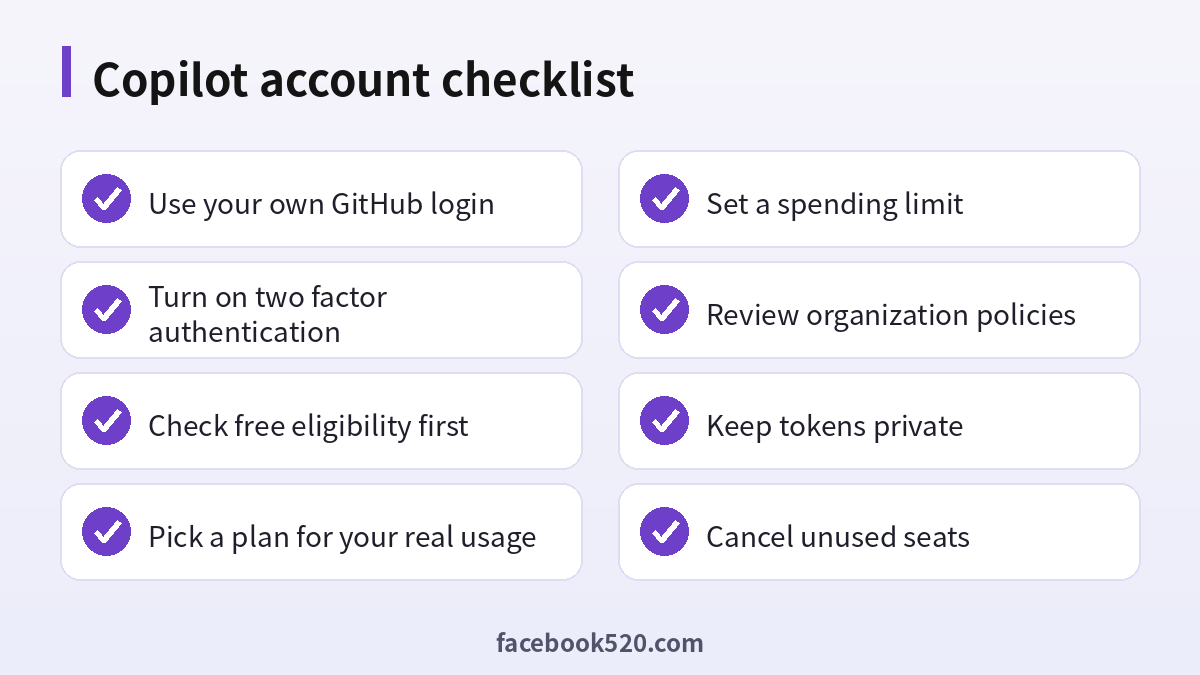
Turn on two-factor authentication on GitHub with an authenticator app, a passkey or a security key. Review authorized apps and personal access tokens and delete those you do not use. Sign out of editors on computers that you no longer control. If you suspect your account was accessed by someone else, change the password, revoke sessions and tokens and check the billing page for unexpected plan changes. Never buy a Copilot account from a third party, because shared or stolen accounts are removed.
Troubleshooting common problems
If Copilot does not appear in the editor, make sure that you are signed in to the right GitHub account and that the extension is up to date. If you see a message that you have no access, check whether an organization seat was removed or a payment failed. If credits run out sooner than expected, review the usage report, choose a lighter model for simple tasks and keep the chat focused. If you were charged twice, you may have a personal plan and an organization seat or two subscriptions in different stores.
Privacy and personal data
Before you enter personal information anywhere, ask what is really required. Use only the details that GitHub Copilot needs, review the privacy settings after setup and limit who can see your profile, activity and contact information. Avoid posting documents, addresses, financial data or photos that reveal your location. Check which third-party apps are connected to your account and remove those you no longer use. If you work with client or company data, follow your organization’s policy and do not mix it with personal accounts.
Devices, apps and browsers
Use the latest version of the official app or a modern browser when working with GitHub Copilot. Keep your operating system updated, install security patches and avoid rooted or modified devices, which weaken protection. Browser extensions can read pages you visit, so remove those you do not trust. On mobile, download apps only from official stores, review the permissions they ask for and turn off those that are not needed. Lock your device with a PIN or biometrics so that a lost phone does not become a lost account.
Troubleshooting checklist
If something does not work as expected with GitHub Copilot, go through the basics in order before contacting anyone:
- Check your internet connection and try again on a different network.
- Update the app or refresh the page, then restart the device.
- Clear the cache or try a private browser window without extensions.
- Confirm that you are signed in with the correct account and email.
- Look for the exact error message and search the official help center for it.
- Wait a short time before repeating an action, since repeated attempts can trigger temporary limits.
- If nothing helps, collect screenshots and contact official support.
Recognizing scams and fake offers
Scammers often imitate well-known brands such as GitHub Copilot. Typical signs are urgent messages, requests for passwords or verification codes, links to look-alike websites, promises of free upgrades or guaranteed results, and payment requests through unusual channels. Always type the official address yourself or use a saved bookmark, check the sender of every email and never pay through a link sent by a stranger. If you think you were tricked, change your password, review recent activity, contact your bank if money was involved and report the message to the platform.
Quick recap checklist
Before you finish, confirm the essentials for GitHub Copilot:
- You are using the official website or app.
- Your password is unique and two-step verification is on.
- Recovery email and phone are current.
- Privacy settings match what you are comfortable sharing.
- You know the price, renewal date and how to cancel if money is involved.
- You saved receipts, confirmation emails and backup codes in a safe place.
- You know where to find the official help center.
When to contact official support
Contact support when you have tried the basic fixes and the problem remains, when you see an unexpected charge, when you suspect your account was accessed by someone else or when you are locked out. Prepare the account email, the date and time of the problem, the exact message you saw and screenshots. Describe what you did step by step and what you expected to happen. Use only the contact methods listed on the official site and ignore anyone who offers to fix things for a fee through social media or private messages.
Common mistakes to avoid with GitHub Copilot
Most problems come from a handful of avoidable habits. People reuse the same password across several services, ignore security notices, click links in unexpected messages, install unofficial apps that promise extra features, or buy accounts and access from resellers. Others skip reading the terms, which leads to restrictions they did not expect, or forget to write down renewal dates and recovery details. Spend a few minutes reading the official help pages, keep your details up to date and treat anything that sounds too good to be true as a warning sign.
Helping family members and colleagues
If you are setting up GitHub Copilot for someone else, such as a parent, a teenager or a coworker, guide them rather than doing everything silently. Explain why strong passwords and two-step verification matter, show them how to recognize suspicious messages and agree on who to ask before they click or pay for anything. For minors, follow age requirements and use the available parental or family controls. For teams, document who owns the account, who can approve spending and what to do when someone leaves.
Keeping up with changes
Features, prices and rules around GitHub Copilot change more often than most people expect. Follow the official blog, release notes or help center, and read the emails you receive about policy updates instead of deleting them. When a guide such as this one gives a number or a menu name, treat it as a starting point and confirm it on the official site. If a change affects you negatively, you can usually adjust your plan, settings or usage, so act early rather than waiting for a problem.
Account security basics for GitHub Copilot
Protect your GitHub Copilot account before anything else. Use a long, unique password stored in a password manager, turn on two-step verification, and make sure the recovery email and phone number are ones you control. Review the list of devices and active sessions every few months and sign out of any you do not recognize. Never share one-time codes, even with someone who claims to work for support, because genuine support teams never ask for them. If you sign in on a shared or public computer, log out afterwards and avoid saving passwords in the browser.
A monthly review habit
Set a reminder once a month to review your GitHub Copilot setup. Check your security settings, payment method, connected apps and notification preferences. If you pay for anything, compare the charge with what you actually used and decide whether to keep, change or cancel. Update your recovery details if you changed phone number or email. Delete old data you no longer need. Ten minutes a month prevents most surprises and keeps your costs and risks under control.
Official sources versus unofficial offers
When you search for help with GitHub Copilot, you will find both official pages and third-party offers. The comparison below shows why it pays to stay with official channels.
| Aspect | Official source | Unofficial offer |
|---|---|---|
| Price | Clearly shown at checkout | Often unclear or too low |
| Support | Documented help channels | Unreliable or none |
| Account safety | Protected by the platform | Risk of bans and data theft |
| Refunds | Governed by published terms | Rarely honored |
| Updates | Always current | Outdated or wrong |
Choosing a plan for your real usage
Most developers who mainly want inline suggestions and a few chat questions a day are well served by Free or Pro. Move to Pro+ when you regularly run long agent sessions, review large pull requests with the assistant or use the most capable models. Max is meant for sustained high-volume work, such as developers who keep several agents running most of the day. Before you upgrade, open the usage report for a month and see how much of your allowance you actually used. If you used less than half, a bigger plan will not help, and if you hit the limit in the first week, compare the cost of a higher plan with the cost of extra credits at a fixed budget.
Using Copilot responsibly at work
Treat suggestions as code from an unknown contributor. Read them, run tests and run your security scanners before you merge. Do not accept code that you do not understand, and be careful with licenses when a suggestion looks like a known project. Keep prompts free of customer data and credentials. Follow your company’s policy about which models and features are allowed, and ask your administrator if a feature is disabled. Document how you use the assistant in code reviews when the team expects it.
Keeping costs predictable
Set a monthly budget, review usage each week and prefer lighter models for routine tasks such as renaming variables, writing simple tests and explaining code. Reserve the strongest models for hard problems. Break large agent tasks into smaller steps with a clear goal, and stop sessions that drift. For teams, use organization-level budgets and alerts so that no single user can exhaust the shared pool unnoticed. Revisit the plan each quarter, because prices and allowances change.
Frequently asked questions
Is Copilot a separate account?
No. It is a license attached to your GitHub account.
How much does Copilot Pro cost?
10 USD per month with 1,500 AI credits, as of October 2026.
What replaced premium requests?
GitHub AI Credits replaced premium requests on June 1, 2026.
Can students use Copilot for free?
Verified students can use Copilot Student for free. Teachers and some open source maintainers may qualify for free Pro.
Do inline suggestions use credits?
On paid plans they are included and do not consume credits.
What happens when credits run out?
Usage stops unless you set a budget that allows extra usage.
Can I have a personal plan and an organization seat?
Yes, but you usually only need one. Check for duplicate charges.
How do I cancel Copilot?
Open the billing settings and cancel the plan. Access normally continues until the period ends.
Is it safe to buy a Copilot account?
No. Resold accounts are unreliable and often removed.
Who controls policies in an organization?
The organization or enterprise administrators.
Summary
Treat Copilot as a license on your GitHub account, secure that account, pick the plan that matches your real use and set a budget for credits.
