


Cursor Sign Up 2026: How to Create a Cursor Account, Download the Editor, Pick a Plan, Import VS Code Settings and Avoid Common Login Problems
Cursor is an AI-powered code editor built on the familiar VS Code foundation. Developers use it to write, refactor and explain code with an assistant that understands the whole project. If you are curious about trying it, the first step is simple: download the editor and create an account. This guide shows exactly how Cursor sign up works in 2026, which login method to choose, what the free and paid plans mean, how to bring over your VS Code setup, which privacy settings to check, and how to solve the most common sign-in problems. Product names, limits and prices change regularly, so use this article as a practical map and confirm plan details on the official pricing page. If you want a closer look at plan costs, see our pricing breakdown (https://www.facebook520.com/ai-tools-guide/ai-chat-search/8288.html), and readers who prefer Chinese can read the subscription guide (https://www.facebook520.com/ai-tools-guide/ai-chat-search/8286.html).
What you need before you start
You need a computer running Windows, macOS or Linux, an internet connection, and one way to sign in: an email address, or a Google, GitHub or Apple account. A browser is also required, because Cursor completes sign-in by opening a web page and sending a confirmation back to the editor. If you already use VS Code, you can bring your extensions, themes and keybindings with a one-click import, so it is worth knowing which extensions you depend on. Finally, check whether your employer has rules about AI tools or sending code to external services. If you will use the editor for work, confirm the policy first.
Step-by-step Cursor sign up
The following process works on all supported systems. The exact button names may differ slightly between versions.
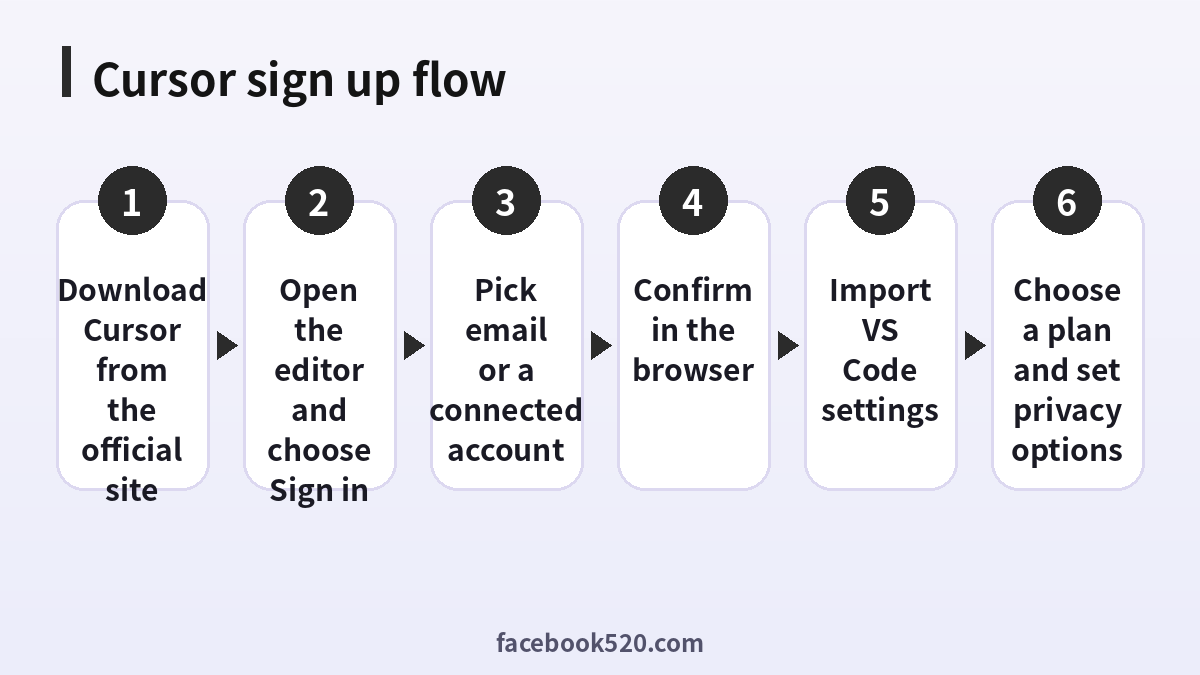
- Open the official Cursor website and go to the download page. Download the installer for your operating system and avoid third-party mirrors.
- Install and launch the editor. On first start, the onboarding screen asks you to choose a keyboard layout and theme, and offers to import settings from VS Code.
- Choose to sign in or sign up. Cursor opens your default browser.
- Select a login method: email, Google, GitHub or Apple, depending on what is offered.
- If you use email, enter the address and confirm the code or link that Cursor sends to you.
- After authentication, the browser shows a confirmation and asks to open the editor. Accept the prompt.
- Return to the editor and confirm that your account name appears in the settings. You are now signed in on the free plan unless you start a trial or subscription.
The entire process usually takes about five minutes, including download time.
Which sign-in method should you pick
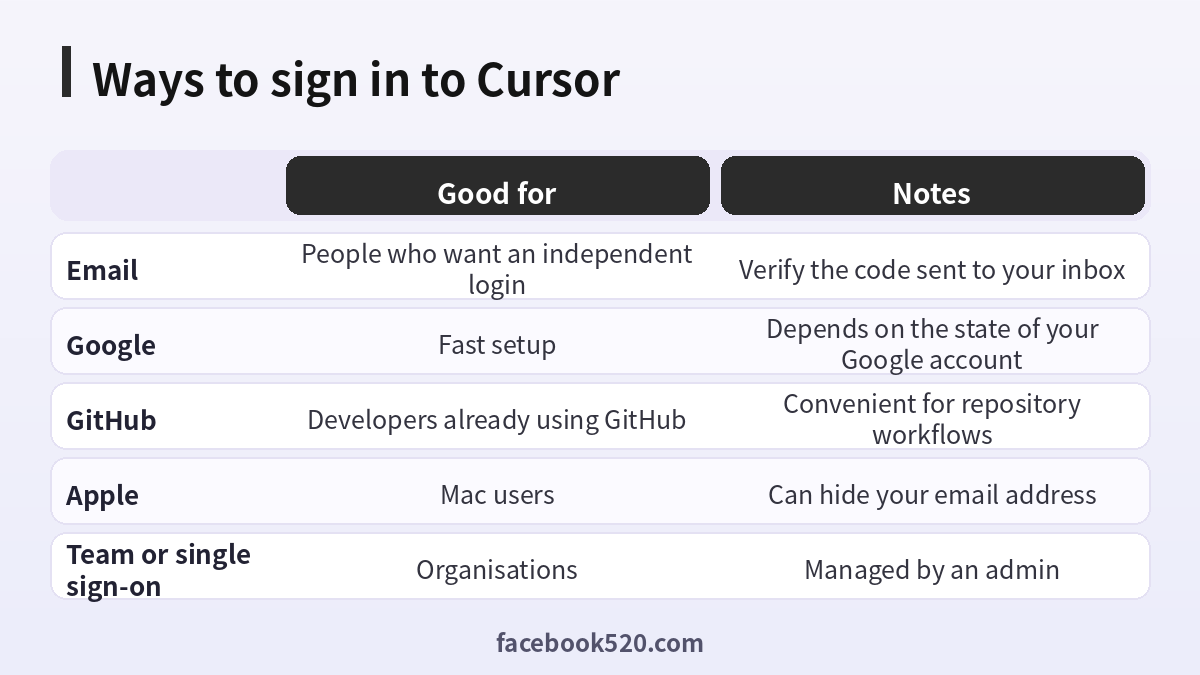
All methods create the same kind of account, but they differ in convenience and recovery. An email login is independent and easy to explain to a colleague. A Google or GitHub login saves time and ties in with the services you probably already use. An Apple login can hide your email. Whichever you choose, remember that later you may need that same method to get back in, so write it down in your password manager.
| Method | Strength | Weakness | Tip |
|---|---|---|---|
| Independent of other platforms | Needs access to the inbox for codes | Use a mailbox that you will keep | |
| One click, familiar | If the Google account is locked you lose access | Enable two-step verification on Google | |
| GitHub | Natural for developers | Linked to your code identity | Use the account you will keep long term |
| Apple | Private relay email option | Hidden address can confuse later support | Note the relay address down |
Free plan, paid plans and what changes after sign-up
After sign-up you start on a free tier with limited usage of the AI features. Paid plans add larger usage allowances, access to more advanced models and extra features, and there are team plans for organisations with admin controls. The names, monthly prices and usage rules have changed more than once, and older legacy plans may not be offered to new customers, so check the official pricing page rather than relying on screenshots. Review what is counted as usage, how overages are handled, and whether you can set a spending limit in your dashboard.
If you plan to subscribe, pay through the official checkout, keep the receipt and note the renewal date. Be careful with websites that sell discounted keys or shared accounts. They can disappear, they may violate the terms of service, and your code or account could be exposed. For a detailed explanation of costs and how plans compare, see our pricing article (https://www.facebook520.com/ai-tools-guide/ai-chat-search/8288.html).
| Item | Free tier | Paid tier | Where to check |
|---|---|---|---|
| AI usage | Limited | Higher allowance, depending on plan | Pricing page and dashboard |
| Model access | Basic selection | Wider selection | Settings, models |
| Team controls | Not included | Available on team plans | Admin dashboard |
| Billing | None | Monthly or annual | Account, billing |
| Support | Community and docs | Higher priority on some plans | Help centre |
Choosing a plan: a practical decision guide
The right plan depends on how often you use the assistant and how heavy your requests are. A student or hobbyist who opens the editor a few times a week can start on the free tier and see whether the limits are noticeable. A developer who relies on the assistant for daily work will likely hit the free limits quickly, which makes a paid plan more sensible. Heavy users who run long agent sessions on large projects should look at higher tiers and read how usage is measured, because the cost of a premium model request can be much larger than a basic one. Teams should compare per-seat prices with the value of admin controls, centralised billing and privacy enforcement.
A good method is to track your usage for two weeks on the free plan, write down how many times you hit a limit, then pick the cheapest plan that removes the friction. Review the decision after a month. Because plans change, set a calendar reminder to read the pricing page again before every renewal. You should also look at whether the plan offers monthly or annual billing and whether switching later is simple.
| Type of user | Typical pattern | Reasonable starting point |
|---|---|---|
| Student or hobbyist | A few sessions a week | Free tier, upgrade only if blocked |
| Freelancer | Daily coding, medium projects | A standard paid plan |
| Power user | Long agent runs, large repositories | A higher tier with clear usage limits |
| Small team | Shared standards and billing | A team plan with admin controls |
| Enterprise | Compliance and audit needs | Contact sales and review security documents |
Importing your VS Code setup
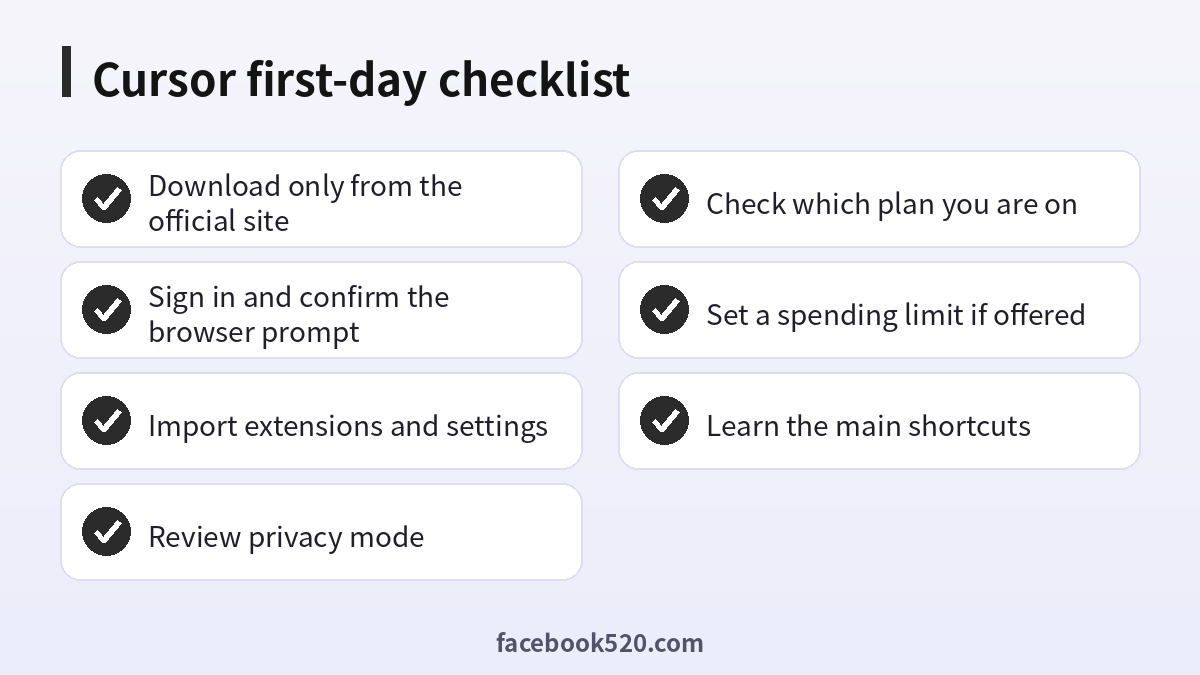
Because Cursor is based on VS Code, migration is easy. During onboarding, or later from the settings, choose to import from VS Code. This copies your extensions, themes, snippets and keybindings. Check the extension list afterwards, because a few extensions may not be available or may behave differently. If you work with several languages, open a representative project and run your normal build, test and debug flow to confirm everything works before you rely on the editor for important work.
Privacy and security settings to check
Before you open a private repository, review the data and privacy options. Cursor offers a privacy mode that limits how code is stored and used. Check what is enabled, understand the difference between local indexing and sending code to remote models, and read the official privacy statement. Exclude secrets by using ignore files so that API keys and credentials are never indexed. Use a separate low-privilege environment for sensitive projects, and enable two-factor authentication on the account you use to sign in, whether that is Google, GitHub or Apple.
For teams, agree on a written policy: which repositories may be opened, who can purchase seats, and where logs and prompts are stored. A short checklist avoids awkward questions later.
First-day workflow
Open a small project, not your most critical repository. Try the inline completion, ask the chat panel to explain a function, and request a small refactor with a review of the diff before accepting it. Learn the keyboard shortcut for opening chat and the one for editing selected code. Always read the changes the assistant proposes, run your tests, and commit in small steps so that you can roll back easily. Treat the assistant as a fast colleague who still needs review.
Fixing common sign-in problems
Most problems have simple fixes. If the browser does not return to the editor, copy the link from the browser and paste it into the editor’s sign-in prompt, or try a different default browser. If the confirmation email does not arrive, check the spam folder and wait a minute before requesting another. If you see an error that the account already exists with another method, try the original login method rather than creating a new account. If your organisation uses single sign-on, ask your administrator to confirm that your address has been added. Update to the latest editor version, because old builds sometimes fail to authenticate. Disable VPNs or strict proxies temporarily if the sign-in page cannot load.
If billing looks wrong, open the dashboard and compare it with your receipt. Contact support through the official channel with your account email and the date of the charge.
Best practices for working with an AI editor
Using an AI editor well is a skill. Give the assistant clear context by opening the right files and describing the goal in a sentence or two. Ask for small, reviewable changes rather than rewriting a whole module at once. When the result looks plausible but you are not sure, ask the assistant to explain its reasoning or write a test for the behaviour. Keep project rules in a short instruction file so that the assistant follows your naming conventions, formatting and architecture. Review every change, especially around authentication, payments and data deletion, where mistakes are expensive.
Version control is your safety net. Create a branch before a large change, commit frequently, and use the diff view to inspect modifications. If something goes wrong, you can restore the previous state in seconds. Run the linter, the type checker and the test suite after each accepted change, and do not merge anything you do not understand.
Keeping your account and billing safe
Treat the account like any developer service. Use a unique password or a trusted social login protected by two-factor authentication, and keep recovery methods current. Watch for phishing messages that imitate the product, such as emails asking you to sign in again to avoid suspension. Always navigate to the official site by typing the address, instead of clicking links in messages. Review the billing page after every plan change to make sure that only the expected charges appear, and keep invoices for expense reports.
If you ever suspect that an API key, token or credential was exposed, rotate it immediately. Remove secrets from the repository history if they were committed, and add patterns to your ignore files. Many incidents come from forgotten tokens rather than clever attacks, so a monthly clean-up of tokens and connected apps is a cheap habit.
Uninstalling or switching later
If you decide Cursor is not for you, you can return to VS Code without losing work, because projects are ordinary folders. Export your settings, cancel any subscription from the billing page before the renewal date, and sign out in the editor. If you want to delete the account entirely, check the official instructions and understand what data is removed. Keeping a note of your configuration makes it easy to try other tools and compare them fairly.
Understanding usage limits and avoiding surprises
Usage-based pricing is the part that surprises new subscribers most. Different models consume allowance at different rates, and long conversations with large context cost more than short ones. To keep control, start fresh chats for unrelated tasks instead of continuing one endless thread, select a lighter model for simple edits, and reserve premium models for hard problems such as architecture decisions or tricky debugging. Check the usage dashboard weekly during the first month so that you learn your own pattern. If the product allows spending limits or alerts, enable them before you share your account with any automation.
If you run the assistant in an agent mode that can edit many files and run commands, stay present while it works. Read the plan it proposes, restrict the folders it may touch, and never allow it to run destructive commands without reading them. Treat generated shell commands with the same caution as commands you found on a forum.
Frequently overlooked settings
Several small settings improve the experience. Set your preferred font and theme so that long sessions are comfortable. Configure auto-save and formatting on save so that diffs stay clean. Turn on the terminal integration if you want the assistant to help with command line tasks. Decide whether you want inline suggestions to appear automatically or only on demand, because some developers find constant suggestions distracting. Finally, create a short rules file for each project that tells the assistant which frameworks, coding style and testing conventions you prefer.
Frequently asked questions
How do I sign up for Cursor?
Download the editor from the official site, open it, choose to sign in, pick email, Google, GitHub or Apple and confirm in your browser.
Is Cursor free?
There is a free tier with limited AI usage. Paid plans add larger allowances and more features. Check the official pricing page for current limits.
Do I need a credit card to sign up?
Not for the free tier. You will need a payment method only if you start a paid plan or a trial that requires one.
Can I use my GitHub account to sign in?
Yes, if GitHub is offered as a login option. It is convenient for developers, but keep the account secure with two-factor authentication.
Can I import my VS Code extensions?
Yes. Use the import option during onboarding or in the settings to bring over extensions, themes and keybindings.
Which operating systems are supported?
Windows, macOS and Linux are supported. Download the matching installer from the official website.
Why did the browser not return to the editor?
Copy the sign-in link into the editor manually, or switch your default browser and try again. Updating the editor also helps.
Is my code private?
Review privacy mode and the official privacy policy. Use ignore files for secrets and follow your organisation rules for sensitive code.
Can I change the sign-in method later?
Usually you keep the account you created. If you need to change, contact support rather than creating a duplicate account.
How do I cancel a subscription?
Open your account dashboard, go to billing and manage or cancel the plan. Save the confirmation email.
Are discounted shared accounts safe?
No. They can be removed, may violate the terms and can expose your code. Use the official checkout.
Can teams use Cursor?
Yes. Team plans add admin controls and centralised billing. Ask your administrator about policy before you join.
Conclusion
Cursor sign up is quick: download from the official site, choose a sign-in method, confirm in the browser and import your VS Code settings. Start on the free tier, check privacy options and only then decide whether a paid plan is worth it. Keep your login method documented, protect the account with two-factor authentication and avoid unofficial discounts.
