


LINE Verification Code in 2026: What to Do When the SMS Does Not Arrive, How Account Transfer and QR Code Move Work, Recovering Access Without Your Old Phone, Password and Email Login Options and How to Spot Fake Code Requests
A verification code is the gatekeeper for your LINE account. Every time you install LINE on a new phone, change a number or log in again after a long break, the app asks for a short code. When the code does not arrive, people panic, especially if the old phone is gone and years of chats are at stake. This guide explains why LINE verification codes fail, which official options exist when the SMS never shows up, how to move your account to a new phone, and how to avoid the scams that target people who are locked out. It follows the information published in the LINE Help Center as of October 2026. Menus and rules can change, so always compare this article with the options on your screen.
How LINE uses verification codes
LINE links an account to a phone number. When you log in on a new device, the app sends a code by SMS or a voice call to that number, and you enter it to prove that you control the line. Depending on your settings, you may also be asked for a password, an email login or a second step called letter sealing for chats. The code is short lived. If you wait too long or request too many codes in a row, the system may reject it or delay the next one.
| Step | What happens |
|---|---|
| Enter phone number | LINE sends a code by SMS |
| Enter the code | The app confirms that you hold the number |
| Optional checks | Password, email login or extra confirmation |
| Account opens | Chats and friends load, subject to backup rules |
Why the SMS code does not arrive
Most missing codes have simple causes. Check these first before you assume that something is broken.
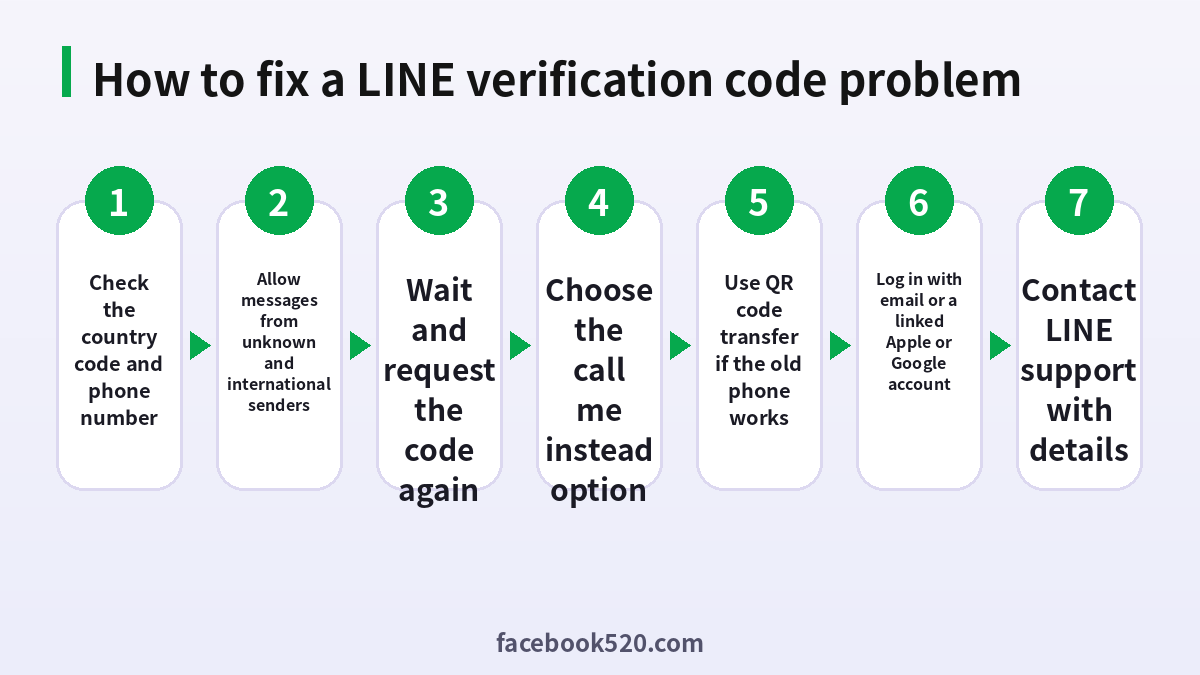
- The country code or number is wrong. A leading zero, a missing prefix or a typo is the most common reason.
- The phone has no signal, no roaming or is full. A full message inbox can block new texts.
- A spam filter or carrier setting blocks messages from unknown or international senders.
- The number belongs to a virtual, internet or prepaid service that does not receive short codes from abroad.
- You requested codes many times in a short period, so the system slowed you down.
- A temporary delay at the carrier or at LINE.
| Cause | What to try |
|---|---|
| Wrong number or country code | Re enter with the correct international format |
| No signal | Move to a better spot or switch Wi Fi calling on |
| Spam filter | Allow unknown and international senders in your messages app |
| Virtual number | Use a real mobile number that receives texts |
| Too many requests | Wait several minutes before trying again |
Use the call option
If the text message does not arrive, the app usually offers a Call me instead option. Instead of an SMS, an automated voice reads the code. Make sure that your phone can receive calls from unknown numbers and that the caller is not being blocked. Write the code down as it is read, because it is spoken once. If you miss it, wait for the timer to finish and request another one. Do not request codes by both methods at the same time, because mixed codes can confuse the process.
Move your account to a new phone with the QR code
If the old phone still works, the safest and simplest way is the account transfer. LINE describes it as a QR code move. On the old device, open the settings and find the account transfer options, then turn on the transfer so that the old device shows a QR code. On the new phone, install LINE, choose the option to log in with an existing account, and scan the QR code. Because the old phone proves the identity, this path does not rely on an SMS code. Finish the move before you reset or sell the old phone, and keep both phones next to each other until the new one shows your friends and chats.
- Update LINE on both phones.
- On the old phone, open the account transfer settings and enable transfer.
- Back up the chat history if you want to keep it.
- On the new phone, install LINE and choose to log in.
- Scan the QR code shown on the old phone.
- Check that your friends, chats and purchases appear.
- Only then reset or hand over the old phone.
If the old phone is gone
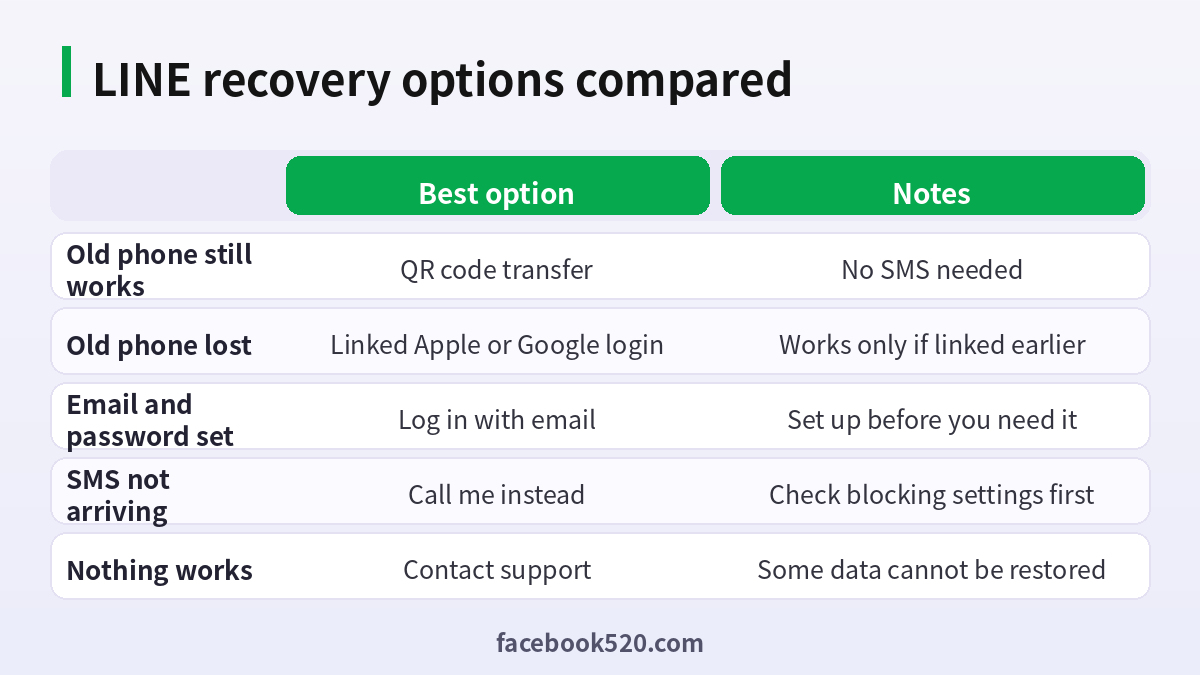
When the old phone is lost, broken or already wiped, you have fewer options, and what works depends on what you set up earlier. The LINE Help Center suggests trying these routes in order.
| Route | Condition |
|---|---|
| Log in with a linked Apple or Google account | You linked it before the problem |
| Log in with email and password | You registered an email and password |
| Receive the code on the same number | The SIM or number is still yours |
| Contact LINE support | Nothing else works |
If none of these routes is available, LINE says that you may have to create a new account. In some cases, support can help transfer certain paid items if you can still use the registered email, but chat history and friends may not be restorable. This is why the most valuable habit is to prepare in advance, which we explain below.
Prepare now so that recovery is easy later
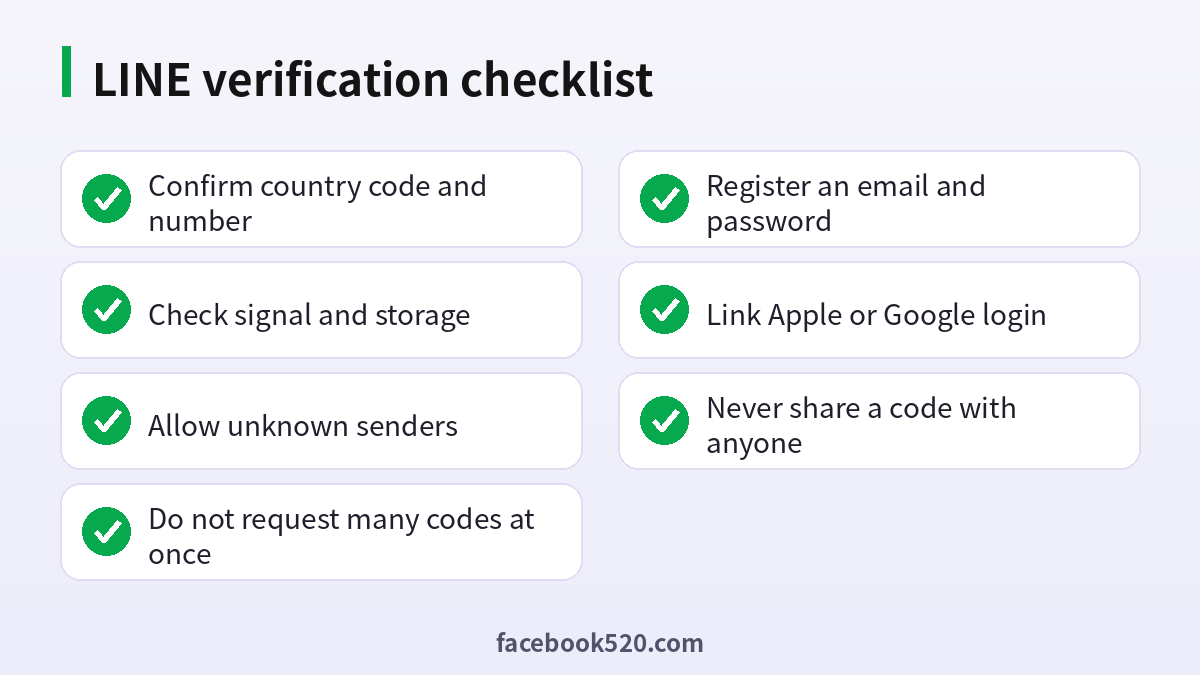
Take ten minutes today to protect yourself. Register an email address and a password in the account settings. Link your Apple or Google account if the app offers it. Check that your phone number is current, and update it before the old SIM expires. Back up your chats using the method available on your device. Know where your two step or password settings are. Keep your email secure, because it is also a recovery route for other services.
| Preparation | Benefit |
|---|---|
| Email and password registered | Login route when SMS fails |
| Apple or Google linked | Another login route |
| Phone number up to date | Codes reach you |
| Chat backup done | History can be restored where supported |
Common scams around verification codes
Verification codes are a favorite target of scammers. A typical story goes like this: a friend on LINE suddenly asks you to send the code that just arrived on your phone, saying that they need it to verify something. The account of that friend has probably been taken over, and the scammer is trying to take over yours too. Another pattern is a fake support account that asks for your code, password or a photo of your ID. A third pattern is a link that opens a page looking like LINE and asks you to log in.
Never share a verification code with anyone, including people who claim to work for LINE. Official support does not need your code. If a friend asks for one, call them on the phone to check. If you did share a code by mistake, change your password, log out other devices and contact support at once. Do not use any service that promises to receive codes for you or to recover your account for a fee.
Country and carrier details that matter
Phone numbers are written differently from country to country, and LINE expects the international format. In many places the leading zero of a local number is dropped after the country code. For example, a number that you dial locally as 090 followed by digits is entered after the country code without the first zero. If you travel and use a roaming SIM, decide which number is registered with LINE and keep that SIM available. Some carriers turn off short code reception on cheap data only plans, and some block messages from foreign gateways by default. A quick call to the carrier, or a look at the plan details, can save an hour of repeated attempts.
| Situation | Practical tip |
|---|---|
| Travelling abroad | Keep the home SIM active or switch on roaming for texts |
| Dual SIM phone | Make sure the registered number is the active SIM for messages |
| Data only plan | Ask the carrier whether texts can be received |
| Number recently changed | Update the number in LINE while the old one still works |
| Corporate phone | Check whether a mobile management tool blocks messages |
Settings on the phone that can block the code
Messaging apps on both Android and iPhone include filters that move unknown senders into a separate folder. Open the filter folder and check for a message from LINE. Turn off do not disturb and focus modes while you wait. Check the blocked numbers list in case a sender was blocked in the past. On Android, a third party messaging app may hold the message, so look in the default one as well. Restarting the phone often restores a stuck message service. If the phone has little storage left, free some space, because the inbox cannot accept new texts when it is full.
- Open the messages app and search for LINE.
- Look inside the filtered or junk folder.
- Turn off focus and do not disturb modes.
- Remove LINE related numbers from the blocked list.
- Restart the phone and request one new code.
What to tell LINE support
If every self service route fails, contact LINE support through the in app help or the Help Center form. A clear message gets a faster answer. Include the country and the region, the phone model and system version, the approximate date when the problem began, the exact error that appears on screen, the steps that you have already tried and the email address registered in the account if you have one. Do not send passwords or the codes themselves. Take screenshots of the error messages. Be patient, because replies can take days, and avoid sending the same request many times, which can slow the process.
| Item | Why it helps |
|---|---|
| Error text or screenshot | Shows the exact failure |
| Steps already tried | Avoids repeating advice |
| Phone model and version | Helps to reproduce the issue |
| Registered email | Helps the team to locate the account |
Backing up chat history
The account itself and the chat history are two separate things. The account is the identity, while the history is data stored on your device and, if you enable it, in a cloud backup. On iPhone the backup normally uses the Apple cloud service, while on Android it uses the Google Drive service. LINE asks you to set a PIN for the backup, and you must remember it, because without the PIN the backup cannot be restored. Make a backup before you change phones, and make another one after you move to confirm that it works. Photos and videos that have expired on the server cannot be restored from a backup, so save the ones that matter to the gallery of the phone.
| Platform | Backup place | Reminder |
|---|---|---|
| iPhone | Apple cloud storage | Keep the backup PIN safe |
| Android | Google Drive | Use the same Google account when restoring |
| Both | Local device | Expired media may be missing |
Switching between phone types
Moving between an iPhone and an Android phone is possible, but the chat history transfer rules differ from a same system move. The official guidance says that the history may be limited when you switch systems, and the QR code move keeps the account while some history might not come along. Read the on screen notes before you confirm, and export important chats as text files if you cannot afford to lose them. Test the process with a short chat first if you are unsure.
Keeping the account safe after you recover it
Once you are back in, tighten the account. Change the password if you registered one, turn on the setting that blocks login from other devices when you do not need them, and review the list of logged in devices. Check that the registered email is one that you control. Remove unknown friends who appeared during the problem period and look at the connected apps in the settings. Tell close friends that the account was in trouble so that they ignore any odd messages sent in the meantime.
- Review the logged in devices and sign out the unknown ones.
- Update the password and email.
- Check connected apps and revoke unneeded ones.
- Tell friends to ignore suspicious messages from the period.
- Make a new backup.
When a new account is the practical answer
Sometimes the best answer is to start again. If you cannot prove ownership of the old number and have no linked login, creating a new account is faster than waiting for a reply that may not come. Tell your contacts, add the new account to your work groups and update any service that used the old account to log in. Treat this as a reminder to register a recovery email from the first day.
Business and shared phone numbers
Small shops and teams often register LINE with a number that belongs to the business and is handled by several people. This creates a fragile setup, because the code goes to whoever holds the phone. Decide who owns the number, store the SIM in a safe place and write down the recovery steps in an internal document that does not contain any passwords. For official business features, use the proper business tools provided by LINE rather than a personal account shared by staff, so that a lost phone never blocks the whole company. When an employee leaves, review which devices are logged in and change the access that the person had.
| Risk | Better practice |
|---|---|
| One personal phone holds the account | Use official business tools with several admins |
| SIM kept in a drawer, no record | Assign an owner and a backup person |
| Shared passwords in chats | Use a password manager with limited access |
| Staff leave without handover | Review devices and access on every departure |
Quick reference for the most common cases
Keep this short list near your desk. If the code does not arrive, check the number and the filters, then use the call option. If the old phone works, use the QR code transfer. If the old phone is lost, try email, Apple or Google login, then support. If a person asks for your code, refuse and verify by phone. If you recovered the account, back it up and review the devices.
Frequently asked questions
Why is my LINE verification code not arriving?
The usual causes are a wrong number, no signal, a blocking filter or too many requests.
How long should I wait?
Wait a few minutes, then request a new code once.
Can I get the code by phone call?
Yes, choose the call me instead option on the code screen when it is offered.
Can I log in without a phone number?
You need a way to prove identity. Email, Apple or Google login can help if you set them up earlier.
How do I move LINE to a new phone?
Use the QR code transfer from the old phone, and finish before you reset it.
What if I lost my old phone?
Try a linked Apple or Google login or the email login, then contact LINE support.
Will I lose my chats?
Chats may not be restorable without a backup or transfer.
Can a virtual number receive the code?
Often not. Use a real mobile number.
Is it safe to give the code to a friend?
No. Never share it, even with someone you know, until you confirm by phone.
Who can recover my account for money?
Nobody. Be suspicious of anyone who asks for a fee or your code.
Summary
Most LINE verification problems come down to a wrong number, a blocking setting or a missing recovery route. Check the basics, use the call option, move your account with the QR code while the old phone still works, and prepare an email login and a linked account before you need them. Never share a code.

