


Gemini Verification Code Not Working (2026): Fixes for Google Sign-In Codes, Phone and Authenticator Prompts, Age Checks, Workspace Accounts, Region Limits and Scams That Target Locked-Out Users
You open Gemini, sign in with your Google account and are asked for a verification code, but the text never arrives, the code is rejected or the prompt on your phone does not appear. Gemini does not have a separate login system. It uses your Google account, so every verification problem you meet is really a Google account problem. That is good news, because Google has a mature set of recovery tools and clear rules about what it checks and why. This guide explains why Google asks for a code when you use Gemini, twelve fixes for the most common failures, how to deal with authenticator apps, backup codes and passkeys, what to do about age checks, work or school accounts and region limits, how to recover an account safely and how to avoid scams that target people who are locked out. The advice reflects how Google accounts generally behave in October 2026, and screens may vary by device, so follow the prompts you see.
Why Gemini asks for a verification code
Google asks for a code when something about your sign-in looks different: a new device, a new location, a changed password, a sensitive action or a suspicious attempt. The code proves that you control the phone number, the authenticator or another trusted method. Because Gemini is tied to the Google account, the same check applies when you open the Gemini app or the website for the first time, when you sign in on a new browser or when you try to subscribe to a paid plan.
A verification request does not mean that your account has been hacked. It is often a routine safety check. However, if you receive a code that you did not request, treat it as a warning that someone may be trying to sign in, and change your password.
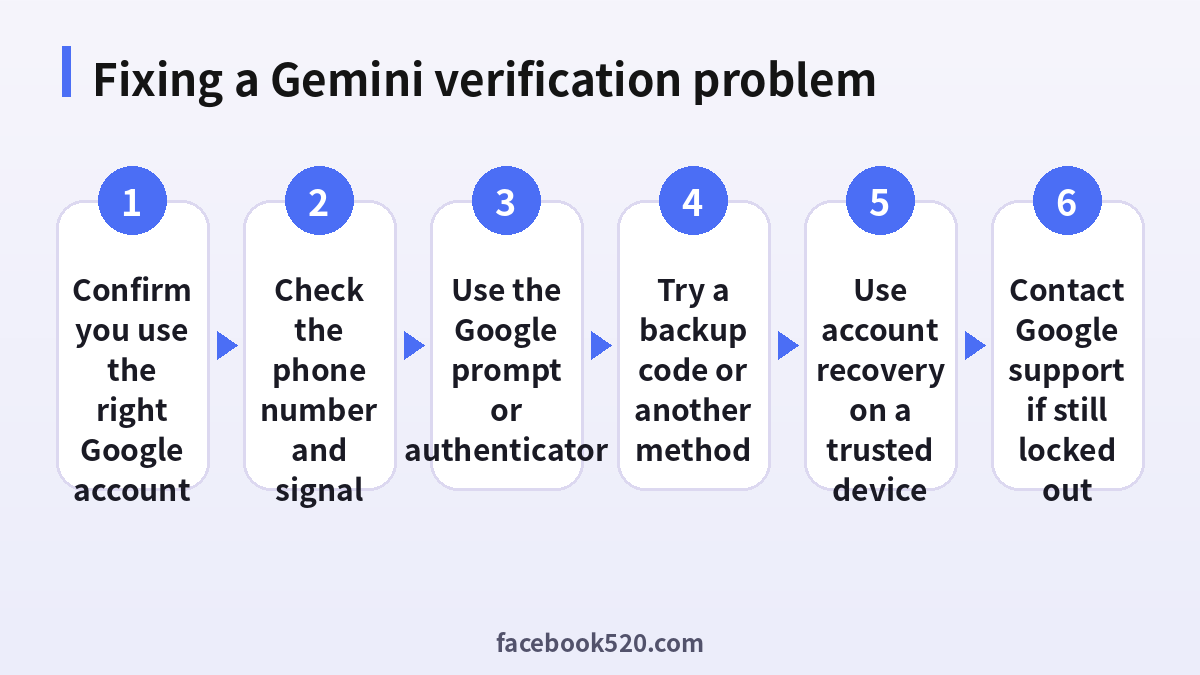
Common reasons the code does not arrive or does not work
| Cause | Sign | Fix |
|---|---|---|
| Wrong or old phone number on the account | No text arrives | Use another method or recover the account |
| Poor signal or full storage | Other texts also fail | Improve signal, free space, restart |
| Carrier filtering | Texts from short codes do not arrive | Contact the carrier |
| Time not synced on the phone | Authenticator code is rejected | Set date and time to automatic |
| Old code | The code worked once, then fails | Request a new one and use it quickly |
| Wrong account chosen | The code is for another Google account | Check which account is signed in |
| Too many attempts | A try later message | Wait several hours |
| Phone offline | Google prompt never shows | Connect to the internet |
Twelve fixes in a sensible order
- Check which Google account you are using. People with several accounts often request a code for one and sign in with another.
- Confirm the phone number. Look at the last two digits shown by Google, which tell you which number it is using.
- Check the signal and storage. Texts cannot arrive on a phone that is offline or full.
- Wait a minute. Do not tap resend repeatedly, because it can trigger limits.
- Try the Google prompt. If you are signed in on another phone or tablet, choose the option to tap yes on the device.
- Use an authenticator app. Open it and type the current six-digit code before it changes.
- Fix the time. On the phone with the authenticator, set the date and time to automatic, since a wrong clock produces wrong codes.
- Try a backup code. If you saved backup codes, each one can be used once.
- Try a passkey or security key if you have set one up.
- Sign in from a familiar device and network, such as your usual phone at home. Google trusts those more.
- Start account recovery. Use the official recovery page and answer as many questions as you can.
- Contact support through official channels if you use a paid plan or a work account.
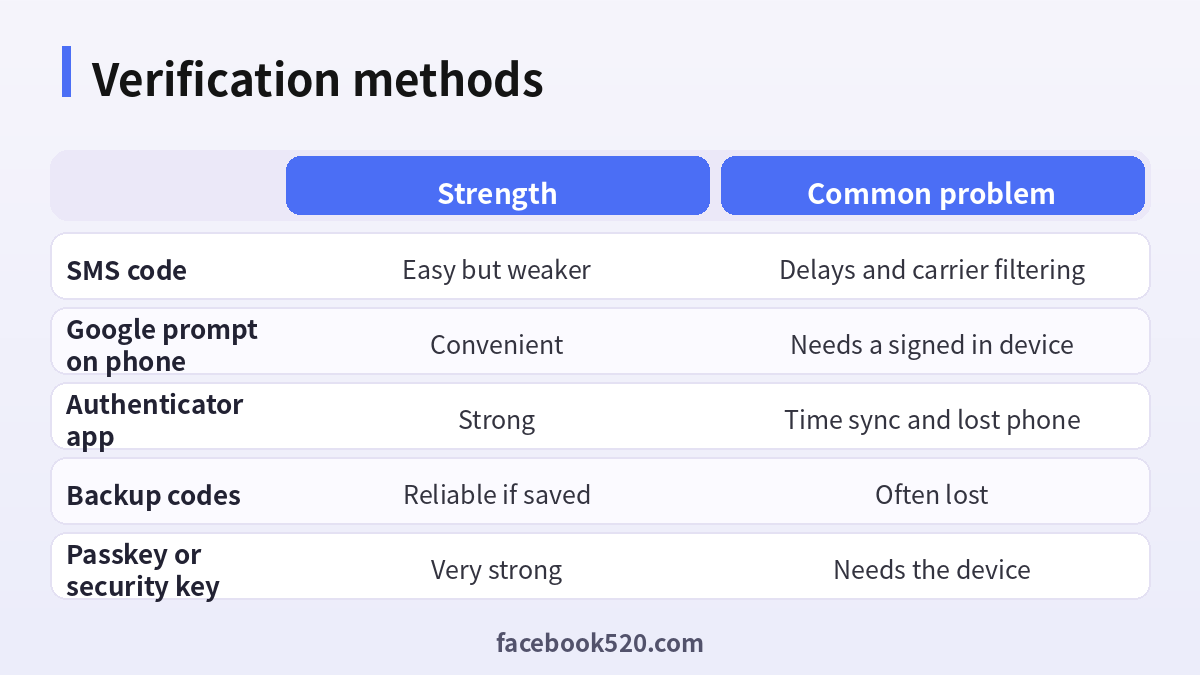
Authenticator apps, backup codes and passkeys
Authenticator apps are stronger than text messages because they do not depend on the carrier. The risk is losing the phone. When you set up an authenticator, Google may show backup codes; save them offline in a secure place. A passkey is even easier: it lets you sign in with your fingerprint, face or screen lock, and it is resistant to phishing. If you change phones, transfer the authenticator accounts before wiping the old device, or use the export feature of the app. It is wise to have at least two methods, such as a passkey plus a phone number, so that losing one does not lock you out.
| Action | Why it helps |
|---|---|
| Save backup codes | Gives you a way in without a phone |
| Add a passkey | Quick and resistant to phishing |
| Keep recovery email current | Allows account recovery |
| Review devices | Removes unknown sign-ins |
Age, region and plan checks
Sometimes the problem is not the code but an eligibility check. Gemini features may depend on your age, your country and the type of account. If your birth date shows that you are under the required age, some features are limited. Work or school accounts are controlled by an administrator, who decides whether Gemini is available. In that case, no code will help; you need to ask your administrator. Some regions have limited availability for particular features, and paid plans are offered only where Google sells them. As an example of what is on offer, the Google AI Plus plan is listed at 4.99 dollars a month and the Pro plan at 19.99 dollars in the United States, with a higher tier above that, but prices vary and change, so confirm on the official page. For a deeper look at subscription options, see (https://www.facebook520.com/ai-tools-guide/ai-chat-search/8144.html), and the Chinese guide at (https://www.facebook520.com/ai-tools-guide/ai-chat-search/8134.html).
Recovering a locked Google account safely
If you cannot pass verification, use the official account recovery process on a device and in a location that you commonly use. Enter the last password you remember, answer questions about when you created the account and use your recovery email or phone. Be patient: recovery can take a day or more to process, and repeated attempts from different places can make it harder. After you regain access, change the password, review recent activity, add backup codes, add a passkey and update your recovery information. If your account was hacked, also check your email forwarding rules and connected apps.
Work and school accounts
For Google Workspace accounts, the administrator controls security policies such as required two-step verification methods and whether Gemini is on. If you cannot receive codes, your administrator can reset your verification, generate backup codes or change the policy. Do not try to work around the rules with a personal account when you handle company data, because it may break your organization’s policies.
Scams that target locked-out users
When people search for a Gemini verification code that does not work, scammers are ready. They run fake support pages, post comments that offer to unlock accounts and send messages that ask for the code you just received. A real Google message will never ask you to reply with a code. Another common trick is a text that says someone is trying to access your account and asks you to click a link. Always open the official account page directly instead. Services that sell verified accounts or temporary numbers for Google sign-in are also a risk, as the numbers are shared and the accounts can be taken back.
| Scam | Warning sign | What to do |
|---|---|---|
| Fake support | Asks for a code or password | Close the chat |
| Verification link | Link asks you to sign in | Open the official page yourself |
| Account seller | Offers verified accounts | Do not buy |
| Recovery fee | Wants money to unlock | Never pay |
Step-by-step: signing in to Gemini on a new device
Signing in to a new phone or computer is the moment when most verification prompts appear. Follow a clear order to keep it smooth. Have your old device nearby, because Google may send a prompt to it. Have your phone number available for a text message, and have your authenticator app or passkey ready.
- Open the official Gemini website or install the official Gemini or Google app from your store.
- Choose Sign in and enter the email address of your Google account.
- Type your password and wait for the verification screen.
- Pick the method that works best: tap yes on your other device, use your passkey, type the code from the authenticator or request a text.
- Enter the code within the time limit, and do not close the page while waiting for a text.
- If asked, choose whether to trust this device. Do this only on a personal device, never on a shared or public computer.
- Accept the terms and any age confirmation, then begin chatting.
- Open your Google account security page afterwards to confirm that the new device appears in the list and that your recovery options are current.
If any step fails, return to the twelve fixes above and change one thing at a time, so that you know what solved the problem.
How long codes stay valid
Codes are short-lived. A text message code usually expires within minutes, and an authenticator code changes every thirty seconds or so. A common mistake is to type an older code after requesting a new one, because the previous text arrives late. Always use the latest message. If your authenticator shows a code that is about to change, wait for the next one rather than racing the clock. Backup codes do not expire with time, but each can be used only once, so cross off each one after you use it and generate a fresh set when you are running low.
| Method | Typical validity | Tip |
|---|---|---|
| Text message | A few minutes | Use the newest message only |
| Authenticator code | About thirty seconds | Wait for the next code if time is short |
| Google prompt | Short time window | Keep the other device unlocked and online |
| Backup code | Single use | Mark codes as used |
| Passkey | Per sign-in | Confirm with fingerprint or face |
Choosing a safe setup for the long term
A good account setup prevents most verification problems. Aim for three layers. The first is a strong method that you use daily, such as a passkey or the Google prompt. The second is a backup that does not depend on the first, such as an authenticator app on another device or backup codes stored in a safe. The third is recovery information that is always current, such as an email you actually read and a phone number you will keep. Review these items twice a year, and especially before you travel, change your phone or switch carriers. Spend ten minutes on this today, and you may save yourself days of recovery later.
| Layer | Example | Review frequency |
|---|---|---|
| Daily method | Passkey or prompt | When you change phones |
| Backup method | Authenticator or backup codes | Twice a year |
| Recovery contacts | Recovery email and number | Twice a year |
| Device list | Signed-in devices | Monthly |
Using Gemini after you are signed in: plans and safe payment
Once you can sign in, you may consider a paid plan. Gemini can be used for free with limits, and Google offers paid tiers that raise usage limits and unlock more advanced models and features. When you subscribe, you do it through your Google account, with a card or another payment method that Google supports in your country. A verification prompt may appear again at checkout, because payments are sensitive. Pay only on official Google pages and never through a link sent by a stranger. Check the price, the currency and the renewal date before you confirm, and save the receipt that arrives by email. If you want to stop, cancel from your subscription settings before the renewal date.
| Step | Safe habit |
|---|---|
| Choosing a plan | Compare features on the official page |
| Paying | Use your own card and the official checkout |
| Verification at checkout | Complete it with your own method |
| After payment | Check the plan status in your account |
| Cancelling | Do it before the renewal date |
What to do if you suspect someone else has access
If you receive codes you did not request, or you see sign-ins from places you do not recognize, act quickly but calmly. Change your password from a trusted device. Sign out of all other sessions from the security page. Review the list of connected apps and remove those you do not use. Check the recovery phone and email and make sure that nobody changed them. Turn on a passkey or an authenticator. Finally, watch your email for messages about changed settings, and consider checking whether the same password was used on other websites, changing those as well. These steps will close most doors that an attacker might use.
A short checklist before contacting support
Before you ask for help, gather the facts. Note the email address of the account, the exact error text, the device and browser, the time of the last successful sign-in and the methods you have tried. Write a short, polite message and attach screenshots with private details hidden. For paid plans, include the order number from your receipt. Work or school users should contact the administrator first, since only the administrator can change organization policies. Keeping this information ready speeds up the process, and it also protects you, because you will not have to rely on strangers who offer to help for a fee.
Frequently asked questions
Does Gemini have its own login?
No. It uses your Google account, so verification problems come from the account.
Why did Google ask for a code when I opened Gemini?
It may be a new device, location or routine safety check.
What if the text never arrives?
Check the number, signal and storage, wait a minute and try the prompt, authenticator or a backup code.
Why is my authenticator code rejected?
Usually the phone clock is wrong, so set the date and time to automatic.
Can I use a virtual phone number?
It is not recommended because shared numbers can be taken over by others and are often rejected.
How long does account recovery take?
It can take a day or more, so try from a familiar device and avoid repeated attempts.
Is Gemini available on a work account?
That depends on your administrator, who can turn it on or off.
Is a code request a sign of hacking?
Not always. If you did not request it, change your password and check recent activity.
Should I share the code with support?
Never. A real support agent will not ask for it.
How do I avoid being locked out again?
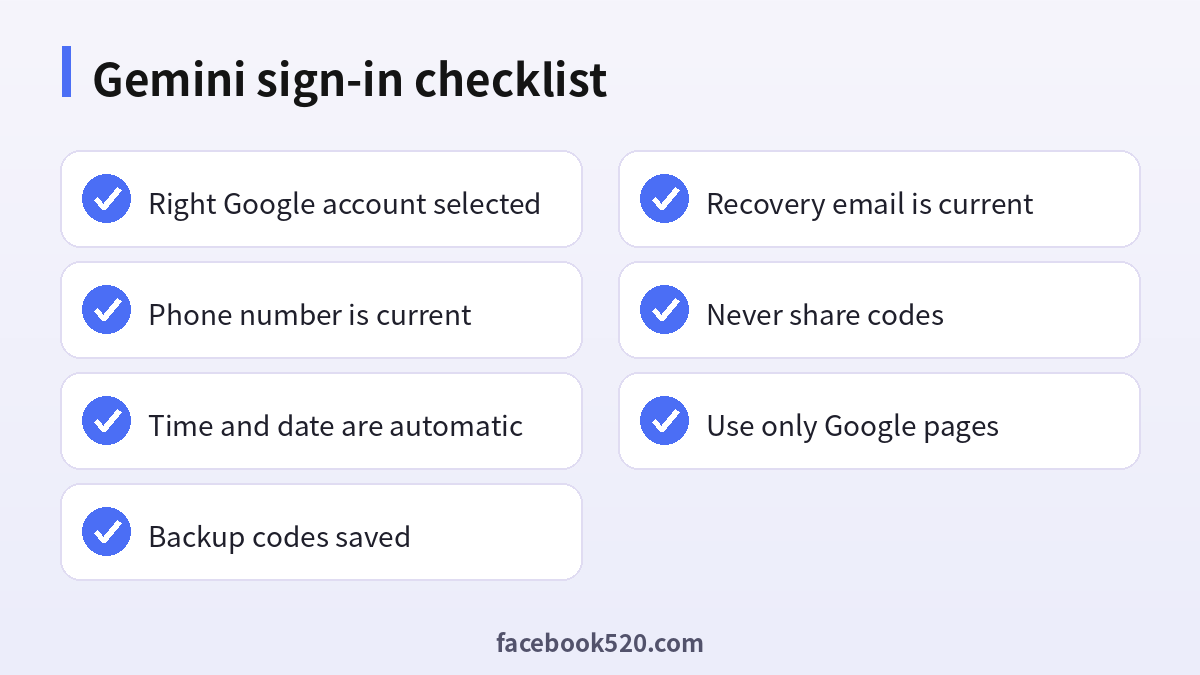
Save backup codes, add a passkey and keep your recovery email and phone updated.
Summary
Gemini verification trouble is almost always a Google account trouble. Check that you use the right account, keep your phone number and time settings correct, and use the strongest method that you can always reach, such as a passkey or an authenticator plus backup codes. If you are locked out, use the official recovery process, be patient and avoid scams. Keep your recovery details current so the next sign-in is quick and secure.
