


CapCut Account Guide 2026: How to Create and Log In, Which Sign In Methods Work, Free vs Pro Features, Cloud Storage and Team Spaces, How to Recover a Locked Account and Why You Should Never Buy Shared Pro Logins
CapCut is a free video editor from ByteDance, available on iOS, Android, Windows, macOS and in a web editor. You can try some editing without signing in, but an account is what unlocks cloud storage, project sync between devices, templates, team spaces and the paid Pro plan. Searches for “capcut account” usually come from people who want to create one, cannot log in, or are wondering whether a cheap shared Pro login is worth it. This guide covers all three, based on information available in October 2026. Features and prices change between regions and app versions, so treat every figure as a snapshot and confirm it inside the app.
Why you may want a CapCut account
Without an account, you can still cut clips, add text and export in many versions of the app. With an account, your projects can sync to the cloud so that you can start on a phone and finish on a desktop. You can also save templates, use brand assets, share spaces with teammates and manage your subscription from one place. If you edit for a business or a client, an account also gives you a stable place to keep fonts, music choices and brand colors.
Create an account step by step
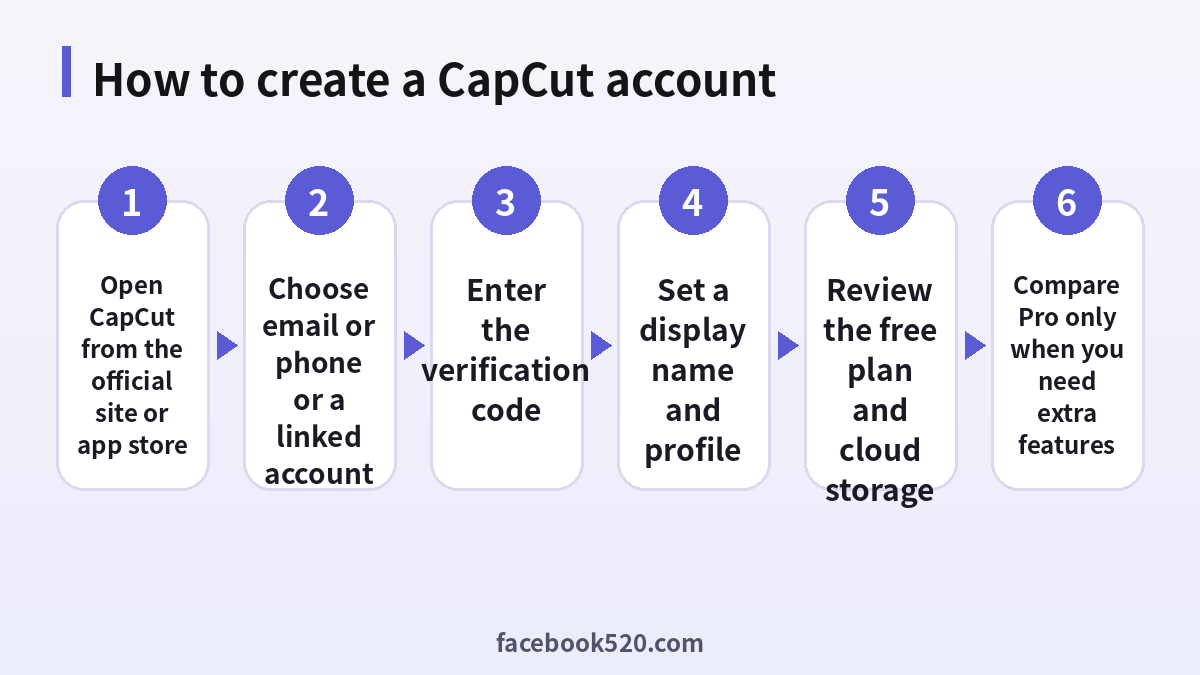
- Install CapCut from the official website or from the App Store, Google Play or Microsoft and Mac stores.
- Open the app and choose Sign up or Log in.
- Pick a method: email, phone number or a linked account such as Google, Apple, TikTok or Facebook.
- Enter the verification code that is sent to you.
- Set a display name and profile picture.
- Open the account page and review your storage and plan.
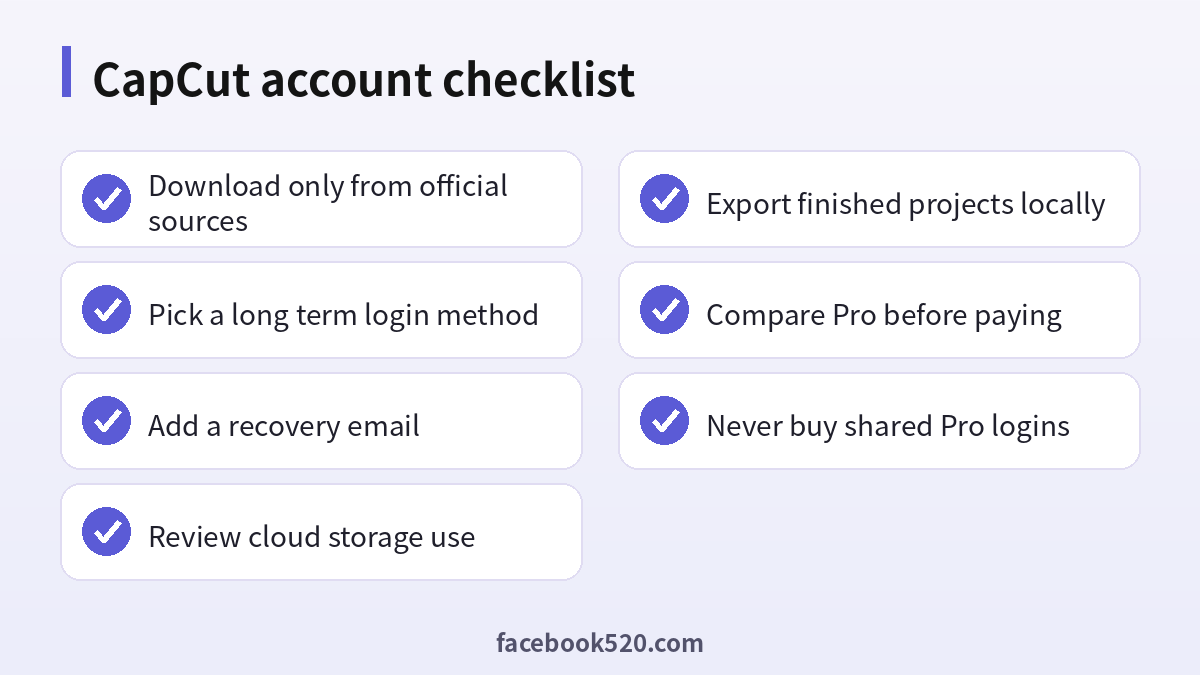
Use a real email or phone number that you will keep for years. If you lose access to it, recovery becomes harder.
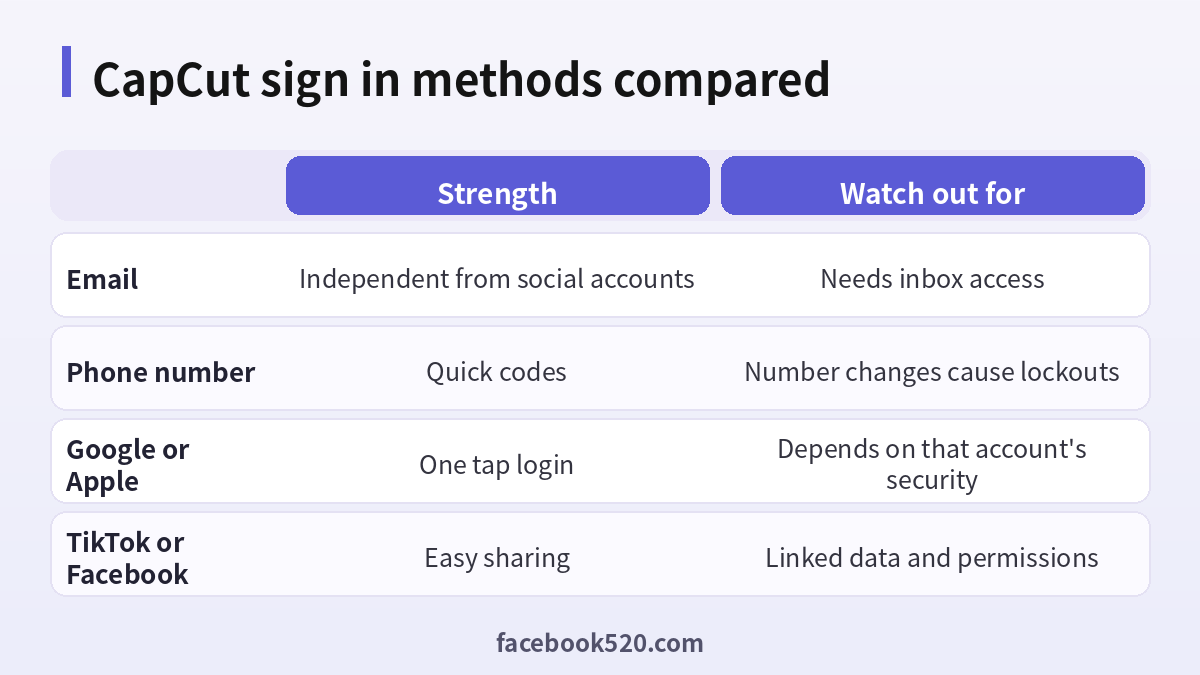
| Method | Strength | Watch out for |
|---|---|---|
| Independent from social accounts | Needs inbox access | |
| Phone number | Quick codes | Number changes cause lockouts |
| Google or Apple | One tap login | Depends on that account’s security |
| TikTok or Facebook | Easy sharing | Linked data and permissions |
Free versus Pro
The free plan covers the core editor: trimming, text, stickers, basic effects, and export. Pro adds advanced effects, more premium assets, higher cloud storage, and some AI tools. Some AI features may also use a credit system. Prices vary by country and by billing period, and monthly plans are more expensive per month than yearly ones. Check the plan page inside the app, and read what is included before you pay. If you only need a few Pro assets for one project, a one month plan that you cancel afterward is usually cheaper than a yearly plan you forget about.
| Feature | Free | Pro |
|---|---|---|
| Core editing | Yes | Yes |
| Premium effects and assets | Limited | Expanded |
| Cloud storage | Small | Larger |
| AI tools | Basic or limited | More access |
| Team features | Basic | Varies by plan |
Cloud storage and project sync
Cloud storage makes life easier, but it is not a backup strategy. Keep a local copy of every finished video and the raw footage, because storage rules, quotas and file retention can change. If your storage fills up, new uploads may stop and syncing may fail. Delete old drafts and unused media, or export final versions to your own drive. Before you cancel a Pro plan, check what happens to cloud files that exceed the free storage limit.
Team spaces and brand assets
If several people edit together, use the team features offered by your plan rather than sharing one login. Individual accounts let you see who changed what, remove people when they leave, and keep your personal projects separate. Store logos, fonts and color palettes in the shared space so that every video looks consistent. When a team member leaves, remove their access and check that no exported files depended on their personal storage.
Recovering a locked or forgotten account
- Use the Forgot password option on the login screen.
- Enter the email or phone number tied to the account.
- Complete the verification code.
- Set a new password and log in.
- If you cannot receive codes, contact CapCut support through the in app help page.
If you signed up with a linked account, try logging in with that provider instead of a password. If a login failure persists, update the app, clear the cache and check that your region and network are not blocking the service. Do not give your verification code to anyone, including people who claim to be support on social media.
| Problem | Likely cause | Fix |
|---|---|---|
| No code arrives | Wrong contact or delay | Check the details and wait a few minutes |
| Password rejected | Different sign in method | Try the linked provider |
| Account locked | Too many attempts | Wait and reset the password |
| Missing projects | Different account | Check each login method |
Why you should not buy shared Pro logins
Ads and marketplaces offer cheap CapCut Pro accounts, family sharing and lifetime codes. These are risky. A shared login can be reset by the seller at any time, you lose your projects with it, and your content may be visible to others. Some listings use stolen payment cards, which can lead to the subscription being cancelled after a chargeback. Never type your own password into a site that promises free Pro. If you need Pro, buy it inside the official app or the official site, and keep the receipt.
| Offer | Reality |
|---|---|
| Lifetime Pro for a few dollars | Not an official product |
| Shared Pro login | Seller can take it back |
| Free Pro generator | Usually phishing |
| Cracked editor | Malware risk |
How to get a clean first project
Many new users open CapCut, import a pile of clips and get lost. A better approach is to plan before you tap anything. Decide the length of the video, the platform it is for and the single message you want viewers to remember. Short vertical videos for social platforms work best at a ratio of nine to sixteen, while a tutorial for a website may be better in sixteen to nine. Choose the ratio first, because changing it later can crop your footage in ways you did not expect.
Once the ratio is set, import only the clips you actually need. Trim each clip so that it starts at the moment something happens and ends as soon as the point is made. Most beginners keep clips too long, and the video feels slow. Add captions early, since many viewers watch with the sound off, and use a simple font with strong contrast. Finally, add music at a volume that does not hide the voice. A good rule is to keep background music well below the voice track and to check the mix with headphones and with a phone speaker.
- Set the aspect ratio and project name.
- Import only the needed clips.
- Trim every clip to its essential moment.
- Add captions and a simple title.
- Add music and balance the volume.
- Export a test file and watch it on a real phone.
| Stage | Common mistake | Better habit |
|---|---|---|
| Planning | No clear message | Write one sentence goal |
| Import | Too many clips | Select only essentials |
| Editing | Long pauses | Cut tightly |
| Audio | Loud music | Keep music under the voice |
| Export | Wrong ratio | Choose ratio first |
Using templates and effects wisely
Templates are a great way to learn pacing, but they can also make every video look the same. Use a template to understand how professionals time cuts and transitions, then replace the media and adjust the timing so that it matches your own story. Check each template for assets that need Pro, because a template that looks free may include a paid effect or a paid font. The export screen or the asset label usually shows this, and it is much better to find out before you spend an hour editing.
Effects should support the content rather than distract from it. A single well placed zoom or transition can highlight a key moment, while ten effects in ten seconds feel chaotic. If you plan to publish regularly, define a small style kit: two fonts, three colors, one intro style and one transition. Save these as part of your brand assets so that every video looks consistent.
Exporting, resolution and file size
Export settings are where many creators lose quality. Choose the resolution that matches the platform: for most social media, one thousand and eighty pixels is enough, and higher resolutions mainly create larger files that platforms will compress anyway. Frame rate should match your footage. If you shot at thirty frames per second, exporting at sixty will not make the video smoother, it will only enlarge the file. Pick a bitrate setting that balances quality and size, and always export a short test before rendering a long video.
Some export options, such as very high resolution, high frame rates or certain codecs, may require a paid plan or may depend on your device. Check the export screen for labels, and read them before you start. If an export fails, free up storage, close other apps, update CapCut and try again. On desktop, make sure your graphics driver is current, because outdated drivers are a common cause of crashes and green frames.
| Setting | Typical choice | Note |
|---|---|---|
| Resolution | 1080p for most social posts | Higher only when needed |
| Frame rate | Match the source footage | Do not exceed the source |
| Bitrate | Medium to high | Larger files take longer to upload |
| Format | Standard MP4 | Widest compatibility |
Copyright, music and commercial use
Using music and clips without permission is the fastest way to have a video muted or removed. CapCut provides a library of sounds and templates, but the license for each item can differ, and what is allowed on a personal account may not be allowed for a business post. Before you publish a commercial video, read the current license terms for music, effects and templates, and keep a record of where each asset came from. If you use your own recordings, make sure that you have the permission of the people in them.
When in doubt, choose assets marked as commercially usable, use original recordings, or license music from a provider that offers a clear written license. This takes a few extra minutes but protects your channel and your clients. If a platform flags a video, do not open a new account to bypass the problem. Instead, review the notice, remove or replace the asset and use the platform’s appeal process.
- Check the license label of every asset.
- Keep a list of music and clip sources.
- Prefer assets cleared for commercial use.
- Replace anything with unclear rights.
- Save the license information with the project.
Privacy and security settings
Your editor holds personal footage, so treat the account like any other important login. Use a long, unique password, turn on two step verification if the app offers it, and review which apps and third party accounts are linked. If you signed in with a social account, secure that account too, because anyone who controls it can reach your CapCut projects. Avoid editing on public computers, and if you must, log out and clear the project cache afterward.
Be careful with permissions. CapCut may ask for access to your photos, microphone, camera and storage. Grant only what you need for the task, and review the permissions in your phone settings from time to time. Before you upload footage that shows other people, children, documents, license plates or addresses, blur or crop sensitive details. Remember that cloud copies of your media are stored on remote servers, so do not upload anything that you would not want to be stored there.
| Area | Recommendation |
|---|---|
| Password | Long, unique, stored in a password manager |
| Linked accounts | Review and remove unused links |
| Permissions | Grant only what is necessary |
| Public devices | Log out and clear cache |
| Sensitive footage | Blur or avoid uploading |
Subscription billing tips
Subscriptions bought through an app store are managed in that store, and subscriptions bought on the official site are managed in your account page. Make a note of the billing date when you subscribe, and set a reminder two days before renewal. If you only need Pro for a short project, cancel right after purchase so that the plan ends at the close of the period instead of renewing. Keep emails and receipts, because they are your evidence if there is ever a billing dispute.
If you were charged unexpectedly, first check which account and which store the payment came from. Many surprises come from a second account that you forgot, or a family member who used your device. Then contact the store or the official support with the order number and the date. Never contact a person who messages you offering to refund the money in exchange for remote access to your device, since this is a common scam.
Troubleshooting common problems
When the app crashes or freezes, restart the device, update CapCut and free up storage. If the preview lags, lower the preview resolution, close other apps or use proxy media when available. If audio is out of sync, check whether the clips use a variable frame rate and, if so, convert them to a constant rate before editing. If text looks different after export, make sure the font is installed and available to the exporting device.
- Restart the app and the device.
- Update to the latest version.
- Free storage space and clear the cache.
- Lower the preview quality.
- Convert variable frame rate footage.
- Contact official support with a screenshot and your app version.
| Symptom | First thing to try |
|---|---|
| Crash on export | Free storage and update |
| Lagging preview | Lower preview quality |
| Audio out of sync | Convert to constant frame rate |
| Missing font | Install or replace the font |
| Cannot sync | Check login and storage quota |
A simple monthly routine
Once a month, spend ten minutes on housekeeping. Delete drafts that you will never finish, export and archive completed projects, review your storage usage and check your subscription status. Update the app on every device, and test that you can still log in using your recovery email. A short routine like this prevents most of the problems described in this guide and keeps your editing workflow smooth, whether you are a hobbyist or a professional who edits every day.
Frequently asked questions
Do I need an account to use CapCut?
Not always, but an account unlocks sync, templates and subscriptions.
Is CapCut free?
The core editor is free. Pro is optional.
Which sign in method is best?
Email is the most independent. Choose the one you can keep long term.
Can I use one account on several devices?
Yes, in general, subject to the plan rules.
Where do I manage my subscription?
In the account section of the app or in the store you bought it from.
Can I get a refund?
That depends on the store and local law, so check the store’s policy.
Why can I not log in?
Check the method you used, update the app and reset the password.
Is a shared Pro account safe?
No. It can be revoked at any time and may expose your data.
How do I protect my projects?
Export final videos and keep raw files on your own storage.
Can I delete my account?
Yes, through the account settings. Export what you need first.
Summary
A CapCut account is free to create and useful for syncing and teamwork. Choose a login method you can keep, review the free plan, buy Pro only inside the official app when needed, and keep local backups. Avoid shared logins and generators.
