


Grok Sign Up Guide (2026): How to Create a Grok Account on grok.com, the App and X, Login Methods, Free Plan, The X Subscription Tiers and Fixes
Grok is the AI assistant built by the team behind X, and in 2026 it is available on the web, in iOS and Android apps, inside the X app, and as part of a bundled plan that also covers the Cursor coding editor. Many people search for “Grok sign up” because they are not sure where to start: should you go to grok.com, download the app, or use X? Which login should you pick? Is there a free plan? This guide walks through every route step by step, explains the differences between the sign-in methods, summarizes the current plans, and covers the most common problems. Product names, prices and limits change quickly, so check the official Grok pages before you pay for anything. For plans and payment details in depth, see our Grok pricing and payment guide (https://www.facebook520.com/ai-tools-guide/ai-chat-search/8306.html).
What you need before you sign up
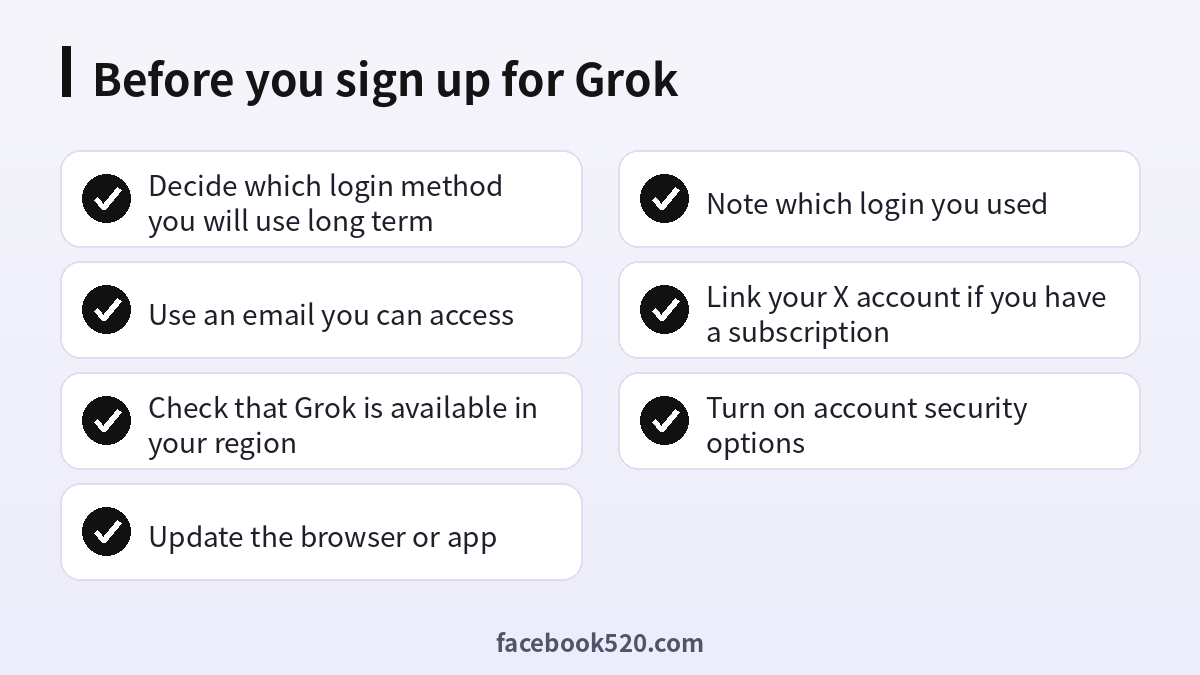
The requirements are light. You need a device with a modern browser or a phone with the Grok app, and one login method: an email address, a Google account, an Apple ID, or an X account. If you choose email, use an address you can open right now, because a verification message is sent to it. You do not need a credit card to create a free account. A paid plan is only required if you want higher usage limits or extra features.
It helps to decide in advance which login you will use for the long term. The most common support problem is people who create a subscription with one login and then sign in with another, so the paid benefits seem to disappear. If you plan to subscribe later, pick the login you will always use, and write it down.
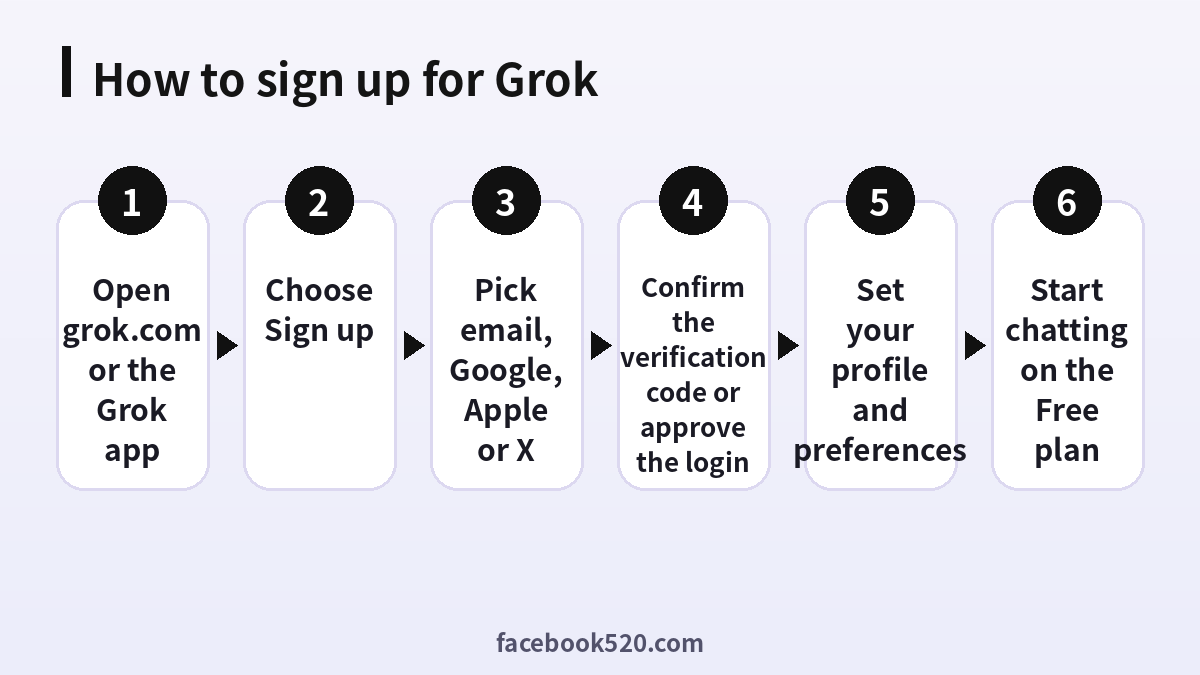
How to sign up for Grok on the web
The web version is the quickest way to start and works in any current browser. Chrome or Edge is recommended, since some features can be missing in less common browsers.
- Open grok.com in your browser. You can also start from accounts.x.ai, which is the central page for managing sign-in methods.
- Choose the option to sign up or log in.
- Select a method: email, Google, Apple or X.
- If you picked email, enter your address and the verification code that arrives in your inbox. If you picked Google, Apple or X, approve the permissions on the pop-up page.
- Complete any short profile questions, such as your name or preferences.
- Land on the chat screen and send your first message to confirm that everything works.
If the page does not load properly, try a private window, disable extensions that block scripts, and make sure the browser is up to date. Ad blockers sometimes interfere with the sign-in or billing pages.
How to sign up in the Grok app on iPhone and Android
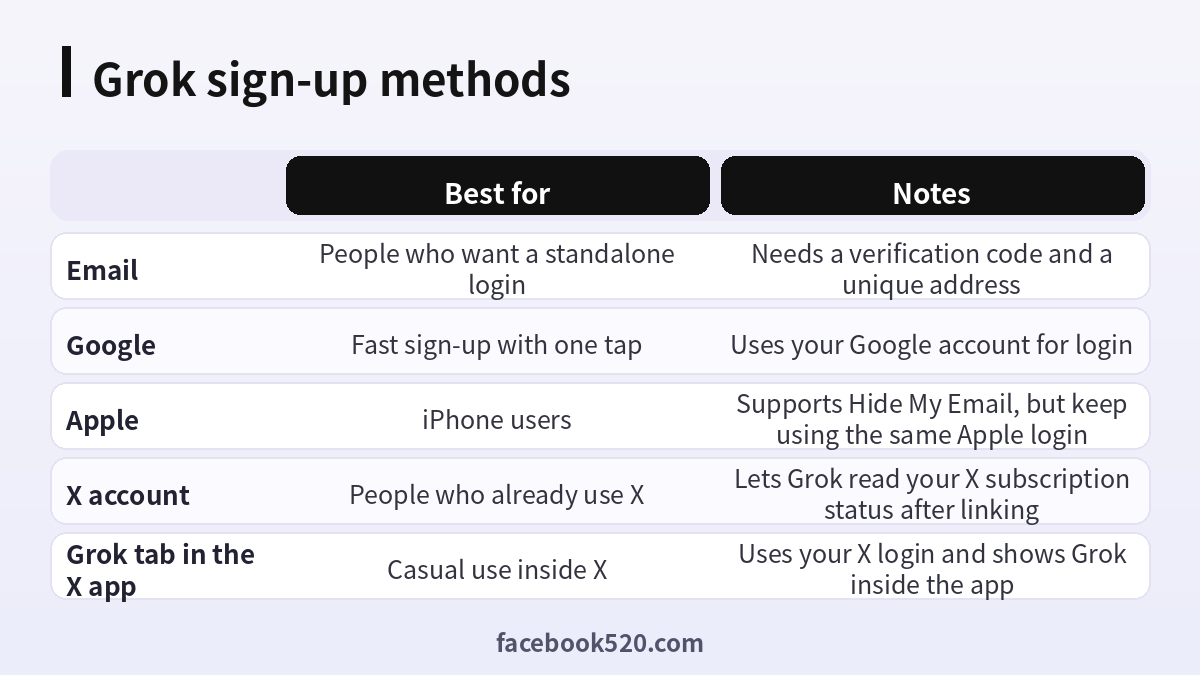
Download the official Grok app from the App Store or Google Play and check that the publisher is the official developer. Open the app, tap sign up, and choose a login. On iPhone, Apple sign-in is the smoothest option, and you can use Apple’s Hide My Email feature if you prefer to keep your real address private. Remember that if you subscribe through the App Store, the subscription is tied to the Apple login you used, so keep using it. On Android, Google sign-in is the usual choice. Some features, such as companions, are limited to specific platforms, so do not worry if the iOS and Android apps look slightly different.
Using Grok inside the X app
Grok is also built into X. If you already have an X account, you can open the Grok tab inside the X app and start chatting without creating a separate Grok account. This route is simple, but it is tied to your X login and to the features available on your X plan. If you want to use Grok on grok.com and in the standalone apps with the same benefits, link your X account in the Grok settings so that your X subscription status can be recognized. The linking page is available in the account settings, and sign-in methods can be managed at accounts.x.ai.
| Route | Needs a separate Grok account? | Typical use |
|---|---|---|
| grok.com in a browser | Yes, or sign in with X | Longer chats, files, projects |
| Grok iOS or Android app | Yes, or sign in with X | Everyday mobile use and voice |
| Grok tab in the X app | No, uses your X login | Quick questions while browsing X |
| accounts.x.ai | Management page | Add or change sign-in methods |
Which sign-in method should you choose?
There is no single best answer, but a few rules make the choice easier. If you already use X heavily and have an X subscription, signing in with X makes it simple for Grok to recognize your benefits. If you want a login that is independent of social media, choose email or Google. If you are on iPhone and plan to subscribe in the app, Apple is convenient, but keep in mind that Hide My Email creates a relay address that you must keep using through Apple sign-in. Whatever you pick, you can add other methods later at accounts.x.ai so you are not locked into one route, which is also the safest recovery plan if you lose access to your first address.
The Free plan and The X Subscription
After you sign up, you start on the free tier, which provides daily access to Grok. Paid options are bundled in The X Subscription, a plan that brings Grok, Cursor and X benefits together. According to the information published when it launched, the tiers are Free at no cost, Plus at 8 dollars per month, Premium at 30 dollars per month, Super at 100 dollars per month and Ultra at 200 dollars per month, with higher tiers offering a larger shared pool of usage. Annual billing is available at a discount. Third-party models in Cursor are included from Premium upward and are billed separately at list prices. Because plans and pricing change, confirm the current numbers on the official pricing page before you pay.
If you used to pay for SuperGrok or X Premium separately, nothing changes automatically: you can keep your current plan or choose to switch to the new bundle when the option appears in your billing settings.
Grok on mobile versus web: what is different?
The web version and the apps share your account, but they are not identical. The web version is best for long conversations, uploading many files at once, working with projects and managing billing. The mobile apps are designed for quick questions, voice conversations and image or video generation on the go. Some experiences are limited to one platform, such as companion characters that are available only on iOS. File upload limits also differ slightly: the web version accepts many more files in one message than Android does. If you notice that a feature seems missing, check that you are using the latest app version and the recommended browser, and look at the help pages to see whether it is platform specific.
Another practical difference is billing. When you subscribe on the web, billing is handled directly and you manage it from the billing page of your account. When you subscribe inside the iOS or Android app, billing goes through Apple or Google, and you must cancel or change the plan there. Extra usage credits can currently be purchased on the web only, so if you run out of usage while on your phone, you may need to open the website to top up.
First things to try after you sign up
A new account is more useful when you spend a few minutes setting it up. Start by asking a few everyday questions to get a feel for the tone and speed. Upload a short document and ask for a summary, which shows how file handling works. Try the voice mode on your phone if you prefer talking to typing. Explore image generation with a simple prompt, and note that generated media carries a watermark. Open the settings to review privacy and data controls, and check the usage tab so you know how your allowance is measured. Finally, bookmark the billing page, so you know where to look if you decide to upgrade later.
Signing up for a team or for work
If you plan to use Grok with colleagues, consider team plans rather than several individual accounts. Team members receive plans at the same per-seat prices as individuals, and administrators get shared billing and controls. For developers, the API console uses a separate team structure: when you sign up, you are assigned a personal team, and you can rename it or create a new team and invite members by email. Verified domains can automatically add people who sign up with a company address. Treat API keys as secrets, never paste them into chats or tickets, and rotate them if they might have been exposed.
How Grok usage limits work
Paid plans include a shared weekly pool of usage that you can spend across Grok products, instead of separate daily limits for each product. A short chat uses little compute, while generating a high quality video or running a long coding task uses much more. You can see your usage in the settings, including a breakdown by product and your reset time. If you reach the limit, you can wait for the reset, buy extra usage credits on the web, turn on automatic top-ups, or upgrade your plan. Free users keep a smaller daily allowance for chat and voice that resets on its own schedule.
Linking your X account
If you subscribe to X Premium or the new bundle through X, link your X account in Grok settings so the benefits are recognized. Open the account settings on grok.com, choose to connect your X account, and approve the single sign-on prompt. After linking, Grok can read your subscription status and grant the right limits. If your benefits do not appear, check that you are signed in with the linked account on every device.
Common sign-up and login problems
Most problems come from a small number of causes. If the verification email does not arrive, check the spam folder, confirm the address is typed correctly and request a new code after a minute. If you see a mismatch between the web and the app, make sure you are signed in with the same account everywhere. If a subscription shows as inactive although you paid, check which login you used when you subscribed, because Apple private relay addresses and different Google accounts are frequent culprits. If the app keeps asking you to upgrade even though you already pay, restart the app, sign out and in again, clear the cache and update to the latest version.
| Problem | Likely cause | Fix |
|---|---|---|
| No verification email | Spam filter or typo | Check spam, retype the address, resend |
| Subscription not recognized | Signed in with a different login | Use the original login or link accounts |
| Page will not load | Extension or old browser | Try a private window and update |
| App shows upgrade prompts | Stale cache or old version | Restart, sign in again, update |
| Cannot access old email | Address lost | Add a new sign-in method at accounts.x.ai |
Safety tips for your new account
Treat your Grok account like any other important login. Use a unique password if you sign up with email, turn on any available additional verification, and avoid sharing your login with others. Be careful with websites that promise free premium access, discounted shared accounts or unlimited usage in exchange for your login. Only subscribe on the official website or in the official app stores. If you suspect someone else has accessed your account, change your sign-in methods and contact support right away with your user ID and proof of ownership.
Privacy settings to review after signing up
Open the data controls and review what is stored and what may be used to improve the service. Delete chats you no longer need, and remember that uploaded files can be removed from your files page. Generated images and videos carry a watermark that cannot be removed, and the acceptable use policy prohibits altering it. If you use Grok for work, avoid pasting confidential information unless you understand how it is handled.
What to do if you were locked out or hacked
If you cannot sign in and suspect someone changed your email, contact support immediately and provide your user ID and any proof of ownership. Support can cancel a subscription on a compromised account or delete the account so that you can sign up again if your identity cannot be verified through email. Refunds for compromised usage are limited, which is one more reason to protect your login from the start.
Frequently asked questions
How do I sign up for Grok?
Go to grok.com or install the Grok app, choose sign up, and pick email, Google, Apple or X. Confirm the verification step and you are in.
Is Grok free to use?
Yes, there is a free tier with daily access. Paid tiers add more usage and features.
Do I need an X account to use Grok?
No. You can sign up with email, Google or Apple. An X account is only needed if you want to use the Grok tab in X or link an X subscription.
What is The X Subscription?
It is a bundled plan that combines Grok, Cursor and X benefits, with tiers from Free to Ultra and a shared pool of usage.
How much does Grok cost?
The free tier costs nothing. Paid tiers listed at launch were 8, 30, 100 and 200 dollars per month. Check the pricing page for current numbers.
Can I sign up with a phone number only?
The documented methods are email, Google, Apple and X. Check the sign-up screen for any additional options in your region.
Why does my subscription not show in the app?
You may be signed in with a different login than the one you subscribed with. Use the same account everywhere or link your sign-in methods.
Can I change my login email later?
Yes. Add or update sign-in methods at accounts.x.ai. If your subscription is through Apple, the login stays tied to your Apple ID.
How do I cancel my subscription?
On the web, open the billing settings in your account. If you subscribed through Apple or Google, cancel in the store.
Can I delete my account?
Yes, through the account management page, and you can restore it within 30 days by logging in again and confirming.
Is it safe to buy a Grok account from someone else?
We do not recommend it. A shared or resold login can be locked, and you cannot rely on a refund. Create your own account instead.
Where can I get help?
Use the report an issue feature in the product, include your account email, platform and any receipt number, and avoid sharing passwords.
Summary
Signing up for Grok takes only a few minutes: open grok.com or the app, choose a login you will keep, verify it, and start on the free tier. Link your X account or other sign-in methods if you have a subscription, understand the tiers before you pay, and keep your login safe. If something goes wrong, check that you are signed in with the same account on every device before contacting support.
