


How to Verify Your Account on YouTube in 2026: Phone Verification, Intermediate and Advanced Features, the Verification Badge and What to Do If Your Channel Is Terminated
If you search for “how to verify account in YouTube”, you will meet several different meanings of the word verification. Some people mean confirming their phone number so that they can upload videos longer than fifteen minutes. Others want access to advanced features. Others are chasing the grey checkmark badge beside a channel name. And some are trying to get a terminated channel back after being banned. This guide explains each of them in plain language, shows the exact path to follow and warns you about the scams that surround all of them. YouTube changes its feature names, limits and eligibility rules from time to time, so use the Help Centre and YouTube Studio as the source of truth for what is available to you today.
The four kinds of YouTube verification
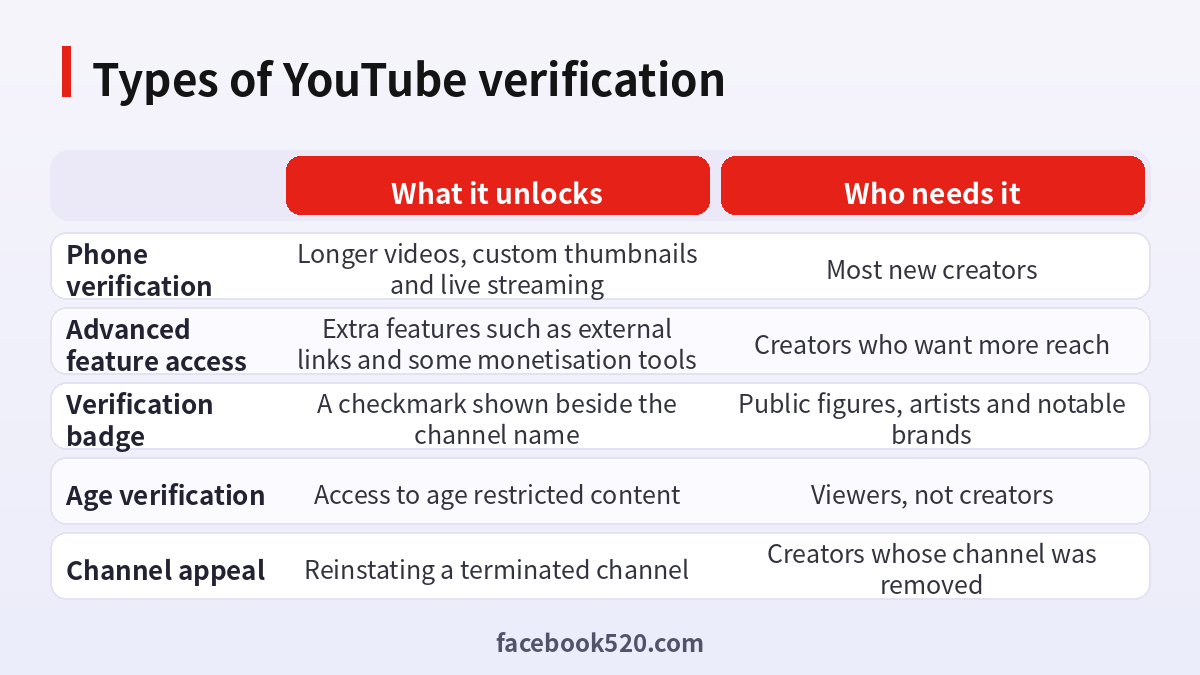
The first kind is phone verification. It confirms that a real person controls the channel, and it unlocks basic features that are restricted for new, unverified channels. The second kind is advanced feature access, which asks for further identity confirmation and unlocks tools that carry higher abuse risks. The third kind is the verification badge, a public checkmark that signals an official channel of a notable creator, artist, public figure or company. The fourth kind is age verification, which applies to viewers who want to watch age-restricted material. Each one has its own steps and its own requirements, so first decide which one you need.
| Goal | Verification type | Where to start |
|---|---|---|
| Upload videos longer than the standard limit | Phone verification | YouTube verify page |
| Add custom thumbnails | Phone verification | YouTube Studio or verify page |
| Stream live | Phone verification and live eligibility | YouTube Studio |
| Use advanced tools | Advanced feature access | YouTube Studio feature eligibility |
| Show a checkmark | Verification badge | YouTube Studio or support form |
| Watch age restricted video | Age verification | Prompt on the video page |
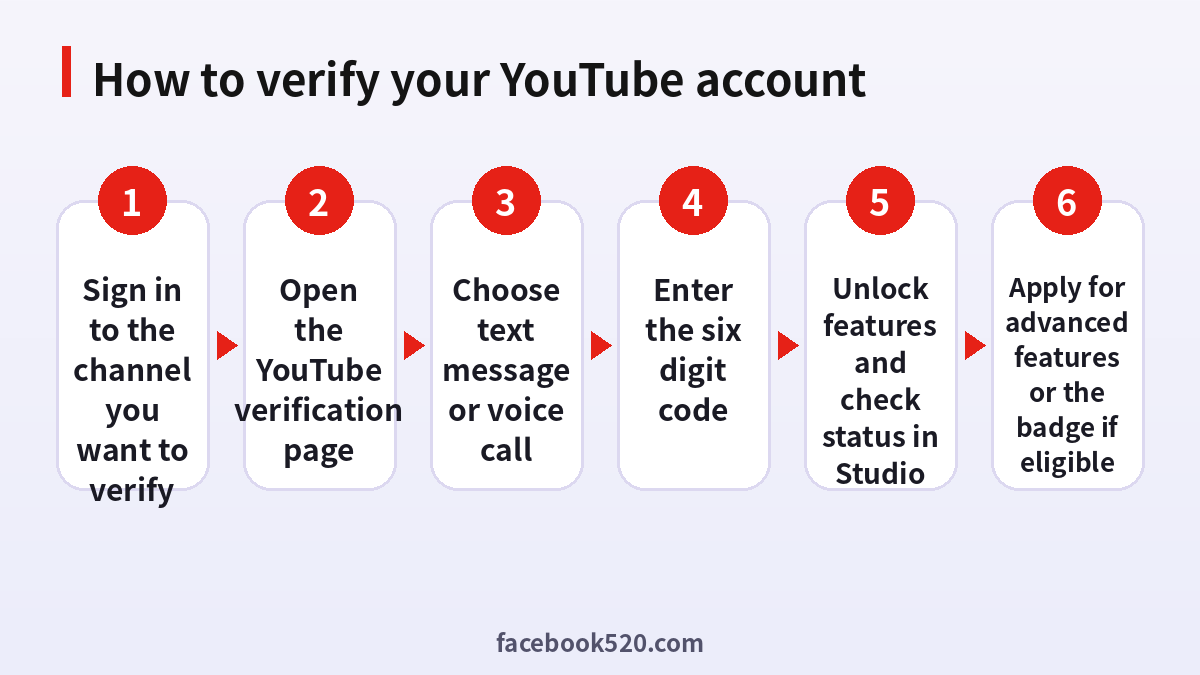
How to verify your phone number
Phone verification is the most common request and the quickest to complete.
- Sign in to the Google account that owns the channel.
- Open the YouTube verification page in your browser, or go to YouTube Studio, choose Settings and then Channel and open the feature eligibility section.
- Choose the country of your phone number.
- Select whether to receive the code by text message or by an automated voice call.
- Enter your phone number in the correct format and request the code.
- Type the six digit code that you receive and submit it.
- Wait for the confirmation message, and then refresh YouTube Studio to see the new status.
After verification, features such as custom thumbnails and longer uploads usually become available quickly, although some may take a short while to appear. A single phone number can only be used to verify a limited number of channels within a given period, so do not use a number you share with many accounts. If you use a business number, make sure that you will keep it.
If the verification code does not arrive
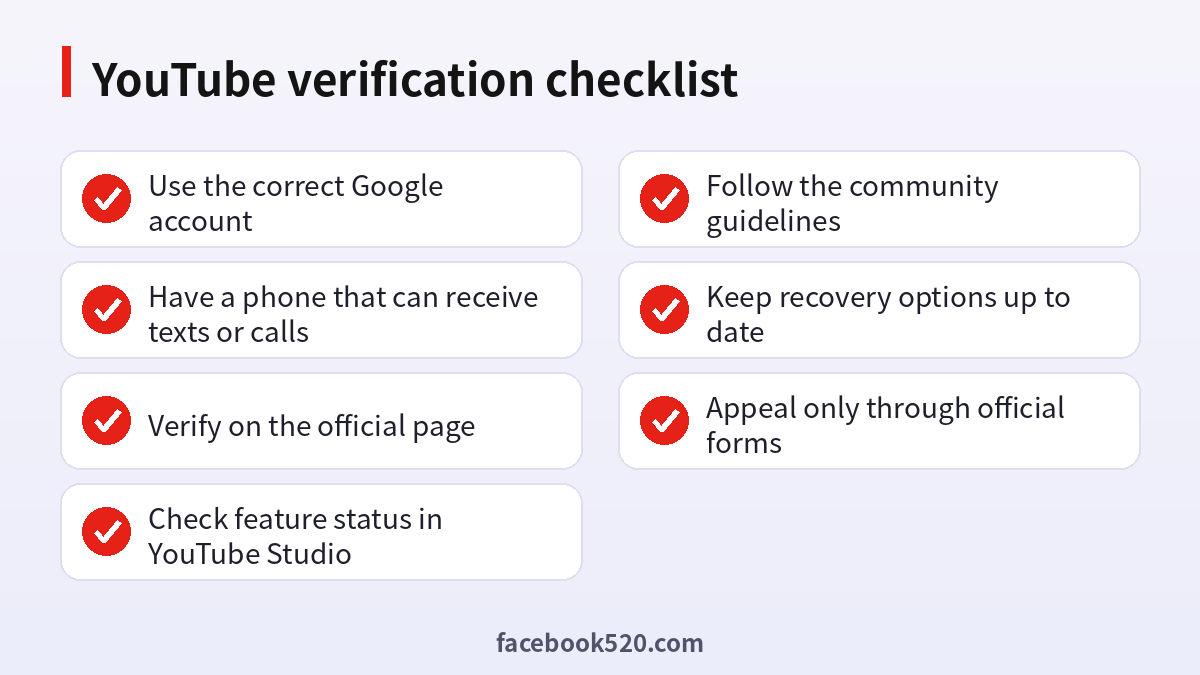
A missing code is the most common complaint. Check that you entered the number in the correct international format and selected the right country. Make sure the phone has a signal and is not blocking unknown senders. Try the voice call option instead of text. Wait a few minutes before you request another code, because repeated requests can trigger a temporary limit. Turn off any VPN while you verify, since a mismatch between your location and your phone’s country can cause problems. If you still receive nothing, try again later or from a different network. Avoid third-party websites that sell virtual numbers or promise to receive codes for you: such numbers are often already used, may be blocked, and sharing codes with strangers puts your account at risk.
Advanced feature access
Advanced feature access goes beyond phone verification. It may require you to confirm your identity with a government-issued ID or a short video check. When you meet the conditions, YouTube may unlock tools such as clickable links in descriptions, certain live stream options, and other features that are risky if misused. Eligibility depends on your account history, the absence of recent violations and, in some cases, the length of time the channel has existed. Open YouTube Studio, go to Settings, then Channel and then Feature eligibility to see which tools are available and what you need to do for the rest. Provide accurate information and only use official forms.
The official verification badge
The verification badge appears as a checkmark next to a channel name. It is a signal of authenticity, shown for channels that represent a well-known creator, artist, public figure or organisation. Requirements and the application route have changed over time, so check the current rules in the Help Centre. In general, you need to have an authentic, complete channel with a clear profile, public content and a presence that is recognisable beyond YouTube. A badge does not increase income directly and does not guarantee reach. Be careful with anyone who sells a badge: YouTube does not sell verification, and offers claiming otherwise are scams.
| Requirement | Why it matters |
|---|---|
| Channel represents a real, notable person or brand | Badges signal authenticity |
| Complete profile with description and links | Helps reviewers confirm identity |
| Consistent public content | Shows an active channel |
| Presence outside YouTube | Helps prove notability |
| No recent violations | Eligibility is reviewed against policy history |
Common verification errors
Some errors appear again and again. “This phone number has been used too many times” means that the number has reached the limit for verifications, so try another number that you own. “Unable to verify” or “try again later” can be caused by network problems, unusual activity or a flagged account, so wait and retry. If the option does not appear, check that you are signed in to the correct channel and that you are not using a brand account that is managed by someone else. For brand accounts, the owner may need to complete the verification. If the account has policy problems, such as strikes, some features remain unavailable until they expire.
What to do if your YouTube channel is banned or terminated
When a channel is terminated, YouTube sends an email that explains the reason, usually a violation of the community guidelines, spam, impersonation, copyright issues or repeated strikes. To recover it, the only legitimate way is to appeal through the official process. Follow these steps.
- Read the termination email carefully and note the stated reason.
- Sign in to the affected account and open the appeal form linked in the email or in the Help Centre.
- Explain calmly what happened, acknowledge any real mistake and describe how you will follow the guidelines in future.
- Submit once and wait for the reply, which may take several days.
- If the appeal fails, you may be able to appeal one more time, depending on the reason, but repeated spam appeals do not help.
- Do not create new channels to evade the ban, because this can be treated as a further violation.
Never pay anyone who claims to be a YouTube insider who can restore a channel. Those offers are scams, and some use your login to steal the account.
Protecting your channel after verification
Turn on two-step verification on your Google account, keep your recovery phone and email current and use a unique password. Be careful with sponsorship emails or collaboration offers that ask you to download files or sign in on unfamiliar sites, since phishing is a common route to channel hijacking. Review the list of people with access to your channel in YouTube Studio and remove anyone who no longer needs it. Keep an eye on your email for security alerts.
What changes after you verify
Verification does not transform a channel overnight, but it removes barriers that hold new creators back. You can upload long videos, which matter for tutorials, podcasts and live recordings. Custom thumbnails let you design a clear first impression, and that alone can improve click-through rates. Live streaming becomes possible, although it may involve a short waiting period after you first request it. Over time, a verified channel with a good record also becomes eligible for advanced features and, eventually, for the YouTube Partner Programme, which has its own subscriber and watch-time thresholds. Verification is therefore the first step in a longer path, not a destination.
| Stage | Typical milestone | What to focus on |
|---|---|---|
| New channel | Verify phone | Set up branding and upload consistently |
| Growing channel | Enable advanced features | Improve thumbnails and titles |
| Established channel | Meet monetisation thresholds | Build a loyal audience |
| Public figure or brand | Apply for the badge | Keep an authentic, complete profile |
Using brand accounts and multiple managers
Many channels are run by teams. A brand account lets several people manage a channel without sharing a password, and it keeps the channel separate from a personal Google account. If your channel is a brand account, the owner is usually the person who needs to complete verification and approve access. Give each manager the lowest role that lets them do their job, such as editor or viewer, and review the list of people with access every few months. When someone leaves your team, remove them at once and, if they held the owner role, transfer ownership first. Sharing a personal login is risky, because anything that person does can affect your channel, and a single compromised email can lead to a hijacked channel.
Verifying as a viewer: age checks and sign-in prompts
Not every verification request is about creators. Viewers may be asked to confirm their age to watch some videos, and sometimes YouTube asks you to sign in to confirm that you are not a bot. Age checks rely on the information in your Google account, and in some regions on additional confirmation methods. If you receive a prompt that seems wrong, check that your birth date in the account is accurate, and use only the official prompt on youtube.com or in the official app. Do not enter your details on a website that claims to “verify your age” in exchange for a fee, because that is a common phishing tactic.
Writing a good appeal
An appeal is a short, factual message, not a plea. Begin by stating that you understand the reason given in the notice. If you made a mistake, acknowledge it briefly and explain what you have changed, for instance that you removed the offending videos, stopped using a risky tactic or learnt the policy. If you believe the decision was wrong, explain which part of the policy you think was misapplied and give specific context, such as the fact that a clip was educational commentary or that you own the rights to a piece of music. Avoid insults and threats, avoid copying the same text many times and avoid claiming things that you cannot prove. Keep it to a few clear paragraphs. Reviewers read many appeals, and clarity increases the chance that yours is understood.
Preventing future strikes
Prevention is easier than recovery. Read the community guidelines, the spam and deceptive practices policy and the copyright rules at least once. Do not reupload other people’s content without permission, and do not buy views, likes or subscribers, since artificial engagement violates the rules. Check music licences before you publish. If you receive a warning, treat it seriously and fix the issue. Keep a copy of your own content, titles and descriptions in a separate place, so that you can rebuild if you must.
| Risk | Prevention |
|---|---|
| Copyright claims | Use licensed or original music and footage |
| Spam and deceptive practices | Write honest titles and thumbnails |
| Fake engagement | Never buy views or subscribers |
| Impersonation | Use your own name and branding |
| Harmful content | Follow safety guidelines carefully |
Where to get official help
For account issues, use the YouTube Help Centre, the Help section in YouTube Studio and the official YouTube Creators channel, which publishes policy updates and tutorials. Community forums run by experienced users can explain common problems, but they cannot change decisions on your account. If you see a message or email that claims to come from YouTube, check the sender and the link carefully, and when in doubt, open Studio directly instead of clicking. Official notices also appear in the notifications and messages area inside your account.
A quick troubleshooting order
When verification fails, work through a short list. First, confirm that you are signed in to the right Google account and channel. Second, update the app or use a different browser. Third, check your number and country. Fourth, disable VPNs and extensions that may interfere. Fifth, wait a day and try again, since temporary limits often clear by themselves. Sixth, contact support through the official channels with screenshots of the error. This order solves most cases without drastic steps, and it protects you from sellers of fake solutions.
Key points to remember
Verification is mostly about proving that a real person runs the channel. Do it on the official page, keep your phone number and recovery options current, and never pay for verification, badges or recovery services. If something goes wrong, the official help route is slower than a seller’s promise, but it is the only route that actually works, and it keeps your account safe from the people who profit from other creators’ mistakes.
Frequently asked questions
How do I verify my YouTube account?
Sign in, open the verification page, choose text or call, enter your number and then the six digit code.
Why should I verify?
Verification unlocks features such as longer uploads and custom thumbnails, and it supports account security.
Can I verify more than one channel with a number?
A number can only be used for a limited number of channels in a period.
The code did not arrive. What now?
Check the number format, try the voice call option, turn off any VPN and wait a few minutes before retrying.
How do I get the verification badge?
Follow the current instructions in the Help Centre. The badge is for authentic, notable channels and cannot be bought.
Does verification increase my revenue?
Not directly. It unlocks features, and monetisation has separate requirements.
Can I verify without a phone?
Phone verification is the normal route. Some advanced features may offer other methods, depending on your region.
What if my channel was terminated?
Use the official appeal form and follow the instructions in the termination email.
Is it safe to buy a verified channel?
No. Selling or transferring channels can violate the rules and the seller may take the channel back.
Do I need to verify to watch videos?
Only for age-restricted content, where you may need to confirm your age.
How long does verification take?
Phone verification is usually instant, while advanced access or a badge may take longer.
Can I change my verified phone number?
You can update the recovery phone in your Google account, but the verification status belongs to the channel.
Conclusion
Verifying a YouTube account is straightforward once you know which kind you need. Phone verification takes a few minutes, advanced features depend on your history and the badge is reserved for notable channels. If your channel is banned, appeal through the official form and avoid anyone who sells shortcuts.
