


LINE Sign Up (2026): How to Create a LINE Account on iPhone, Android and PC, Phone Number and Email Setup, Age Verification, LINE ID, Official Accounts and Fixes for Sign-Up Problems
LINE is one of the most widely used messaging apps in Japan, Taiwan and Thailand, and it is also popular in other parts of Asia. People use it for chatting, voice and video calls, group conversations, payments in some countries and following brands through Official Accounts. If you are visiting, studying, working or doing business in one of these markets, creating a LINE account is often one of the first things you will need to do. This guide explains how LINE sign up works in 2026 on iPhone, Android and desktop, what information you need, how verification and age checks work, how to set up a safe profile and what to do when something goes wrong. Features and rules vary by country and change with app updates, so use this as a general walkthrough and follow the current instructions shown in the app.
What you need before you sign up
A LINE account is tied to a mobile phone number, and the number is used for verification and for recovering the account later. Before you begin, gather the following items.
| Item | Why it matters | Tip |
|---|---|---|
| A smartphone | The account is created in the mobile app | iPhone or Android is supported |
| A working phone number | LINE sends an SMS or voice code | Use a number you will keep long term |
| Internet connection | Needed to receive and send codes | Wi-Fi or mobile data both work |
| An email address | Helps with account recovery and security | Use one you control |
| A password | Needed for logins on other devices | Create a strong, unique password |
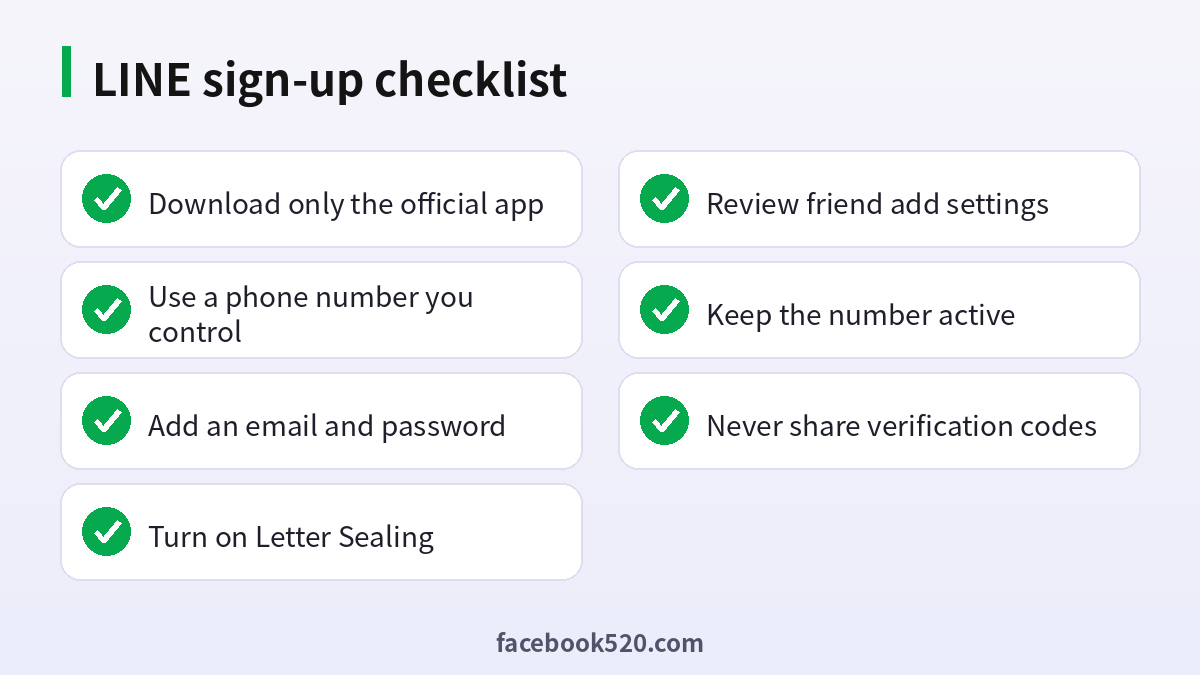
A common concern is that LINE needs a number from the country where you are located. In general, the number you use must be able to receive a verification message, and some services, particularly virtual or temporary numbers, may be blocked. If you will be in a country for a short time, it is better to use the number that you will still own after you leave, and to avoid relying on a SIM card that you will discard.
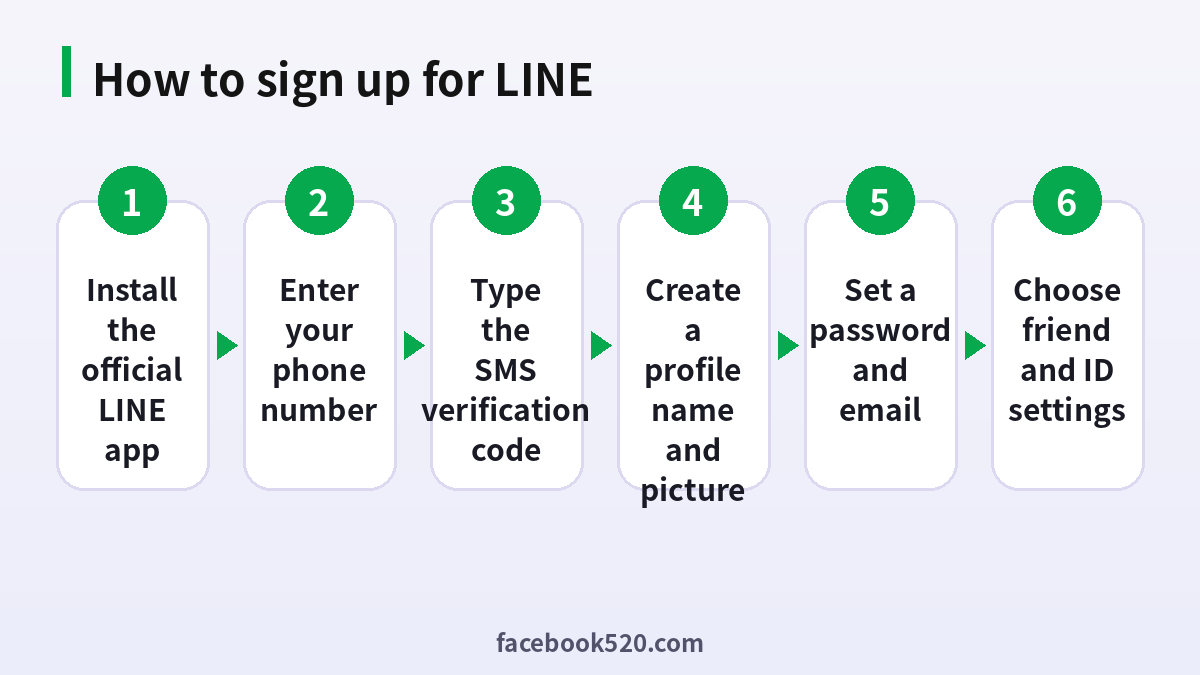
How to sign up for LINE on a phone
- Open the App Store on iPhone or Google Play on Android, search for LINE and install the official app published by LINE Corporation.
- Open the app and tap the button to start or sign up for a new account.
- Select your country or region and enter your mobile phone number.
- Wait for the verification code that LINE sends by SMS. If you do not receive it, use the option to request a voice call or to resend the code.
- Enter the code in the app to confirm your number.
- If the app asks whether this number was previously used with a LINE account, follow the prompt carefully. Choose to create a new account only if you do not want to restore an older one.
- Enter a display name and choose a profile picture. You can change both later.
- Create a password. LINE asks for one so that you can log in on other devices or with email.
- Decide whether friends can add you by your phone number or by searching your ID, and whether the app may access your contacts. Choose what you are comfortable with.
- Grant the notification permissions that you want, and finish the setup.
When you finish, you will see your home screen with your profile and a list of recommended accounts. You can add friends by scanning a QR code, searching a LINE ID or syncing your contacts.
Adding an email address and password
After sign up, open the settings menu, find the account section and add an email address if you have not already done so. Verify the email by clicking the link or entering the code that LINE sends. An email gives you another way to log in and is useful when you change phones. Create a unique password and do not reuse it on other sites. If you lose your phone, the combination of your number, email and password will make recovery much easier.
Signing up with a LINE ID and finding friends
Your LINE ID is an optional username that others can use to find you. You can set it once, and some countries restrict ID searches by age verification. If you prefer privacy, you can turn off the setting that allows people to find you by ID or phone number. QR codes are the safest way to add people you meet in person, since you can share the code directly instead of posting your ID publicly. For groups, you can invite others by link or by selecting friends, and you can control who can join using the group settings.
Age verification and why it matters
In some countries, particularly Japan, certain features such as searching by ID are limited until the user verifies their age through a mobile carrier. This is a safety measure meant to reduce contact between adults and minors who do not know each other. If age verification is not possible for your number, for example when you use a prepaid or foreign SIM, you can still chat with friends you add by QR code or contact sync, but ID search may be unavailable. Do not try to bypass these rules with fake details, because that can cause your account to be restricted.
Using LINE on PC and iPad
The desktop version of LINE does not create a brand-new account by itself. You first need a mobile account, and then you log in on the computer using your email and password or by scanning a QR code. This is why adding an email and password during setup is so important. For security, LINE may ask you to confirm a PIN or a verification on your phone when you log in on a new device. Keep your mobile phone nearby the first time you sign in on a computer.
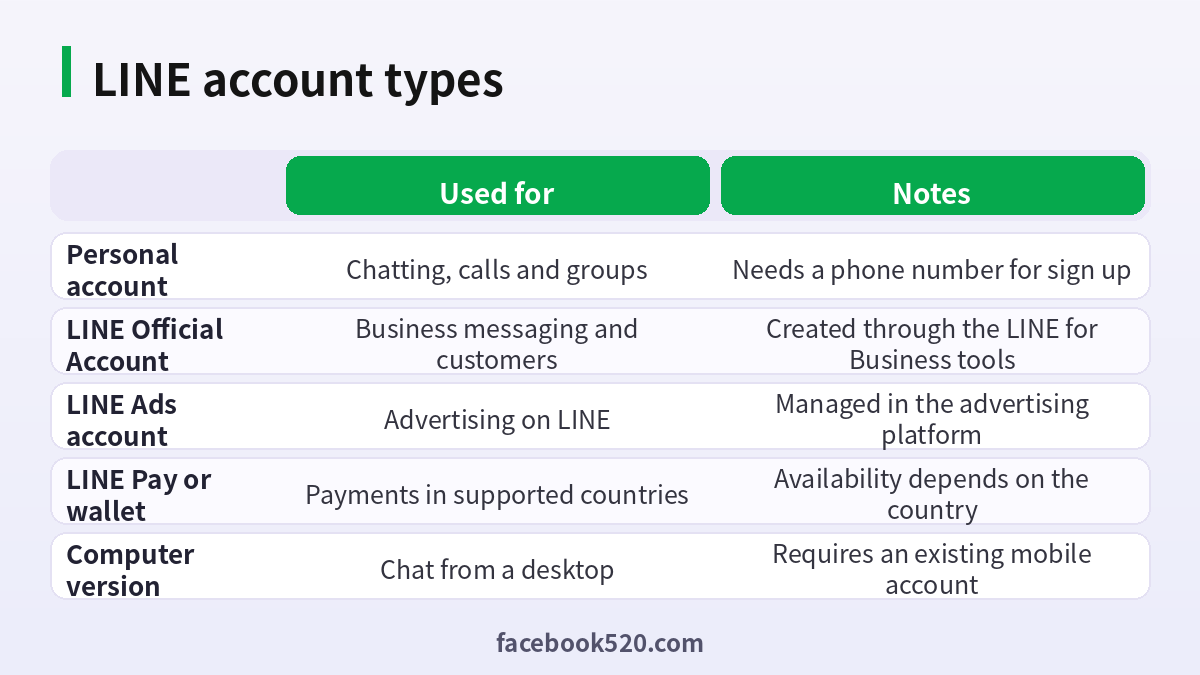
LINE Official Accounts and business use
Businesses use LINE Official Accounts to message customers, send coupons and offer customer support. A personal account is not the same thing as an Official Account. To create an Official Account, you use the LINE for Business tools, provide company information and choose a plan that matches how many messages you want to send. Some account types require verification through LINE, especially if you want to appear in search results. Advertising on LINE is handled separately through its advertising platform, with its own account, payment settings and review process. If you manage payments for LINE services, you may find the payment guide in (https://www.facebook520.com/article/8924.html) helpful, which covers the topic in Japanese.
| Goal | Account to use | Where to set it up |
|---|---|---|
| Chat with friends and family | Personal account | LINE app |
| Reach customers with messages | Official Account | LINE for Business |
| Run advertisements | Advertising account | LINE advertising platform |
| Use mobile payments | Wallet or payment service | Depends on the country |
Privacy and security settings to turn on
Open the settings and look for the privacy section. Turn on Letter Sealing, which provides end-to-end encryption for chats where supported. Decide who can add you as a friend and whether people can find you by phone number or ID. Review the app lock options and set a passcode if you want extra protection. Never share your verification code, PIN or password with anyone, even if they claim to be from LINE support, since official staff will not ask for them. If you receive suspicious messages with links, do not click them, and use the report and block features.
Common sign-up problems and how to fix them
| Problem | Likely cause | What to try |
|---|---|---|
| No SMS code | Weak signal, wrong number or carrier delay | Check the number, wait a few minutes, request a voice call |
| Number cannot be used | Virtual numbers or number used on another account | Use a standard mobile number you own |
| Cannot sign up in the app | Outdated app or phone settings | Update the app and the operating system |
| Account already exists | The number was used before | Choose to restore the old account |
| Cannot log in on PC | No email or password set | Add them on the phone first |
| Age verification failed | Prepaid or foreign number | Use other friend adding methods |
Moving LINE to a new phone
Many people lose their chat history because they skip the preparation steps before changing phones. Before you switch, update the LINE app on the old phone, add an email address and a password in the account settings, and turn on the option that allows your account to be moved to another device. Back up your chat history if you want to keep it: on Android this usually uses Google Drive, and on iPhone it uses iCloud, so check that the backup is complete and that you know the PIN that protects it. On the new phone, install the official app, log in with your phone number and the verification code, and follow the prompts to transfer or restore your account. If you only change the SIM card but keep the same phone, you may still need to confirm the new number in the settings. Do the move on a stable Wi-Fi connection and keep both phones nearby until the process is finished.
Using LINE while traveling or living abroad
Travelers and students often ask whether a foreign number works. In many cases it does, because LINE can send a code to an international number, but delays are common and some features that rely on local carrier checks will not be available. If you plan to stay for months, consider keeping your home number active for verification, even if you also buy a local SIM. It is wise to add an email address so that you are not locked out if the number changes. When you arrive in a new country, check the privacy settings again, because the default options for friend finding can be different. Remember that payment services and Official Accounts available to residents may not be available to visitors.
Staying safe from scams on LINE
Because LINE is so widely used, scammers target it. Be careful with friend requests from strangers who quickly move the conversation to investments, romance or part-time jobs. Never transfer money or buy gift cards for someone you have not met in person. Do not click links that ask you to log in again or to enter a verification code, because that is a common way to take over accounts. If a friend suddenly asks you for money, call them to confirm, since their account may have been taken over. Use the block and report functions, and remember that LINE staff will never ask for your password or authentication code.
Getting more value from LINE after sign up
Once your account works, spend a few minutes tailoring it. Set a clear profile picture and a short status message so that new contacts recognize you. Organize your friends into favorites, hide the contacts you rarely use and mute noisy groups so that important messages are not lost. Use the Keep feature to save notes, photos and links for yourself. If you follow brands through Official Accounts, adjust their notification settings, because promotional messages can quickly overwhelm your chat list. Explore voice and video calls, which are free over the internet, and the shared albums and notes in group chats, which are useful for trips and projects.
| Feature | What it does | Good for |
|---|---|---|
| Keep | Personal storage for notes and files | Saving links and photos |
| Albums | Shared photo collections in groups | Trips and events |
| Notes | Posts that stay in a group | Rules and announcements |
| Calls | Free voice and video calls | Staying in touch abroad |
| Official Accounts | Brand and service messages | Coupons and customer support |
Frequently overlooked settings
Check which apps have access to your LINE account under the connected apps section and remove any you no longer use. Review whether your phone number is visible in your profile, and turn off sharing your online status if you want more privacy. Update the app regularly, since updates fix security issues and bring new features. If you stop using an old phone number, update it in LINE so that a future owner of that number cannot receive your verification messages.
Deleting or recovering a LINE account
If you decide to stop using LINE, deleting the account removes your profile, friends list and chat history, and this cannot be undone, so back up anything you need first. Open the account settings and look for the option to delete the account, then follow the confirmation steps. If you only want a break, simply uninstall the app or mute notifications instead. If you are locked out, start with the option to log in using your phone number, then try your email and password. When none of these work, contact LINE support through the help center and be ready to describe your account, such as the approximate sign-up date and the number you used. Accounts that were sold or shared with others are the most likely to run into problems, because the original owner may still hold the recovery information.
Frequently asked questions
How do I sign up for LINE?
Install the official app, enter your phone number, confirm the SMS code, set a profile and a password.
Can I create a LINE account without a phone number?
A phone number is normally required to create an account. Some functions on other devices need an email and password once you have an account.
Is LINE free?
Yes, chatting, calls and groups are free. Some stickers, themes and services are paid.
Can I use LINE on a computer?
Yes, but you must already have a mobile account, and then you log in on the computer.
How do I find friends?
Use a QR code, search for an ID if available, or sync your contacts.
What is a LINE ID?
It is an optional username that lets others find you. You can turn the search setting off.
Why do I need to verify my age?
Some features are restricted for safety reasons, especially in certain countries.
Can I have two LINE accounts?
You can have separate accounts with separate phone numbers, subject to the rules in each country.
What happens if I change my phone number?
Update it in the settings before you switch, or you may lose access to your account.
Is it safe to buy a LINE account?
No. Bought accounts can be recovered by the original owner or closed for breaking the rules.
How do I create a business account?
Use LINE for Business to set up an Official Account.
What if I lose my phone?
Use your number, email and password to restore, and contact LINE support if needed.
Summary
LINE sign up is quick if you have a mobile phone number, the official app and a few minutes. Verify your number, add an email and a password, review your privacy settings and decide how friends can find you. For business use, set up an Official Account through LINE for Business, and for payments use only the official services. Following these steps keeps your account safe and ready for everyday use.

