


LinkedIn Business Account (2026): How to Set Up a Company Page, Add Admins, Create a Campaign Manager Ad Account, Choose Premium Business, Verify Your Page and Avoid Common Setup Problems
When people search for a LinkedIn business account, they often assume that LinkedIn offers a separate type of login for companies, the way some platforms do. It does not. LinkedIn is built around real people, and a business presence is created from a personal profile in the form of a Company Page. Advertising is handled in a separate tool called Campaign Manager, and paid products such as Premium Business or Sales Navigator are subscriptions attached to individual members. Understanding this structure makes the setup much easier and helps you avoid the mistakes that cause pages to be rejected or locked. This guide walks through the process in 2026, explains the costs, covers verification and admin roles, and offers practical fixes for common problems. LinkedIn changes its interface and policies from time to time, so use the current on-screen instructions as the final authority.
How a LinkedIn business presence is structured
A business on LinkedIn has several parts that work together. The first is a personal profile of the person who creates and manages the page. The second is the Company Page, which represents the organization with a logo, description, jobs and posts. The third is the optional Showcase Page, which highlights a product line or a campaign. The fourth is the Campaign Manager ad account, which is where you buy advertising and which is linked to a Company Page. The fifth is a paid subscription, such as Premium Business, that gives an individual extra search, messaging or analytics tools.
If you remember one rule, make it this: you cannot create a Company Page without a personal LinkedIn profile, and the page is managed by people, not by a shared company login.
Requirements before you create a Company Page
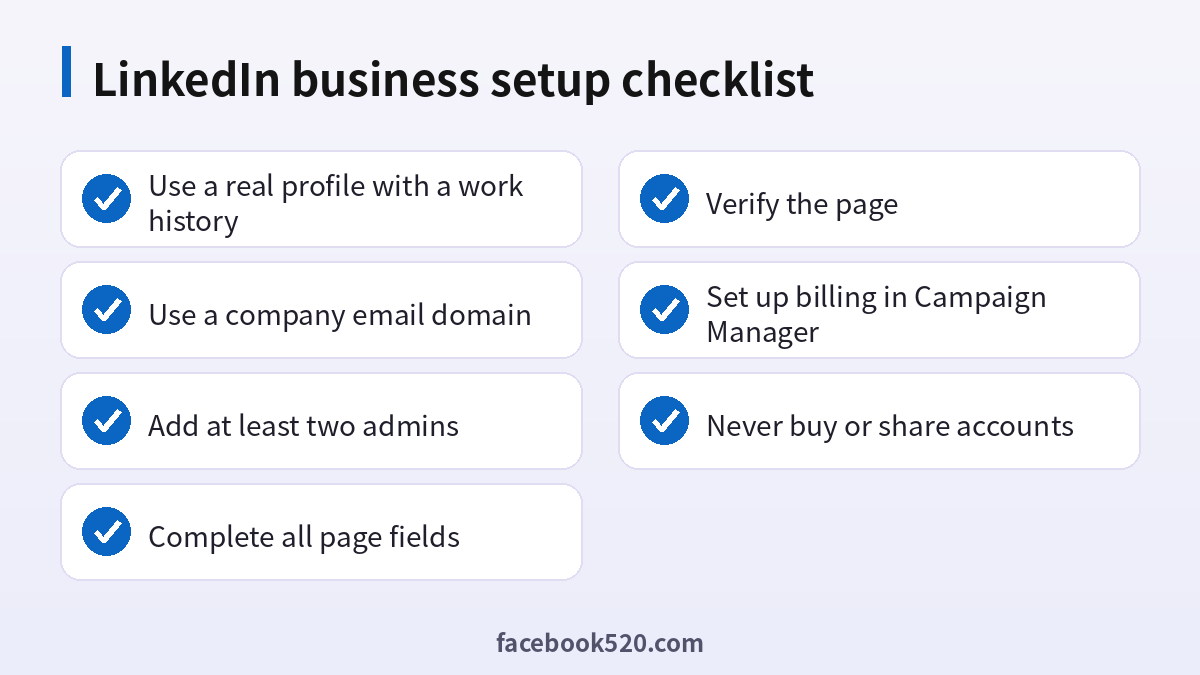
LinkedIn applies some checks to prevent fake pages. You will normally need a personal profile that looks genuine, with a real name, a profile photo, a work history and a few connections. The profile should list your role at the company. LinkedIn may also ask you to confirm that you are an authorized representative of the organization. A company email address on your own domain is helpful, since it can be confirmed and used to show that you belong to the organization. The page name should match the real company name, and the page needs a public website, ideally on the same domain as the email address.
| Requirement | Why it matters | Tip |
|---|---|---|
| Real personal profile | Prevents fake pages | Add a photo, history and connections |
| Company email address | Confirms your affiliation | Use your own domain, not a free webmail |
| Company website | Shows the business exists | Use the same domain as your email |
| Authorized role | Prevents impersonation | Tick the confirmation box honestly |
| Brand assets | Needed for a complete page | Logo and cover image in the right sizes |
Step-by-step: how to create a LinkedIn Company Page
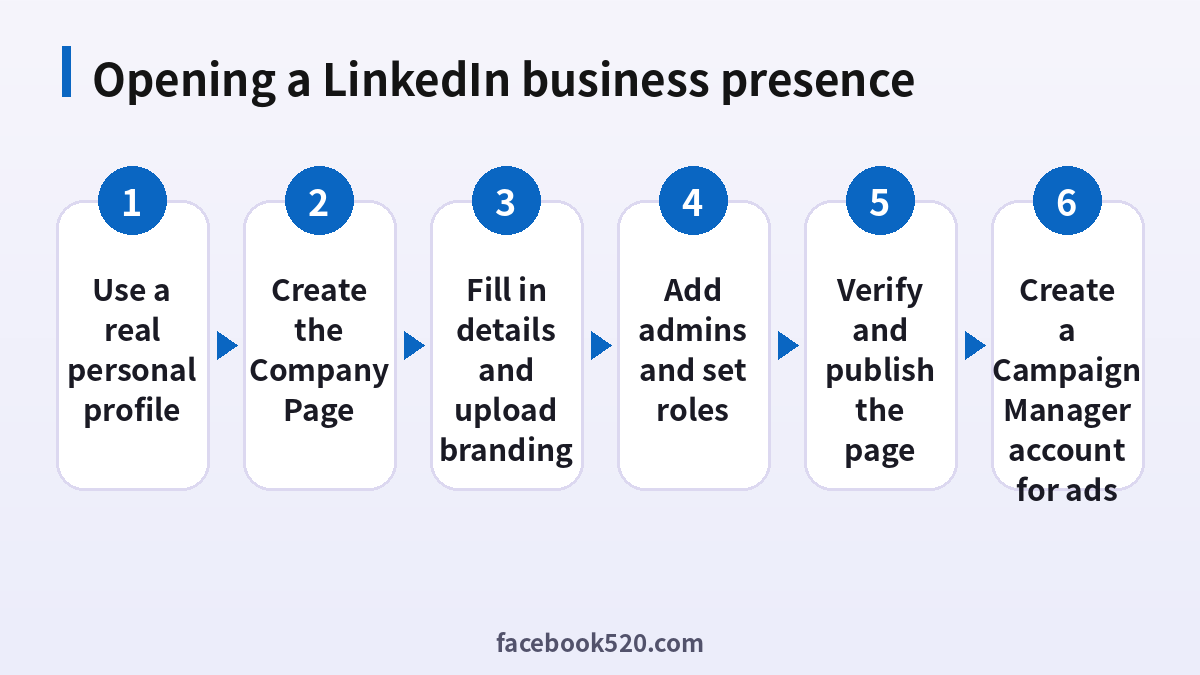
- Sign in to your personal LinkedIn account and open the menu that shows work-related products.
- Choose the option to create a Company Page, then select the type that fits, such as a company, a showcase page or an educational institution.
- Enter the page name and the public page address. Choose a URL that matches your brand and is easy to remember.
- Add your website, industry, company size and organization type.
- Upload your logo and, if you have one, a cover image and a short tagline.
- Confirm that you have the right to act on behalf of the company by ticking the box.
- Create the page, then add a clear description, location, specialties and a call-to-action button.
- Publish a few introductory posts before you invite followers, so that visitors see activity.
If you cannot find the option to create a page, the cause is usually an incomplete profile or a new account that LinkedIn considers high risk. In that case, complete your profile, add real connections and wait for a few days before trying again.
Add admins and set roles
A page managed by only one person is a business risk, because if that person leaves or loses access, the page becomes hard to recover. Add at least two administrators, and give other team members the lowest role that allows them to do their job. LinkedIn offers roles such as Super Admin, Content Admin, Curator, Analyst and Lead Gen Form Manager, and the exact names may change. Review the list of admins every few months and remove anyone who has left the company. Do not share a single login among several employees, because it breaks the platform’s rules and makes the page insecure.
| Role | Typical permission | Good for |
|---|---|---|
| Super Admin | Full control including roles | Owner or senior manager |
| Content Admin | Post, edit and respond | Marketing staff |
| Curator | Promote content and moderate | Community managers |
| Analyst | View analytics | Reporting and strategy |
| Advertiser roles | Manage ads in Campaign Manager | Paid media team |
Verification and trust signals
LinkedIn has been adding verification features that let a page show that it is linked to a real organization and that its employees have confirmed their work email. A verified page tends to earn more trust from visitors and may help with advertising approvals. To strengthen your page, complete every profile field, link a working website, encourage employees to list the company correctly on their own profiles and keep a regular posting schedule. Avoid exaggerated claims, stock photos presented as staff and copy taken from other companies, since these can cause reviews to fail.
Setting up a Campaign Manager ad account
Advertising on LinkedIn is not run from the Company Page itself. You use Campaign Manager, which creates an ad account and links it to your page. The person who sets it up becomes an account manager, and you can add colleagues with different roles. You need to enter an account name, the currency, the page it will advertise for and billing details. Currency matters because it usually cannot be changed after you create the account, so choose the currency in which you will pay. After setup, you define a campaign objective, choose an audience, set a budget and a schedule, and submit your creative for review. For help with funding and payment, our Chinese guide to LinkedIn ad top-ups in (https://www.facebook520.com/article/9522.html) covers the payment side in more detail.
Costs: free page, paid ads and Premium plans
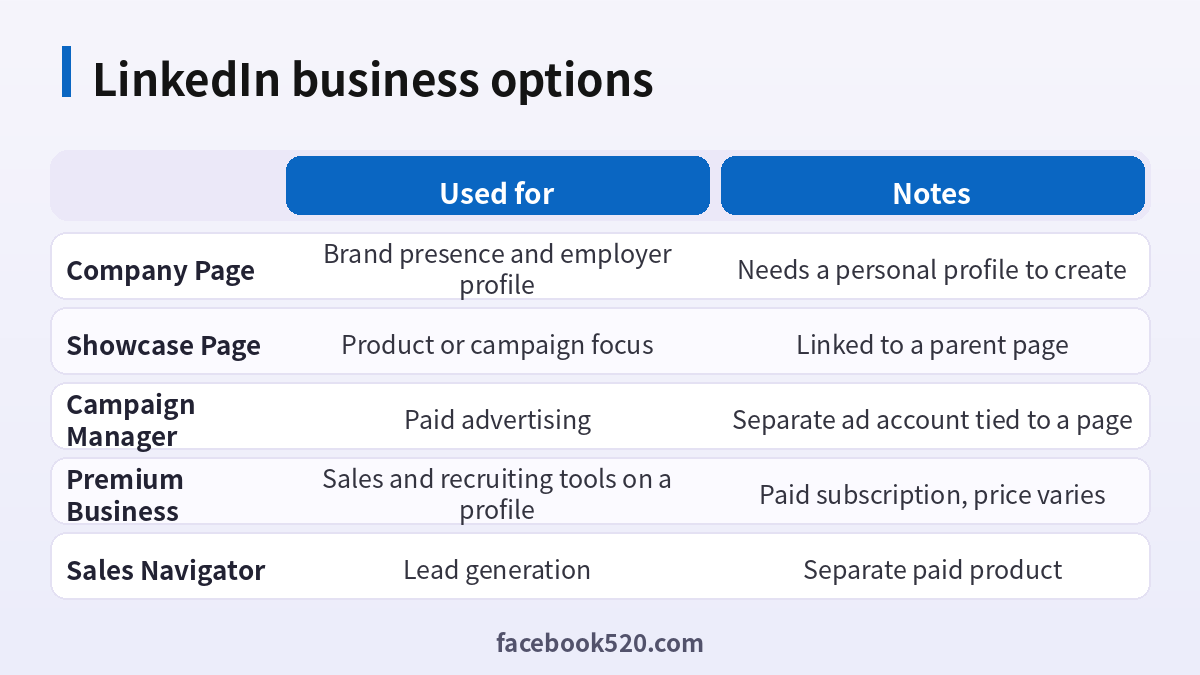
Creating a Company Page is free. Advertising costs depend on your bidding and your audience, and LinkedIn is generally considered an expensive channel because professional audiences are valuable. Premium Business and Sales Navigator are separate monthly subscriptions that belong to a person, not to the page, and their prices vary by country, billing period and promotions, so check the official pages. A page can grow organically without spending, but you should plan a budget if you want reach with decision makers.
| Item | Cost model | Note |
|---|---|---|
| Company Page | Free | Needs a personal profile |
| Showcase Page | Free | Linked to a parent page |
| Campaign Manager | Pay per click or impression | Billing set up in the account |
| Premium Business | Monthly or annual subscription | Tied to one member |
| Sales Navigator | Separate subscription | For lead generation |
Do not buy or share LinkedIn accounts
Offers to sell aged profiles, verified business accounts or ad accounts are common, and they are risky. LinkedIn requires members to use their real identity, and accounts that are sold or operated by someone other than the named person can be restricted without warning. A purchased account carries the history and connections of someone else, which can trigger security checks, and the seller may keep the recovery details. For companies, the safer path is to have real employees create their own profiles and let the Company Page be managed by authorized admins. If you are curious why that matters, our Chinese guide to the topic in (https://www.facebook520.com/article/9508.html) explains the account-buying risks.
Common problems and fixes
| Problem | Likely cause | What to do |
|---|---|---|
| Create page option missing | Weak profile or new account | Complete the profile, add connections and try later |
| Page rejected or removed | Fake or incomplete details | Use real company details and appeal if needed |
| Cannot add an admin | Person is not a connection or lacks a profile | Connect first, then assign the role |
| Ad account rejected | Billing or page issue | Check currency, billing and policy compliance |
| Locked profile | Unusual activity or automation | Follow the verification prompts and stop automation |
Building a page that attracts followers
A new page with only a logo and a single post gives visitors no reason to follow. Before promoting the page, write a clear description that explains what the company does, who it serves and why someone should care, using plain language rather than slogans. Add your specialties, location and website, and use the call-to-action button to send visitors to the most useful destination, such as a product demo or a contact form. Publish a mix of content: company news, behind-the-scenes photos, customer stories, short lessons from your experts and job openings. Ask employees to like and share, and encourage them to add the company to their own profiles, because employee networks are often the biggest source of organic reach.
| Content type | Example | Purpose |
|---|---|---|
| Company news | Product launch or award | Show momentum |
| Expert tips | Short how-to post | Build authority |
| Customer stories | Case study summary | Build trust |
| Culture posts | Team events and values | Attract talent |
| Job posts | Open roles with links | Recruit candidates |
Using the page for recruiting and employer branding
For many companies, the main benefit of a Company Page is hiring. Post open positions, share employee stories and describe your benefits and working style honestly. Candidates look at the page before they apply, so make sure the information is current and the tone is genuine. Use the analytics to see which posts attract the most visits and from which job functions, then adjust your content accordingly. If you plan to use paid recruiting tools, assign them to a person with the proper role and keep a record of who manages them.
Measuring results
LinkedIn provides analytics for visitors, followers, content and competitors. Review them monthly. Look at the engagement rate rather than raw follower counts, and watch which job titles and industries are viewing your content, since that shows whether you are reaching your target audience. For ads, track cost per click, cost per lead and conversion, and compare them with your goals. Small tests with different headlines and images usually teach you more than large budgets spent on a single idea.
Security and governance for your page
A company page is a public asset, so protect it as you would a website. Require every admin to enable two-step verification on their personal account, because the page is only as secure as the weakest admin. Keep a short written list of who has which role and why, and review it when people change jobs. Set up a process for departing employees: remove their admin roles on the day they leave, and ask them to update their profiles. If someone with Super Admin rights is unavailable, a second Super Admin can step in; without one, recovery can take weeks. Do not store passwords in shared spreadsheets, and be wary of emails or messages that claim your page is about to be removed unless you click a link, since these are common phishing attempts.
Compliance, ads policy and brand safety
LinkedIn reviews ads and pages against professional community policies. Avoid misleading claims, discriminatory targeting, prohibited products and unverifiable statistics. Ensure that you have the right to use every image, logo and quote in your content, and disclose paid partnerships. If you operate in regulated industries, such as finance or health, add the legal disclaimers that your country requires. Keep a copy of approved ad copy and screenshots, so that you can explain your decisions if a review is challenged.
Quick launch plan for the first month
In the first week, create the page, complete every field, add admins and publish three introductory posts. In the second week, invite employees to follow and update their profiles, and publish a company story and a helpful tip. In the third week, share a customer example and open positions, and review the analytics. In the fourth week, decide whether you will advertise, create a Campaign Manager account with the correct currency and billing, and run a small test campaign with a clear goal.
Personal profile tips for page admins
Because your personal profile is the key that opens the Company Page, it deserves attention too. Use a professional photo and a headline that states your role. Fill in your experience and make sure the company is listed correctly, since that is how LinkedIn connects you to the organization. Keep your contact information up to date and review your privacy settings so that you control what visitors can see. Avoid using automation tools or browser extensions that scrape data or send messages in bulk, because LinkedIn restricts accounts that behave like bots, and a restricted admin can put the company page at risk. Build your network gradually by connecting with colleagues, customers and partners you know, and engage with posts in a way that adds value rather than sending generic comments.
When to ask LinkedIn for help
If your page is removed, your ad account is rejected or you lose access to an admin profile, use the official help center and submit a request with as much detail as you can. Provide the page address, the name of the admin, the date of the problem and screenshots of any error messages. Respond promptly to any request for company documents or domain confirmation. Keep a record of your communication with support, and be patient, since reviews can take several business days. Avoid third parties that claim they can restore a page or remove restrictions for a fee, because they often rely on scams or on actions that violate the rules.
Frequently asked questions
Is there a separate LinkedIn business account?
No. You create a Company Page from a personal profile. Advertising uses a separate Campaign Manager account.
Is a Company Page free?
Yes. Ads and Premium products cost extra.
Can I create a page with a free email address?
Sometimes, but a company email on your own domain makes verification easier.
How many admins should I have?
At least two, so that the page is not tied to a single person.
Can I change the page URL later?
There are limits, so choose the address carefully when you create it.
How do I run ads?
Create a Campaign Manager account, link it to your page and add billing.
What does Premium Business include?
It adds tools for search, messaging and insights for an individual. Check the official page for the current plan details and price.
Can I buy a LinkedIn account?
It is not recommended because it breaks the rules and can lead to restrictions.
Why was my page flagged?
Common reasons are incomplete information, impersonation or suspicious activity.
How do I delete a page?
Super admins can find the deactivate or delete option in the admin tools.
Summary
A LinkedIn business presence starts with a real personal profile and a Company Page, grows with admins, verification and consistent content, and expands into advertising through Campaign Manager. Use real company details, add more than one admin, keep billing in the correct currency and avoid buying or sharing accounts. Following these steps will help you build a credible page and keep it safe.

