


Canva Credit Explained in 2026: How Canva AI Credits Work on Free and Pro, Standard Premium and Ultra Usage Pools, What Burns Credits Fastest, AI Pass Add On, Reset Dates and Smart Ways to Stretch Your Allowance
Canva credit is a confusing search term because Canva does not run a simple coin system. Instead, its AI features draw from a monthly allowance that depends on your plan, and the allowance is described in uses rather than a universal currency. Many users only discover the limit when a generation button stops working in the middle of a project. This guide explains how the system works as of October 2026, based on Canva’s public pricing information and independent summaries, what consumes the allowance faster, what stays outside it, when it resets, and how to avoid waste. Numbers and plan names change, so confirm them on the pricing page and in your account. If you are still deciding whether to subscribe, see our guide to the Canva Pro trial (https://www.facebook520.com/ai-tools-guide/ai-chat-search/8342.html) and the sign up guide (https://www.facebook520.com/ai-tools-guide/ai-chat-search/8420.html).
What Canva credit means
Canva bundles its AI tools under the Magic Studio name. These tools use a shared monthly pool of AI usage. The pool is split in three tiers, called Standard, Premium and Ultra, which drain the same allowance at different rates. Some simple tools, such as background removal and the magic eraser, are classed as AI design tools and are generally outside the allowance, subject to fair use. People searching for Canva credit usually mean this monthly pool, not a separate currency, and not the credits that other platforms sell by the pack.
Allowance by plan
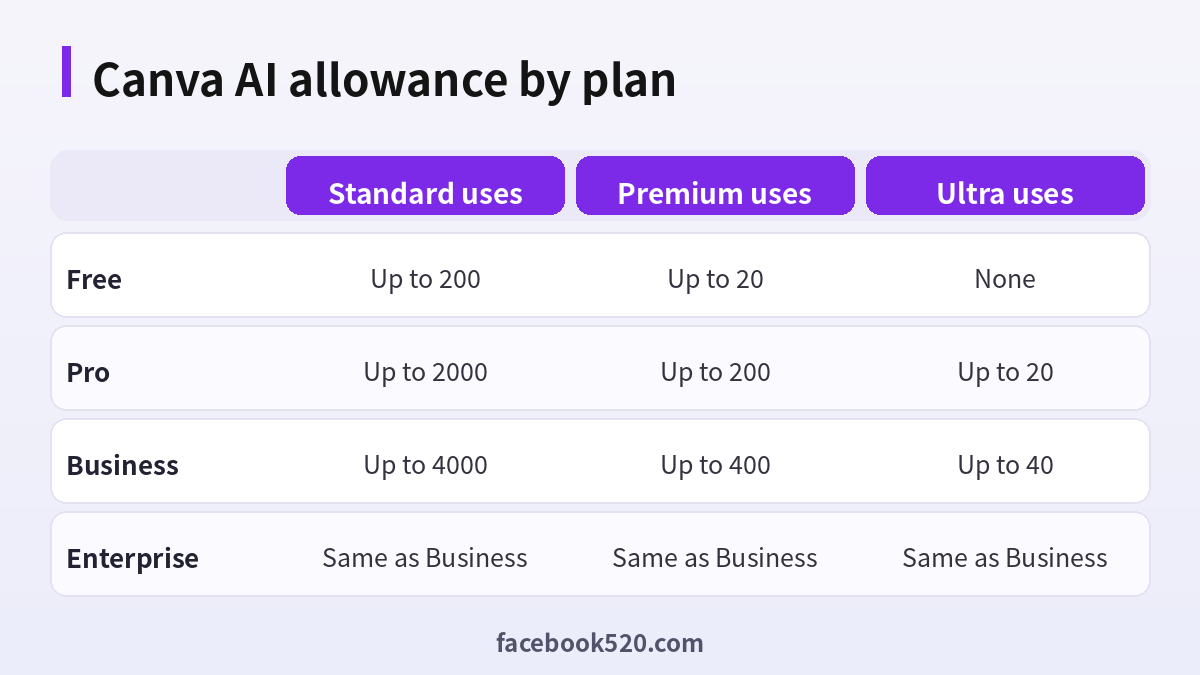
Public figures in 2026 describe the following monthly limits. They are shared across tools, so using one tier reduces what is left for the others.
| Plan | Standard AI | Premium AI | Ultra AI |
|---|---|---|---|
| Free | Up to 200 | Up to 20 | Not included |
| Pro | Up to 2,000 | Up to 200 | Up to 20 |
| Business | Up to 4,000 | Up to 400 | Up to 40 |
| Enterprise | Same as Business | Same as Business | Same as Business |
The published numbers are maximums under ideal conditions. Complex requests and the most advanced tools consume more of the pool, so your real capacity may be lower. Canva can change these figures at any time.
What uses more of the allowance
Light text tools sit in the Standard tier. Image generation, design generation, charts and some code or music tools fall in the Premium tier. The most advanced conversational design and video generation tools belong to the Ultra tier and use the allowance fastest. In addition, every attempt counts, including the ones you discard. If you run five variations of an image prompt, you spend five uses.
| Activity | Relative use of allowance |
|---|---|
| Simple text help | Low |
| Image generation | Medium |
| Full design from a prompt | Medium to high |
| Conversational multi step design | High |
| Text to video | High |
Tools that normally do not use the pool
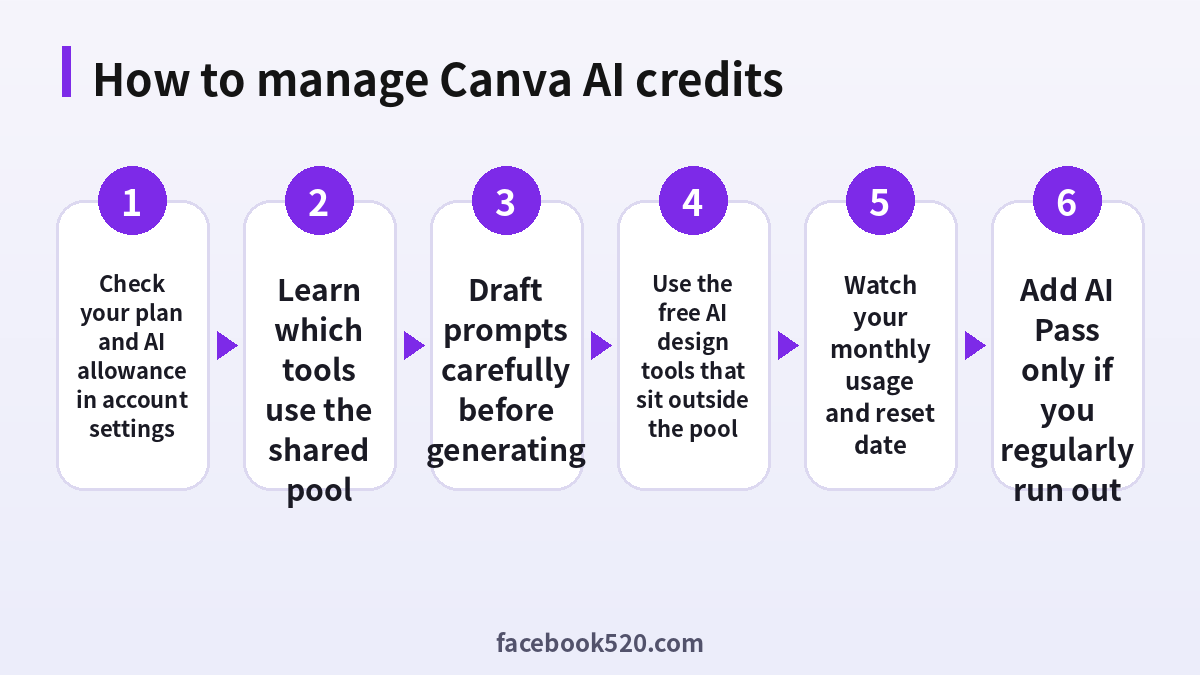
Several everyday tools are provided as design tools under fair use and do not draw from the monthly allowance. Examples that Canva lists include background remover, magic eraser, magic expand and magic grab. Before you spend allowance on a generation, ask whether a simple tool can do the job. Removing an object or extending a background is cheaper than generating a new image.
When the allowance resets
Free plan limits reset monthly, reportedly at the start of the month in universal time. Paid plans reset on the billing date. Unused allowance does not accumulate, so if you do not use it, you lose it. If you are close to the limit near the end of your cycle, you may prefer to wait for the reset rather than purchase an add on.
- Open your account settings.
- Find the section that lists your plan and AI usage.
- Note the reset date.
- Plan big generation tasks right after the reset.
- Keep smaller edits for the end of the cycle.
The AI Pass add on
For heavy users, Canva offers an add on called AI Pass for Pro and Business subscribers. It multiplies the allowance, with reported multipliers of about forty times for Pro and twenty times for Business. Canva states that you do not need it to access AI features. The price is not always displayed on the main pricing page and may appear at checkout. You can add or cancel it from the billing settings. Treat it as a tool for professionals who run out regularly, not as a default purchase.
| Question | Guidance |
|---|---|
| Do I need AI Pass? | Only if you often hit the limit |
| Where do I buy it? | Inside Canva billing settings |
| Can I cancel? | Yes, from billing settings |
| Is it cheaper from resellers? | Do not buy from resellers |
How to stretch your allowance
Write a clear prompt before you press generate. Name the subject, style, color and layout in a single sentence. If you need several versions, change one thing at a time. Use reference images when possible. Use the free design tools to polish results instead of regenerating. Draft your text elsewhere and paste it in, rather than asking the AI to rewrite repeatedly. Finally, plan your work by project: group similar tasks so that you learn from each result.
Plan choice: Free, Pro or Business
If you only need a few AI images each month, the free plan is a fair starting point. Pro suits solo creators who rely on AI every week and also benefit from the larger asset library and brand tools. Business suits teams that need shared brand controls and larger allowances. Compare the yearly cost with the time you save. Do not choose a plan only because of the AI limit, because other features such as storage, brand kits and collaboration may matter more.
Beware of fake credit offers
Pages that promise unlimited Canva credits, cheap Pro accounts or a credit generator are not legitimate. Your allowance is stored in your account and controlled by Canva. Third party sellers may offer shared accounts that are cancelled without notice, or ask for your login. If you want a discount, look for official trials, education and nonprofit programs and seasonal promotions announced by Canva.
Commercial use of AI outputs
Canva’s terms for AI generated content say that, in general, you may use the outputs in your designs, but you should read the current terms for restrictions, particularly for sensitive subjects, real people and trademarks. Do not assume that anything generated is free from legal issues. Check logos, brand names and faces in the output, and keep a record of your prompts.
Worked examples: how far does a month of allowance go
Numbers are easier to understand with scenarios. Imagine a freelancer on the free plan who makes four social posts a week. If each post uses one image generation and one design suggestion, that is about thirty two Premium type uses in a month, which exceeds the free Premium limit of about twenty. The freelancer will likely reach the cap in the third week. By using the free design tools for background removal and resizing, and by writing text outside the AI tools, the same person can reduce the number of generations to about fifteen and stay inside the limit.
Now imagine a small marketing team member on a paid plan who produces a weekly newsletter header, five social images, a short presentation and an occasional animated clip. With a larger allowance, most of this is comfortable, but the animated or conversational design tasks use the Ultra tier, and twenty Ultra uses disappear quickly if each task needs several retries. A good habit is to reserve Ultra tools for finished concepts, and use cheaper tools while exploring.
| Scenario | Likely pressure on the allowance | Practical fix |
|---|---|---|
| Casual user, few images | Low | Stay on the free plan |
| Freelancer posting weekly | Medium | Use design tools and fewer retries |
| Marketer producing many assets | Medium to high | Consider Pro and plan Ultra tasks |
| Agency running many clients | High | Business, or AI Pass if needed |
A prompt template that wastes fewer uses
Many wasted generations come from vague instructions. A reliable structure has five parts: the subject, the setting, the style, the colors and the format. For example, ask for a flat illustration of a coffee cup on a wooden table, warm morning light, pastel palette, square format with space for text on the left. Specific constraints reduce the number of retries, and mentioning the space for text saves you from regenerating when a headline does not fit. Avoid asking for readable text inside the image, since generated lettering is often wrong. Add your text in Canva instead, using the normal editor.
- Describe the subject in one short phrase.
- Add the setting and mood.
- Choose a style such as flat, photo or watercolor.
- State the color palette.
- Specify the format and where text should go.
Keeping a usage log
A tiny spreadsheet helps you understand your habits. Record the date, the tool, the prompt and whether you kept the result. After a month, you will see which prompts produced useful designs and which tools you used rarely. That information tells you whether to upgrade, downgrade or stay. It also helps teams share good prompts, so that colleagues do not repeat failed attempts. Keep the log simple, and update it only for generations that matter.
Team accounts and shared allowances
On team plans, the allowance is normally tied to each person’s seat rather than shared as one pool for the whole company. This means that one designer who generates a lot cannot borrow another colleague’s unused allowance. Administrators should check how their plan is structured and explain it to the team. If a few members use AI heavily while others do not, assigning heavy users to the plan with a larger allowance, or considering the add on for those individuals, may be more efficient than upgrading everyone. Also remember that Canva has changed its team offerings, and some older plans are no longer open to new customers, so confirm the options for your region on the official pricing page.
| Question for administrators | Why it matters |
|---|---|
| Is the allowance per seat? | Determines who can generate |
| Who is the heavy user? | Targets the upgrade |
| Do we need brand controls? | May justify a higher plan |
| What is the reset date? | Helps plan large projects |
Using Canva credit responsibly
AI tools are powerful but need human judgment. Check generated images for distorted hands, odd text and unintended resemblance to real people or brands. Do not upload confidential images or personal data to generate variations unless you have checked the privacy policy and your organization permits it. If you create content for clients, tell them which parts are AI assisted when it matters for contracts or disclosures. Keep original files and notes so that you can show how a design was made.
Troubleshooting limit messages
If you see a message saying that you have reached a limit, first confirm which tool and which tier it refers to. A Premium limit does not always mean that Standard tools are unavailable, but because the pool is shared, the remaining amount may be small. Reload the page and check your account usage. If the number looks wrong, for example after you just upgraded, wait a few minutes and sign out and in again. If the problem persists, contact Canva support through the help center and include a screenshot, the time and your plan. Do not buy third party credit packs as a workaround.
- Identify the tool and tier in the message.
- Check usage and reset date in account settings.
- Reload or sign in again after any plan change.
- Contact Canva support with a screenshot.
- Wait for the reset or choose another approach.
Alternatives and complements to Canva AI
If Canva’s allowance does not fit a particular task, consider a combination of tools. Dedicated image generators can produce stronger images for some styles, and you can import them into Canva for layout and text. Free stock libraries and your own photos reduce the need for generation. For writing, a general chatbot may give better drafts than the built in writing helper, and you can paste the result into your design. The advantage of Canva is the integrated workflow: layout, brand colors, resizing and publishing in one place. The best approach is usually to use AI for the parts where it saves the most time and traditional tools for the rest.
| Task | Possible approach |
|---|---|
| Simple background change | Canva design tools, no allowance needed |
| Unique illustration | Generate once, then edit in Canva |
| Copywriting | Draft elsewhere, polish in Canva |
| Photo retouching | Use built in tools or a dedicated editor |
Planning around price changes
Software companies adjust limits as new models arrive. A plan that offered a certain allowance last year may differ now, and new tiers may appear. Before an annual renewal, open the pricing page and compare the current limits with your actual usage. If you consistently use less than a quarter of your allowance, a cheaper plan might be enough. If you hit the limit every month, compare the cost of a higher plan with the add on. Keep proof of purchase in case you need support.
Final checklist
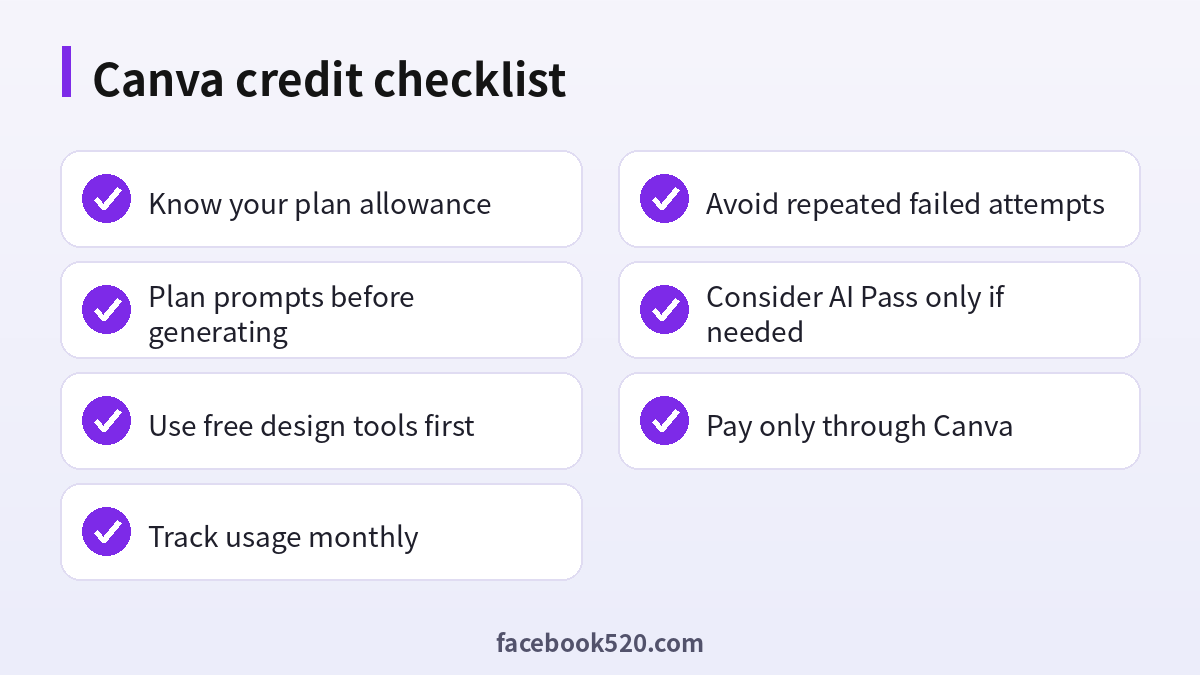
Before you hit the generate button, ask whether a free tool can do the job, whether the prompt is clear, and whether this is the right time of the cycle. After you finish, save the result, note the prompt and review how much allowance is left. These small habits make Canva credit feel less mysterious and keep your projects moving.
Education and nonprofit access
Students, teachers and eligible nonprofit organizations may qualify for free access to higher tier features through Canva’s education and nonprofit programs. The allowance that comes with these programs follows the terms of the plan they map to, and the conditions change over time, so check the official program pages. Apply only through those pages and use your genuine institutional email or documents. Do not pay a third party for verification, because the access can be revoked.
Frequently asked questions
What is Canva credit?
It refers to the monthly AI usage allowance of your plan, not a separate currency.
How many AI uses does the free plan have?
Public information lists up to 200 Standard uses or up to 20 Premium uses per month, shared in one pool.
How many does Pro have?
Up to 2,000 Standard, 200 Premium or 20 Ultra uses per month, shared.
Do failed generations count?
Generally yes, each attempt can count.
Do background removal and magic eraser use credits?
They are listed as design tools under fair use and normally sit outside the pool.
When do credits reset?
Free plans reset monthly and paid plans on the billing date.
Does unused allowance roll over?
No.
What is AI Pass?
An add on for Pro and Business that multiplies the allowance.
Can I buy Canva credits from a reseller?
No. Use official channels only.
Can I use AI generated designs commercially?
Generally yes under Canva’s terms, but read the current rules.
Summary
Canva credit is a shared monthly AI allowance. Know your plan limits, use the free design tools for simple edits, plan prompts, avoid repeated failed attempts and buy upgrades only through Canva. Check the live numbers in your account before making decisions.
