


Canva Account Problems Solved in 2026: Sign In Methods, Duplicate Accounts, Changing Your Email, Recovering a Locked Account, Removing Team Members, Downloading Your Designs and Deleting an Account Safely
A Canva account usually works without any attention until something changes. You switch jobs, you lose access to an email address, you realize that you have two accounts with different designs, or you receive a warning that someone logged in from another country. This guide collects the most common Canva account problems and shows practical ways to solve them, based on the way the service works in October 2026. Menu names can differ by device, so use this guide as a map and check the official help center for the latest steps. If you want pricing details, see our pages about the Pro trial (https://www.facebook520.com/ai-tools-guide/ai-chat-search/8342.html) and signing up (https://www.facebook520.com/ai-tools-guide/ai-chat-search/8420.html).
Understand your sign in method first
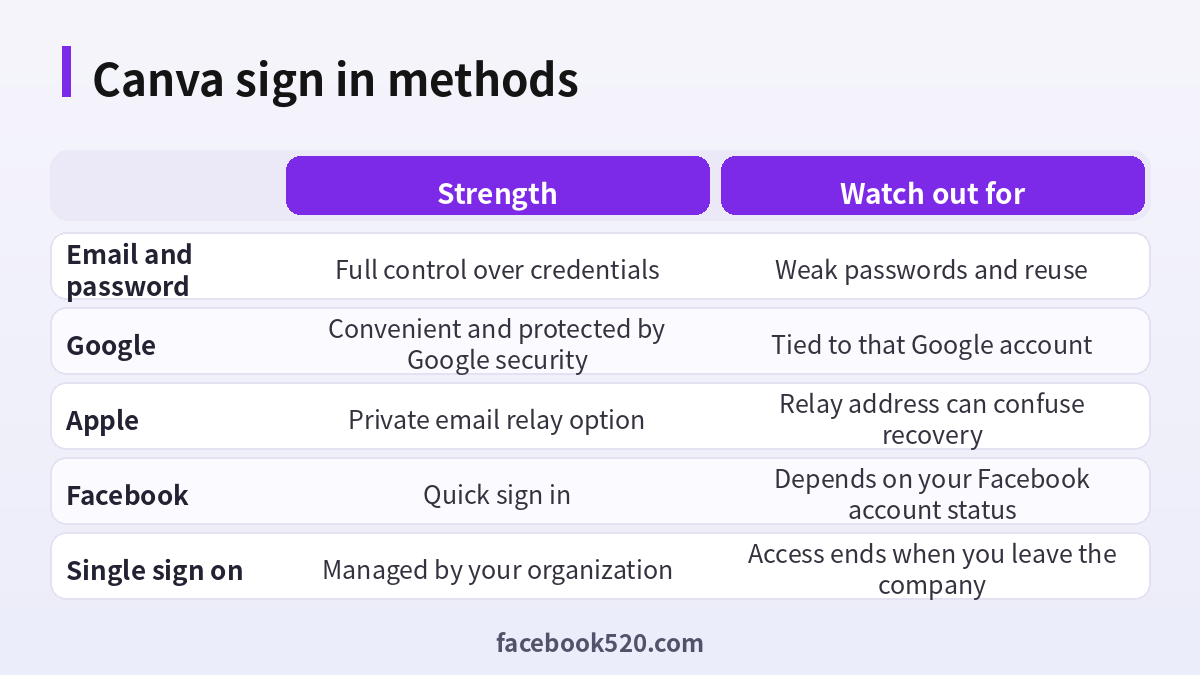
Almost every account problem begins with confusion about how you originally signed up. Canva lets people sign in with an email address and password, with Google, with Apple, with Facebook, or through single sign on provided by a school or company. Each method creates an identity. If you sign up with email and later try to sign in with Google using the same address, the result may be a merged login or a second account, depending on the situation.
| Method | Strength | Watch out for |
|---|---|---|
| Email and password | You control the credentials | Reused or weak passwords |
| Convenient and protected by Google security | Tied to that Google account | |
| Apple | Private relay email is available | The relay address can confuse recovery |
| Fast | Depends on your Facebook status | |
| Single sign on | Managed by an organization | Access ends when you leave |
Before trying anything else, think about which method you used. Search old emails for a welcome message from Canva, which often shows the address that was used.
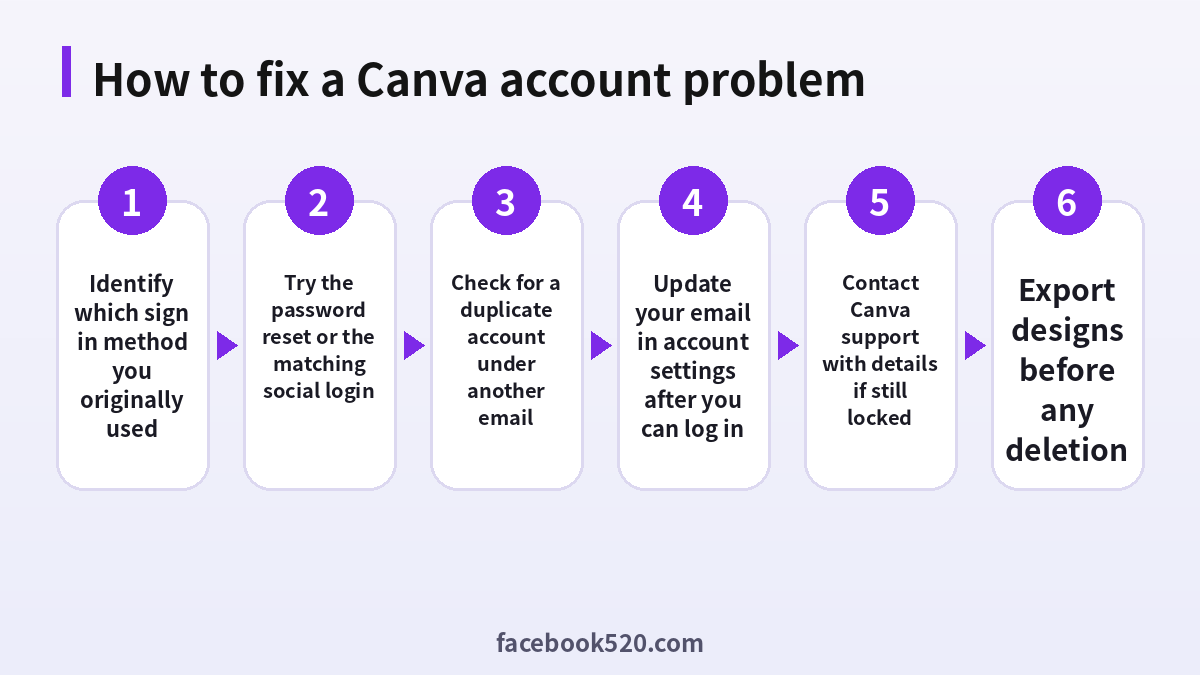
Cannot log in: a step by step approach
- Confirm that the email address is correct and has no typing errors.
- Try the sign in method you think you used, such as Google or Apple.
- Use the forgot password option and check the inbox and spam folder.
- Try other email addresses you may have used.
- Clear the browser cache or try another browser or the mobile app.
- If nothing works, contact Canva support with details such as the email addresses and approximate sign up date.
If a reset message does not arrive, wait ten minutes, check filters and make sure that your email provider is not blocking messages. Avoid requesting many resets in a row because it can delay delivery.
Duplicate accounts
It is common to discover that you have two Canva accounts: one from a school email, one from a personal address, or one from a social login. Each account has its own designs, folders and subscriptions. Canva does not automatically combine all of them. To consolidate, you can download designs from one account and upload or copy them to the other, or invite the second account to the same team and move designs. After you confirm that everything has been moved, you can delete or ignore the extra account. Make sure that you do not cancel a subscription that you still need.
| Situation | Suggested action |
|---|---|
| Two personal accounts | Move designs to the main one and close the other |
| School and personal | Keep designs separate if they belong to the institution |
| Company and personal | Do not mix work designs with private ones |
Changing the email address
You can change the email on your account in the settings, provided you can log in. Enter the new address, confirm it by clicking the link that is sent to the new inbox, and then use it for future logins. If you used Google or another social login, you may need to change the email at the provider, or switch to email login by adding a password in the account. If you can no longer access the old address and cannot log in at all, you will need to ask support to verify ownership, and that requires proof such as the plan receipt or the names of designs.
Security: two layers you should add
Use a unique password stored in a password manager. If you sign in with Google, turn on two step verification for the Google account, because it protects your Canva account too. Review the list of logged in devices and sign out of any that you do not recognize. Do not click links in emails claiming to be from Canva without checking the sender address, and open the website yourself instead.
Recovering a locked or hacked account
If you suspect that someone else accessed your account, change the password immediately, sign out of all devices and check the billing page for charges you do not recognize. Review your team members and shared links. If you cannot log in, use the recovery option and contact support. Provide your email address, the date of the last access and any receipts. Be patient and do not use unofficial recovery services that ask for payment, because they are often scams.
Teams, members and ownership
On a team plan, the team owner or administrator controls billing, members and brand resources. When someone leaves the organization, remove their access and transfer their designs to another member before deleting the user. If you are the only administrator and you leave, appoint another admin first. Without an owner, no one can manage the plan, and the designs can become stranded. Use roles to give people only the access they need, and review the list every quarter.
| Role | Typical responsibility |
|---|---|
| Owner or admin | Billing, members, brand settings |
| Member | Create and edit designs |
| Viewer or commenter | Review only |
Exporting and backing up designs
You can download designs as images, PDFs and other formats. For important projects, keep a copy of the exported files and store them outside Canva, for example in a company drive. For editable backups, share the design link with a second account that you control and keep track of where the original lives. Do this before deleting an account or leaving a team, because deleted content may not be recoverable.
Subscriptions and billing questions
If you pay for Pro or another plan, open the billing section to see the next renewal date and the payment method. If you subscribed through an app store, manage the subscription there. When you cancel, you usually keep paid features until the end of the period. If you see an unexpected charge, compare it with your receipts, check for another account that has a subscription and contact support with the details.
Deleting an account
Deleting a Canva account is permanent after a short waiting period. Before you start, cancel any paid subscription, download the designs you want to keep, transfer ownership of team designs and note that purchased items such as templates may be lost. In the account settings, find the option to delete your account and follow the prompts. If you only want a break, simply stop using the account, since a free account does not cost anything.
- Cancel paid plans and subscriptions.
- Download or transfer important designs.
- Remove yourself from teams after transferring ownership.
- Open the deletion option in account settings.
- Confirm and keep the confirmation email.
Working with the mobile app and the website
Canva runs in a browser and as an app on phones and tablets. The same account works everywhere, but the experience differs. Some advanced tools are easier to use on a larger screen, while the mobile app is handy for quick edits and for posting directly to social platforms. If something appears in one place but not the other, refresh the page or sign out and in. Keep the app updated, since old versions can cause sign in errors and missing features. If you use the mobile app with a social login, make sure that the associated social app is also signed in, otherwise the redirect may fail. When troubleshooting, test on the web first. If it works in a browser but not in the app, reinstall the app or clear its cache.
| Symptom | Likely cause | Action |
|---|---|---|
| Works on web, fails in app | Old version or cache | Update or reinstall |
| Social login loops | Cookie or app permission problem | Try another browser or app |
| Designs missing | Different account | Check other sign in methods |
| Slow editing | Large files or weak connection | Reduce image size, test another network |
Missing designs and how to find them
When designs seem to disappear, the usual reason is that you are signed in to another account. Check the profile menu and the email shown. Look in the trash, since deleted designs can often be restored for a limited time. Check the shared with you section, as someone else may own the design. In a team, the design may have been moved to a folder you cannot access. Use the search bar with a word from the title. If none of this works, contact support with the design name, the approximate date and the email of the account where you believe it was created.
- Check which account you are logged in to.
- Search by keyword and filter by type.
- Look in the trash and in shared designs.
- Ask team admins whether the design was moved.
- Contact support with details.
Brand resources and templates inside an account
If you use Pro or a team plan, your brand kit and templates are part of the account. Document who created them and keep a backup of the logo files and font names outside Canva. Fonts that you upload need the right licenses. When a team member leaves, make sure the brand kit remains under a shared or administrator controlled space. This prevents the loss of company assets when an individual account is closed.
Privacy settings and linked apps
Canva lets you connect other apps for publishing, storage and design import. Each connection requests permission to read or write some data. Open the apps section and review which connections are active. Remove those that you do not use. For designs shared through links, check who can view or edit. Public links can be indexed or forwarded, so for confidential material, restrict access to named people. If you accept an invitation to a team, remember that administrators may be able to see your team designs and activity inside that team, so avoid mixing personal projects with a work team.
| Item | What to check |
|---|---|
| Connected apps | Remove unused connections |
| Shared links | Use restricted access for sensitive designs |
| Team membership | Know who the admins are |
| Marketing emails | Adjust notification preferences |
Education and nonprofit accounts
Students, teachers and eligible nonprofit organizations can apply for special access to paid features. These programs verify eligibility through institutional email, school codes or documents. If your school account is closed when you graduate, you may lose the features that came with it, so export your designs before you leave. Do not pay a third party for verification, because the eligibility is checked by Canva and can be withdrawn.
What to do before changing jobs
Moving to a new employer is a time when many people lose designs. If your work was created in a company team, you do not own it, and you should not copy confidential files to a personal account unless you have permission. Ask your manager which designs belong to the company, and transfer them to a colleague. Keep personal projects in a personal account, and keep a list of what lives where. In your new job, create or join the team using your new work email and keep the personal account separate.
- List the designs that belong to the company.
- Transfer ownership to a colleague.
- Download personal samples that you are allowed to keep.
- Leave the team after the transfer.
- Update your personal email and recovery options.
Notifications, emails and scams to ignore
Canva sends emails about activity, comments and promotions. You can adjust these in the notification settings. Real messages tell you about actions in your account, and they can usually be verified by opening the website directly. Scam messages often threaten to close your account, ask you to verify your payment details or offer a prize. They may use a lookalike address or a shortened link. Never enter your password on a page you reached from an unexpected message. If you are unsure, forward the email to the official abuse or phishing address listed in the help center and delete it.
| Message type | Safe response |
|---|---|
| Comment or share notice | Open Canva yourself to confirm |
| Billing warning | Check the billing page directly |
| Prize or gift | Ignore and report |
| Password reset you did not request | Secure your account and review devices |
Accessibility and language settings
Account settings also include the interface language, time zone and accessibility options. If your menus appear in the wrong language, change the language in the profile or account area. If you work with international teams, set the language that your team uses so that screenshots and instructions match. These small settings reduce confusion when you follow instructions from support or colleagues.
A short maintenance routine
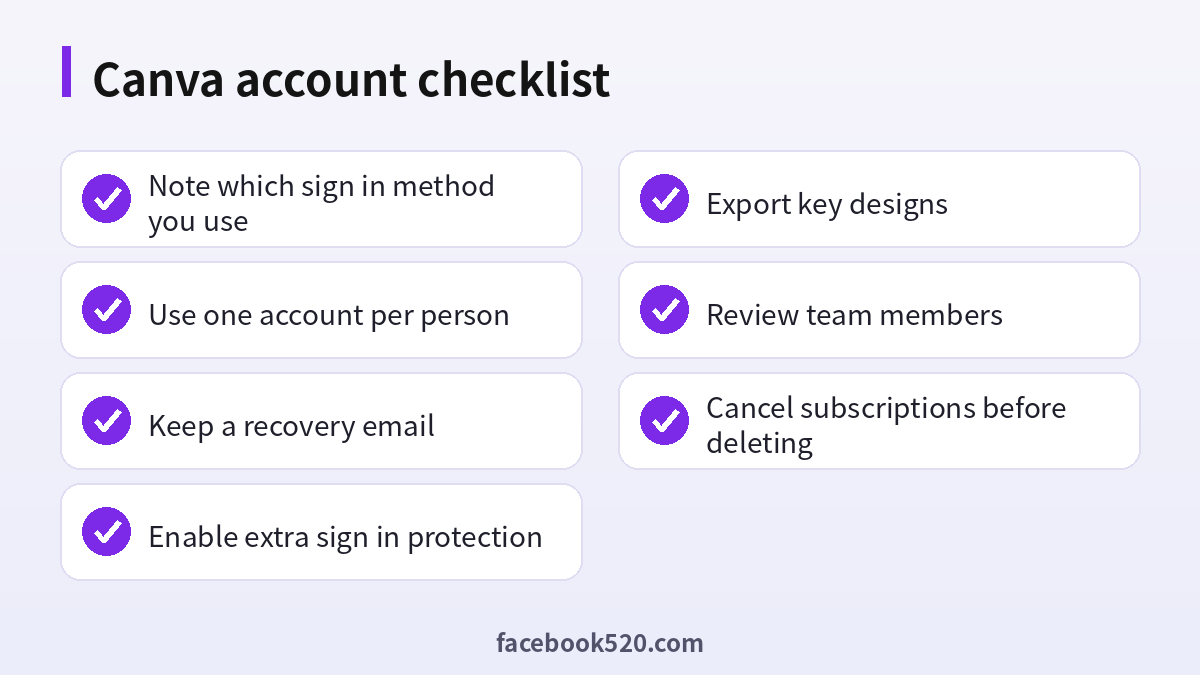
Once a quarter, review your login method, recovery email, devices, team members and shared links. Export key designs, delete drafts you no longer need and check the billing page. Keeping the account organized prevents most of the problems described in this guide.
When to contact support and what to include
If self service steps fail, contact Canva support through the help center rather than social media. Prepare the following information so that the agent can help quickly: the email addresses you may have used, the sign in methods, the approximate date you created the account, the name of one or two designs, receipts for any payments and a short description of the error with a screenshot. Be polite and concise, and avoid sending passwords or full card numbers. Reply to follow up questions promptly, because tickets can close if there is no response. Keep the ticket number for reference, and wait for the answer before opening duplicates, which only slow the process.
Frequently asked questions
Can I have two Canva accounts with the same email?
Typically one email maps to one account, but different login methods can create separate identities.
How do I find which email I used?
Search your inboxes for Canva messages, or try your usual addresses with the reset option.
Can I merge accounts?
Not automatically. You can move designs between accounts manually.
How do I change my email?
Use account settings while logged in, then confirm the link sent to the new address.
What if I lost access to my old email?
Contact Canva support and provide proof of ownership.
Is a shared Canva login safe?
No. Use team invitations instead.
Does deleting my account cancel my subscription?
Cancel it first to avoid unexpected charges.
Can I recover a deleted account?
Only within a limited period, and not guaranteed.
Will my team designs disappear if I leave?
They can if you own them. Transfer ownership first.
Is it safe to buy a Canva account?
No. The seller can take it back.
Summary
Most Canva account problems come from confusion about the sign in method, duplicate accounts and lost email access. Identify your method, keep recovery options up to date, secure the account, and export your designs before making big changes.
