


Gemini API Credits in 2026: How to Add Prepaid Credits, Billing Setup, Free Tier, Limits and Gift Card Questions
Developers who build with Google’s Gemini models often search for “Gemini API credits” or “Gemini add credits” when they see a quota error or want better control over spending. This 2026 guide explains how Gemini API billing works, how to buy prepaid credits in Google AI Studio, how credits differ from consumer subscriptions such as Google AI Pro, what the free tier allows, and why gift cards are not a supported way to pay. Prices, limits and menu names change often, so the figures below are the ones published at the time of writing; always confirm them on the official Gemini API pricing and billing pages before you spend. If you use the Gemini app instead of the API, see our guide to Gemini payment and plans.
API credits versus a Gemini subscription
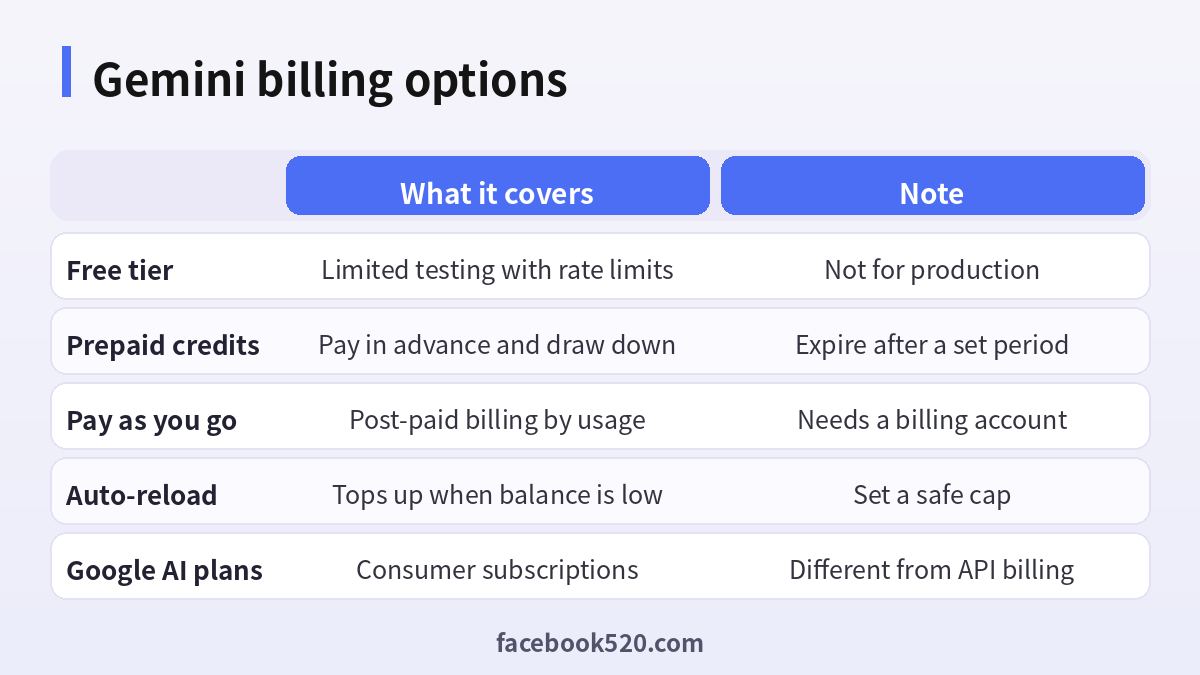
There are two separate ways to pay for Gemini. The first is a consumer or business subscription, such as a Google AI plan, which gives you higher access inside the Gemini app and related Google products. The second is the Gemini API, which developers use inside their own apps and scripts, and which is billed by usage, normally per million tokens, per image or per second of media. Buying a subscription does not give you API credits, and API credits do not unlock the consumer app. Before you pay, decide which one you actually need.
The free tier and why you may need credits
Google AI Studio offers a free tier for experimenting with selected models under rate limits. It is useful for prototypes, but it has limits on requests per minute, tokens per minute and requests per day, and some models or features may not be included. If you build a product, process large files or need higher limits and better availability, you need to enable billing. Free-tier usage is also treated differently when it comes to data use, so read the terms if you handle sensitive data.
How to add prepaid credits step by step
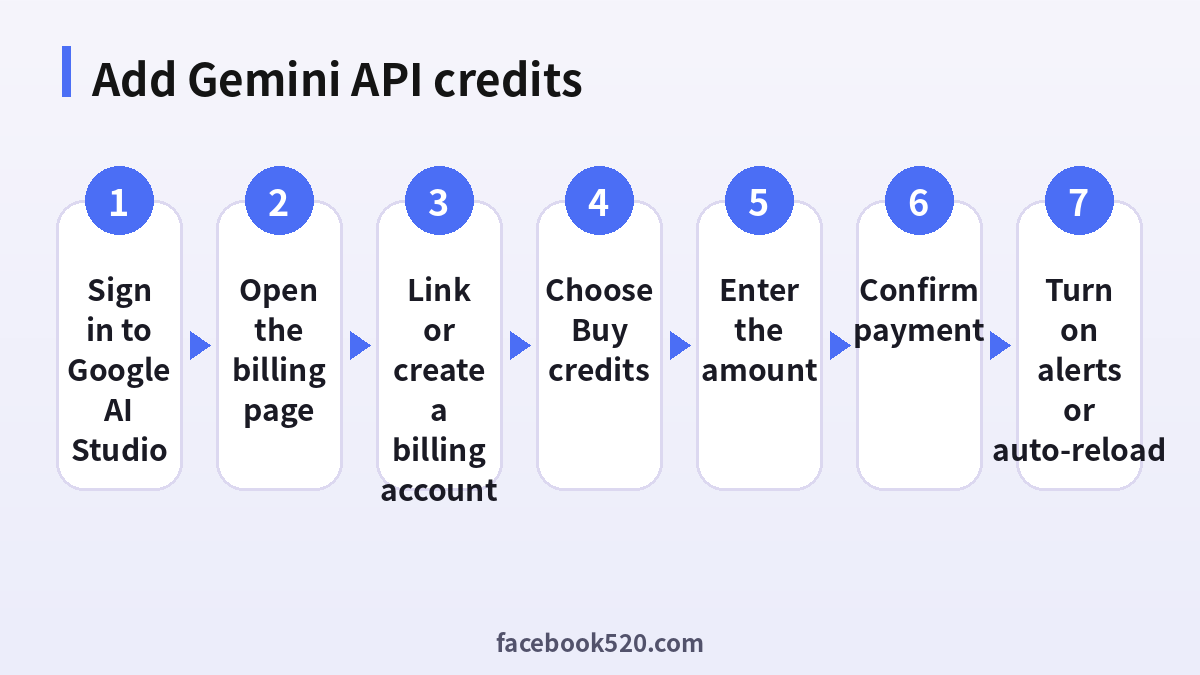
According to the current documentation, you can prepay for the Gemini API in Google AI Studio. The usual path is the following:
- Sign in to Google AI Studio with the Google account that owns your project.
- Open the billing page for the project you want to fund.
- If needed, link a Cloud Billing account and add a payment method.
- Choose Buy credits.
- Enter the amount. The documented minimum is 10 US dollars and the maximum is 5,000 US dollars, but check the current limits.
- Confirm the payment and complete any bank authentication.
- Return to the billing page and check that the balance has been added.
- Enable auto-reload if you want the balance to top up when it gets low, and set a sensible limit.
How prepaid credits behave
Credits are deducted from your usage in near real time. According to the documentation, they expire after twelve months, and when the balance reaches zero your API access stops until you add more or switch to postpaid billing. That is useful as a hard spending cap, but it can break a live app if you do not monitor the balance. Set an alert for a low balance, and consider auto-reload for production services together with a monthly cap you can afford.
| Topic | Prepaid credits | Postpaid billing |
|---|---|---|
| When you pay | In advance | After usage |
| Spending cap | Natural cap at zero | Needs budgets and alerts |
| Risk | Service stops at zero | Unexpected invoice |
| Best for | Hobby, testing, cost control | Production and teams |
Gift cards and other payment questions
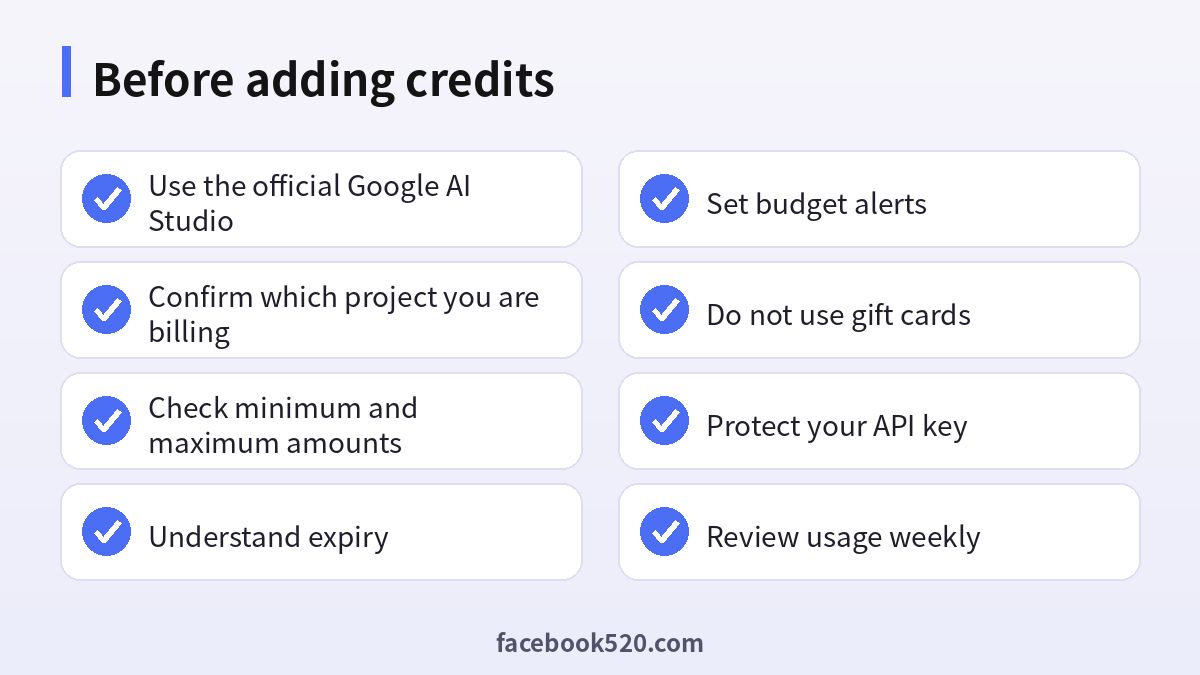
Many people ask whether they can pay for the Gemini API with a gift card. The documentation does not describe gift cards as a supported payment method for API billing. Use a payment method that Google accepts during billing setup, such as a credit or debit card or other methods shown for your country. Be careful with websites that sell “Gemini credits” or “API keys” at a discount; they may use stolen cards or leaked keys, and your own key could be abused if you share it.
Estimating your costs
Estimate cost by counting how many tokens your typical request sends and receives, then multiply by the price for your chosen model. Use smaller models for simple tasks, cache repeated context when supported, and limit output length. Test with a small number of requests and watch the usage dashboard before scaling. Remember that image, audio and video inputs and outputs may be priced differently from text.
Protecting your API key
Your API key is effectively a password for your billing. Never paste it into public repositories, screenshots or client-side code. Restrict it to the services it needs, rotate it if you suspect exposure, and delete keys that you no longer use. If you see unexpected usage, revoke the key immediately and contact Google support.
Quota errors and how to fix them
A 429 error normally means that you reached a rate limit or quota, not that your credits ran out. Slow down requests, add retries with backoff, and check the limits for your tier. A permission or billing error means you should confirm that billing is enabled on the correct project and that your balance is above zero. If you recently added credits and the error persists, wait a few minutes and try again.
Teams and organizations
For a team, use a dedicated Google Cloud project for each application, assign billing roles carefully, and create budget alerts. Keep production and test keys separate. Document who owns the billing account and what happens when that person leaves.
Quick recap checklist
Before you finish, confirm the essentials for Gemini:
- You are using the official website or app.
- Your password is unique and two-step verification is on.
- Recovery email and phone are current.
- Privacy settings match what you are comfortable sharing.
- You know the price, renewal date and how to cancel if money is involved.
- You saved receipts, confirmation emails and backup codes in a safe place.
- You know where to find the official help center.
Account security basics for Gemini
Protect your Gemini account before anything else. Use a long, unique password stored in a password manager, turn on two-step verification, and make sure the recovery email and phone number are ones you control. Review the list of devices and active sessions every few months and sign out of any you do not recognize. Never share one-time codes, even with someone who claims to work for support, because genuine support teams never ask for them. If you sign in on a shared or public computer, log out afterwards and avoid saving passwords in the browser.
Recognizing scams and fake offers
Scammers often imitate well-known brands such as Gemini. Typical signs are urgent messages, requests for passwords or verification codes, links to look-alike websites, promises of free upgrades or guaranteed results, and payment requests through unusual channels. Always type the official address yourself or use a saved bookmark, check the sender of every email and never pay through a link sent by a stranger. If you think you were tricked, change your password, review recent activity, contact your bank if money was involved and report the message to the platform.
Common mistakes to avoid with Gemini
Most problems come from a handful of avoidable habits. People reuse the same password across several services, ignore security notices, click links in unexpected messages, install unofficial apps that promise extra features, or buy accounts and access from resellers. Others skip reading the terms, which leads to restrictions they did not expect, or forget to write down renewal dates and recovery details. Spend a few minutes reading the official help pages, keep your details up to date and treat anything that sounds too good to be true as a warning sign.
Helping family members and colleagues
If you are setting up Gemini for someone else, such as a parent, a teenager or a coworker, guide them rather than doing everything silently. Explain why strong passwords and two-step verification matter, show them how to recognize suspicious messages and agree on who to ask before they click or pay for anything. For minors, follow age requirements and use the available parental or family controls. For teams, document who owns the account, who can approve spending and what to do when someone leaves.
Keeping up with changes
Features, prices and rules around Gemini change more often than most people expect. Follow the official blog, release notes or help center, and read the emails you receive about policy updates instead of deleting them. When a guide such as this one gives a number or a menu name, treat it as a starting point and confirm it on the official site. If a change affects you negatively, you can usually adjust your plan, settings or usage, so act early rather than waiting for a problem.
Devices, apps and browsers
Use the latest version of the official app or a modern browser when working with Gemini. Keep your operating system updated, install security patches and avoid rooted or modified devices, which weaken protection. Browser extensions can read pages you visit, so remove those you do not trust. On mobile, download apps only from official stores, review the permissions they ask for and turn off those that are not needed. Lock your device with a PIN or biometrics so that a lost phone does not become a lost account.
A monthly review habit
Set a reminder once a month to review your Gemini setup. Check your security settings, payment method, connected apps and notification preferences. If you pay for anything, compare the charge with what you actually used and decide whether to keep, change or cancel. Update your recovery details if you changed phone number or email. Delete old data you no longer need. Ten minutes a month prevents most surprises and keeps your costs and risks under control.
Official sources versus unofficial offers
When you search for help with Gemini, you will find both official pages and third-party offers. The comparison below shows why it pays to stay with official channels.
| Aspect | Official source | Unofficial offer |
|---|---|---|
| Price | Clearly shown at checkout | Often unclear or too low |
| Support | Documented help channels | Unreliable or none |
| Account safety | Protected by the platform | Risk of bans and data theft |
| Refunds | Governed by published terms | Rarely honored |
| Updates | Always current | Outdated or wrong |
Troubleshooting checklist
If something does not work as expected with Gemini, go through the basics in order before contacting anyone:
- Check your internet connection and try again on a different network.
- Update the app or refresh the page, then restart the device.
- Clear the cache or try a private browser window without extensions.
- Confirm that you are signed in with the correct account and email.
- Look for the exact error message and search the official help center for it.
- Wait a short time before repeating an action, since repeated attempts can trigger temporary limits.
- If nothing helps, collect screenshots and contact official support.
When to contact official support
Contact support when you have tried the basic fixes and the problem remains, when you see an unexpected charge, when you suspect your account was accessed by someone else or when you are locked out. Prepare the account email, the date and time of the problem, the exact message you saw and screenshots. Describe what you did step by step and what you expected to happen. Use only the contact methods listed on the official site and ignore anyone who offers to fix things for a fee through social media or private messages.
Privacy and personal data
Before you enter personal information anywhere, ask what is really required. Use only the details that Gemini needs, review the privacy settings after setup and limit who can see your profile, activity and contact information. Avoid posting documents, addresses, financial data or photos that reveal your location. Check which third-party apps are connected to your account and remove those you no longer use. If you work with client or company data, follow your organization’s policy and do not mix it with personal accounts.
Choosing the right model to control cost
The model you call has the biggest effect on your bill. Smaller and faster Gemini models are much cheaper per token and are good for classification, extraction, summarization and chat with short answers. Larger models are better for complex reasoning, long documents and coding, but cost more and respond more slowly. A practical approach is to route simple requests to the cheaper model and escalate only the hard ones. Measure quality on a sample of your real data instead of guessing, and keep a record of the model name and version used, because models are retired and replaced over time.
Monitoring usage and setting alerts
Open the usage dashboard regularly and compare it with your own logs. Create budget alerts in Google Cloud for the linked billing account so that you receive an email when spending crosses a threshold. If you use auto-reload, set the reload amount low enough that a bug, such as an infinite retry loop, cannot burn through a large sum before you notice. In your own code, add per-user rate limits and a daily maximum number of calls.
Moving from the free tier to production
Before launch, test with the paid tier, because limits, latency and data-handling terms can differ from the free tier. Add timeouts, retries with exponential backoff and a fallback message for when the API is unavailable. Keep the API key on the server, never in a mobile app or browser. Write down who can change billing, and review the pricing page every month, as prices, free allowances and model availability change frequently.
Frequently asked questions
How do I add credits to the Gemini API?
Open the billing page in Google AI Studio, select Buy credits, enter an amount and confirm the payment.
What is the minimum amount?
The current documentation lists 10 US dollars as the minimum, but check the live page.
Do credits expire?
According to the documentation, prepaid credits expire after twelve months.
Can I pay with a gift card?
Gift cards are not described as a supported payment method for API billing.
What happens when my balance reaches zero?
API access stops until you add credits or use another billing option.
Is a Google AI Pro subscription the same as API credits?
No. They are separate products with separate billing.
Is there a free tier?
Yes, for selected models with rate limits.
Can I enable auto-reload?
Yes, in the billing settings, ideally with a spending cap.
Why do I still get a 429 error?
You may have reached a rate limit. Slow down or request higher limits.
Where can I find official help?
In the Gemini API documentation and Google AI Studio support.
Conclusion
Adding Gemini API credits is simple: open billing in Google AI Studio, buy credits, set alerts and protect your key. Remember that credits differ from consumer subscriptions, that gift cards are not a supported payment method, and that prices and limits change, so always verify them in the official documentation before paying.
