


ChatGPT Sign Up (2026): Step-by-Step Sign-Up Guide
Signing up for ChatGPT is quick, but the account you choose to create affects your history, privacy settings and which paid plan you can use later. This guide explains each step and what to do afterwards.
Everything below follows the current 2026 sign-up flow in general terms. Screens and wording change from time to time, so treat the steps as a map and follow what the official page shows if something looks different.
What you need before you start
- An email address you will keep long-term or a Google, Microsoft or Apple account.
- A phone number that can receive an SMS or call for verification where required.
- A password manager.
- Your intended use (personal, work or school), because it decides the plan you will want.
ChatGPT sign-up: step by step
- Open chatgpt.com and select Sign up.
- Choose email, Google, Microsoft or Apple as your login method.
- Enter and confirm your email, then create a password if you chose email sign-up.
- Verify your email by clicking the link you receive.
- Enter your name and date of birth.
- Verify your phone number with the code you receive if asked.
- Choose your preferences and begin chatting. Upgrade later from the profile menu if you need more.
Take your time on the first screens. Details such as your username, country and date of birth are often difficult or impossible to change later, so enter them carefully.
Verification tips for ChatGPT
- Use a normal mobile number from a real carrier when asked for verification.
- Do not use disposable email addresses; they are often rejected.
- If you chose a social login, remember which one so you can log in again.
- Keep your backup codes if you enable two-factor authentication.
First-day setup checklist
- Open Settings and review Data controls, including whether your conversations may be used to improve models.
- Enable two-factor authentication.
- Choose a custom instruction or personalisation setting if you want the assistant to follow your style.
- Check the Memory settings and decide whether to keep them on.
- Pick a plan (Free, Plus or Pro) based on how often you use it.
- Install the mobile app and sign in with the same account.
Keep the account secure from day one
- Use a long, unique password stored in a password manager.
- Turn on two-factor authentication with an authenticator app instead of SMS where possible.
- Add a recovery email and phone number that you control.
- Do not reuse the email address of a closed or lost account.
- Review logged-in devices from time to time and sign out of those you do not recognise.
Common sign-up problems and fixes
- Phone number cannot be verified: Try another number, wait and retry, or switch network; some virtual numbers are not accepted.
- No verification email: Check spam and promotions folders and request a new email.
- The sign-up page says the service is unavailable: Availability depends on your country. Check the official list rather than third-party claims.
- You already have an account: Use Log in, or “Forgot password” to recover it.
- Cannot log in after sign-up: Make sure you use the same login method (email versus Google or Apple).
- Too many attempts: If you repeat the sign-up several times quickly, the platform may temporarily block you. Wait a few hours, switch to a stable network and try again carefully.
- Using a VPN or unusual network: Sign-ups from changing locations can trigger extra checks. A normal, stable connection in your own country usually works best.
Using ChatGPT for business
If you plan to use ChatGPT for work, ask whether your company has a Team or Enterprise workspace first. Using a work workspace keeps data separate from your personal account and simplifies billing.
Whatever platform you are on, a business setup is easier when it is documented: who owns the account, which email recovers it, who has admin access, and where credentials are stored. Write this down on the first day, before the account is used for anything important.
Getting started on the right foot
A fresh ChatGPT account is a blank slate. Complete the profile, follow a handful of relevant accounts, and use the product the way a normal person would for the first week. That quiet start makes later changes, such as connecting a business tool or payment method, much less likely to trigger extra checks.
Choosing the right login method
Most services let you register with an email and password or with a Google, Apple or Microsoft login. A social login is faster and often safer because it inherits that account’s two-factor protection, but it ties ChatGPT to a provider you must keep access to. An email-based account is more portable, as long as the email address is one you will keep for years. Whichever you pick, write down which method you used, because logging in later with the wrong one is the most common reason people think their account has disappeared.
Personal use or business use?
Decide this before you register. Personal accounts are simplest, but they may lack analytics, team access and advertising tools. Business or professional accounts add those tools and are easier to share with colleagues. If you are unsure, start with the personal or standard setup, use it for a short time, and convert to the business option when you know what you need. Converting is usually easy; merging two separate accounts afterwards usually is not.
Your first 30 days on ChatGPT
- Week one: complete the profile, set security and privacy, and explore the main features without rushing.
- Week two: start regular but moderate activity that matches your purpose.
- Week three: connect external tools (analytics, payment, team members) one at a time.
- Week four: review what worked, remove unused settings and document how the account is managed.
Privacy settings worth reviewing
- Who can find you by email address or phone number.
- Who can message or contact you.
- Whether your activity or location is visible.
- Which apps and websites have access to your account.
- How your data is used for personalisation and advertising.
If you ever lose access
Keep the recovery email and phone current, save backup codes in a safe place, and note the date and device you used to register. When something goes wrong, start with the official password-reset or account-recovery page, answer security questions honestly and avoid anyone who offers to “unlock” the account for a fee. Recovery requests that include accurate account details, such as the registered email, approximate creation date and device, are processed much more smoothly.
Quick troubleshooting checklist
- Check that the email or phone number was typed correctly.
- Look in spam, promotions and blocked-sender folders for verification messages.
- Try a different browser or the official mobile app.
- Disable extensions that block scripts or captchas.
- Switch from mobile data to Wi-Fi or the other way round.
- Wait a few hours if you have made many attempts.
- Contact the platform’s help centre with screenshots of the exact error message.
Staying in good standing
A new ChatGPT account is judged on behaviour. Be consistent about where you log in from, avoid mass actions in the first days, respect the community or advertising rules, and answer verification prompts quickly. If a warning appears, read it carefully and follow the instructions rather than creating another account to get around it. Accounts with a clear, gradual history are far more resilient than those that look as if they were created only to push volume.
Web, desktop or mobile app: which should you use?
You can usually register on any of them, but the experience differs. The mobile app is the best choice for phone-number verification and camera features, while the website is easier for pasting long text, managing business tools and keeping several windows open. If one route gives an error, try the other before assuming something is wrong with your details. Keeping both installed also gives you a backup way in if one login prompt misbehaves.
Frequently misunderstood points
- A ChatGPT account is not the same thing as a business or advertising account; those are extra layers on top.
- Verification is not the same as a verified badge. The first confirms you control an email or phone; the second is a separate programme or paid feature.
- Deleting the app does not delete the account.
- Signing up with a social login does not create a separate password; recovery goes through that provider.
- Usernames, countries and birth dates are often permanent, so decide once and carefully.
Mistakes to avoid when signing up for ChatGPT
- Using a temporary or shared email address.
- Entering a false date of birth or country that does not match your later activity.
- Skipping two-factor authentication.
- Creating several accounts on the same device in a short time.
- Handing over your login details to a third party “to speed things up”.
Typical ChatGPT Users and What Works for Them
- Casual users: ChatGPT can be used with a free account for everyday questions. Sign up with an email, Google, Microsoft or Apple login and verify with a code.
- Regular users: Paid plans have been offered with higher limits and more capable models. Check the plans page for the current list, since names and limits change.
- Teams and organisations: Business and enterprise plans add admin controls, shared workspaces and data settings. They are managed by an organisation admin.
ChatGPT at a Glance
- Typical use: writing, coding, data analysis and everyday Q&A.
- What you need: an email or phone sign-in and, for paid plans, a working payment method.
- Common friction: region limits, failed verification, declined payments and confusion between web and in-app subscriptions.
- Security tools: two-factor authentication, data-control settings and checks on logged-in devices.
Which ChatGPT Route Fits? Comparison and Verdict
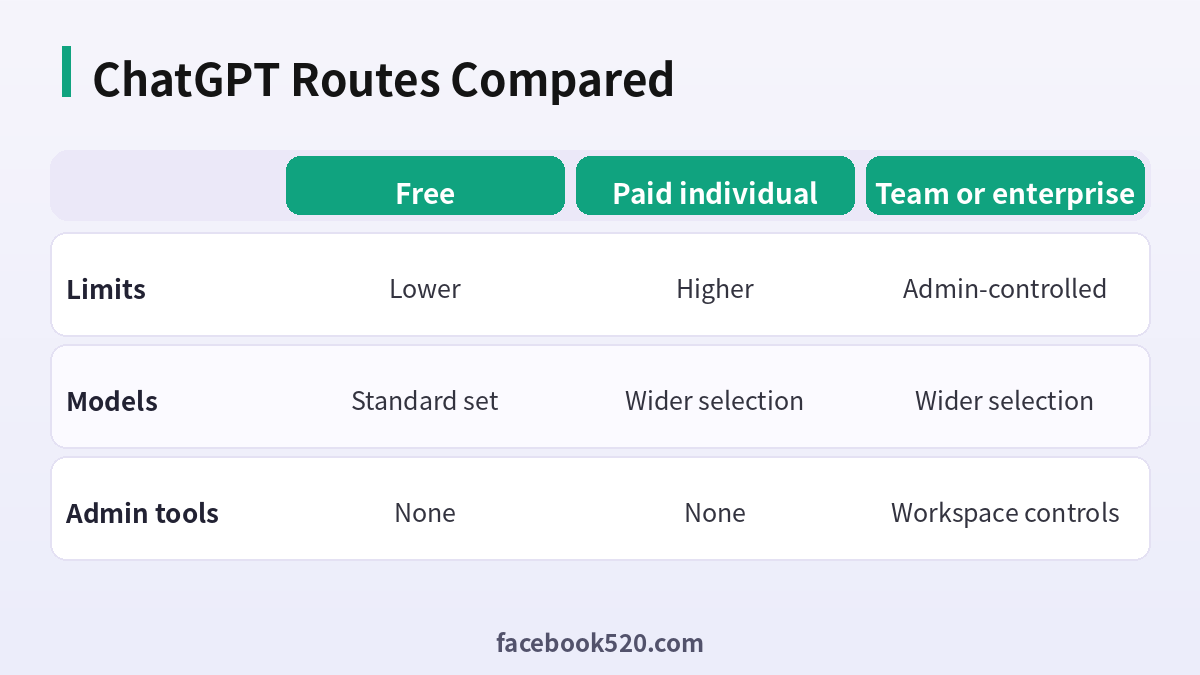
| Factor | Free | Paid individual | Team or enterprise |
|---|---|---|---|
| Limits | Lower | Higher | Admin-controlled |
| Models | Standard set | Wider selection | Wider selection |
| Admin tools | None | None | Workspace controls |
Verdict: Start on the free plan, upgrade when limits block your work, and choose a team plan when several people need shared controls. Check the official plans page for names and limits before paying.
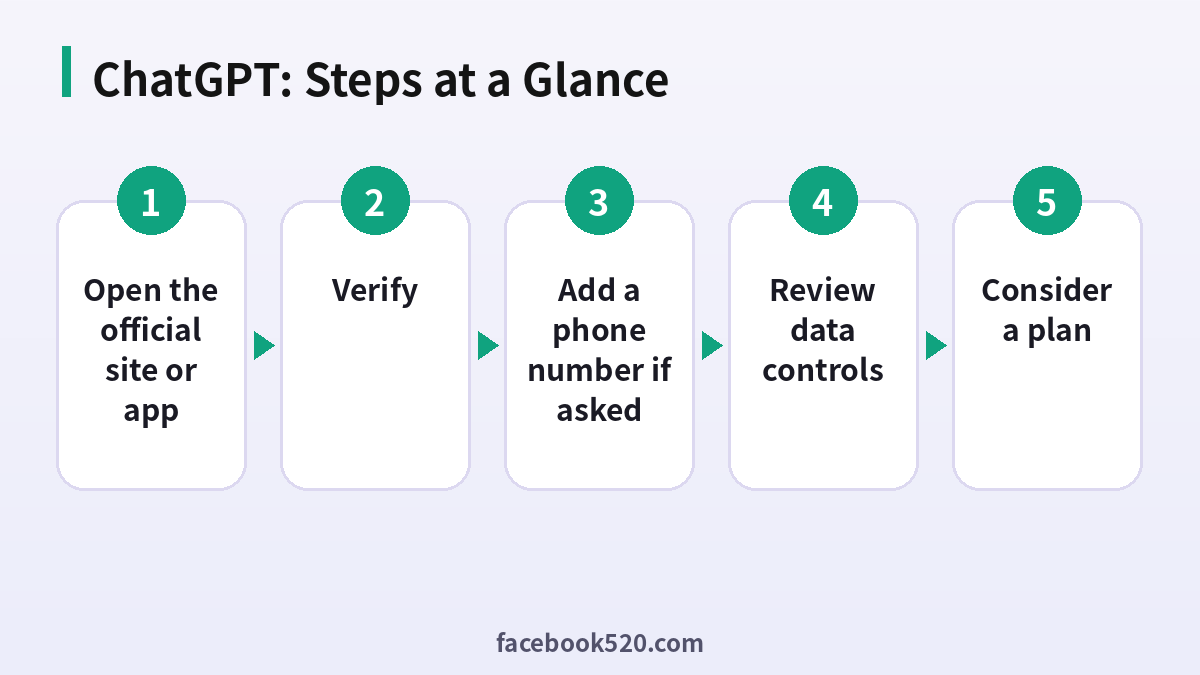
Signing up for ChatGPT
- Open the official site or app: Do not use links from messages.
- Choose a sign-in method: Email, Google, Microsoft or Apple.
- Verify: Enter the code sent.
- Add a phone number if asked: It is used for verification.
- Review data controls: Decide on history and training options.
- Try a task: Ask something you know the answer to.
- Consider a plan: Only after hitting limits.
Common ChatGPT Errors and What to Do
| Symptom | Likely cause | What to do |
|---|---|---|
| Verification code not arriving | Email filter | Check spam or retry. |
| Phone number rejected | Already used or unsupported | Use another number. |
| Region not supported | Availability | Check supported countries. |
| Login loop | Cookies | Clear cache. |
| Payment failed | Card issue | Try another method. |
Choosing the sign-in method
If you sign in with Google or Apple, access depends on that account. Think about which account you will keep long term, and note it down, because switching later can be awkward and may split your history.
Data controls
Open settings to see options for chat history and whether your conversations may be used to improve models. Choose according to your needs, and avoid pasting confidential information if you are not sure of the setting.
Free versus paid limits
Free use has limits on usage and sometimes on models. Paid plans raise limits and add features. The details change, so read the plans page and test the free plan on real work before paying.
Teams and workspaces
A team workspace lets members share chats and manage data policies under an admin. Do not share a personal login in a group.
Custom instructions and memory
You can tell the assistant about your preferences and, where offered, enable memory. Review and edit them regularly, and delete anything that is wrong or sensitive.
Using it responsibly
Verify facts, check calculations and read generated code before running it. Treat the output as a draft, and keep a human decision at every step that matters.
Mobile and desktop apps
Use official apps from the store listing of the company. Voice and image features may differ across them.
Safe payment
Pay on the official site or through the store. Do not buy shared logins or resold subscriptions, since they can be cancelled and the account lost.
Hedging on specifics
Plans, limits and availability change. Use the official pages as the final source.
Setting up for work or study
If you use ChatGPT for work, decide in advance which kinds of information may be entered and which may not. Write the rule down for yourself or your team, such as no customer data and no secrets, and check that your employer allows the tool. A simple rule protects you more than any setting.
A good first conversation
Start with a task you already understand, such as summarising an article you have read or drafting an email you could write yourself. Compare the answer with your own knowledge, ask for changes and note where it was wrong. That teaches you how far to trust it and how to phrase requests.
Keeping your account recoverable
Use an email that you will keep, turn on multi-factor authentication if the settings offer it and store the recovery details in a password manager. If you sign in through a social account, make sure that account is also secure, since losing it can mean losing access to your chat history and any subscription attached to it.
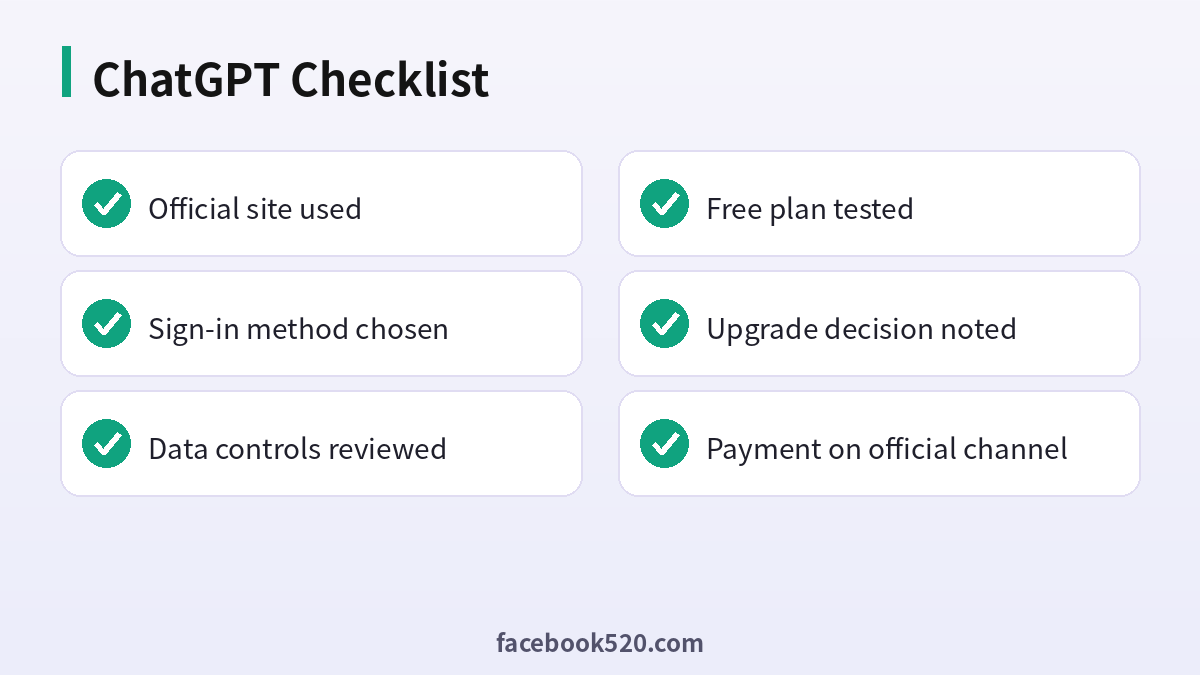
ChatGPT Self-Check List
- Official site used
- Sign-in method chosen
- Data controls reviewed
- Free plan tested
- Upgrade decision noted
- Payment on official channel
ChatGPT sign-up FAQ
Is ChatGPT free to sign up?
Yes. The free plan has limits; paid plans increase them.
Do I need a phone number?
Often yes, for verification.
Can I use one account on several devices?
Yes. Sign in with the same login on all devices.
How do I upgrade?
Open the profile menu and choose Upgrade plan.
How long does it take to set up ChatGPT?
The sign-up itself usually takes about five minutes. Completing the profile and security settings takes a little longer.
What if I already have an account?
Log in instead of creating a second one. Use the password reset option if you have forgotten the details.
Is it safe to let someone else register for me?
It is better not to. Anyone who creates the account first also holds the first recovery details, so do the registration yourself and add colleagues as members afterwards.
Can I change my email address later?
In most cases yes, through the account or security settings, but you will need access to both the old and new address, so update it before the old one is closed.
Can I use the same account on many devices?
Yes, by signing in.
Are chats private?
Review data controls in settings.
How do I cancel a plan?
In the billing settings or store.
