


VK Sign Up (2026): How to Create a VK Account and VK ID with a Phone Number, Registration from Abroad, Verification Codes, Privacy Settings, Language Options and Compliance Points for Businesses
VK, also known as VKontakte, is one of the largest social networks in Russia and the surrounding region, with messaging, communities, music, video and a growing family of services that use a single sign-in called VK ID. People look for a VK sign-up guide for many reasons: they want to talk to friends and relatives, join a community, study the language, follow a hobby or understand a market. This guide explains how to create a VK account in 2026 in plain steps, what the phone number requirement means, how to register from abroad using the mobile app, what to do when the verification code does not arrive, which privacy and language settings are worth a few minutes and what businesses should check before they use the platform for commercial activity. The information follows the official help pages as of October 2026, but screens and rules change, so follow the prompts in the current app.
What you need before you sign up
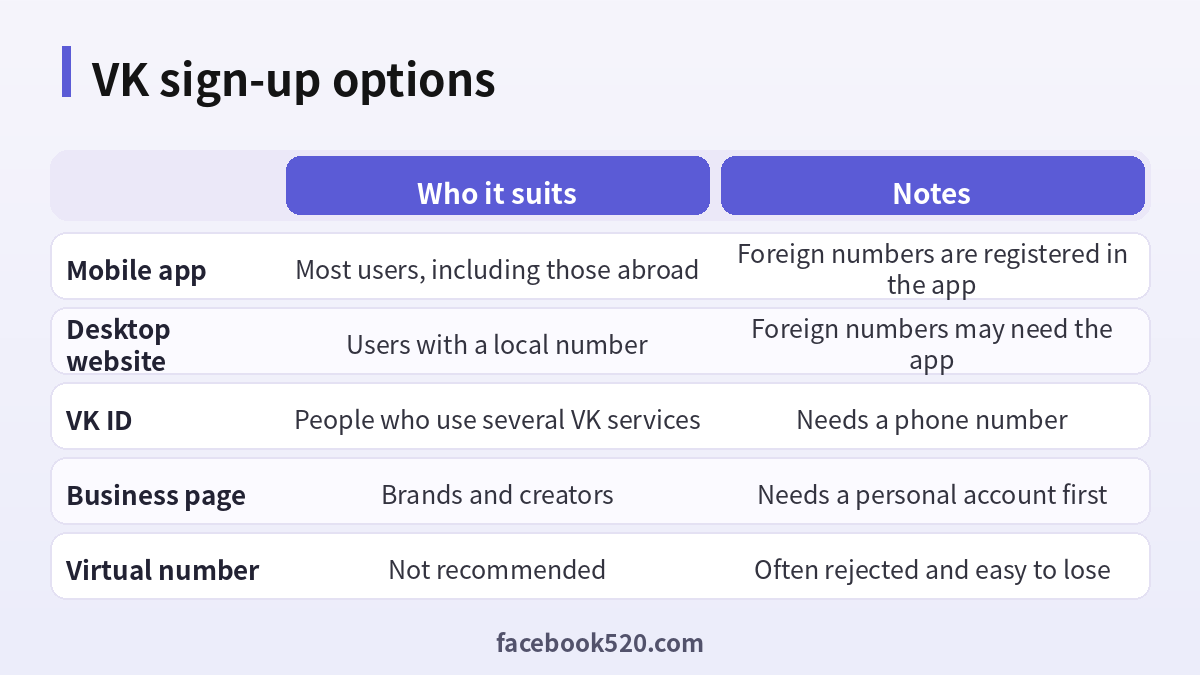
VK accounts rely on a phone number. According to the official help pages, a phone number is needed for both VK and VK ID, and VK ID cannot be created with an email address alone. Keep this in mind before you start, because it decides whether you can finish the registration.
| Item | Why it matters | Tip |
|---|---|---|
| Smartphone | Registration for foreign numbers is done in the mobile app | iPhone or Android |
| Your own phone number | Receives the SMS code and is used for recovery | Choose a number you will keep for years |
| Country code | The number must be entered in international format | For example plus and the country digits, without a leading zero |
| Internet connection | Needed to send and receive the code | Wi-Fi or mobile data |
| Name and birth date | Used for the profile | Use accurate information |
The official help advises against virtual numbers. They are often rejected, may be shared with other people and can be recycled, which means that someone else could later gain control of the account. Use a real SIM that belongs to you.
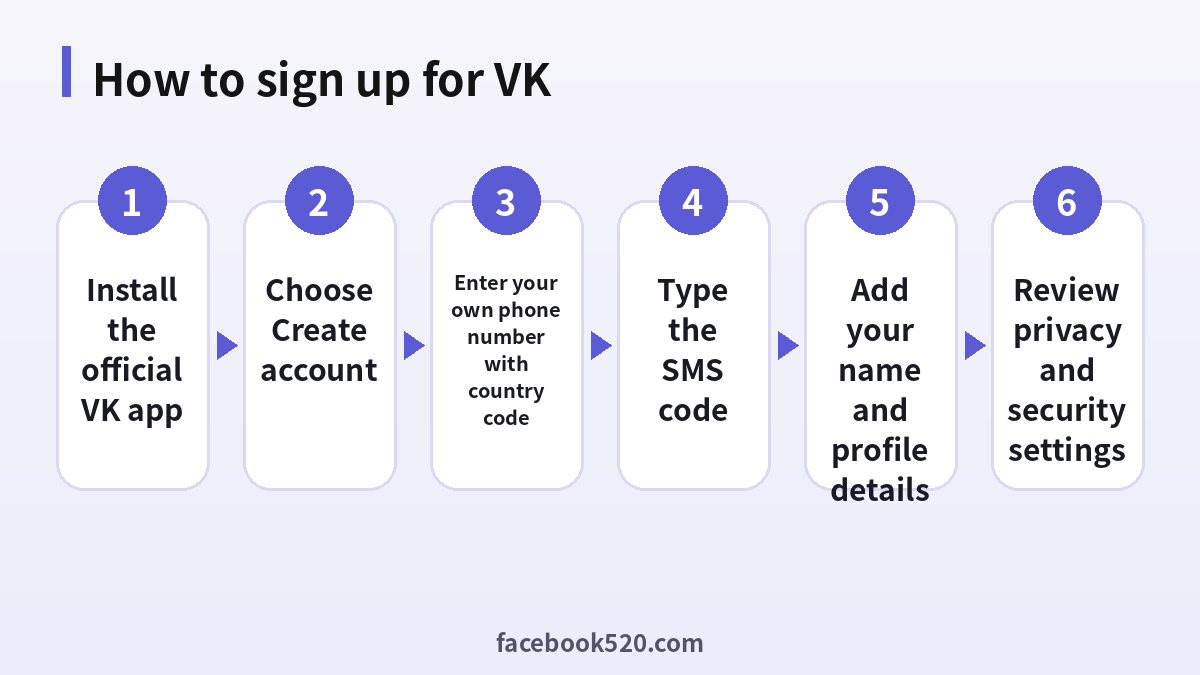
How to sign up on a phone
The mobile app is the main route, and it is the one recommended for users outside the region. The steps below describe the usual flow.
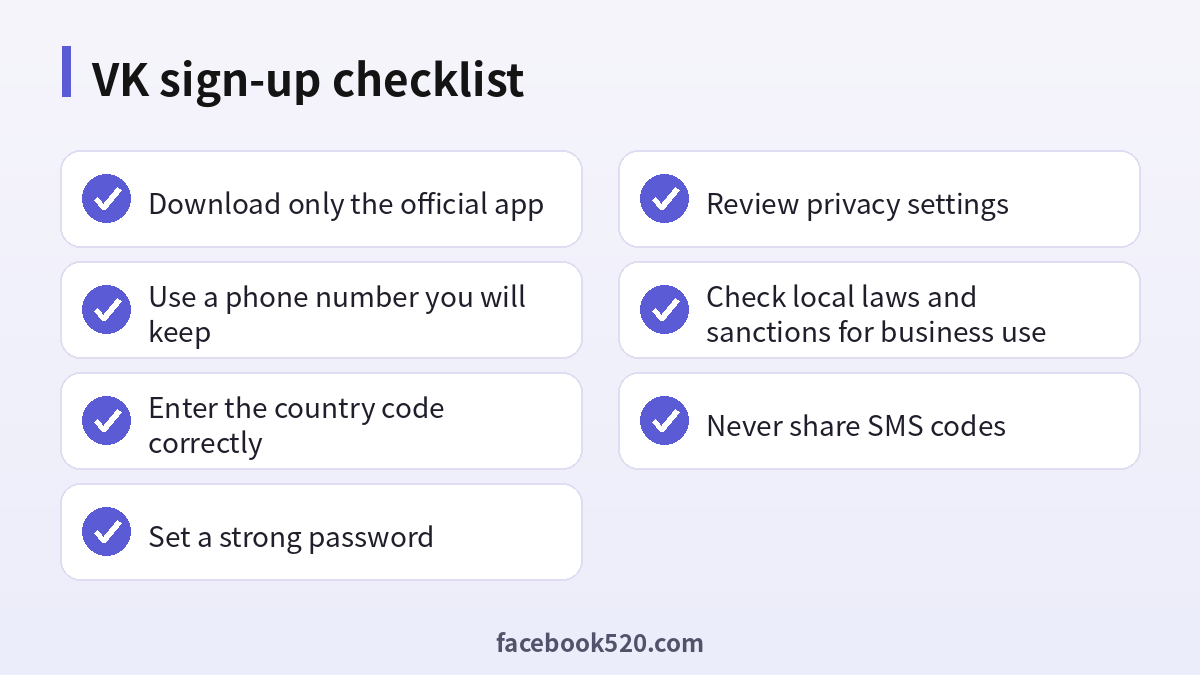
- Install the official VK app from your app store. Check the publisher name, and do not use a file from a chat group or a website that is not official.
- Open the app and tap the option to create an account.
- Select the country of your phone number and type the number in international format.
- Wait for the SMS or call with the verification code and type it in the app. Do not share this code with anyone.
- Enter your first name, last name, birth date and gender, if asked.
- Create a password that you do not use anywhere else.
- Add a profile photo if you wish, and choose whether the app can access your contacts.
- Review the suggestions of people you may know, but be cautious with unknown contacts.
- Open the settings and review the privacy and security options before you start posting.
If the app says that the number is already in use or that a limit has been reached, the official FAQ explains that each number has limits, and you may need to wait or use another number that you own.
Signing up from abroad
People outside the region sometimes try the website and see that it does not accept their number. The help pages explain that desktop registration is aimed at local numbers and that foreign numbers should register through the mobile app. Follow this approach: open the app, select your country, enter your own number with the correct code and wait for the SMS. Roaming can delay messages, so if you are traveling, make sure that the number is active and can receive texts. After you have created the account, you can usually log in on the website with the same number and password.
| Where you are | What to do |
|---|---|
| In the region with a local number | Register on the website or in the app |
| Abroad with a foreign number | Register in the mobile app |
| Traveling with roaming | Check that texts can be received |
| Without any number | You cannot create an account, so avoid unofficial shortcuts |
What if the code does not arrive
Missing codes are the most common problem. Work through simple checks first.
- Check the number and the country code, especially the leading zero.
- Make sure that the phone has signal and storage space.
- Wait a minute and request the code once more rather than many times.
- Restart the phone and update the app.
- Switch from Wi-Fi to mobile data, or turn off a VPN.
- Ask your carrier whether messages from international or short-code senders are blocked.
- If a call option is offered, try it.
- Use the help option in the app.
Do not buy codes or rent numbers from websites. These services are unreliable, can be used by others to take over your account and may violate the platform’s rules.
Setting up your profile and privacy
After the account is created, spend a few minutes on settings. Decide who can see your profile, your friends list, your photos and your posts. Choose who can send you messages and who can invite you to groups. Turn on two-step verification if it is offered, and save any backup codes. Check which apps and websites have access to your account and remove those that you do not recognize. If you use the platform for study or travel, you may not want a complete public profile, so use a limited profile and keep personal information minimal.
| Setting | Recommendation |
|---|---|
| Profile visibility | Limit to friends if you want privacy |
| Messages | Restrict to friends or people you know |
| Two-step verification | Turn on |
| Linked apps | Remove unknown ones |
| Location sharing | Keep off unless needed |
Language and interface
The interface is available in several languages, including Russian and English. You can change the language in the settings after sign-up. Content in communities is often in Russian, so a translation tool or browser translation can help you to read it. If you want to join a community, read its rules and say hello politely. Many communities are moderated strictly, and new accounts that post links immediately can be removed.
Compliance points for businesses and organizations
A personal account used for communication is one thing; commercial activity is another. Businesses that want to advertise, sell, accept payments or work with partners on the platform should check the relevant laws in their country, including sanctions and export control rules, financial restrictions, data protection rules and the platform’s own terms. Sanctions regimes and payment restrictions have changed in recent years and differ between countries, so a method that was possible earlier may be restricted today. Do not try to circumvent restrictions with intermediaries or shell arrangements. Get advice from a qualified compliance professional and from your bank before you set up payments or ad accounts. This guide does not provide legal advice.
| Question | Why it matters |
|---|---|
| Is the activity allowed in my country? | Sanctions and export laws apply to companies |
| Can my bank process the payment? | Many banks restrict certain transfers |
| Does the platform allow my business type? | Advertising rules vary |
| How will I handle customer data? | Data protection law applies |
Safety habits
Be careful with messages from strangers who ask for money, codes or personal information. Do not click on links in messages that promise prizes or give urgent warnings. Keep your phone number and password private, and log out on shared devices. Report suspicious accounts using the tools in the app. If you lose access, use the official recovery options, which usually rely on your phone number. Never give your SMS code to a person who claims to be support, and avoid sites that offer to recover an account for a fee.
Common problems after sign-up
| Problem | Likely cause | What to try |
|---|---|---|
| Account temporarily limited | Suspicious activity, many requests | Follow the prompts, verify by phone |
| Cannot log in on desktop | Foreign number or password issue | Use the app, reset the password |
| Messages not delivered | Privacy settings of the other person | Ask them or adjust settings |
| Friend suggestions are strange | Contact syncing | Turn off contact access |
Communities, messages and etiquette
Much of the value of the platform lies in communities, which are public pages and groups built around interests, cities, schools, brands and hobbies. After sign-up, search for topics you care about and read the pinned rules before you post. Moderators often remove posts that include links, advertising or off-topic content, and new accounts are watched more closely than established ones. Start by reading, then comment, and post only when you understand the tone. For private messages, remember that strangers may send unsolicited offers; do not follow instructions that involve payment, remote access to your phone or sharing codes. If you want to practice a language, look for communities for learners and exchange partners, and use the platform’s report tool for anyone who behaves badly.
| Activity | Good habit |
|---|---|
| Joining a community | Read the rules and pinned posts first |
| Posting | Keep it relevant and avoid repeated links |
| Messaging strangers | Be polite and do not share personal data |
| Receiving offers | Treat money requests as suspicious |
| Reporting | Use the in-app tools |
Step-by-step: securing the account in ten minutes
- Open the security section in the settings.
- Change the password to a long unique one if you used a simple one at sign-up.
- Turn on two-step verification and save backup codes in a safe place.
- Open the list of active sessions and end any that you do not recognize.
- Check the phone number and email linked to the account.
- Review the list of connected apps and remove unknown ones.
- Set message and invitation privacy to the strictest level that suits you.
- Take a screenshot of your recovery options and store it securely.
Using VK on several devices
You can log in on the website and on other phones with the same number and password. Each new device may trigger a verification code, which is normal. If you log in on a shared or public computer, always log out and never choose to remember the password. When you replace your phone, keep the old SIM or transfer the number first, because recovery depends on it. If you change your number permanently, update the account settings before you stop using the old number, or you may lose access.
A note about accuracy
Platforms in this region have changed their rules and available services several times in recent years, and access conditions can differ by country and carrier. The steps in this guide reflect the official help pages that were visible in October 2026. If something looks different in your app, trust the prompts that you see and the official help center over any article, including this one.
Frequently confused points about phone numbers
Because the phone number is the key to the account, people often have questions about it. First, a number belongs to a carrier, not to you permanently. If you stop paying for a prepaid plan, the number can be reassigned to another person, who could then request a reset on the account. For that reason, keep the number active, or change the number in the settings before you let it expire. Second, dual-SIM phones sometimes send the SMS to the other line. Check which SIM is selected for messages. Third, some carriers charge for receiving international texts while roaming, so check your plan. Fourth, if you share a family phone, create the account with your own number so that you do not lose it when the phone is passed on.
| Concern | Practical advice |
|---|---|
| Prepaid number expiry | Keep it active or change it in settings first |
| Dual-SIM phone | Select the correct SIM for messages |
| Roaming charges | Check the plan before you request many codes |
| Shared family phone | Use your own number and password |
| Changing countries | Add the new number before dropping the old one |
Checklist for travelers and students
Travelers and students often register just before a trip. Do it at home, with your usual carrier and a stable connection, rather than at the airport. Install the app, create the account, confirm that you can log in on a second device and write down the recovery information. Set the language to one you understand. Do not carry out financial transactions or share documents through chat with people you have just met. Keep in mind that some services and payment methods may not work for visitors, and that local rules apply to anything that you post. If you plan to stay for a long time, review the privacy settings again after a month, when you know which communities you actually use.
- Register at home with your own SIM.
- Check that the account works on a second device.
- Save the recovery details offline.
- Join a few communities that match your interests.
- Review your privacy settings after a month.
Responsible use and content rules
Every platform has rules about what you can post, and these rules are enforced through automated tools and human moderators. Read the terms of service and the community guidelines before you publish. Respect copyright when you share music, video or images, and avoid content that harasses others or spreads false information. Local laws may also apply to what you share, and they differ between countries, so be careful when you discuss sensitive topics. If you manage a community, publish clear rules, appoint more than one moderator and keep a record of removed content and reasons, so that decisions are consistent.
When to ask for help
If you cannot create the account after following the steps, or if your account is limited and the prompts do not help, use the help section inside the app or the official help pages. Describe the problem briefly, include the date and the exact message, and avoid sending passwords or codes. Be skeptical about anyone who contacts you offering help, especially through private messages, since support teams do not ask for your verification code. Patience usually works better than repeated attempts, which can trigger additional limits.
Frequently asked questions
Can I sign up for VK without a phone number?
According to the official help, a phone number is required for VK and for VK ID.
Can I sign up from outside the region?
Yes, foreign numbers are registered through the official mobile app, according to the help pages.
Is a virtual number allowed?
The official help advises against it. Use a real number that you control.
What is VK ID?
It is a single sign-in for VK services, tied to a phone number.
Why does the website not accept my number?
Desktop registration is designed for local numbers, so use the mobile app.
The code does not arrive. What now?
Check the number and signal, wait a minute, retry once, update the app and use another network.
Is it safe to buy a VK account?
No. Accounts are tied to phone numbers, so sellers can take them back, and trading accounts is risky.
Can I use VK for business?
Check your local laws, sanctions rules and the platform’s terms before any commercial use.
Can I change the interface language?
Yes, in the settings.
What should I do if my account is limited?
Follow the in-app instructions and use the official help pages.
Summary
To sign up for VK, install the official app, use a real phone number with the correct country code, enter the SMS code and set up a strong password and privacy settings. From abroad, use the mobile app. Do not use virtual numbers or buy accounts, and if you plan any commercial activity, check the laws and sanctions rules that apply to you first.

