


Instagram Recover Account (2026): Official Steps for a Forgotten Password, a Hacked Account, a Disabled Account and a Lost Email or Phone, Plus Identity Checks, Timelines and Recovery Scams to Avoid
Losing access to an Instagram account is stressful, especially when the account holds years of photos, messages and customers. People lose access in several ways: they forget the password, they lose the email or phone number that they used to sign up, the account is hacked, or Instagram disables it for a suspected rule violation. Each situation has an official path, and the right first step depends on what happened. This guide explains how to recover an Instagram account in 2026 using the official tools, what to prepare before you start, how identity checks such as a video selfie work, how long recovery can take and how to spot the fake recovery services that prey on people who are locked out. Screens and options change from time to time, so follow the prompts inside the current app and on the official Instagram and Meta help pages.
First, work out what happened
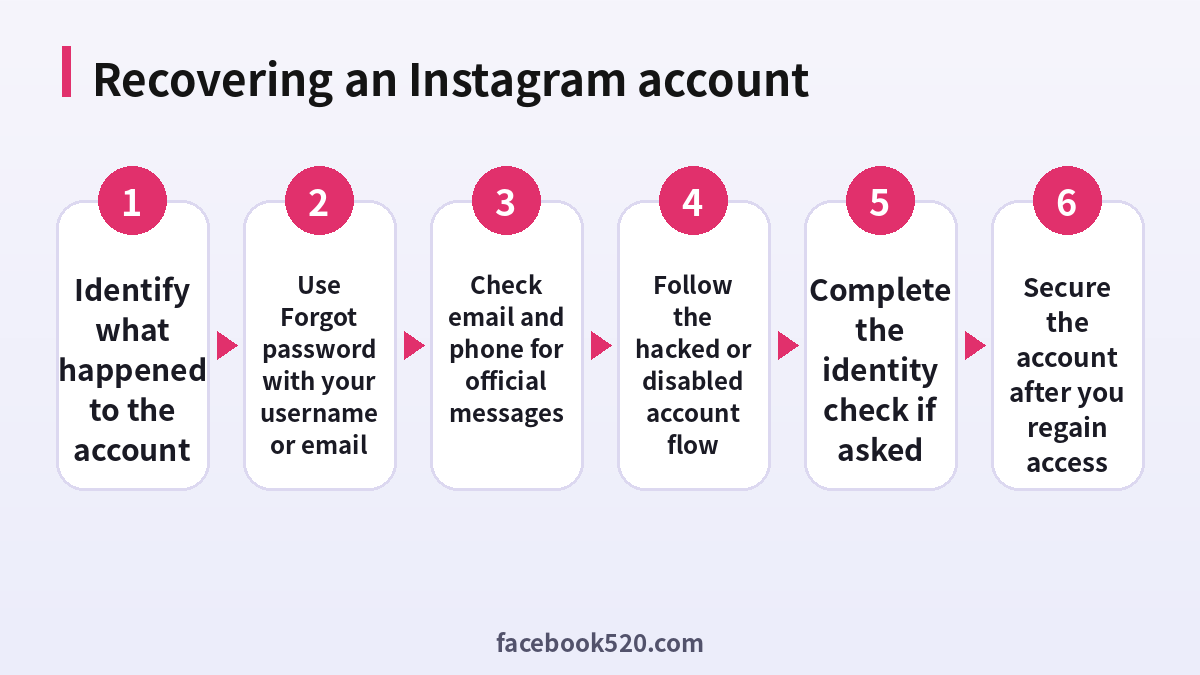
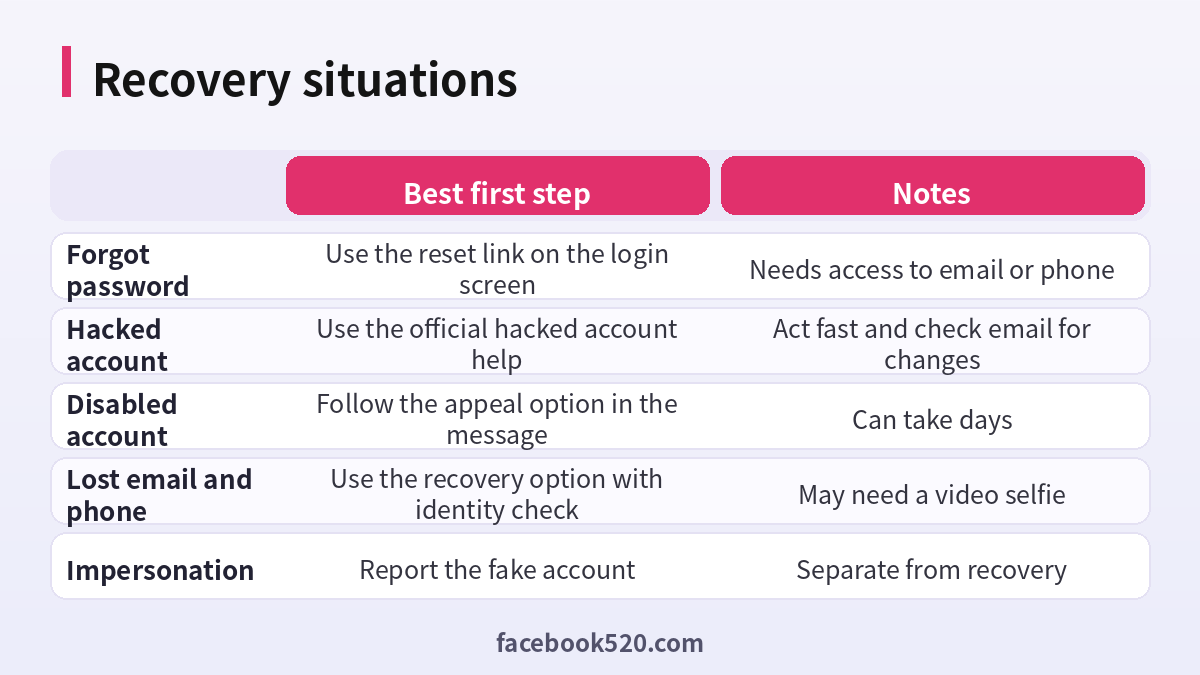
Before you tap anything, identify the situation, because the steps differ. Ask yourself a few questions. Can you still see the login screen and does it accept your username? Did you receive an email about a change of email address or password? Does the app say that your account was disabled or suspended? Do you still have access to the email address or phone number that is linked to the account? Your answers point to one of the following situations.
| Situation | Typical sign | Where to start |
|---|---|---|
| Forgot password | Login fails but the account is intact | Forgot password link on the login screen |
| Hacked | Email or password changed, strange posts | Official hacked account help and the security email |
| Disabled | Message says account disabled or suspended | Appeal option in the message |
| Lost access to email or phone | You cannot receive reset codes | Recovery with identity verification |
| Deleted by you | You chose to delete the account | Possible only within a limited time window |
Recovering when you simply forgot the password
This is the easiest case. On the login screen, tap the option for help with logging in or forgotten password. Enter your username, email address or phone number. Instagram will offer to send a reset link or code to an email or phone linked to the account. Open the message, follow the link and create a new strong password. If nothing arrives, check the spam and promotions folders, make sure that you typed the address correctly and wait a few minutes before you try again. Try from a phone or computer where you have logged in before, since the system recognizes familiar devices and is more willing to help.
- Open the Instagram app or the official website and go to the login screen.
- Tap the help option for forgotten passwords.
- Enter your username, email or phone number.
- Choose how to receive the reset link or code.
- Open the message and follow the instructions.
- Create a new password that you do not use anywhere else.
- Review login activity and sign out of unknown devices.
- Turn on two-factor login.
If your account was hacked
A hacked account usually shows signs such as a changed password, a different email on the account, posts that you did not write, messages sent to your contacts or a security email telling you that your login details were changed. Act quickly. The first thing to look for is an email from Instagram to your original address saying that the email was changed. That message often contains a link to revert the change and secure your account. Use it as soon as possible, because the link is time-limited. If you cannot find the email, use the official hacked account help from the login screen or the help center, and follow the guided steps.
During the process, Instagram may ask you to confirm your identity, for example by sending a code to a contact, or by asking you to record a short video selfie from different angles. This is used to compare your face with the profile photos and posts on the account. The video is used for verification only, according to the official explanation. Prepare by sitting in good light and following the on-screen directions.
| Step | Why |
|---|---|
| Search email for security messages | The revert link may be there |
| Use official hacked account help | Starts the verified process |
| Change passwords of email and linked accounts | Closes other doors |
| Remove unknown devices and apps | Stops the attacker’s session |
| Warn followers | Prevents scams through your messages |
If Instagram disabled your account
When an account is disabled, you will usually see a message at login explaining that the account was disabled or suspended, sometimes with an option to appeal. Read the message carefully. If an appeal link is offered, use it, answer honestly and provide any information requested, such as a code sent to your email or an identity check. Responses can take from hours to several days. Avoid creating many new accounts or appealing repeatedly in a short time, since it can make the review longer. If the account was disabled by mistake, a clear and polite appeal gives the best chance. If it was disabled for a real violation, learn the community guidelines before you open a new account, so the same thing does not happen again.
If you lost access to your email and phone
This is the hardest case, because the usual reset methods depend on those two items. Try the recovery options at the login screen and look for the choice that says you no longer have access to those items. Instagram may ask for a new email address, details about the account and a video selfie. If you do not have this option, try to regain the old email first: your email provider has its own recovery process, and getting the old address back often solves the Instagram problem as well. If you changed your phone number, ask your carrier whether the old number can be restored.
What to prepare before you start
Preparation increases your chance of success. Gather the username, the email addresses and phone numbers that you may have used, the approximate date when you created the account and the names of a few followers. Use the phone or computer that you have used to log in before, on your usual network at home. Make sure your device date and time are correct and update the app. Keep your email open to receive messages. If you manage a business account, check the Meta Business tools for the other admins, since another admin may be able to help.
| Item | Why it helps |
|---|---|
| Usual device and network | Builds trust in the request |
| Old emails and numbers | Lets you try each recovery path |
| Account details | Helps with identity questions |
| Good lighting for the selfie | Reduces failed video checks |
| Patience | Reviews can take time |
How long does recovery take?
There is no fixed time. A password reset takes minutes. A hacked account review can take a day or several days, and appeals for disabled accounts can take several days. Delays are common during busy periods. While you wait, do not start over repeatedly, because every new request can reset the review. Check your email regularly, including the spam folder, and answer any request promptly.
Fake recovery services and scams
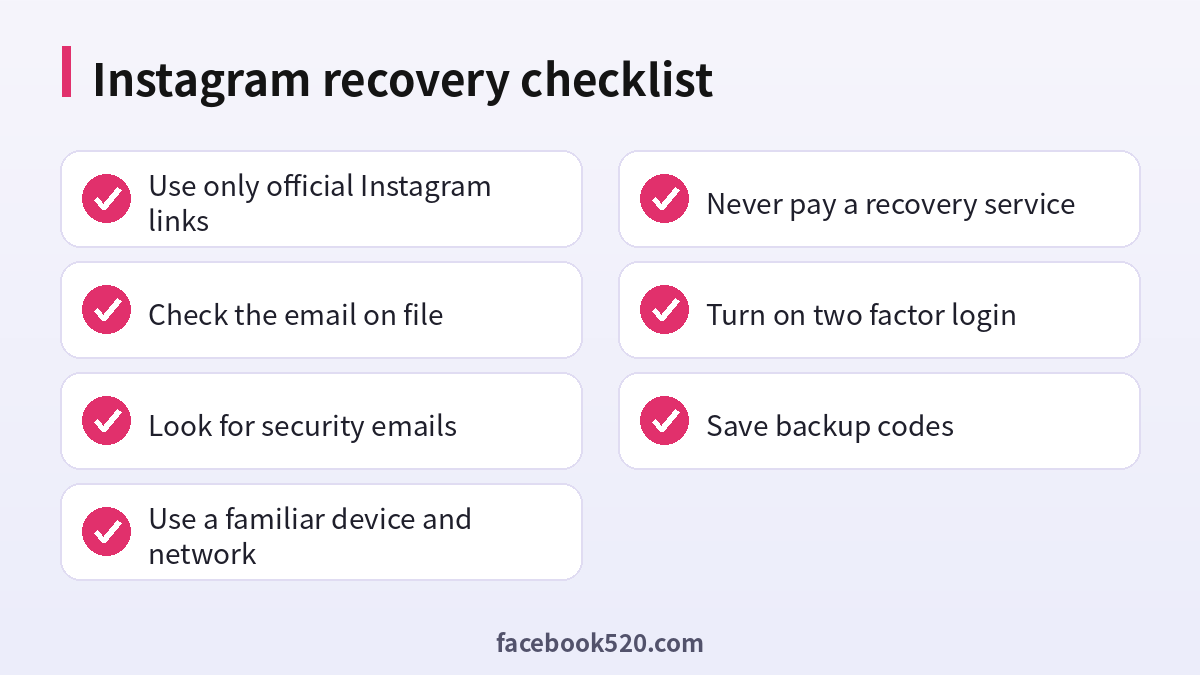
People who lose their accounts are targets for scammers. Be careful with anyone who offers to recover your account for money, claims to be an Instagram employee on social media, sends you a link to a form that asks for your password, or asks for a code that you received. Instagram does not run recovery through private messages or paid third parties. Other warning signs include a request for payment by gift cards or cryptocurrency, a promise of guaranteed recovery and pressure to act immediately. Also be careful with emails that look like a security alert but come from an address that does not belong to the company. Go to the official app or website yourself.
| Scam | How to recognize it | Safe response |
|---|---|---|
| Paid recovery service | Asks for money or gift cards | Refuse and block |
| Fake employee | Contacts you by direct message | Ignore it |
| Phishing email | Link goes to a lookalike page | Open the official app instead |
| Code request | Asks you to send the code you received | Never share it |
Secure the account after recovery
After you regain access, spend ten minutes on security. Change the password to a long, unique one. Turn on two-factor login using an authentication app rather than only text messages, and save the backup codes offline. Check the email and phone linked to the account. Review the list of logged-in devices and remove any you do not recognize. Remove third-party apps that you do not use. Check your recent posts, messages and settings for changes made by the attacker, and warn your followers if they received strange messages. If you run a business, review who has access through the business tools.
Preventing the next lockout
Keep your recovery email and phone current, and use an email account that you protect well. Do not reuse passwords. Use a password manager. Be skeptical of messages that tell you that you violated copyright or that your account will be deleted unless you click a link, since these are common phishing tricks. If you sell through Instagram, keep a backup of your customer contacts outside the app.
Business and creator accounts: extra considerations
If the account belongs to a brand or a creator, a lockout affects revenue and reputation, not just personal memories. Check first whether the account is linked to a Facebook Page or to a Meta Business account, because those links give additional admins and recovery routes. If more than one person has admin rights, ask a trusted colleague to check whether they can still see the account in the business tools and whether security notifications were sent to them. Keep a record of who owns the account, which email it uses and where the backup codes are stored. In a team, never share one password in a chat message; use a password manager with shared vaults and give the minimum permissions to each person.
| Business item | Good practice |
|---|---|
| Login email | A company-controlled address, not a personal one |
| Admin roles | At least two trusted admins |
| Two-factor login | Authentication app plus stored backup codes |
| Ad accounts | Payment and permissions reviewed regularly |
| Offboarding | Remove access when someone leaves |
Troubleshooting common error messages
Error messages are often clues. A message that says the username does not exist may mean a typo, or the account may have been renamed by an attacker. A message that says the password is incorrect after you just reset it could mean that you are typing it into the wrong account or that a password manager filled the old one. A message that says you are temporarily blocked from logging in means too many attempts, and the cure is to stop and wait for several hours. A message that asks for a code that you never receive points to a problem with your phone number, so try the authentication app or a backup code instead. If you see a prompt that your account is under review, wait for the email from the company and follow its instructions.
- Write down the exact message.
- Verify the username and try the email or phone as the identifier.
- Try a different network and a different device that you used before.
- Clear the app cache or reinstall the app, but only after you are sure you know the password.
- Wait if you are rate limited.
- Use the official help page that matches your message.
Protecting your contacts during the incident
If your account was taken over, your followers are in danger. Attackers often use the account to message friends with urgent requests for money, links to fake giveaways or investment offers. Use another account or another channel to warn your contacts and tell them to ignore any request that came from your account, to avoid clicking links and to report the messages. If you manage to regain access, remove suspicious posts and stories, check the messages that were sent and apologize publicly in a short post, so that people understand what happened.
Privacy after a security incident
An account takeover can expose private messages, saved posts and contact details. After you recover the account, review what could have been seen. Read the direct messages for sensitive information, such as addresses, ID numbers or payment details, and decide whether you need to change anything else, for example the passwords of other services. Check the privacy settings for who can message you, tag you and see your activity. Download a copy of your data from the account settings if you want a backup of your photos and messages, which also helps if a future problem occurs. If the attacker used your email, treat that mailbox as compromised too and secure it first.
When it is time to start over
In rare cases the account cannot be recovered, for example when the identity checks fail repeatedly or the account has been permanently removed. If that happens, do not spend money on third-party promises. Instead, create a new account with a fresh email and phone number that you control, set up strong security from day one and tell your audience about the new profile through other channels such as your website, email list or another social network. Keep your posting history and photos in a separate backup so that you can republish the best content. It is frustrating, but a clean start with good security habits is better than paying scammers.
Frequently asked questions
Can I recover an Instagram account without email or phone?
Possibly, through the recovery option that uses identity verification such as a video selfie, but success is not guaranteed.
What is a video selfie check?
You record a short video of your face from several angles so that the system can compare it with your account, and it is used for verification according to the official explanation.
How long does recovery take?
It ranges from minutes for a password reset to several days for reviews and appeals.
What if the hacker changed my email?
Look for the security message sent to your original email and use the revert link, or follow the official hacked account process.
Can I recover a deleted account?
Only in limited cases and within a short window. Check the official help pages for the current rules.
Do paid recovery services work?
No. They are a common scam. Use only official tools.
Should I make a new account while waiting?
You can, but avoid creating many accounts and do not use the new one to bypass a suspension.
Why does Instagram disable accounts?
Usually for suspected violations of the community rules or for security reasons. Use the appeal option if you believe it was a mistake.
Is it safe to give my code to support?
Never share a login code with anyone.
How can I avoid getting locked out again?
Use a unique password, two-factor login with backup codes and current recovery contacts.
Summary
To recover an Instagram account, identify what happened and use the official tools: the reset link for a forgotten password, the security email and hacked account help for a hijack, the appeal option for a disabled account and identity verification when you have lost your email and phone. Prepare your details, use a familiar device, be patient and never pay anyone who promises a guaranteed recovery. Once you are back in, secure the account and keep your recovery information current.

