


Threads Sign Up in 2026: How to Create a Threads Profile With or Without Instagram, Set Up Your Handle and Privacy, Fix Login Problems, and Get Your First Followers Safely
Threads is Meta’s text focused social network, launched in 2023 as a companion to Instagram and now used by hundreds of millions of people. If you want to follow conversations, build an audience for a brand, or simply post short thoughts, the first step is a Threads sign up. This guide explains exactly how to do it in 2026, including the classic route through an Instagram account, the newer standalone route that is rolling out in some regions, what to prepare before you start, how to set up your profile and privacy, how to fix the most common login problems, and how to stay safe from scams that target new users. Features and availability change quickly, so treat the details below as a snapshot of October 2026 and confirm them in the app and in the Instagram Help Center.
What is Threads and who is it for
Threads lets you post short text updates, photos, videos and links, reply to other people, and follow topics. It feels a little like early microblogging, with a feed of recommended posts and a feed of accounts you follow. Creators use it to test ideas, journalists use it for news, and small businesses use it to answer questions in public. Because it is connected to Instagram, you can share posts across the two apps, and your followers can find you easily. It is free to use and supported by ads, with an optional paid subscription in some regions for people who want to remove ads.
The two ways to sign up
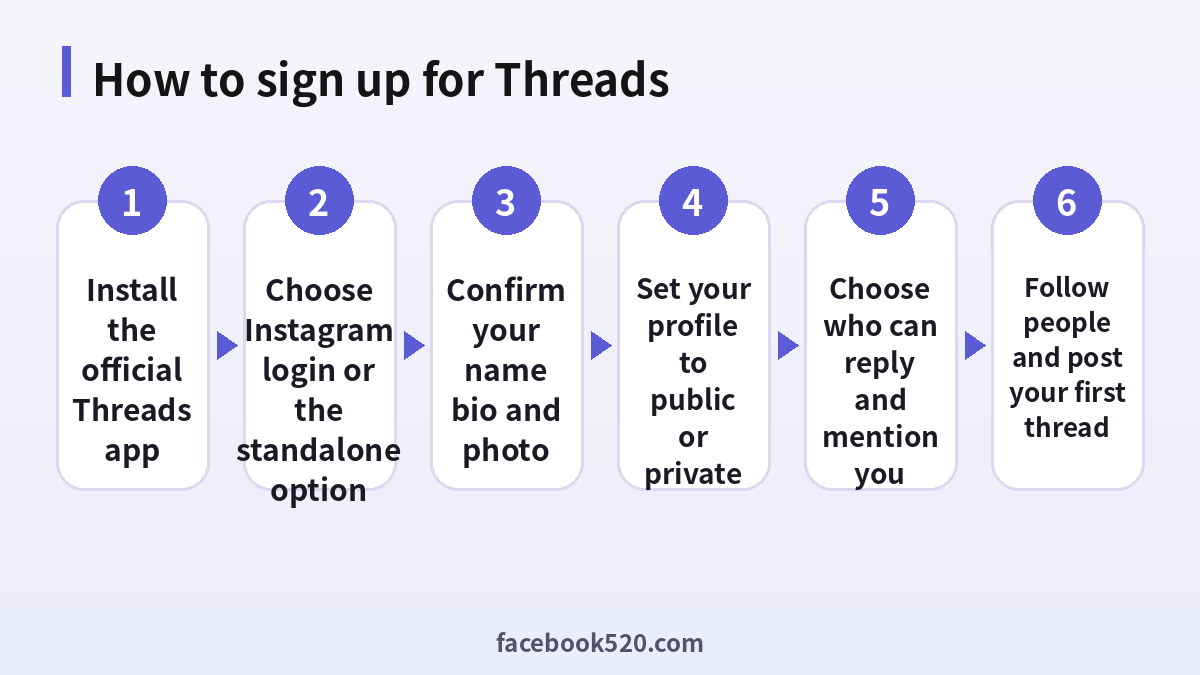
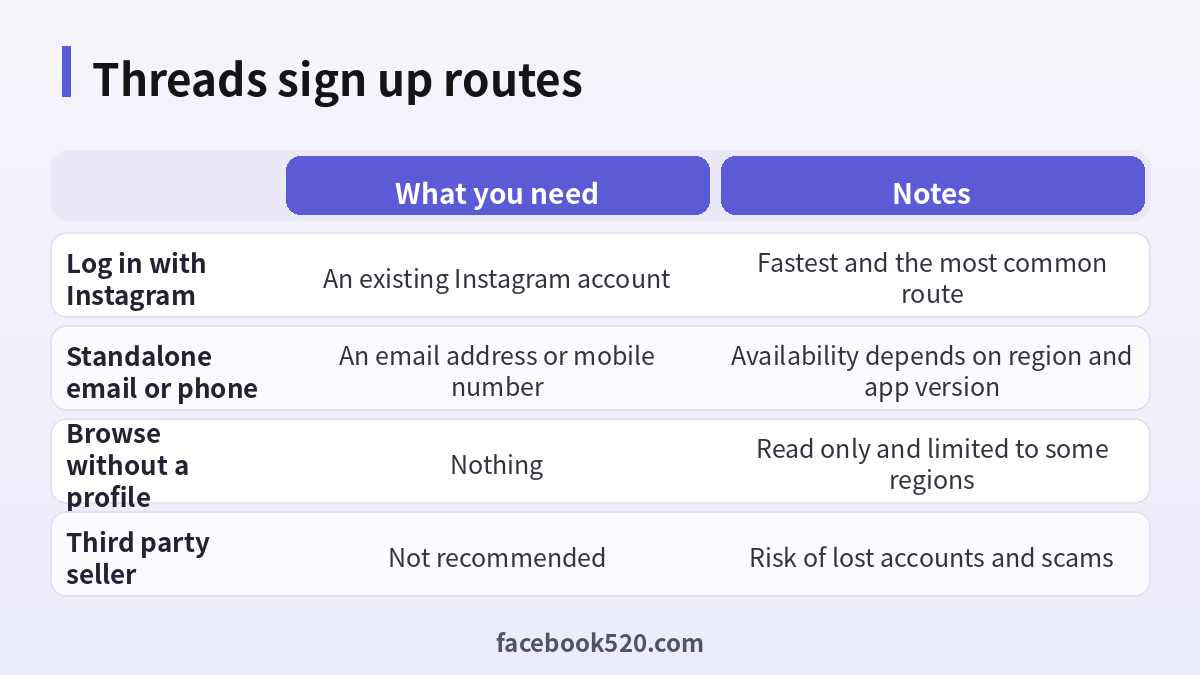
Historically, you needed an Instagram account to join Threads. Your handle, name and photo came from Instagram, which made signing up a one tap process. In 2026, Meta has been rolling out the ability to create a separate Threads profile using an email address or phone number, which is aimed at people who do not want to use Instagram. The rollout started in some regions, notably the EU, EEA and Switzerland, and has been expanding, but it is not available everywhere. You should open the Threads app and see which options your version shows.
| Route | Best for | Things to remember |
|---|---|---|
| Log in with Instagram | People who already use Instagram | Your profile information is imported and you can follow the same people |
| Standalone with email or phone | People who do not want Instagram | Shown only where available, and some features may differ |
| Browse without a profile | Casual readers in some regions | You can read but you cannot post or interact |
If you do not see the standalone option, update the app from the App Store or Google Play. If it is still missing, it is probably not available in your location yet, and you will need an Instagram account.
Before you start: what to prepare
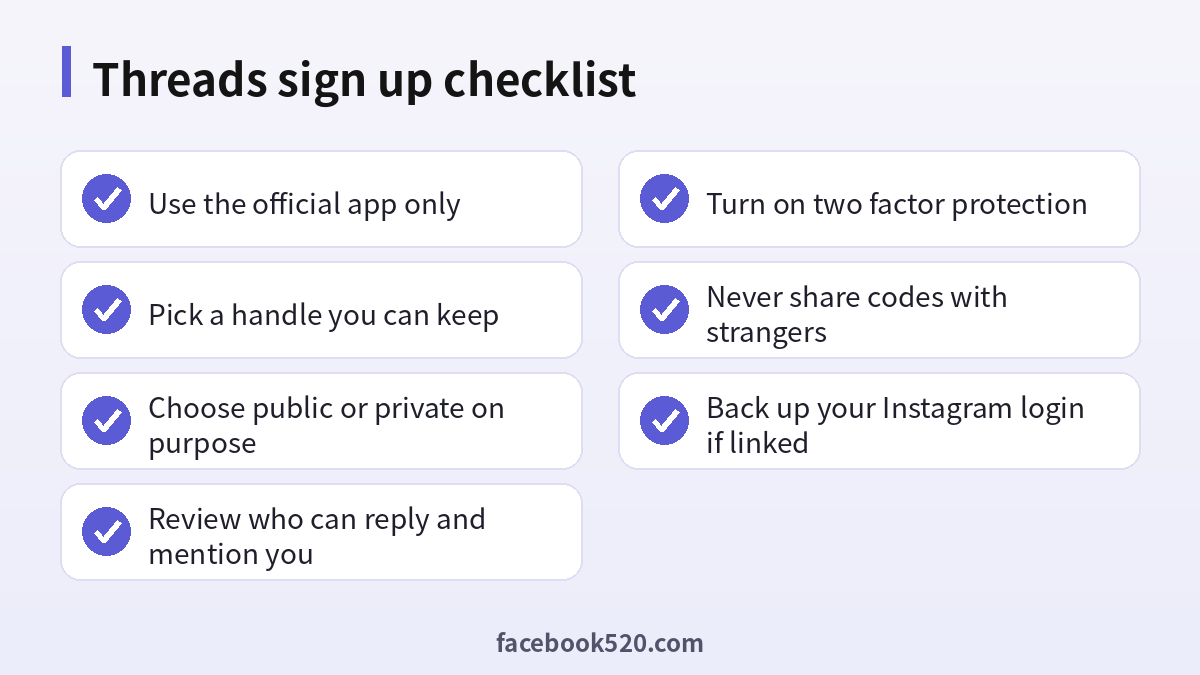
A few minutes of preparation prevents most sign up problems. Have your phone fully charged and connected to a stable network. Install the official Threads app only, from the App Store or Google Play, and check that the publisher is Instagram, Inc. Know the password of your Instagram account if you will use it to log in, and make sure you can receive emails or text messages on the address or number linked to it. Decide what handle you want. A handle is public and, depending on how you sign up, may be difficult to change later, so choose something you will still like in a year. Finally, think about whether this profile is personal or for a business, because that affects the photo, bio and privacy choices you make.
Step by step: sign up with Instagram
- Download the Threads app from the official store and open it.
- Tap the option to log in with Instagram. If the app already detects your Instagram account on the device, you will see it listed.
- Choose the account you want to use, or enter your Instagram username and password.
- Review the profile information that Threads imports: your name, bio, links and profile photo. You can edit or customize them for Threads.
- Select whether your profile will be public or private. A public profile can be seen by anyone, while a private profile requires you to approve followers.
- Choose whether to follow the same accounts you follow on Instagram, or to start fresh.
- Accept the terms and tap to join. You will land on your home feed.
- Write your first post, or reply to a few conversations to get a feel for it.
Step by step: sign up without Instagram where available
- Update the Threads app to the latest version.
- On the welcome screen, look for the option to set up without Instagram or to use an email or phone number.
- Enter your email address or mobile number and request a verification code.
- Type the code to confirm that you own it.
- Choose a username and a display name. Usernames must be unique and follow the rules for characters and length.
- Add a profile photo and a short bio.
- Pick the privacy setting and the people you want to follow.
- Save your recovery details, such as the email address, because you will need them if you lose access.
If the option is missing or you see an error stating that the feature is not available, do not try to bypass it with a VPN or a purchased account. The restriction is a rollout limitation and will disappear when the feature is available in your region.
Setting up a good profile
A clear profile helps people decide whether to follow you. Use a recognizable photo, and keep the display name close to the name you use elsewhere. Write a short bio that explains what you post and why someone should follow you. Add a link only if it goes to a page you control. If you represent a business, mention what you sell or do in one sentence and include a way to contact you. Keep personal information such as your home address, phone number and financial details out of your bio.
| Profile element | Tip |
|---|---|
| Handle | Short, easy to spell, and consistent with your other platforms |
| Display name | Real name or brand name |
| Photo | Clear face or logo with a plain background |
| Bio | One or two sentences about topics you post |
| Link | One link to your site or a page that collects links |
Privacy and safety settings to review
After you sign up, open the privacy settings. You can choose who can reply to your posts, who can mention you, and who can quote them. For a new account, it is wise to start with the more restrictive options and relax them as you gain confidence. You can mute words, restrict accounts and block people who bother you. Review the list of accounts you have blocked or muted from time to time. Enable two factor protection on the Instagram account that is linked to your profile, because anybody who takes over that account may also reach your Threads profile.
Common sign up problems and fixes
| Problem | Likely cause | What to try |
|---|---|---|
| The app does not show your Instagram account | You are signed out or use a different device account | Log in to Instagram first, then reopen Threads |
| You never receive a verification code | Wrong address or number, spam folder, or network delay | Check spelling, wait a minute, and request a new code once |
| The handle is unavailable | It is already taken | Add a word or number, or choose another name |
| You see an error that Threads is not available | Region or app version | Update the app and try again later |
| The app crashes on launch | Outdated version or low storage | Update, free some space, and restart your phone |
| Your account is restricted | Unusual activity detected | Follow the on screen steps and avoid repeated attempts |
When you request a code, resist the urge to tap the button repeatedly. Multiple requests can trigger a temporary lock that lasts longer than the original delay.
Why you should not buy a Threads account
Search results include sellers who advertise Threads accounts or follower packages. These are risky for the same reasons as any bought social account. The original owner can reclaim it. Meta can restrict accounts that show signs of misuse. Fake followers hurt your reach because the algorithm measures engagement, not follower counts. And you may be giving a stranger access to your payment details or your Instagram login. Signing up yourself takes about five minutes and is free.
Your first week on Threads
Once your profile is ready, spend the first days listening before you broadcast. Follow people in your field, read their posts, and reply thoughtfully to a few conversations a day. Post a short introduction that says who you are and what you will share. Then publish a small number of posts on a regular schedule, mixing questions, short opinions and useful links. Respond to every reply in the first week, because early engagement shapes how the algorithm shows your posts. Avoid hashtag stuffing and link dropping, which feel like spam.
- Day one: finish your profile and introduce yourself.
- Days two and three: follow twenty relevant accounts and reply to their posts.
- Days four and five: share a helpful tip or short story.
- Day six: ask a question to start a conversation.
- Day seven: review which posts got replies and plan next week.
Related guides on this site
If you are interested in how other platforms handle sign up and payments, see our guides to Reddit sign up (https://www.facebook520.com/article/8410.html), Snapchat account creation (https://www.facebook520.com/article/8408.html) and Pinterest sign up (https://www.facebook520.com/article/8422.html). For Chinese readers, our Threads articles in this series explain advertising and accounts in more detail.
Using Threads for a business or brand
Many people sign up for Threads because they run a shop, a studio or a local service. The platform rewards conversation more than polished advertising, so approach it as a place to answer questions and show the people behind the brand. Start by deciding who will manage the profile, because shared passwords are a security risk. Use a business email that more than one person can reach, and keep the recovery information in a password manager. If you plan to run ads later, the Threads placement is managed through Meta Ads Manager, and the profile you use can be a Threads profile, an Instagram profile or a Facebook Page, so there is no need to buy an aged account to advertise.
A simple content mix for a brand is one helpful tip, one behind the scenes moment, one customer question answered in public, and one soft call to action each week. Track what works by noting which posts receive replies rather than just likes. Reply from the brand account in a friendly voice, and avoid copying and pasting the same link into many conversations.
| Content type | Purpose | Example |
|---|---|---|
| Helpful tip | Shows expertise | Three steps to prepare your files for printing |
| Behind the scenes | Builds trust | A photo of your workspace this morning |
| Customer question | Demonstrates service | Reply to a public question with a clear answer |
| Soft call to action | Drives interest | Mention a new product and link to the page |
Account security habits that matter
New users often focus on followers and overlook security. A few habits take only minutes and prevent most takeovers. Use a unique password for the Instagram account that is linked to your profile. Turn on two factor authentication with an authenticator app rather than relying only on text messages. Be suspicious of direct messages that claim your account violates a policy and ask you to click a link; Meta does not resolve such issues through random messages. Never read out a verification code to anyone, even a friend, because attackers often take over a friend’s account first. Review the devices and apps connected to your account every few months and remove those you do not recognize. If you lose access, use the official recovery flow in the Instagram Help Center instead of paying a stranger to restore your profile.
When to wait and try again
Sometimes the right answer is patience. If the app says that too many attempts were made, put the phone down for a few hours. If a feature is not available in your region, check again after a few weeks because rollouts are gradual. If your account was flagged, avoid sending many follow requests or posting the same text repeatedly. These small changes in behavior prevent restrictions and keep your profile in good standing.
Cross posting and notifications
If you also use Instagram, decide early how the two accounts will work together. Threads lets you share a post to Instagram stories or feed, and you can show a Threads badge on your Instagram profile so followers can find you. Cross posting saves time, but copying identical content everywhere can feel repetitive, so adapt the wording to each audience. Next, tune your notifications. Too many alerts will push you to quit, while too few will make you miss replies. A good starting point is to keep alerts for direct replies and mentions, and to mute likes and reposts from large threads.
- Open settings and choose notifications.
- Keep replies and mentions on, since they lead to conversations.
- Switch off alerts for every like if you find them distracting.
- Check your account once or twice a day at set times.
- Use the mute and restrict tools quickly when a conversation turns unpleasant.
These small adjustments help you enjoy the app and keep the habit of posting for the long term.
Frequently asked questions
Is Threads free?
Yes. Threads is free to use and supported by ads. A paid no ads subscription is available in some regions.
Do I need Instagram to use Threads?
Usually yes, but a standalone sign up with an email or phone number is rolling out in some regions. Check the app for the option.
Can I change my Threads username?
Your handle may be tied to Instagram or to the standalone profile, so check the profile settings to see what is allowed.
Why can I not sign up?
The common causes are an outdated app, a region where the feature is not available, or a temporary restriction. Update the app and try again later.
Is Threads safe for teenagers?
Teen accounts have additional protections and default settings. Parents should review privacy and reply controls together.
Can I have more than one Threads account?
Meta allows multiple accounts through Instagram’s account switching, within its rules. Do not create accounts to evade restrictions.
How do I make my profile private?
Open profile settings, choose privacy, and switch to private. Followers then need your approval.
How do I delete or deactivate my profile?
Go to settings, account, and choose deactivate or delete. Read the on screen warning about linked Instagram data before confirming.
Can I sign up on a computer?
You can use Threads on the web, but you generally need to complete the account setup in the mobile app first.
Will followers from Instagram move automatically?
You can choose to follow the same accounts, but people have to follow you on Threads separately.
Summary
To sign up for Threads, install the official app, then either log in with Instagram or, where available, use the standalone email or phone option. Take a few minutes to choose a handle you will keep, set your privacy on purpose, protect the linked Instagram account with two factor authentication, and ignore anyone who offers to sell you an account. Then build your presence slowly with regular, genuine conversation.
