


LinkedIn Account in 2026: How to Set Up, Verify, Secure and Recover Your Profile, Why Accounts Get Restricted, How to Appeal, and How to Close or Merge Accounts Without Losing Your Network
Your LinkedIn account is the foundation of your professional presence online. Recruiters search it, clients check it before a meeting and colleagues use it to stay in touch. Yet many users only discover how it works when something goes wrong: the account is restricted, the password is lost, a fake recruiter sends a suspicious message or two profiles appear for the same person. This guide explains how to set up and verify a LinkedIn account in 2026, how to secure it, why restrictions happen and how to respond, how to recover access, and how to close or merge accounts safely. It is based on LinkedIn’s public help pages and the product as of October 2026. Settings and policies change, so follow the prompts in your own account if they differ. For the basic sign up steps, see our LinkedIn Register guide (https://www.facebook520.com/article/8412.html). For a comparison of paid products, see our LinkedIn Pro guide in this series.
What your account represents
A LinkedIn account is tied to a real person. The terms require you to use your true identity, provide accurate information and keep only one personal account. That makes it different from many social networks where pseudonyms are common. The profile you build includes your name, headline, experience, education and skills, and it is linked to an email address and often a phone number. Companies have separate pages that are managed by individual accounts, so the security of your personal account affects the pages that you administer.
Setting up the basics well
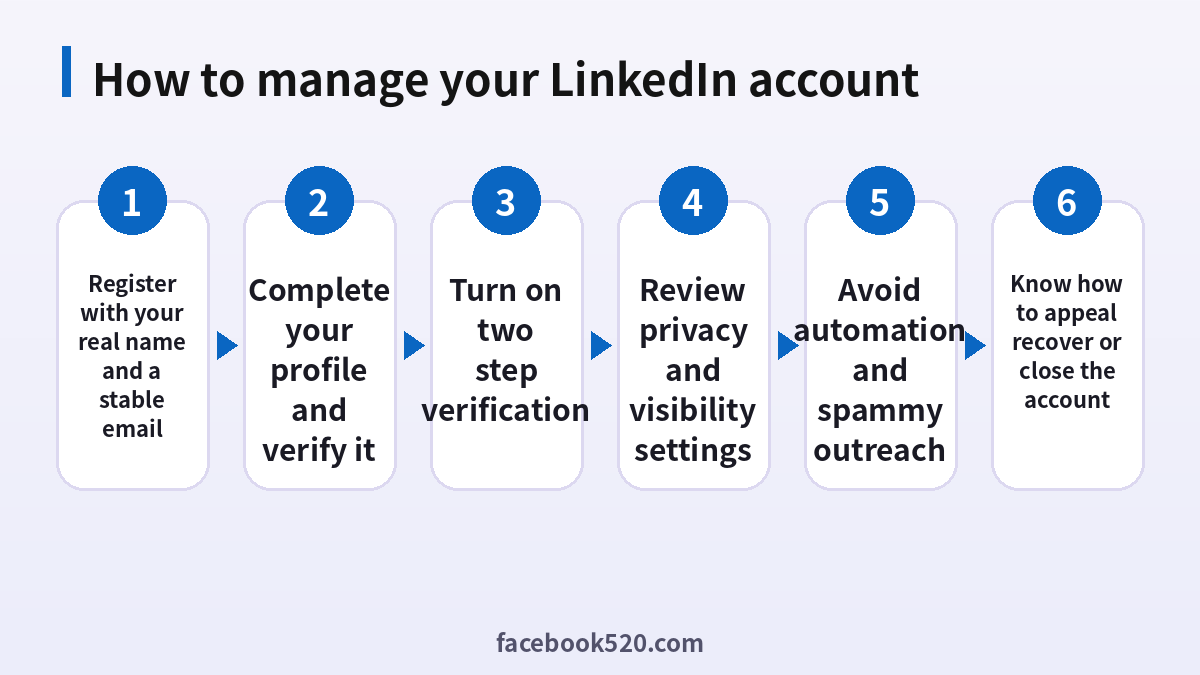
Start with a name that matches how you appear in professional settings, without titles, emojis or slogans. Use an email address that you will keep for years. If you change jobs often, a personal address is safer than a company address. Add a clear photo, a headline that describes the value you offer, and a summary that explains what you do. Complete your work history with specific outcomes, and add skills that match your goals. LinkedIn displays a profile strength indicator, but quality matters more than the score.
| Element | Recommendation |
|---|---|
| Name | Real name with no extra words |
| Stable and private, not tied to one employer | |
| Photo | Clear, recent and professional |
| Headline | Describe your value, not only your title |
| Summary | Three to five sentences with a contact method |
| Skills | Relevant to the roles you want |
Verification options
LinkedIn offers several ways to verify. You can confirm your email address, add and confirm a phone number, verify a workplace email address to show that you belong to a company, and in some regions verify your identity with a government ID through a third party service. Completed verifications show up as badges, which can increase trust and make it easier for recruiters and clients to respond. Only provide documents inside the official LinkedIn flow. If you receive a message that asks you to upload an ID through a link in an email, treat it as suspicious, and open the app yourself instead.
- Open your profile and look for the verification section.
- Choose the type of verification that applies to you.
- Follow the prompts, and enter codes that are sent to your email or phone.
- For ID verification, use the official flow and make sure your name matches your profile.
- Check that the badge appears on your profile.
Security settings you should enable
Turn on two step verification in the sign in and security section. Use an authenticator app if possible, and store the recovery codes safely. Choose a unique password that you have never used elsewhere. Review the list of active sessions and sign out of devices that you do not recognize. Check which third party apps have access to your account and remove those you do not use. Add a recovery email if the option is offered. These steps prevent most takeovers, which usually come from reused passwords and phishing messages.
| Setting | Why it matters |
|---|---|
| Two step verification | Blocks logins with only a stolen password |
| Unique password | Prevents credential stuffing attacks |
| Active sessions | Lets you detect unknown devices |
| Connected apps | Removes unnecessary access |
| Recovery email | Helps you regain control |
Privacy and visibility choices
Decide who can see your profile, your connections list and your activity. If you are job hunting quietly, use the options that limit visibility to recruiters and block your current employer from seeing signals. If you are building a personal brand, make your profile public and consider enabling the creator tools. Check the setting for who can see your email address, your last name and your profile photo. Review it every six months, because the defaults sometimes change when LinkedIn launches new features.
Why accounts get restricted
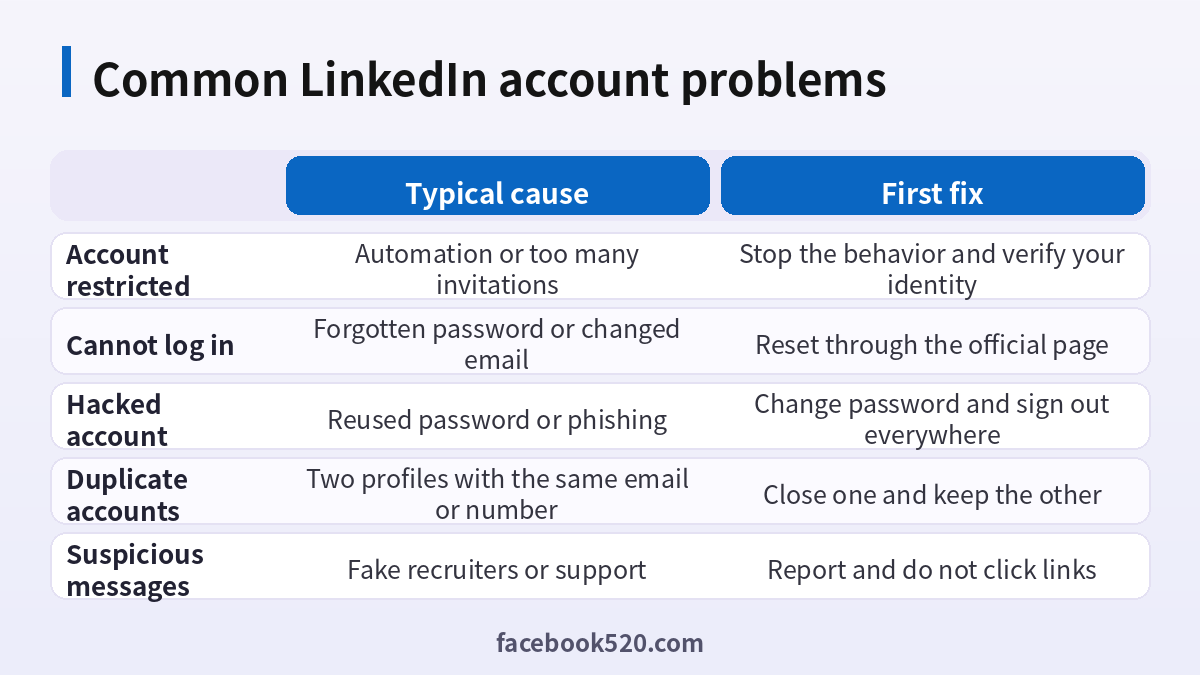
Restrictions usually come from behavior that LinkedIn treats as abusive. The most common triggers are automation, such as browser extensions that send connection requests or scrape profiles, sending a very high number of invitations in a short time, copying the same message to many strangers, using a fake name or information, or being reported by many recipients. Sudden changes in login location can also lead to a security check. A restriction might ask you to verify your identity, to wait, or to stop using certain features.
| Trigger | Why it is risky | Safer approach |
|---|---|---|
| Automation tools | Violates the terms and mimics bots | Use official tools and manual outreach |
| Mass invitations | Looks like spam | Send fewer, personalized invitations |
| Fake information | Violates the identity rule | Use accurate details |
| Repeated reports | Signals unwanted behavior | Improve your messages and targeting |
| Unusual login patterns | Suggests takeover | Keep a stable device and location, and use two step verification |
How to respond to a restriction
When a restriction message appears, read it carefully, and do exactly what it says. If it asks you to verify an identity, complete the verification using the official page. Stop any automation immediately and uninstall suspicious extensions. Wait for the stated period before resuming outreach. If you believe the restriction is a mistake, submit one appeal through the help center, describe your situation honestly and attach any documents requested. Avoid creating a new profile to continue, since LinkedIn can link accounts, and it counts as evasion. Do not pay anyone who promises to unlock your account.
Recovering a lost or hacked account
If you cannot sign in, use the forgot password link and reset the password with your email or phone number. If you no longer have access to either, use the account recovery form and follow the verification steps. If you suspect a hack, change the password, sign out of all sessions, remove unknown apps, and check whether your email address or phone number was changed. Notify your connections if the attacker sent messages in your name, and report the incident to LinkedIn. Keep the confirmation emails, as they might be requested later.
Duplicate accounts and merging
Having two personal accounts is against the terms, and it often happens by accident, for example when someone signs up with a work email and later with a personal one. LinkedIn does not offer a simple merge button for profiles. The practical approach is to decide which account has the better history and connections, update its email and phone number, and close the other. Before closing, export your data and connections from the account you plan to remove, then import any missing contacts into the account you keep.
- Compare the two accounts and choose the one to keep.
- Add your current email and phone number to the account you keep.
- Export connections and data from the other account.
- Close the duplicate through the account settings.
- Update your profile URL and let key contacts know where to find you.
Closing your account
To close an account, open settings, choose account management and select the option to close the account. LinkedIn asks for a reason and your password, and it may offer to hide the account instead. Before you proceed, cancel any paid subscriptions, transfer admin rights for company pages you manage and download a copy of your data. Closing is permanent after a short grace period, so make sure you really want to leave.
Do not buy or sell LinkedIn accounts
Online sellers promote aged, verified or premium accounts. These are risky because the identity belongs to someone else, which conflicts with the real name rule, because the original owner can recover the account, and because the accounts are often created with false data and flagged. Using a purchased account in outreach can quickly lead to restrictions. We examine these risks in our guide to buying LinkedIn accounts (https://www.facebook520.com/article/9706.html). For businesses, a better path is to build a company page, have employees maintain accurate profiles and use official advertising tools.
Writing outreach that protects your account
Because restrictions often come from outreach, it helps to write messages that recipients actually welcome. Mention something specific about the person, such as an article they shared or a project they led. State clearly why you are connecting and what you hope to discuss, in two or three sentences. Do not paste a long sales pitch into the first message. If someone does not reply, wait a reasonable time before a gentle follow up, and then move on. Keep your daily number of invitations modest, especially if the account is new. Quality conversations are more valuable than a long list of unanswered requests, and the recipients’ response rate affects how the platform views your behavior.
| Practice | Effect |
|---|---|
| Personalized invitations | Higher acceptance and fewer reports |
| Short first message | Easier to read and reply |
| One follow up at most | Respects the other person |
| Modest daily volume | Lower risk of restriction |
Using LinkedIn for a job search without exposing yourself
Job seekers need to balance visibility and privacy. Turn on the setting that lets recruiters know you are open to work, and choose the option that shows it only to recruiters if you do not want colleagues to notice. Update your headline with the roles you want, and list relevant keywords in your skills and experience. Follow the companies you like, comment on their posts and message recruiters with a concise note and a link to your profile. Review your connections list privacy, so competitors cannot easily map your network if that matters to you. Keep your resume consistent with your profile, because hiring managers compare them.
- Update your headline and summary with target roles.
- Turn on the open to work option with recruiter only visibility if needed.
- Follow target companies and engage with their updates.
- Message recruiters with a short, specific note.
- Keep your profile and resume consistent.
Company pages and employee accounts
If you manage a company page, you rely on your personal account to do it. Make sure at least two people hold administrator rights, and remove access when someone leaves the company. Encourage employees to keep their own profiles accurate, to use their real names and titles, and to avoid sharing confidential information. Set simple guidelines for employee advocacy, for example how to share company posts without spamming connections. A company that treats LinkedIn as a team effort, rather than a collection of purchased profiles, builds credibility more quickly and avoids the risk of restrictions.
Recognizing scams that target LinkedIn users
LinkedIn is a favorite place for scammers because people expect professional messages. Common scams include fake recruiters who ask for fees or personal documents before an interview, investment groups that move conversations to private chat apps, and messages that claim your account will be closed unless you click a link. Another trick is a fake verification request that mimics the official page. Protect yourself by checking the sender’s profile for inconsistencies, such as a recently created account with few connections, a stock photo or a mismatch between the company and the email domain. Never pay a fee to get a job, and never share your password, verification codes or banking details. When in doubt, search for the company’s official careers page and contact them through it.
| Scam | Warning sign | Response |
|---|---|---|
| Fake recruiter | Asks for payment or documents too early | Verify through the company’s careers page |
| Investment group | Moves to private chat quickly | Ignore and report |
| Account closure threat | Link to a lookalike page | Open the app directly |
| Fake verification | Requests ID outside the official flow | Do not upload anything |
Keeping your data portable
Finally, keep a copy of your own data. LinkedIn lets you download your profile information, connections, messages and activity. Run this export every few months and store it in a secure place. If you ever lose access, you will still have your contacts and a record of your work history, and you can rebuild faster.
A quarterly account review
Every three months, set aside fifteen minutes to review your LinkedIn account. Check that your headline and summary still match your goals. Update your skills and recent projects. Look at the list of active sessions and connected apps. Confirm that your email and phone number are current. Review who can see your connections and activity. Remove old connection requests and block accounts that behave suspiciously. Download a fresh copy of your data. Small, regular maintenance keeps your account healthy and your professional image consistent, and it also makes it easier to spot a problem before it becomes serious.
- Refresh your headline, summary and featured section.
- Audit active sessions and connected apps.
- Confirm contact details and recovery options.
- Review privacy settings and activity visibility.
- Export your data and store it securely.
Closing thoughts
Treat your LinkedIn account as a long term professional asset, and invest in it steadily rather than looking for shortcuts.
Frequently asked questions
Is a LinkedIn account free?
Yes. The basic account is free, and Premium, Sales Navigator and Recruiter are optional paid products.
Can I have more than one account?
You should have only one personal account. Company pages are separate and managed by personal accounts.
Why is my account restricted?
Common reasons are automation, too many invitations, inaccurate information or repeated reports.
How do I appeal a restriction?
Follow the instructions in the message, verify your identity if asked and submit one honest appeal through the help center.
How do I verify my profile?
Use the verification section to confirm your email, phone number, workplace email or ID where available.
Is two step verification necessary?
It is strongly recommended because it protects you against stolen passwords.
Can I change my email address?
Yes. Add the new address in settings, confirm it, and then remove the old one if you wish.
How do I recover a hacked account?
Reset your password, sign out of all sessions, check connected apps, and contact LinkedIn support.
What happens when I close my account?
Your profile disappears after a short period, and you lose access to your data, so download a copy first.
Is it safe to buy a LinkedIn account?
No. It can cause restrictions and exposes you to scams.
Summary
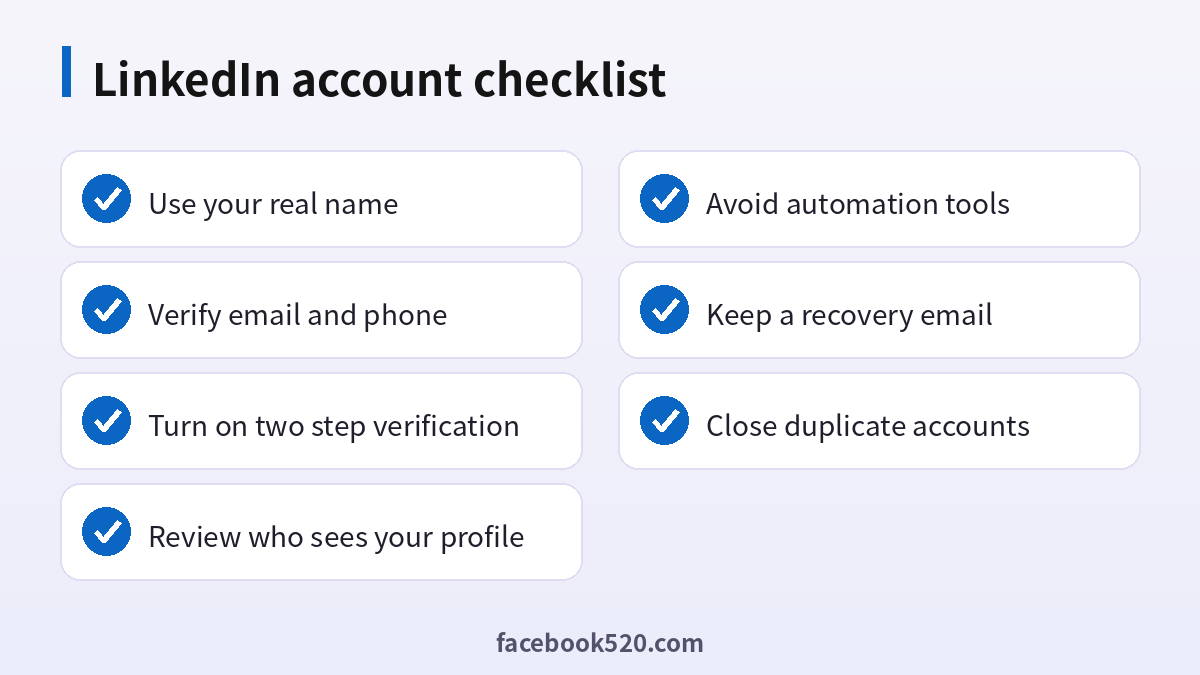
A healthy LinkedIn account is built on a real identity, a stable email, verification, two step verification and respectful outreach. Avoid automation and shortcuts, know how to appeal and recover, and close duplicate accounts properly. These habits protect your network and your reputation.
