


Discord Account in 2026: Username and Display Name Rules, Verification Levels, Privacy and Safety Settings, Hacked or Banned Account Recovery, Teen Protections and When Nitro Is Worth Paying For
A Discord account looks simple at first. You sign up, join a few servers and start chatting. Over time, however, it becomes a hub for friends, communities, gaming groups, study circles and sometimes work. That also makes it a target. Takeovers, scams, spam messages, bans and confusion about usernames are among the most common support topics. This guide explains how a Discord account works in 2026, how to set it up safely, how to adjust privacy and verification settings, how to recover from a hack or a ban, what protections exist for younger users, and when Nitro is worth paying for. Prices and menu names come from Discord’s public pages in October 2026 and can change. For the sign up process, see our Discord Sign Up guide (https://www.facebook520.com/article/8383.html). If you are tempted to buy an account, read our warning first (https://www.facebook520.com/article/8332.html).
How a Discord account is structured
Your account is tied to an email address and, optionally, a phone number. It has a username, which is unique across the platform, and a display name that can be changed more freely. It can join many servers, each with its own nickname and roles, and it can have friends and direct messages. Settings fall into several groups: account and security, privacy, connections to other services such as Spotify or Steam, voice and video, notifications and billing for Nitro.
Username, display name and server nickname
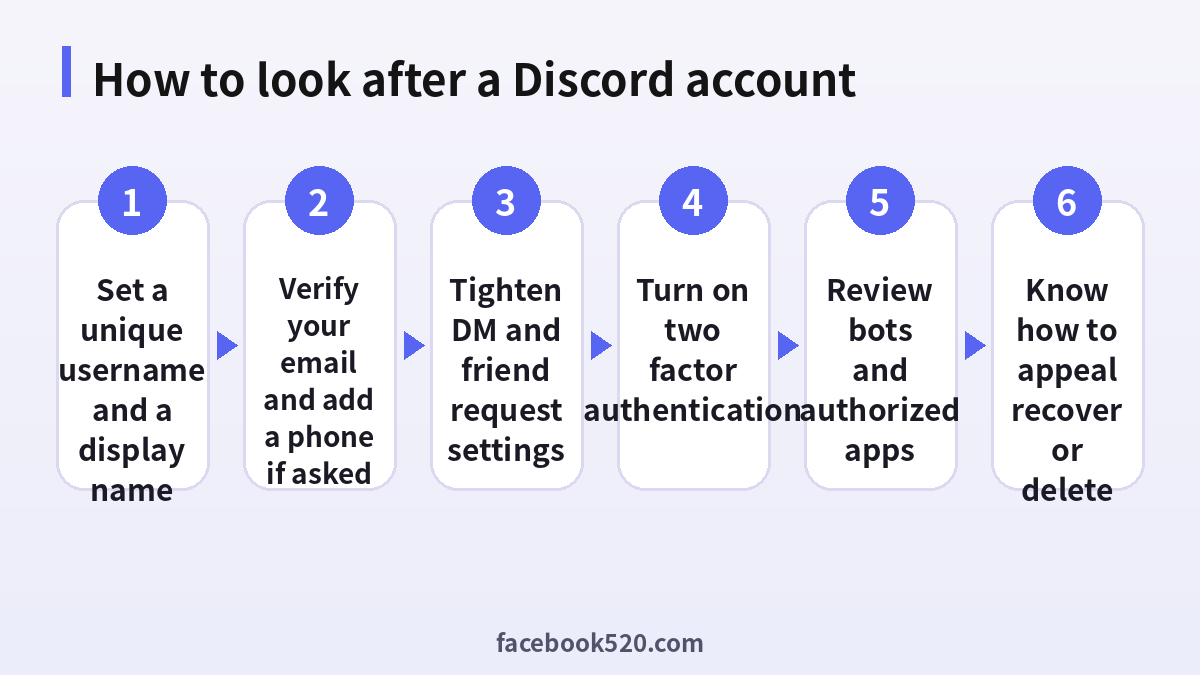
Since the move to unique usernames, the old format with four digits no longer applies. Your username identifies you across Discord and is how others add you. Your display name is what appears in chats, and a server nickname overrides it inside a specific community.
| Name type | Scope | Notes |
|---|---|---|
| Username | Global and unique | Lowercase letters, numbers, underscores and periods, with rules on length |
| Display name | Global | Can include more characters and can be changed |
| Server nickname | One server | Set by you if the server allows it, or by moderators |
Choose a username that you will not regret later. Avoid personal data such as your birth year, school or exact location, and avoid names that imitate staff or well known people, which can lead to removal.
Verification: email, phone and server levels
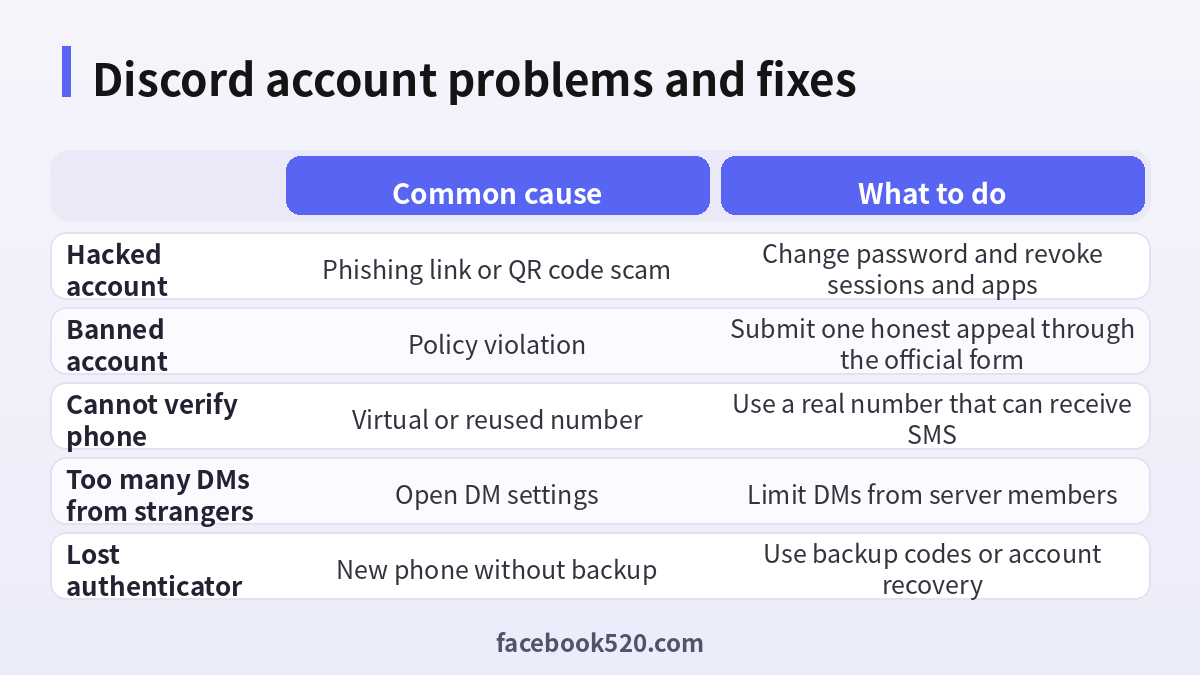
Discord requires a verified email to access most features. Some servers raise the bar by requiring a verified phone number, a minimum account age or a minimum time on the server before you can chat. These measures reduce spam and raid attacks. If you are asked for a phone number, use one that can receive SMS. Virtual or shared numbers are often rejected and can cause problems later if you need to recover the account.
| Server level | Typical requirement |
|---|---|
| None | No verification |
| Low | Verified email |
| Medium | Account older than five minutes |
| High | Member of the server for ten minutes |
| Highest | Verified phone number |
Privacy settings that cut spam
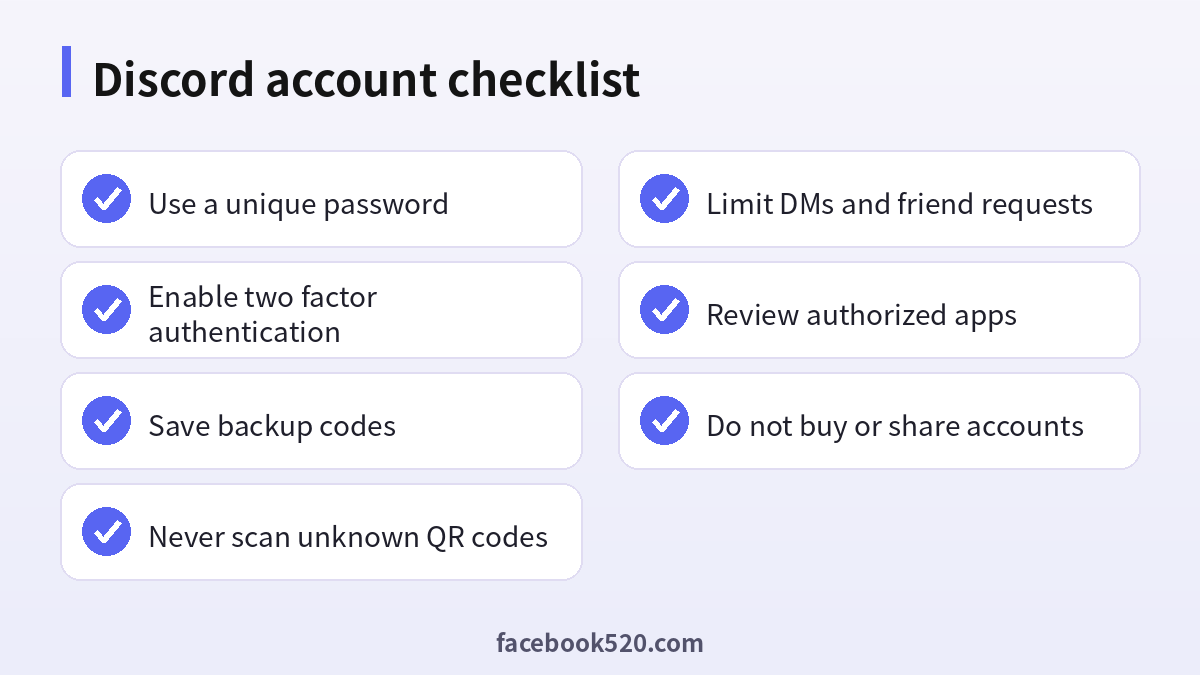
Open user settings and look at the privacy and safety page. For most people, a good baseline is to turn off direct messages from server members when you join large public servers, to allow friend requests only from friends of friends or server members you trust, and to keep the content filter for direct messages turned on. These options block most unsolicited advertisements and scam messages. Review which servers can message you, and mute or leave servers that you no longer use.
- Open user settings and choose privacy and safety.
- Disable direct messages from server members for large servers.
- Limit who can send friend requests.
- Turn on the sensitive content filter.
- Review authorized apps and remove those you do not use.
Two factor authentication and backup codes
Two factor authentication adds a second step when you log in. Enable it in the account section by scanning a QR code with an authenticator app, entering the code and saving the backup codes. Without backup codes, losing your phone can lock you out. Store them in a password manager or print them and keep them in a safe place. You can also add a security key for stronger protection. If you manage a server with moderators, remember that some permissions require the server owner to have two factor authentication enabled.
The most common ways accounts are hacked
Most takeovers do not involve technical hacking. They rely on tricks. A user receives a message from a friend with a link to a free Nitro gift or a game beta, and the link leads to a fake login page. A scammer sends a QR code and says it is needed to verify your account, but scanning it authorizes a login on the attacker’s device. A fake bot asks for administrator permissions on your server. A file claiming to be a game mod contains malware that steals your session token. Protect yourself by never clicking unexpected links, never scanning a QR code someone sends you, granting minimal permissions to bots and running files only from trusted sources.
| Trick | Warning sign | Defense |
|---|---|---|
| Free Nitro link | Too good to be true, urgent wording | Ignore it and report |
| QR code verification | Someone asks you to scan a code | Never scan codes from others |
| Fake support | A DM from someone claiming to be staff | Official staff do not ask for passwords |
| Malicious file | An executable shared as a mod | Scan it and avoid unknown programs |
What to do if your account is hacked
Act quickly. If you can still log in, change your password, which also logs out other sessions, and enable two factor authentication. Check the authorized apps list and remove unknown entries. Review your servers and delete any messages the attacker sent. Warn friends not to click links that came from your account. If you cannot log in, use the password reset option with your email address. If the email was changed, contact support through the official request form and explain what happened. Keep screenshots and dates because they help the investigation.
Bans and appeals
Discord can ban accounts for breaking its terms or community guidelines. The notification email explains the reason in general terms. Server bans are different: they are decided by the moderators of that community, and Discord does not usually overturn them. For a platform ban, use the official appeal form once, and be honest about what happened. Do not create new accounts to avoid a ban, because evasion violates the rules and can lead to permanent action. Meanwhile, review your behavior and any bots or tools you used, especially if you used automation, self bots or unauthorized clients.
- Read the ban email carefully.
- Check which rule was cited.
- Submit one appeal through the official form with a clear explanation.
- Wait for the reply without sending repeated requests.
- If the ban stands, accept the decision and avoid evasion.
Teen safety and parental support
Discord requires users to be at least thirteen years old, with higher thresholds in some countries. Teen accounts have additional default protections, such as filters for sensitive content and stricter settings for direct messages from strangers. Parents can use family tools to see basic information about their teen’s activity, such as friends and servers, without reading private messages. Talk to teenagers about not sharing personal information, not joining servers that are not suitable for their age, and reporting anyone who asks for private photos or money. Moderators of teen servers should also use verification and auto moderation tools.
Nitro: when it makes sense
Nitro is optional. In the United States, Nitro Basic is listed at about 2.99 dollars a month or 29.99 dollars a year, and Nitro at about 9.99 dollars a month or 99.99 dollars a year. Both give you custom emojis across servers, larger uploads and profile customization. Nitro adds better streaming quality and server boosts. If you mainly chat with friends and use voice, free is enough. If you share large files, run a community that uses custom emojis or stream in high quality, evaluate Nitro. Pay only through Discord’s official checkout or app store, and avoid third party resellers who sell gifts at a discount, because chargebacks can lead to revoked subscriptions and account penalties.
| Plan | US price snapshot | Best for |
|---|---|---|
| Free | 0 | Chat, voice, basic streaming |
| Nitro Basic | About 2.99 dollars a month | Emojis and larger uploads |
| Nitro | About 9.99 dollars a month | Streaming quality, profile and boosts |
Deleting or disabling the account
Open account settings and scroll to the bottom to find the disable and delete options. Disabling keeps your data and lets you return. Deleting is permanent. Before deleting, transfer ownership of the servers you own or delete them, and download your data if you want a copy. Cancel Nitro first if you have it.
Running your own server safely
Many Discord accounts belong to server owners and moderators, who carry extra responsibility. Start by setting clear rules in a dedicated channel and enabling the rules screening feature so new members must agree before they can talk. Use roles to give permissions only where they are needed, and avoid granting administrator rights to bots and to people you do not know well. Turn on the built in AutoMod to filter spam, links and offensive words, and log moderation actions in a private channel so that your team can review decisions. Enable two factor authentication for moderators, because a compromised moderator account can damage the entire community.
| Task | Recommended practice |
|---|---|
| Rules | Short, visible and enforced consistently |
| Roles | Minimum permissions, clear hierarchy |
| Bots | Only from trusted sources, with limited permissions |
| Logging | Private audit channel for moderation actions |
| Verification | Match the level to the size and risk of the server |
When you invite a bot, read the permissions it requests. A music bot does not need permission to ban members. If a bot stops being maintained, remove it. Review the integrations list from time to time.
Handling harassment and unwanted contact
If someone harasses you, you can block them, report the message and, in servers, ask moderators to remove the content. Do not argue publicly, because that can escalate. Save screenshots of the messages, including the usernames and timestamps. Use the report function to send the evidence to Discord’s safety team. If the harassment involves threats or illegal content, contact local authorities. Tell a trusted friend or family member, especially if you are a teenager, and remember that you can leave any server or group that makes you uncomfortable.
- Block the user and mute the channel if needed.
- Take screenshots of the messages.
- Report the content through the official tools.
- Inform the server moderators.
- Seek help from someone you trust.
Connections, linked accounts and what they share
Discord lets you connect services such as Steam, Spotify, YouTube and GitHub to show what you play or listen to. Each connection shares some information. Review the connections page and decide whether you want your activity to appear on your profile. Disable the display of the activity status if you prefer more privacy, and remove connections that you no longer use. Be careful with third party apps that ask to link to your account, and read the permissions before approving.
Voice, streaming and notification habits
A healthy account also depends on everyday habits. In the voice and video settings, choose your input and output devices, enable noise suppression and set a push to talk key if your environment is noisy. When you stream your screen, double check which window you share, because private messages, email and passwords can appear by accident. Discord offers a streamer mode that hides personal information such as your email, connected accounts and invite links when you broadcast, and it can be switched on automatically when streaming software is detected. In the notification settings, mute busy servers, allow only mentions for the channels you care about, and set quiet hours so that messages do not disturb your sleep or work.
| Setting | Suggested choice |
|---|---|
| Streamer mode | Turn on automatically |
| Server notifications | Only mentions for large servers |
| Push to talk | Use in noisy rooms |
| Screen share | Share one window instead of the whole screen |
| Activity status | Hide if you prefer privacy |
Managing multiple servers without losing track
If you belong to dozens of servers, organize them in folders, leave inactive ones and use mute options for categories rather than leaving permanently. Pin the servers that matter and check the invites you accept. A tidy account is easier to secure because you know which communities can see your profile, your activity and your connections.
Monthly security routine
Once a month, change nothing unless needed, but verify the basics. Confirm that two factor authentication is on, look at the active devices, check the authorized apps and see who is on your friends list. Remove unknown devices immediately and change your password if anything looks wrong. This takes five minutes and prevents most long term problems.
- Confirm that two factor authentication is enabled.
- Check devices and sessions.
- Remove unused authorized apps.
- Review privacy and direct message settings.
- Update the password if you reused it elsewhere.
Using Discord for study groups and work teams
Discord is not only for games. Students use it for study groups, and small teams use it as a lightweight workplace chat. For these uses, create separate channels for announcements, questions and off topic conversation, and use threads to keep long discussions organized. Set clear expectations for response times so that people do not feel pressured to answer at night. Do not share sensitive documents, passwords or personal data in public channels, and use the file permissions of your cloud storage instead of uploading confidential material. If a team handles customer information, a tool with stronger compliance features may be more appropriate than a community chat app.
| Use case | Helpful feature |
|---|---|
| Study group | Voice channels and screen share |
| Small team | Threads and role based channels |
| Public community | AutoMod and verification levels |
| Event | Scheduled events and announcements |
Following these practices keeps your account useful, and your communities pleasant, as they grow.
Frequently asked questions
Is a Discord account free?
Yes. Nitro is optional.
Can I change my username?
Yes, within the rules for uniqueness and format.
Why does a server ask for my phone number?
The server uses a high verification level to reduce spam.
How do I enable two factor authentication?
Go to account settings, choose enable two factor authentication, scan the QR code, and save the backup codes.
What should I do if I am hacked?
Change the password, enable two factor authentication, revoke authorized apps and warn your friends.
Can I appeal a ban?
Yes. Use the official form once. Server bans are handled by the server moderators.
Is it safe to scan a QR code from another user?
No. Scanning it can authorize a login for the sender.
Is Nitro worth it?
Only if you need the extra features, such as larger uploads or custom emojis across servers.
Can I have more than one account?
Yes, but do not use extra accounts to evade bans.
Is buying a Discord account safe?
No. The seller can recover it, and it may violate the rules.
Summary
A safe Discord account relies on a unique password, two factor authentication, careful privacy settings and healthy skepticism toward links and QR codes. If something goes wrong, act quickly and use the official recovery and appeal channels. Treat Nitro as an optional upgrade and never buy or share accounts.
