


Snapchat Gift Card and Ads Funding 2026: How to Redeem a Snapchat Plus Gift Card and Add Funds to a Snapchat Ads Account
Searches for “Snapchat gift card” and “Snapchat ads add funds” look similar, but they describe two completely different needs. A consumer gift card is normally used for Snapchat Plus, the paid subscription for the app. Advertisers, on the other hand, do not top up a wallet with a gift card. They connect a payment method to Snapchat Ads and are billed when their spend reaches a threshold. This guide explains both paths, so you can quickly find the one that applies to you. It also warns about the scams that are common around gift cards and about the mistakes that cause payments to fail. Information reflects what Snapchat publishes in its help centres as of 2026, so check the official pages for any change in menus or prices.
Two different questions
If you want to give a friend a present, or you want to pay for Snapchat Plus using a card that you bought in a shop, you need the gift card flow. If you run a shop or a brand and want your ads to keep delivering, you need the billing flow in Ads Manager. Do not mix them up: a Snapchat Plus gift card cannot be used to pay for ads, and ad credit does not buy a subscription.
How to redeem a Snapchat Plus gift card
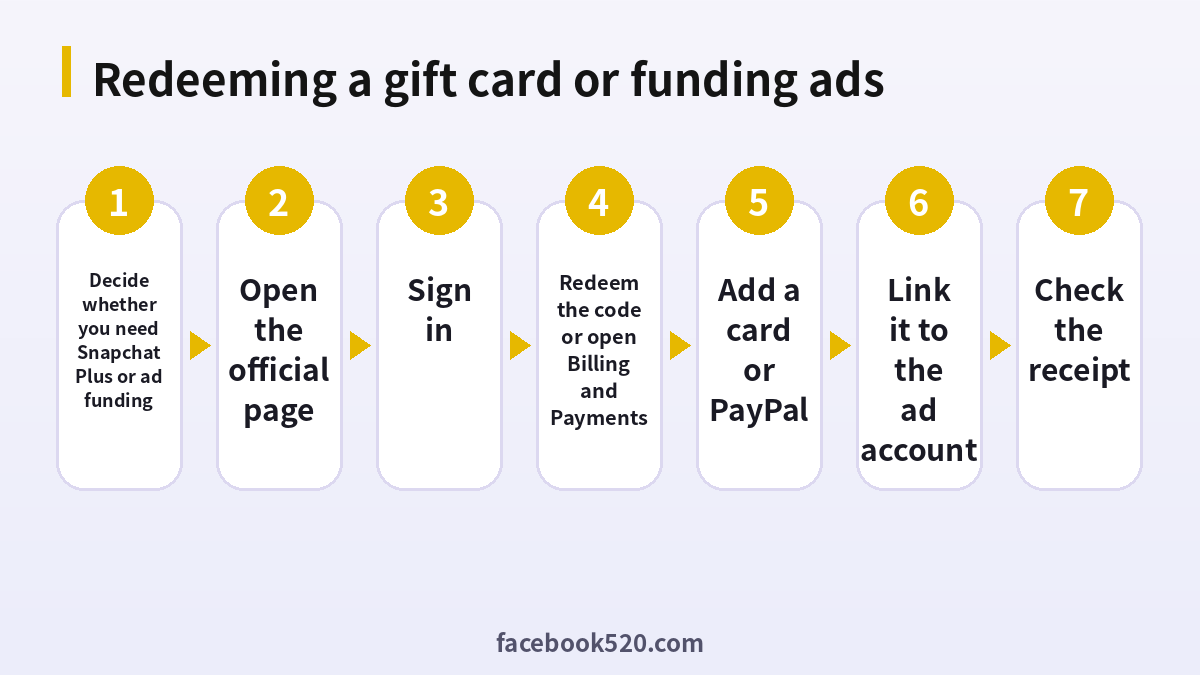
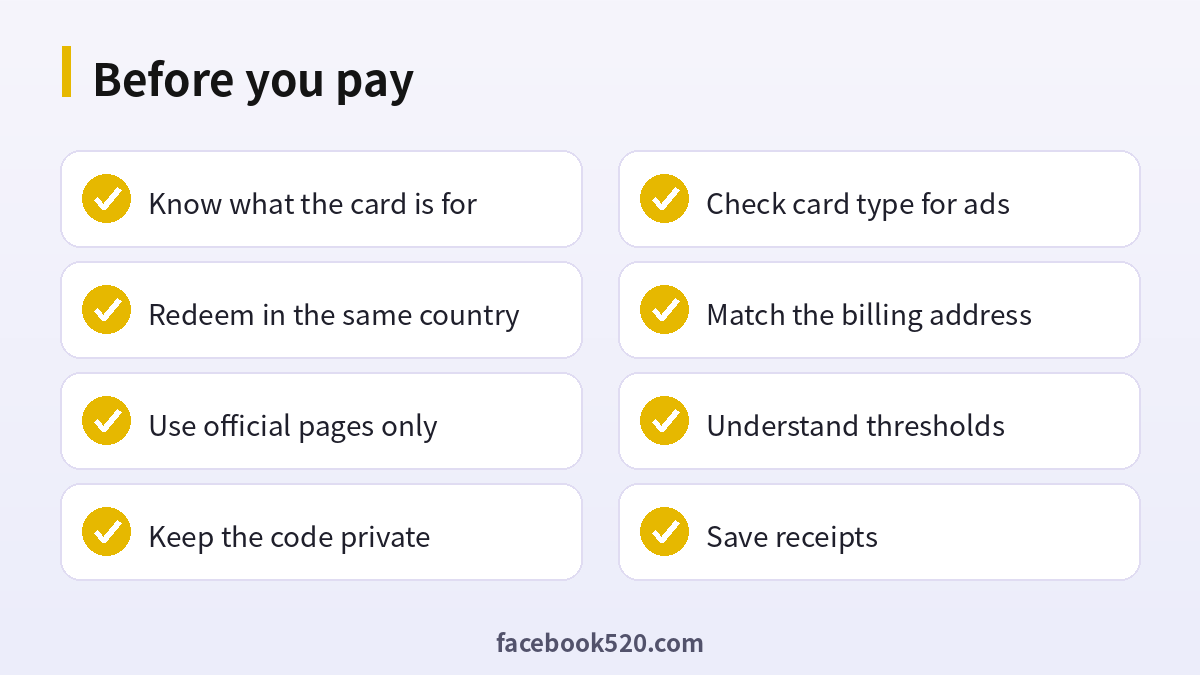
If you received a gift card from a third party, such as a retailer, the redemption works through the official website. Open the Snapchat Plus page, sign in with your Snapchat login, choose the option to redeem a gift card, enter the code exactly as printed and confirm. You need an existing Snapchat account, and a card is normally valid in the country where it was bought, so you cannot redeem a card from one country in another. Scratch the code panel carefully and keep the card until the redemption succeeds.
- Open the official Snapchat Plus page in a browser.
- Sign in with your own Snapchat username and password.
- Select Redeem Gift Card.
- Type the code and confirm.
- Check in the app that the subscription status shows as active.
Gifting Snapchat Plus inside the app
Snapchat also lets you gift Snapchat Plus to a friend directly from the app. The route is usually My Account, then Snapchat Plus, then Gift Snapchat Plus. The recipient accepts the gift under Gifts Received and taps Redeem. The two of you need to be friends. If the recipient already has an active paid subscription, the gift starts after the current period ends. This method uses your store or card payment, so no physical card is needed.
Snapchat Ads: no gift card, only billing
For advertising, Snapchat uses a billing model rather than a prepaid wallet. You open Billing and Payments in Ads Manager, add a credit card or a PayPal account, enter a valid billing address and link the method to your ad account. Snapchat then charges the method when your spend reaches the billing threshold, or at regular intervals. Prepaid cards are generally not accepted, and PayPal charges the bank card linked to it, not your PayPal balance. Some large advertisers can apply for invoicing. For the full setup of the ad account itself, see our guide to the Snapchat ads account.
How billing thresholds work
A billing threshold is the amount of ad spend at which Snapchat collects payment. New accounts begin with a low threshold, and it tends to increase after successful payments, which means that the system trusts you with higher spending over time. If you reach the limit before the payment is processed, delivery can pause. If you plan to spend heavily in a short time, build the account history gradually, or contact Snapchat about invoicing. You can see the current threshold and past charges on the billing page.
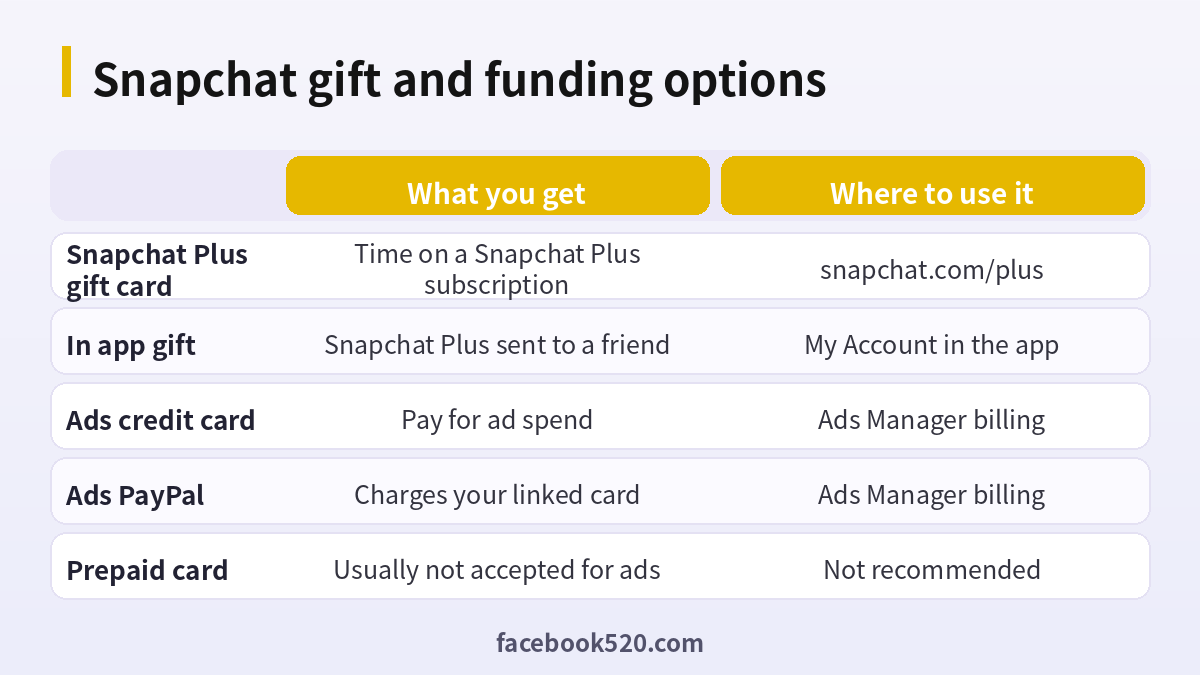
| Option | What you get | Where to use it |
|---|---|---|
| Snapchat Plus gift card | Time on a Snapchat Plus subscription | Snapchat Plus page |
| In app gift | Snapchat Plus sent to a friend | My Account in the app |
| Ads credit card | Pay for ad spend | Ads Manager billing |
| Ads PayPal | Charges your linked card | Ads Manager billing |
| Prepaid card | Usually not accepted for ads | Not recommended |
Adding, removing and switching payment methods
In Ads Manager you can add a new card, remove an old one or switch the funding source of an ad account. Before removing a card, make sure another valid method is attached, or your campaigns could stop. If an ad account belongs to a team, only people with the right billing role can change the payment method. After the change, check that the new method shows as active and look at the next charge date.
Why a payment fails
The most frequent reasons are a prepaid or virtual card that Snapchat does not accept, a billing address that does not match the card, a bank that blocks online or international charges, an expired card, and insufficient funds or a spending limit on the card. Ask the bank to approve the charge, check each detail and try again. If PayPal fails, check that the linked card is valid and that PayPal is allowed in your country.
Promotional credits
Snapchat sometimes offers advertising credits to new advertisers, for example after reaching a certain spend. These are usually given as a promotional code or applied automatically. Read the conditions, because they typically expire and apply only to new ad accounts. Be careful with websites that sell ad credit codes: genuine codes come from Snapchat or its partners, and codes sold in marketplaces are often invalid or tied to stolen cards.
Troubleshooting quick reference
| Problem | Likely cause | What to do |
|---|---|---|
| Code is rejected | Typing error or wrong country | Re-enter the code and check where the card was sold |
| Card shows no balance | Not activated at the till | Ask the retailer to confirm activation |
| Ad payment failed | Prepaid card or address mismatch | Add a standard card with the correct address |
| Ads stopped | Threshold reached before payment | Fix the payment method and wait for the next charge |
If the problem persists after these checks, keep the receipt and the card, take a screenshot of the error and contact Snapchat support through the official help centre. Include the date, the amount and the username so that the team can find the transaction quickly.
Gift card scams to avoid
Scammers commonly ask victims to pay with gift cards, or to read out the code over the phone or chat. Never send a gift card code to a stranger, to someone claiming to be Snapchat support, or to a person promising free followers, a verified badge or a recovered account. Real support will never ask for a gift card. Buy cards only from known retailers, check that the packaging has not been tampered with and redeem them on the official site. If you think you have been scammed, contact the card issuer immediately and report the incident.
Receipts and refunds
Keep the confirmation email and the receipt for Snapchat Plus, and the invoices from Ads Manager for your accounting. Refund rules depend on the store or payment method. A gift card that was already redeemed cannot normally be refunded. For ad spend, charges are for delivered impressions or actions, so a refund is only possible for billing errors or policy cases handled by support.
Quick recap checklist
Before you finish, confirm the essentials for Snapchat:
- You are using the official website or app.
- Your password is unique and two-step verification is on.
- Recovery email and phone are current.
- Privacy settings match what you are comfortable sharing.
- You know the price, renewal date and how to cancel if money is involved.
- You saved receipts, confirmation emails and backup codes in a safe place.
- You know where to find the official help center.
A monthly review habit
Set a reminder once a month to review your Snapchat setup. Check your security settings, payment method, connected apps and notification preferences. If you pay for anything, compare the charge with what you actually used and decide whether to keep, change or cancel. Update your recovery details if you changed phone number or email. Delete old data you no longer need. Ten minutes a month prevents most surprises and keeps your costs and risks under control.
Recognizing scams and fake offers
Scammers often imitate well-known brands such as Snapchat. Typical signs are urgent messages, requests for passwords or verification codes, links to look-alike websites, promises of free upgrades or guaranteed results, and payment requests through unusual channels. Always type the official address yourself or use a saved bookmark, check the sender of every email and never pay through a link sent by a stranger. If you think you were tricked, change your password, review recent activity, contact your bank if money was involved and report the message to the platform.
Troubleshooting checklist
If something does not work as expected with Snapchat, go through the basics in order before contacting anyone:
- Check your internet connection and try again on a different network.
- Update the app or refresh the page, then restart the device.
- Clear the cache or try a private browser window without extensions.
- Confirm that you are signed in with the correct account and email.
- Look for the exact error message and search the official help center for it.
- Wait a short time before repeating an action, since repeated attempts can trigger temporary limits.
- If nothing helps, collect screenshots and contact official support.
When to contact official support
Contact support when you have tried the basic fixes and the problem remains, when you see an unexpected charge, when you suspect your account was accessed by someone else or when you are locked out. Prepare the account email, the date and time of the problem, the exact message you saw and screenshots. Describe what you did step by step and what you expected to happen. Use only the contact methods listed on the official site and ignore anyone who offers to fix things for a fee through social media or private messages.
Devices, apps and browsers
Use the latest version of the official app or a modern browser when working with Snapchat. Keep your operating system updated, install security patches and avoid rooted or modified devices, which weaken protection. Browser extensions can read pages you visit, so remove those you do not trust. On mobile, download apps only from official stores, review the permissions they ask for and turn off those that are not needed. Lock your device with a PIN or biometrics so that a lost phone does not become a lost account.
Helping family members and colleagues
If you are setting up Snapchat for someone else, such as a parent, a teenager or a coworker, guide them rather than doing everything silently. Explain why strong passwords and two-step verification matter, show them how to recognize suspicious messages and agree on who to ask before they click or pay for anything. For minors, follow age requirements and use the available parental or family controls. For teams, document who owns the account, who can approve spending and what to do when someone leaves.
Privacy and personal data
Before you enter personal information anywhere, ask what is really required. Use only the details that Snapchat needs, review the privacy settings after setup and limit who can see your profile, activity and contact information. Avoid posting documents, addresses, financial data or photos that reveal your location. Check which third-party apps are connected to your account and remove those you no longer use. If you work with client or company data, follow your organization’s policy and do not mix it with personal accounts.
Official sources versus unofficial offers
When you search for help with Snapchat, you will find both official pages and third-party offers. The comparison below shows why it pays to stay with official channels.
| Aspect | Official source | Unofficial offer |
|---|---|---|
| Price | Clearly shown at checkout | Often unclear or too low |
| Support | Documented help channels | Unreliable or none |
| Account safety | Protected by the platform | Risk of bans and data theft |
| Refunds | Governed by published terms | Rarely honored |
| Updates | Always current | Outdated or wrong |
Account security basics for Snapchat
Protect your Snapchat account before anything else. Use a long, unique password stored in a password manager, turn on two-step verification, and make sure the recovery email and phone number are ones you control. Review the list of devices and active sessions every few months and sign out of any you do not recognize. Never share one-time codes, even with someone who claims to work for support, because genuine support teams never ask for them. If you sign in on a shared or public computer, log out afterwards and avoid saving passwords in the browser.
Common mistakes to avoid with Snapchat
Most problems come from a handful of avoidable habits. People reuse the same password across several services, ignore security notices, click links in unexpected messages, install unofficial apps that promise extra features, or buy accounts and access from resellers. Others skip reading the terms, which leads to restrictions they did not expect, or forget to write down renewal dates and recovery details. Spend a few minutes reading the official help pages, keep your details up to date and treat anything that sounds too good to be true as a warning sign.
Keeping up with changes
Features, prices and rules around Snapchat change more often than most people expect. Follow the official blog, release notes or help center, and read the emails you receive about policy updates instead of deleting them. When a guide such as this one gives a number or a menu name, treat it as a starting point and confirm it on the official site. If a change affects you negatively, you can usually adjust your plan, settings or usage, so act early rather than waiting for a problem.
Frequently asked questions
Can I add funds to Snapchat Ads with a gift card?
No. Snapchat Ads is paid through a credit or debit card or PayPal, not through a consumer gift card.
Where do I redeem a Snapchat Plus gift card?
On the official Snapchat Plus page, after you sign in.
Can I redeem a card from another country?
Usually not. Cards are normally valid only in the country where they were bought.
Are prepaid cards accepted for ads?
Generally no. Use a standard credit or debit card or PayPal.
Does PayPal use my PayPal balance?
No. It charges the card that is linked to your PayPal account.
What is a billing threshold?
It is the spend amount at which Snapchat charges your payment method. It may increase after successful payments.
Why was my card declined?
Common reasons are an address mismatch, a bank block, an expired card or a card type that is not accepted.
Is it safe to buy ad credit from a seller?
No. Credit sold by third parties is often invalid or linked to fraud.
Can I get a refund on a redeemed card?
Usually not. Check the terms of the store.
How do I send Snapchat Plus to a friend?
Open My Account, choose Snapchat Plus, then Gift Snapchat Plus.
Summary
A Snapchat gift card is for Snapchat Plus, redeemed on the official page in the right country. Advertisers fund campaigns through a credit card or PayPal in Ads Manager and are charged at billing thresholds. Use official channels, avoid prepaid cards for ads and never share gift card codes with strangers.

