Claude Code Sign Up in 2026: How to Create an Account, Install It, Choose a Plan and Handle Work and Personal Accounts
Claude Code is Anthropic’s agentic coding tool that runs in your terminal, understands your repository, edits files, runs commands and helps you ship features faster. If you want to start using it, you need an account, a plan or billing method and a working installation. This 2026 guide walks through each step, explains the differences between the subscription plans and the API option, and answers a question many developers ask: how to handle more than one account, such as a personal one and a work one, without breaking the rules. Plans and limits change frequently, so confirm details on the official Anthropic pages. For background on what each plan costs, see our Claude Code payment guide.
What you need before you start
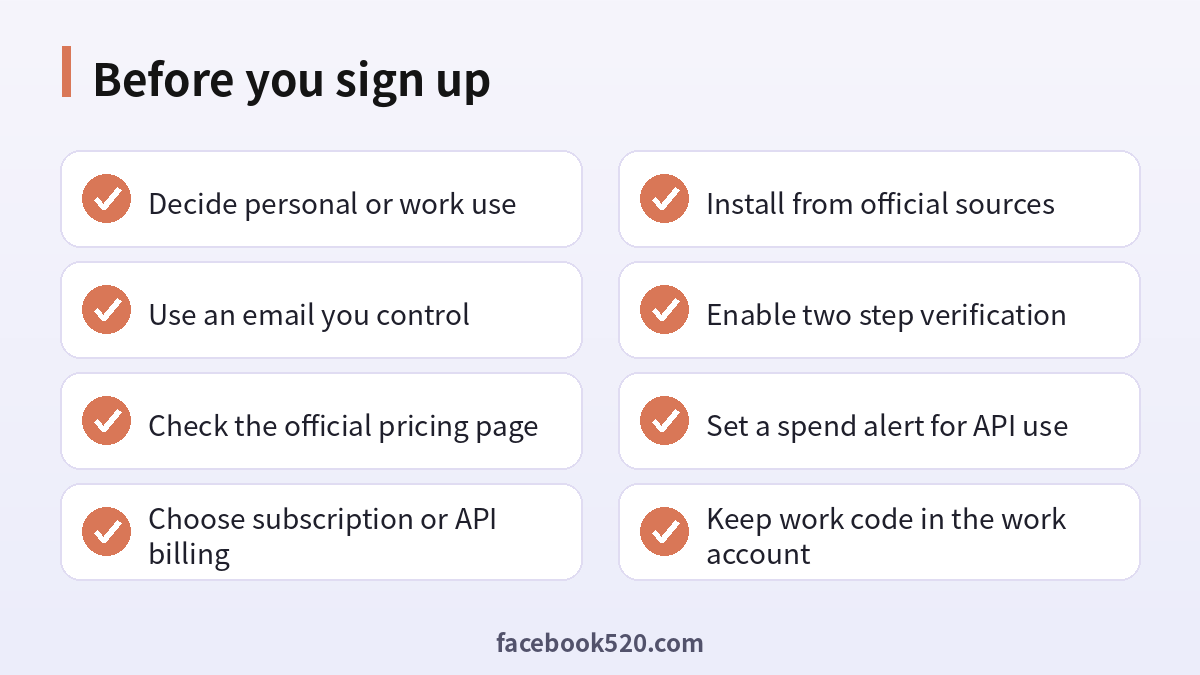
You need a computer with a terminal, a supported operating system, a recent version of the runtime requirements listed in the official documentation, and an email address you control. A project folder with source code helps you test it right away. You also need a payment method for a paid plan or for API credits. Claude Code is not a standalone free product; it requires either a qualifying subscription or API usage, though Anthropic sometimes runs promotions, so check the official site for what is available in your region.
Step by step: how to create a Claude Code account
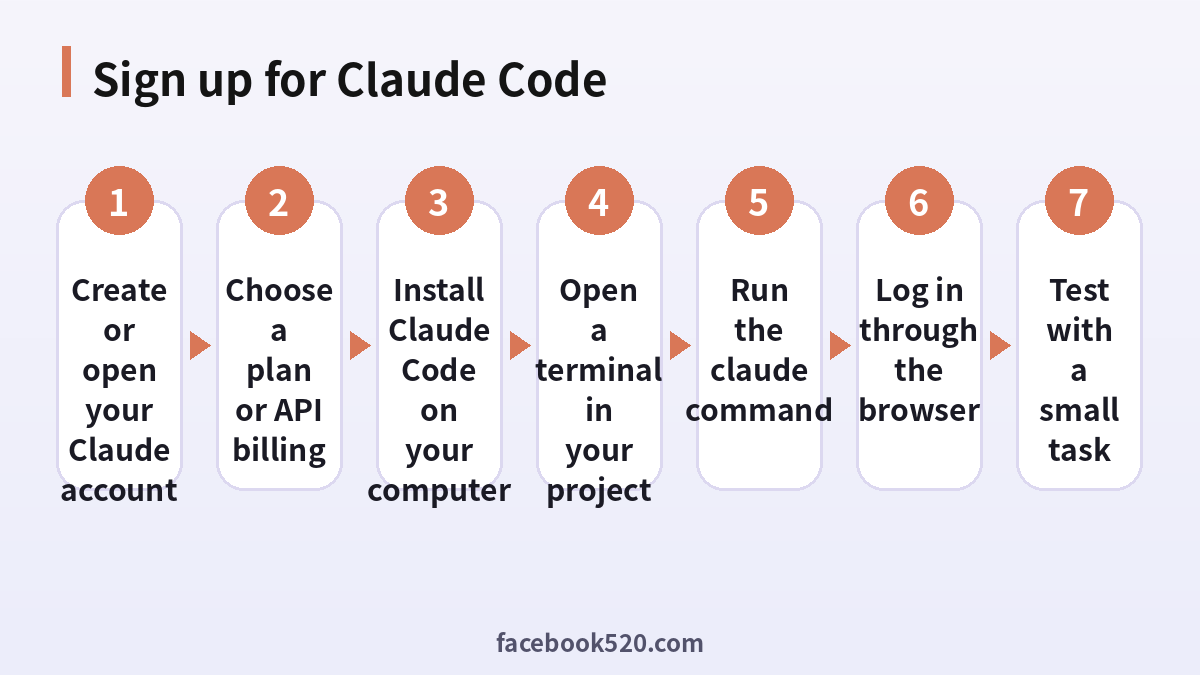
- Go to the official Claude website and choose to sign up.
- Register with your email address or a supported single sign-on option, then confirm the verification message.
- Complete your profile and accept the terms.
- Choose a plan that includes Claude Code, or create an Anthropic Console account for API billing.
- Install Claude Code on your computer using the method described in the official documentation.
- Open a terminal in your project folder and run the claude command.
- Log in through the browser window that opens and approve access.
If everything worked, the terminal will show a prompt where you can type requests such as explain this repository or add a test for this function.
Which plan should you pick
Anthropic offers several ways to pay. The right choice depends on how much you use the tool and whether you work alone or in a company.
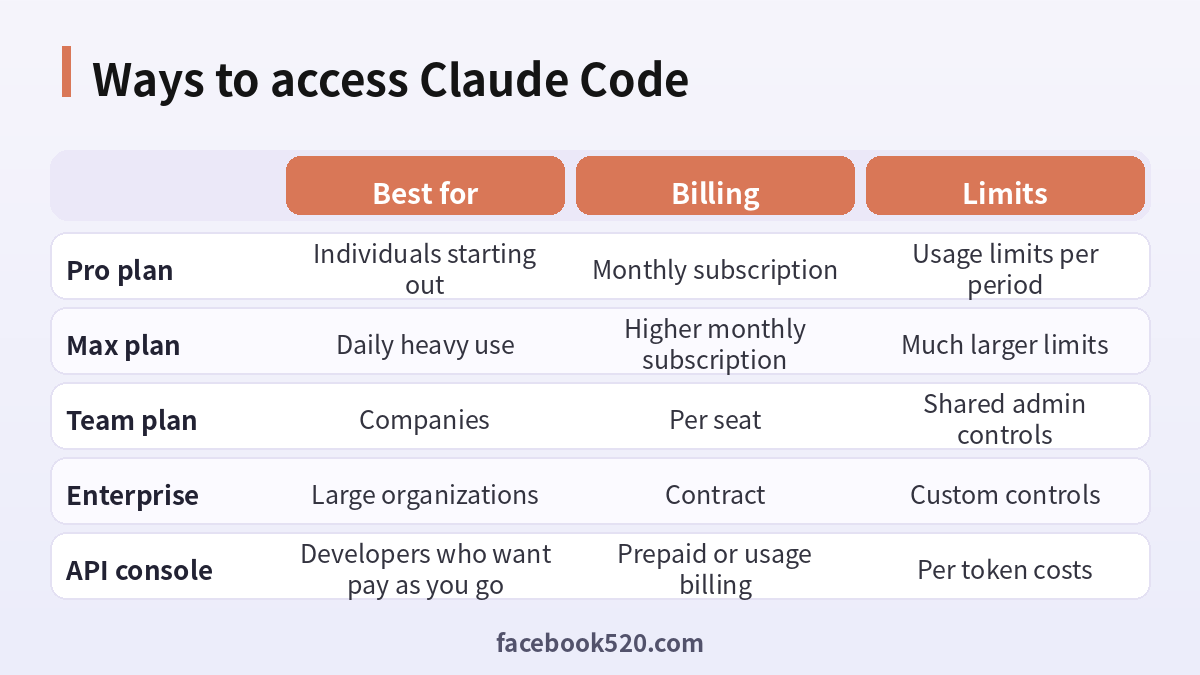
| Method | Best for | Billing | Limits |
|---|---|---|---|
| Pro plan | Individuals starting out | Monthly subscription | Usage limits per period |
| Max plan | Daily heavy use | Higher monthly subscription | Much larger limits |
| Team plan | Companies | Per seat | Shared admin controls |
| Enterprise | Large organizations | Contract | Custom controls |
| API console | Pay as you go | Prepaid or usage billing | Per token costs |
If you code a few hours a week, the entry plan is usually enough. If you run long agent sessions every day, a higher tier or API billing may be cheaper than hitting limits all the time. The API option charges by tokens used, which can be efficient for light use and expensive for heavy use, so watch your spending. Whatever you choose, read the official pricing page first because tiers, names and included features change.
Installing Claude Code
The official documentation lists the supported installation methods, which typically include a native installer for macOS, Linux and Windows environments and a package manager route. Use only the commands from the official site. Do not copy install scripts from random blogs or videos, and avoid unofficial packages with similar names, because developer tools are a favorite target for supply chain attacks. After installing, run the version command to confirm that it works and update regularly, since the tool is improved often.
Logging in the first time
When you run claude for the first time, it asks how you want to authenticate. Choose the option that matches your plan: log in with your Claude account if you bought a subscription, or connect your Console account if you use the API. A browser window opens, you sign in and approve access, and the terminal confirms success. If the browser does not open automatically, copy the link shown in the terminal into your browser manually. On remote servers or containers without a browser, use the device or token flow described in the documentation.
First tasks to try
Start small to build trust. Ask Claude Code to describe the structure of your repository, to find where a specific feature is implemented, to write a unit test for a function or to explain an error message. Review each change it proposes before accepting it. Create a CLAUDE.md file in your project with notes about the stack, coding conventions and how to run tests, so the tool starts each session with context. Commit your work before large edits so you can revert easily.
Multiple accounts: what is allowed and what is not
Developers often ask about running several accounts. There are legitimate reasons to have more than one: a personal account for hobby projects and a separate work account provided by your employer, or an Anthropic Console organization for company API use. Keep these separate. Log out of one before logging into the other, or use different operating system user profiles or containers so credentials do not mix. Never put work code into a personal subscription if your company forbids it.
What you should not do is create extra accounts to get around usage limits or to share a single subscription among several people. That usually violates the terms of service and can lead to suspension. If you need more capacity, upgrade the plan, use API billing, or ask your company for team seats. Sharing logins also exposes your repositories and keys to people you do not control.
How to switch between accounts safely
Use the logout command inside the tool, then run the login flow again with the other account. For teams that switch often, create separate terminal profiles or development containers, one per account, each with its own configuration directory. Check which account is active before starting a long session. Keep environment variables with API keys in project-specific files that are excluded from version control, and never commit them. If you use the API, create separate keys for each project so that you can revoke one without affecting others.
Team and company setup
For a company, the Team or Enterprise route gives administrators seat management, central billing, usage visibility and security controls. Define which repositories developers may work on with the tool, how secrets are handled, and which commands the agent may run without confirmation. Configure permissions conservatively: allow reading and editing project files, but require approval for network access, package installation or destructive commands. Train developers to review diffs and to run tests before merging anything the agent writes.
Costs and how to control them
Usage depends on the size of your repository, the length of sessions and the model you pick. Long conversations carry more history, so start a fresh session for a new task. Be specific in your requests to avoid repeated attempts. Use lighter models for routine edits. Watch the usage indicators, and if you use the API, set spending alerts and monthly limits in the console. Review invoices monthly and cancel plans you no longer need.
Common sign up and login problems
If you do not receive the verification email, check spam folders and make sure the address is typed correctly. If the browser login loops, clear cookies for the site or try a private window. If the tool says your plan does not include Claude Code, confirm that you signed up for a qualifying plan and are logged into the right account. If a payment is declined, check the card, billing address and your bank’s rules for international online payments. If you see a region restriction message, the service may not be available in your country, and you should not try to bypass it with unofficial methods.
Security best practices
Turn on two-step verification for your account. Do not share session tokens or API keys. Keep the tool updated. Review the commands the agent proposes, especially when it wants to delete files, run scripts or access the network. Use a separate branch for agent work. Add sensitive files to ignore lists. For highly sensitive code, check your company policy and the privacy terms first.
Alternatives if Claude Code is not a fit
If the cost or limits do not suit you, consider other coding assistants such as Cursor, GitHub Copilot or Gemini based tools. Compare them on the same tasks, looking at quality, speed, price and how well they fit your editor and workflow.
Setting up your project for the best results
The quality of Claude Code’s work depends heavily on the context you give it. Before your first serious session, create a CLAUDE.md file at the root of your repository. Describe the purpose of the project, the languages and frameworks, the folder layout, how to install dependencies, how to run tests and the linter, and any rules such as naming conventions or modules that must not be touched. Short and accurate notes beat long and vague ones. Update the file when your workflow changes.
Next, make sure your tests run from a single command. When the agent can run the test suite itself, it can check its own work and fix mistakes without you copying error messages back and forth. If your project has no tests, ask the agent to help you write a few for the most critical paths before you let it refactor anything.
Finally, configure permissions. By default the tool asks before running commands or editing files. As you gain confidence you can allow specific safe commands, such as running tests or formatting, while keeping prompts for risky ones such as deleting files, pushing to remote branches or installing global packages. A cautious permission setup is the best protection against surprises.
A comparison of account setups
Different people need different setups. The table shows common situations and the arrangement that usually works best.
| Situation | Recommended setup | Reason | Risk to avoid |
|---|---|---|---|
| Hobby developer | Personal Pro plan | Simple and affordable | Overbuying a higher tier |
| Freelancer with several clients | Personal Max or API with separate keys per client | Clean cost tracking | Mixing client code and billing |
| Employee at a company | Company Team seat | Policies and central billing | Using a personal plan for work code |
| Startup with a few engineers | Team plan | Shared admin and invoices | Sharing one login |
| Agency or enterprise | Enterprise agreement | Compliance and support | Skipping security review |
Working across devices and servers
Many developers use Claude Code on a laptop, a desktop and sometimes a remote development server. Each machine needs its own installation and login. On a remote server without a browser, use the documented method that gives you a link to open on another machine and then pastes a code back. Keep credentials out of shared images, and log out on machines you no longer use. If you work inside containers or cloud development environments, store configuration in a persistent volume and keep API keys in the platform’s secrets manager rather than in the container image.
When pairing with teammates, never hand over your logged-in terminal or share screens that show tokens. Each person should have their own seat. If someone needs temporary access for a short project, ask your administrator to add a seat for the duration and remove it afterward.
Habits that make the tool more useful
Treat Claude Code as a capable junior colleague. Give clear goals, ask it to propose a plan before changing files, and review the result. Break big tasks into steps and commit after each step. Ask it to explain unfamiliar code before modifying it. Use it for chores that eat time: writing tests, updating documentation, migrating syntax, fixing lint errors and drafting commit messages. Keep humans responsible for design decisions, security-sensitive code and anything that touches production data.
Over time, build a small library of prompts and project rules that capture how your team works. Share them in the repository so every developer gets consistent results.
Keeping up with changes
Agentic coding tools change fast. New models, new permission modes, new integrations with editors and continuous integration systems appear regularly, and pricing or limits may be adjusted. Subscribe to the official changelog, read release notes when you update, and revisit your settings every few months. If a feature that you rely on disappears or moves to a different plan, you will notice quickly and can adapt.
It also helps to follow the official documentation for topics such as hooks, custom commands, subagents and integrations with version control. Even a small automation, like a command that runs your tests and summarizes failures, can save hours each week. Share what works with your team and ask for feedback so that everyone benefits.
What to check after your first week
At the end of the first week, review how you used the tool. Which tasks saved the most time? Where did the agent make mistakes? Did you hit usage limits? Did you keep the account separation you planned? Use the answers to decide whether to keep your plan, upgrade, or switch to API billing, and to refine your project notes. A short retrospective now prevents wasted money and frustration later.
Privacy and compliance questions to ask before adopting
Before rolling Claude Code out to a team, collect answers to a few questions. Which data leaves the machine, and how long is it retained? Are conversations used for training under your plan? Which regions process the data? Can administrators audit usage? Who may approve commands that touch production? Document the answers, share them with developers and revisit them whenever the terms change. This small step turns a risky experiment into a managed tool.
Frequently asked questions
Is Claude Code free?
It requires a qualifying paid plan or API credits. Check the official site for any current promotions.
Do I need a Pro or Max plan?
Either can work. Pro suits lighter use, and Max suits heavy daily use. API billing is another route.
Can I use Claude Code with a company account?
Yes, through Team or Enterprise plans or an organization on the API console.
Can I have a personal and a work account?
Yes, if they are real accounts for real purposes. Keep them separate and follow your employer’s policies.
Can I make extra accounts to avoid limits?
No. That usually breaks the terms and can cause bans. Upgrade or use API billing instead.
How do I log out?
Use the logout command inside the tool, then log in again with another account.
Why does the login page not open?
Copy the link from the terminal into a browser or use the remote login flow.
Does it work on Windows?
Yes, through supported environments described in the documentation.
Is my code sent to Anthropic?
The tool sends the context needed for requests to the model. Read the privacy and data terms for your plan.
How do I cancel?
Open your account billing settings and cancel the plan before the renewal date.
Conclusion
Signing up for Claude Code takes only a few minutes: create an account, pick a plan or API billing, install the tool from the official source and log in through the browser. The harder part is using it well and safely. Keep personal and work accounts separate, never share logins, protect your keys, review every change and monitor your costs. Revisit the official pages from time to time, since Anthropic updates plans and limits regularly.