Gemini Business Account in 2026: How to Set It Up, What Plans Exist, and How to Upgrade to Google AI Pro
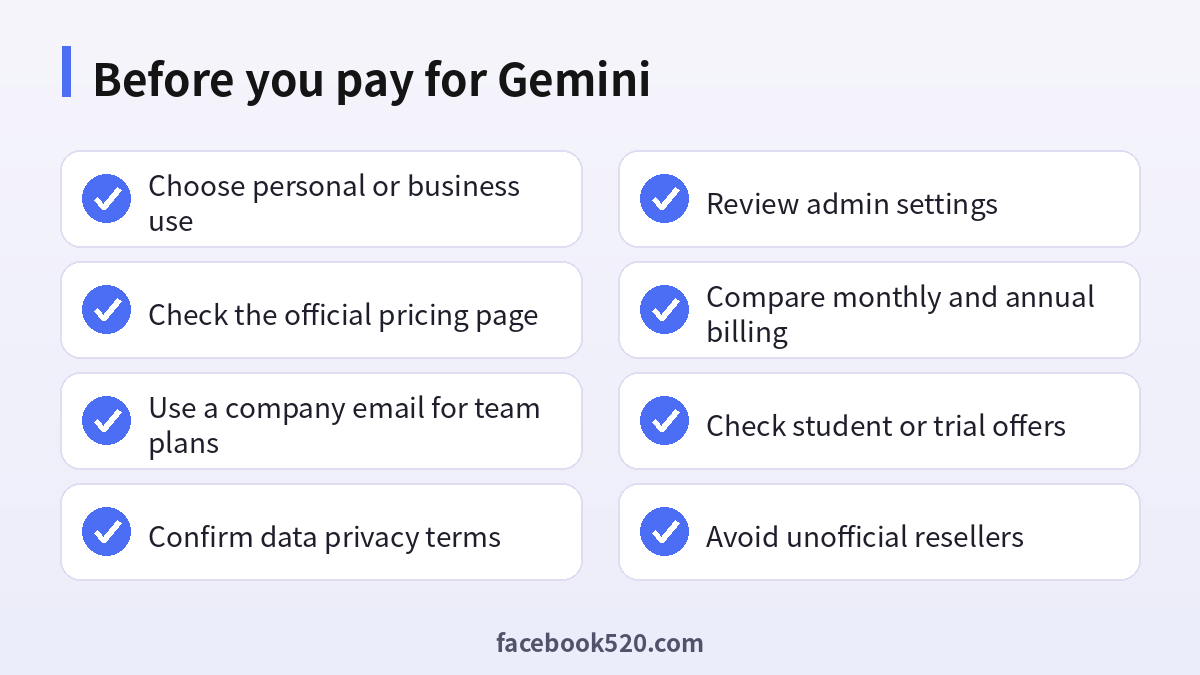
If you searched for a Gemini business account, you are probably trying to answer one of two questions: how do I use Gemini safely for my company, and how do I upgrade to Google AI Pro for my own work? The two paths look similar but are different products with different accounts, prices and privacy rules. This 2026 guide explains the options, shows how to set up each one, and helps you decide which fits your team. Plans, prices and features change often, so confirm every detail on the official Google pages before you pay. If you want a broader look at the assistant itself, start with our Gemini guide.
Two different things people call a Gemini business account
Google offers Gemini in two main ways. The first is a personal plan attached to a regular Google account. This includes the free tier and paid subscriptions such as Google AI Pro and Google AI Ultra. These plans are designed for individuals: you sign in with a personal Google account, pay with your own payment method and get access to more capable models, higher limits, creative tools and extra cloud storage.
The second is Gemini inside Google Workspace and the enterprise offerings. Here the account belongs to an organization, an administrator manages users and policies, and billing runs through the company. Gemini is available in Gmail, Docs, Sheets, Slides, Meet and a dedicated app, and the company can apply data protection rules. When people say Gemini business account they usually mean this second type, but freelancers and solo founders often choose the first because it is simpler.
Which one should you choose
Use a personal plan such as Google AI Pro if you are a freelancer, consultant, student or solo founder who wants strong models, research tools and generative media without managing a domain. Use a Workspace plan if you have employees, need centralized billing, want to control who can use AI, or handle client data that must stay under company policies. Use an enterprise offering if you need advanced governance, custom agents, integrations with internal systems or compliance features at scale.
A simple rule: if more than one person will use it and the data belongs to the company, choose a business plan. If it is just you and the data is yours, a personal plan can be enough. Do not share a single personal subscription among colleagues; it breaks the terms of service and exposes your private account to risk.
How to set up Gemini for a company step by step
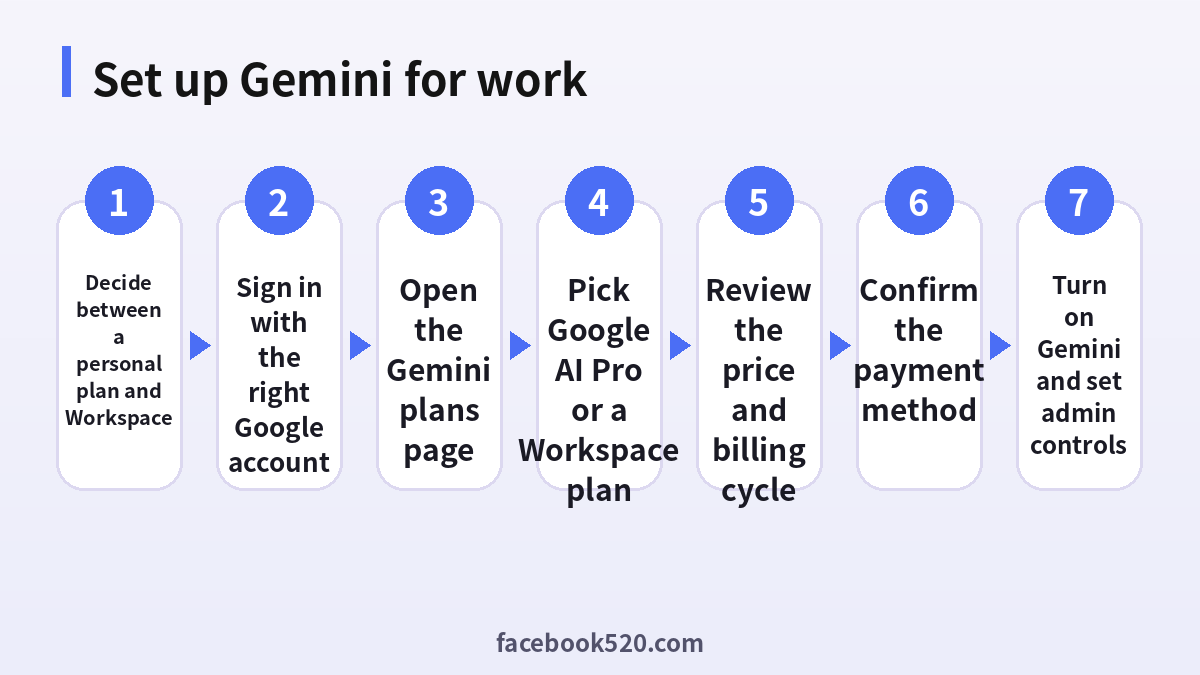
- Decide whether you need a personal plan or a Workspace plan.
- Sign in with the correct Google account; for a team, use an administrator account on your company domain.
- Open the official Gemini or Workspace plans page.
- Pick a plan that includes Gemini and review the features listed.
- Check the price per user per month and the billing cycle.
- Confirm the payment method and complete the purchase.
- Turn Gemini on for your users and configure admin settings such as who can access it and what data it can use.
If your company already uses Workspace, Gemini features are often included in current business plans or available as part of an upgrade, so check your admin console before buying anything extra.
How to get Google AI Pro
Google AI Pro is the paid personal tier most people want. To get it, sign in to the Gemini app or the Google One page with your personal Google account, choose the AI Pro plan, confirm the price and billing period and pay with a card or another supported method. You can usually choose monthly or annual billing, and Google sometimes offers a free trial or a discounted introductory period; availability depends on your country and account, so read the offer details carefully.
Once active, the plan gives you access to more capable Gemini models, larger limits for chat and research, creative tools for images and video, deeper integration with Google apps, and extra storage shared with Google Photos, Drive and Gmail. Students in some countries can receive free or discounted access for a limited time after verification. Check the official student page for eligibility rather than trusting third-party sites.
Upgrading to Google AI Pro from the free plan
If you already use Gemini for free, upgrading is simple. Open the Gemini app, click your profile picture and look for the upgrade option, or visit the official subscription page. Select Google AI Pro, review the benefits, and complete payment. Your history and settings remain on the same account. If you want to downgrade later, go to your subscription settings and cancel; you generally keep access until the end of the paid period.
If you hold a legacy Google One plan that bundled earlier Gemini features, the subscription page will show how it maps to the current names, so read it before paying twice.
Plans compared
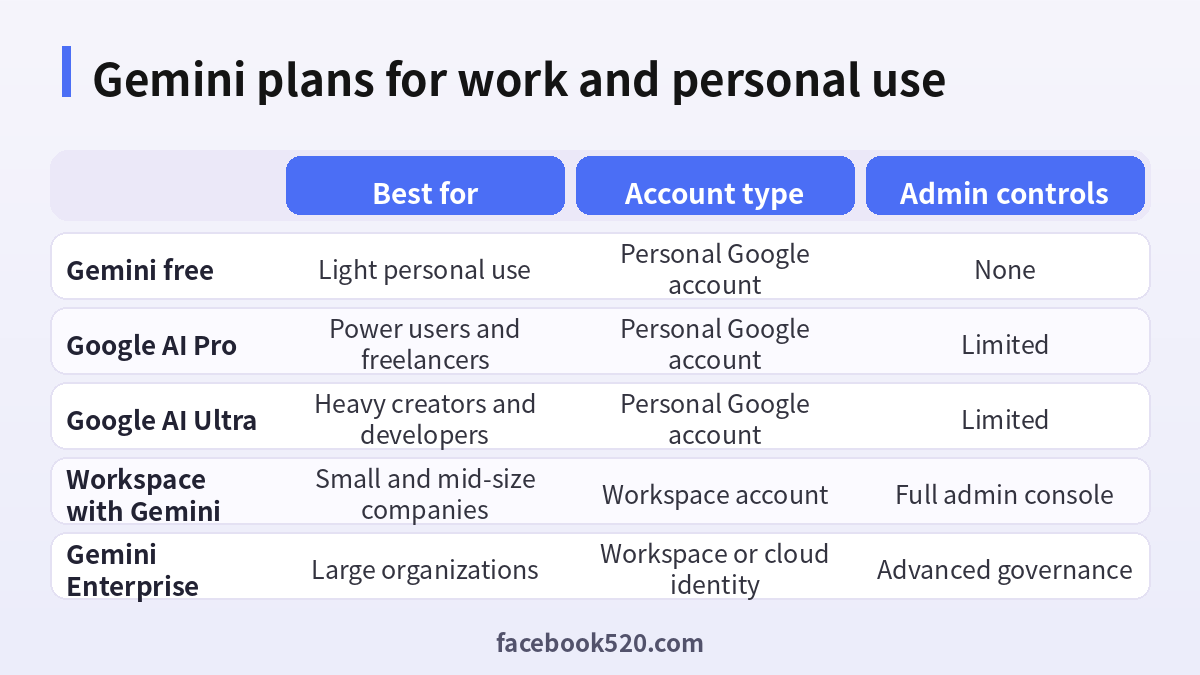
| Option | Best for | Account type | Admin controls |
|---|---|---|---|
| Gemini free | Light personal use | Personal Google account | None |
| Google AI Pro | Power users and freelancers | Personal Google account | Limited |
| Google AI Ultra | Heavy creators and developers | Personal Google account | Limited |
| Workspace with Gemini | Small and mid-size companies | Workspace account | Full admin console |
| Gemini Enterprise | Large organizations | Workspace or cloud identity | Advanced governance |
Prices change by country and over time. As a rough orientation, Google AI Pro has been priced in the range of twenty dollars per month in the United States, while the Ultra tier costs many times more and Workspace plans are priced per user. Always read the current figure on the checkout page.
Admin controls and data privacy
For a business, the most important question is what happens to your data. In Workspace and enterprise plans, Google states that prompts and responses are not used to train its models outside your domain without permission, and that existing protections such as data regions, access controls and audit logs continue to apply. Administrators can turn Gemini on or off for groups, restrict features, manage third-party connections and review usage. Personal plans have their own privacy settings, including activity controls that decide whether conversations are saved and used to improve services.
Before rolling out Gemini across a team, have your security or legal lead read the current terms. Decide which kinds of data may be pasted into prompts, require staff to avoid sharing secrets or customer personal data, and train people to verify outputs. Gemini can produce wrong answers confidently, so review anything that goes to customers or into financial or legal documents.
Practical ways a team can use Gemini
Teams get value fastest from everyday tasks. Summarize long email threads in Gmail, draft and edit documents in Docs, build formulas and analyze tables in Sheets, create slide outlines in Slides and capture notes from Meet. Marketing teams use it to brainstorm campaigns and adapt copy for different markets. Support teams use it to draft replies from knowledge-base articles. Developers use it to explain code and write tests. Analysts use research features to compile sources, and then check the original links.
Start with a small pilot of five to ten people, collect examples of time saved, and write short internal guidelines. Expand only after you have clear rules about data and review.
How billing works
Personal plans are billed to the Google account through the payment method you choose, monthly or annually. Workspace plans are billed per user per month or year, with the administrator managing seats. You can add or remove seats as your headcount changes. Invoices are available in the billing section, and tax is added according to your location. If your company needs purchase orders or invoicing instead of card payment, contact Google sales or a certified partner.
Watch for renewals. Annual plans renew automatically unless you cancel, and a free trial often converts to a paid plan at the end of the trial period. Set a calendar reminder a few days before the trial ends if you do not intend to continue.
Common mistakes to avoid
Teams often buy personal plans for each employee, which leaves the company without admin control. Others sign up with a personal email for client work and later cannot transfer the data. Some pay unofficial resellers for cheap family-plan slots or shared logins, which can lead to suspension. A few forget to check whether Gemini is already included in their current Workspace edition. Others never review the privacy settings and assume everything is protected by default. Avoid these by deciding the account type first, buying only from Google and reading the admin settings.
Security tips
Protect the account with two-step verification and a strong unique password. Admins should require security keys for privileged users, review third-party app access and monitor sign-in activity. Do not paste passwords, API keys or customer records into prompts. Teach staff to spot phishing messages that pretend to be Google billing notices; always go to the official site rather than clicking links.
Troubleshooting setup problems
If you do not see the upgrade option, confirm you are signed in with the right account, that your country is supported and that the account is not a managed child or school account. If payment fails, check card limits and billing address, then retry. If Gemini does not appear in Gmail or Docs after purchase, wait a few minutes, refresh, sign out and back in and ask the admin to confirm it is enabled for your organizational unit. If you see a message that your administrator has disabled the feature, contact them, since users cannot override that setting.
Cost planning for a small team
Budgeting for Gemini is easier when you separate fixed seats from optional extras. Count the people who will use it daily and price those seats first. Then decide whether anyone needs a higher personal tier for heavy creative or research work, and whether you want extra storage. The table below shows a simple way to think about it.
| Team size | Typical setup | Why it works | Watch out for |
|---|---|---|---|
| Solo founder | Google AI Pro on a personal account | Lowest cost and no admin work | Mixing personal and client data |
| 2 to 10 people | Workspace plan with Gemini | Central billing and admin controls | Seats added without approval |
| 10 to 100 people | Workspace plus training | Shared policies and audit logs | Uneven adoption |
| 100 or more | Enterprise offering | Governance and integrations | Long procurement cycles |
Review usage after the first quarter. If half of the seats are inactive, remove them; if one department uses it heavily, consider giving that group more capable tools.
Getting the most from Google AI Pro
After you upgrade, spend an hour learning what is included. Try the deeper research mode for market scans, upload long documents for summaries, use the image and video tools for mockups, and connect the assistant to your Gmail and Drive if you are comfortable with it reading those files. Create reusable prompt templates for tasks you repeat, such as weekly reports, meeting agendas, proposal drafts and customer replies. Keep a note of prompts that work well so you can reuse them.
Be careful with extensions and connected apps. Each connection gives the assistant access to more of your data, so enable only the ones you truly need and review them from time to time. If you work with clients, ask whether they allow AI tools on their material, and keep confidential documents out of personal accounts.
When Gemini is not the right choice
No single assistant fits every job. If your company is already deeply tied to another ecosystem, the integration benefits may be smaller. If you need strict control over where data is processed, check regional options and consider a self-hosted solution. If you only need occasional help, the free tier or a trial may be enough. Compare Gemini against other assistants with the same sample tasks, and pick the one that gives better results for your workflow rather than the one with the loudest marketing.
A short rollout plan
Week one: choose the account type, buy the plan and enable Gemini for a pilot group. Week two: run training, share examples and publish a one-page policy on data use. Week three: collect feedback, fix pain points and measure time saved. Week four: decide on expansion, adjust seats and schedule a review. Repeat the review each quarter, because both the product and its pricing keep changing.
Final checks before you click buy
Open the official checkout page in a fresh tab, confirm the plan name, the price including tax, the billing cycle and the account that will own the subscription. Make sure the email shown is the one you want to be billed under, because changing ownership later can be awkward. Save the confirmation email and the invoice, and add the renewal date to your calendar. If the purchase is for a company, record who approved it so the next administrator understands why the plan exists.
What to do if your plan changes
Google may rename plans, move features between tiers or adjust limits. When that happens, you will normally receive an email and a notice in the subscription page. Read it, compare the new terms with how you actually use Gemini, and decide whether to keep, change or cancel the plan.
Frequently asked questions
Is there a separate Gemini business account to sign up for?
Not as a standalone login. You use a Workspace account with Gemini included or added, or a personal Google account with a paid plan.
What is the difference between Google AI Pro and Workspace Gemini?
Google AI Pro is a personal subscription. Workspace Gemini is managed by an administrator and covers company data and policies.
How much does Google AI Pro cost?
It is priced at roughly twenty dollars per month in many regions, but check the official page for your country and any trial.
Can I use Google AI Pro for my small business?
Yes for solo work, but a team needs a business plan for admin control and data protection.
Is my business data used to train Gemini?
Workspace and enterprise terms state that customer content is not used to train models outside your organization without permission. Read the latest terms.
Can students get Google AI Pro free?
Some countries offer student promotions after verification. Check the official student page.
How do I cancel?
Open the subscription settings in your Google account or the admin console for Workspace and cancel before the renewal date.
Can I share my subscription with family?
Some plans allow family sharing under Google One rules. It is not the same as sharing with colleagues.
Does Gemini work in Gmail and Docs?
Yes, with the right plan. Availability and features depend on the plan and your administrator.
Is it safe to buy from a reseller?
No. Buy only from Google to avoid scams and account bans.
Conclusion
A Gemini business account is not a single product, so the right choice starts with understanding who owns the data. Solo professionals can upgrade to Google AI Pro in minutes, while teams should choose a Workspace plan with admin controls, clear data policies and per-user billing. Compare the official price pages, pilot with a small group, set simple rules for what can be pasted into prompts and review your plan every few months as Google keeps changing its offers.