


Runway Pricing (2026): Plan Comparison, Subscription & How to Pay
People searching for Runway pricing usually want three answers: what each plan includes, what it really costs per month, and how to pay without surprises. Below you will find a clear comparison of the plans, a step-by-step payment walkthrough, tips for keeping spending under control, and fixes for the most common billing problems.
What is Runway?
Runway is an AI video and image toolkit. Its Gen models turn text, images and clips into new video, and the platform adds editing tools such as green screen, inpainting and motion brushes. Runway is credit-based. Every plan includes a monthly credit allowance, and each generation spends credits depending on model, resolution and duration.
Runway plans and pricing at a glance
Prices below are reference list prices in US dollars that have been published recently. Taxes, currency conversion, regional pricing and promotions can change what you see at checkout, so always confirm on the official page (runwayml.com) before you pay.
| Plan | Reference price | What it is for |
|---|---|---|
| Free | free, one-time starter credits | Try the basics with a small non-renewing credit pool. |
| Standard | about $15/month | A monthly credit pool, watermark-free exports and access to Gen models. |
| Pro | about $35/month | More credits, higher resolution, custom voices and extra storage. |
| Unlimited | about $95/month | Unlimited generations in a relaxed-rate mode in addition to the standard credit pool. |
| Enterprise | custom | Team administration, security and volume discounts. |
How Runway billing works
- One second of video costs a set number of credits, which differs by model; check the credit estimator before each run.
- Unused monthly credits usually do not roll over.
- Annual billing lowers the monthly rate.
- Additional credits can be purchased without changing plans.
None of this is complicated, but each point is something people commonly discover only after the first invoice.
Which Runway plan should you choose?
- Evaluating: Free or Standard.
- Content creators: Standard or Pro.
- Production teams: Unlimited.
- Companies: Enterprise for team workspaces.
A useful rule of thumb is to begin with the lowest plan that lets you do real work, track how often you hit its limit for two or three weeks, and only then move up. Most of the plans can be changed or cancelled later, so there is little reason to start on the most expensive tier “just in case”.
Payment methods you can usually use
Runway checkout generally accepts major credit and debit cards (Visa, Mastercard and often American Express). Depending on your country you may also see PayPal, Apple Pay, Google Pay or local wallets, and in-app purchases are processed by Apple or Google when you subscribe inside a mobile app. The exact list is shown at checkout and depends on your billing country, so trust the screen rather than an old forum post.
A few practical points about cards:
- Use a card that allows online and recurring (subscription) payments, and that is enabled for international merchants.
- Make sure the billing name and address match what your bank has on file; mismatches are a frequent reason for declines.
- If your bank uses 3-D Secure, approve the prompt in your banking app quickly; the session may time out.
- Virtual cards can work, but some issuers block subscription merchants or cap the first transaction. Test with the amount you actually need.
Step-by-step: how to pay for Runway
- Sign up or log in at runwayml.com.
- Click your workspace name and choose Plans or Billing.
- Select a plan and choose monthly or annual.
- Pay by card in the checkout.
- Return to the dashboard and confirm the credit counter has updated.
- Run a five-second generation to see exactly how many credits it uses.
Ways to keep your Runway spending under control
- Use the cheaper model for drafts and the premium model for finals.
- Keep clips short; most of the cost is per second.
- Download assets before the end of your plan, as storage limits apply.
- Set a billing reminder if you only needed one month.
Common payment and access problems
- Credits not added after upgrade: Wait a few minutes and refresh; if the counter is still wrong, contact support with the receipt.
- Watermark still present: Watermark-free export needs a paid plan; make sure the project belongs to the paid workspace.
- Card declined: Try a second card, confirm online and international payments are enabled, and check there is no temporary hold from your bank. Waiting an hour and retrying often clears security checks.
- Charged but plan not active: Refresh the page, sign out and back in, and confirm you are on the same account that was used at checkout. If the plan still does not show, keep the receipt and contact the support team of the service you paid.
- Wrong country or currency shown: Pricing follows your billing country and sometimes your IP location. Do not try to bypass it; set the correct billing address in your account instead.
- Unexpected renewal: Subscriptions renew automatically. Check the next billing date in your account and cancel at least a day before it if you do not want another cycle.
How to cancel or change your Runway plan
You cancel in the same place you subscribed: the website billing page for web purchases, the Apple subscriptions page for iPhone purchases, or Google Play subscriptions for Android purchases. Cancelling normally stops the next renewal but keeps access until the end of the period you already paid for. Downgrades usually take effect at the next renewal, while upgrades are normally effective immediately with a prorated charge. Keep your receipt emails; they are the quickest proof if you ever need help.
Monthly or yearly billing: how to decide
The annual option for Runway can look attractive because the per-month figure is lower. The catch is commitment: if you stop using the service after three months you have still paid for twelve. Treat yearly billing as a reward for habits you have already proven, not as a way to start.
A short checklist before you subscribe
- Confirm the plan name and price on the official Runway page the same day you buy, since promotions and limits change.
- Log in with the account you actually want to keep; changing the account tied to a subscription later can be awkward.
- Decide who pays: a personal card, a company card or a team plan with central billing.
- Note the renewal date and the cancellation route in your calendar.
- Save the receipt email in a folder; you will need it for expense claims or support requests.
Is Runway worth paying for?
The honest test is simple: would the time or money the tool saves you in a month exceed what the plan costs? If you can name two or three concrete tasks where Runway helps every week, a paid plan is usually justified. If you are mostly experimenting, stay on the free or lowest tier and revisit the decision after a month of real usage data.
Invoices, receipts and company cards
If you pay for Runway as part of your work, look for the billing or invoices section in your account settings. There you can usually download receipts, update the company name and tax number for future invoices, and change the billing email. Use a dedicated company card where possible and a shared mailbox for receipts, so subscriptions do not disappear when a team member leaves. For teams with several users, a business or team plan with central billing is generally easier to audit than many individual subscriptions.
Mistakes to avoid
- Buying the most expensive plan before you know your real usage.
- Subscribing inside a mobile app and then looking for the cancel button on the website, or the reverse.
- Sharing your login with someone who offers to “activate” or “top up” the plan for you; use official checkout only.
- Forgetting a free trial and being charged on the first renewal date.
- Ignoring the usage or credit counter until it is empty in the middle of a deadline.
What if prices or limits change?
AI and software subscriptions move quickly. A plan that included a certain allowance last quarter may be reorganised, renamed or repriced this quarter, and a new tier can appear between the ones you know. When that happens, read the notice email from Runway AI instead of assuming nothing changed, compare the new allowance with what you actually used, and decide whether to stay, downgrade or switch to another tool. Existing subscribers are normally told about price changes ahead of renewal, which gives you time to cancel if the new terms no longer make sense.
Matching Runway to Your Situation
- Hobbyists: Runway has offered a free plan with a one-time or limited set of credits and paid plans with monthly credits. Check the current plans page.
- Professional creators: Higher plans have offered more credits, higher resolution and extra tools. Credits are consumed according to the model and duration chosen.
- Teams: Team and enterprise options exist with shared workspaces and admin features. Contact the company for details.
Runway at a Glance
- Typical use: AI video generation and editing.
- What you need: an email or social sign-in and a subscription payment method.
- Common friction: credits can burn quickly, and team seats must be kept separate from personal accounts.
- Security tools: account two-step verification and member-permission checks.
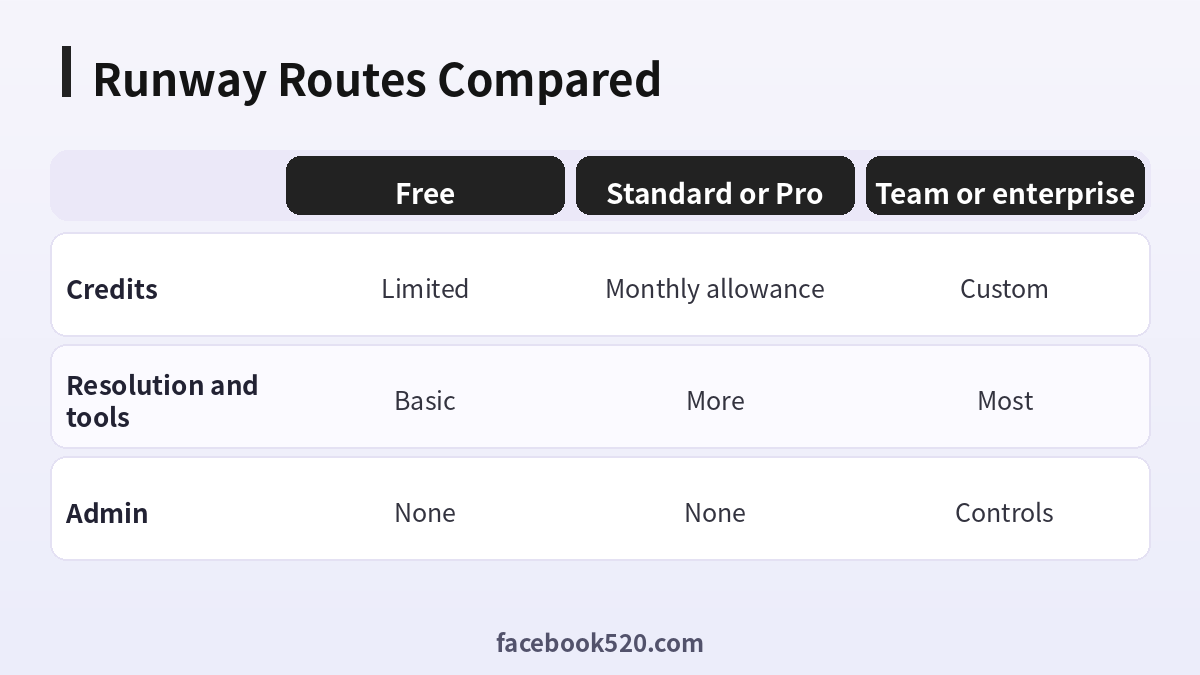
Comparing Your Runway Routes: Table and Verdict
| Factor | Free | Standard or Pro | Team or enterprise |
|---|---|---|---|
| Credits | Limited | Monthly allowance | Custom |
| Resolution and tools | Basic | More | Most |
| Admin | None | None | Controls |
Verdict: Try the free option on a real shot, estimate how many credits one finished clip needs, and choose a plan that covers your month with some margin. Check the official page for the current names and allowances.
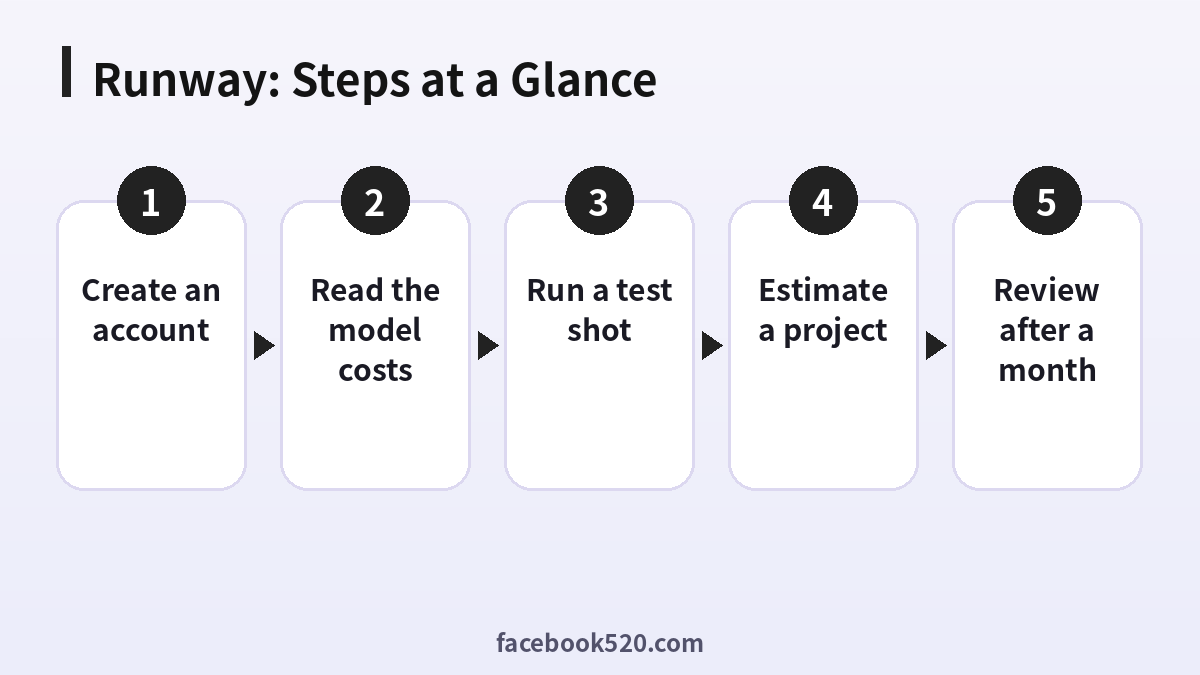
Choosing a Runway plan
- Create an account: Use the official site.
- Look at your credits: See the balance and plan.
- Read the model costs: Credits per second differ.
- Run a test shot: Short and simple.
- Estimate a project: Shots multiplied by attempts.
- Compare plans: Pick one with margin.
- Review after a month: Adjust.
Runway Problems and Fixes
| Symptom | Likely cause | What to do |
|---|---|---|
| Credits ran out | Allowance used | Buy more or wait. |
| Generation failed | Content rule or load | Retry with changes. |
| Output has artifacts | Prompt or model | Try a different model. |
| Export limited | Plan restriction | Check plan. |
| Charged unexpectedly | Auto renewal | Check billing. |
How credits are spent
Each generation uses credits depending on the model, length and options. Runway publishes how many credits each action uses, so estimate your project with those figures. Repeated attempts add up quickly, so plan three or four tries per final shot.
Choosing a model
Runway has offered several generation models with different strengths and costs. Use a cheaper or faster one for experiments and a more capable one for final shots, according to what the official page recommends.
Image to video and editing tools
Beyond text-to-video, Runway offers tools that animate an image, edit video and apply effects. Check which are included in your plan and how many credits they use.
Commercial use and ownership
Read the terms to see what you may do with outputs. Keep a record of the plan, the date and the prompts for every project.
Safety and policy
Content rules apply, including limits on likeness and harmful content. Generations that break them may be blocked and could affect your account.
Workflow with other tools
Many creators generate shots in Runway and finish in an editor. Export in the format your editor prefers and keep originals.
Storage and project organisation
Name projects and assets clearly. Download finished clips, because storage may be limited by plan.
Avoiding shared logins
Sharing or buying logins can break terms and lead to suspended access. Use team plans for collaboration.
Hedging on specifics
Plans, models and credit costs change. Use the official pages as the source.
Budgeting a project
Add up shots, attempts and extra credits for edits, then add a margin. Compare the total with a plan to decide.
Reading the credit table before you generate
Runway publishes a table of how many credits each model and duration uses. Open it before starting, pick the shot length you need, and calculate the cost of one attempt. Multiply by the number of shots and by your expected number of retries, and you will know in advance whether the plan covers the project or you need a margin.
Writing shot prompts that work
Describe the subject, action, camera move, lighting and style in a few clear lines, and keep each prompt to one idea. If the result is close, change a single detail and try again. Saving the prompts that worked into a document makes the next shot faster and more consistent across a whole sequence.
Combining Runway with editing software
Export your best clips and assemble them in a video editor, where you can trim, add sound, titles and colour correction. Generated clips often look better when cut short and mixed with music, so avoid long takes. Keep the original exports in case you need to re-edit later.
Teamwork and review
If several people work on a project, agree who owns the account, who approves outputs and where files are stored. A shared folder with names and dates avoids duplicate generations and wasted credits, and one reviewer per round reduces conflicting feedback.
Handling failed or odd generations
When a clip comes out distorted, do not simply re-run the same prompt. Read the output closely, identify what went wrong, such as an extra limb or a drifting background, and change the prompt to exclude or clarify it. Note whether failed runs consume credits on your plan, so you can decide how many retries to allow.
Planning a first small project
Pick a ten-second sequence with three shots, write a short prompt for each, and generate one version of each. Edit them together with music and see whether the story works. If it does, spend the rest of your credits improving the weakest shot. This keeps the first project cheap and teaches you the workflow.
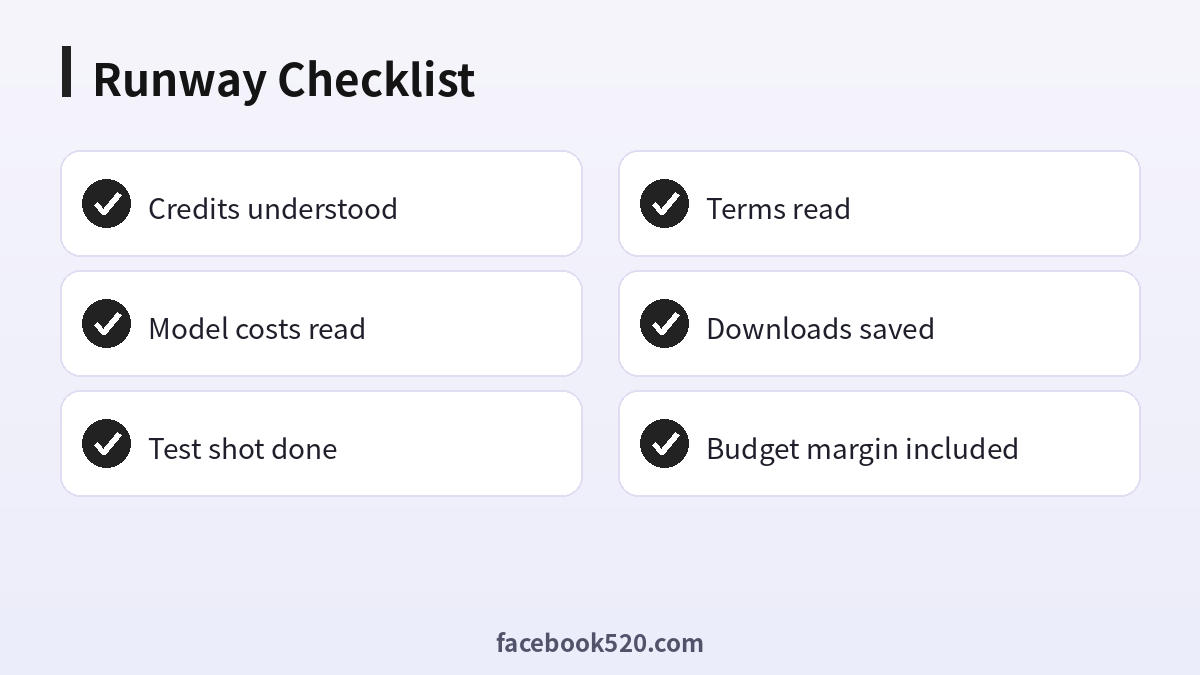
Runway: Before-and-After Checklist
- Credits understood
- Model costs read
- Test shot done
- Terms read
- Downloads saved
- Budget margin included
Runway FAQ
How much does Runway cost?
Plans start at roughly fifteen dollars a month at list price; check the pricing page for current figures.
Does Runway have a free plan?
Yes, with a limited one-time credit pool.
How many credits does a video use?
It depends on the model and duration; see the credit estimator in the app.
Can I get a refund?
Refund rules are stated in the terms; credits already consumed are generally not refundable.
Is it safe to pay for Runway through third parties?
The only fully safe route is paying Runway AI directly on its official site or in its official app. Be cautious with anyone who asks for your login details, or sells “cheap” access without a clear, verifiable receipt.
Do Runway prices differ by country?
Yes. Prices, taxes and available payment methods vary by country and platform. The checkout page always shows the final amount.
What is a credit?
A unit used for generations.
Can I buy extra credits?
Plans have offered extra credits. Check the page.
Can I use outputs commercially?
Check the terms.
Can teams share an account?
Use a team plan.
Related guides
- ChatGPT account purchase guide (Chinese)
- Gemini Pro plans
- How do I register and purchase 70+ accounts on TikTok, YouTube, Instagram, Facebook, X, Reddit, Medium, and LinkedIn?
- ChatGPT、Gemini、Perplexity、Claude、Copilot 等 AI 平台最喜欢引用的100个网站
If you are also setting up other platforms for your business, the 70+ accounts register and purchase overview gives a broader map of what is available.
