


Claude Sign Up 2026: Step-by-Step Registration with Email or Google, Phone Verification, Multiple Gmail Accounts and Fixes
Claude is an AI assistant from Anthropic that you can use in a browser, on a phone and, with an account, through other tools. Signing up is quick, but people still get stuck on small things: which login to choose, why a verification code is requested, what happens when you have several Gmail addresses and why the site says the service is not available. This guide explains the registration flow for Claude, the choices you make along the way, how to manage more than one Google login, how to protect the new account and what to do when something goes wrong. Pricing is mentioned only in general terms, since plan details and amounts differ by country and change over time; read them on the official page when you need them.
Before you sign up
Prepare an email address you control, because the account is tied to it and recovery depends on it. If you want to use Google sign-in, decide which Google account you want to associate. Have your phone nearby in case a text verification is requested. Check that you are in a region where the service is offered; availability depends on country and can change. Finally, decide whether this will be a personal or work account. Work accounts are best created with a work address or by accepting an invitation from your organization’s administrator.
Sign-up methods compared
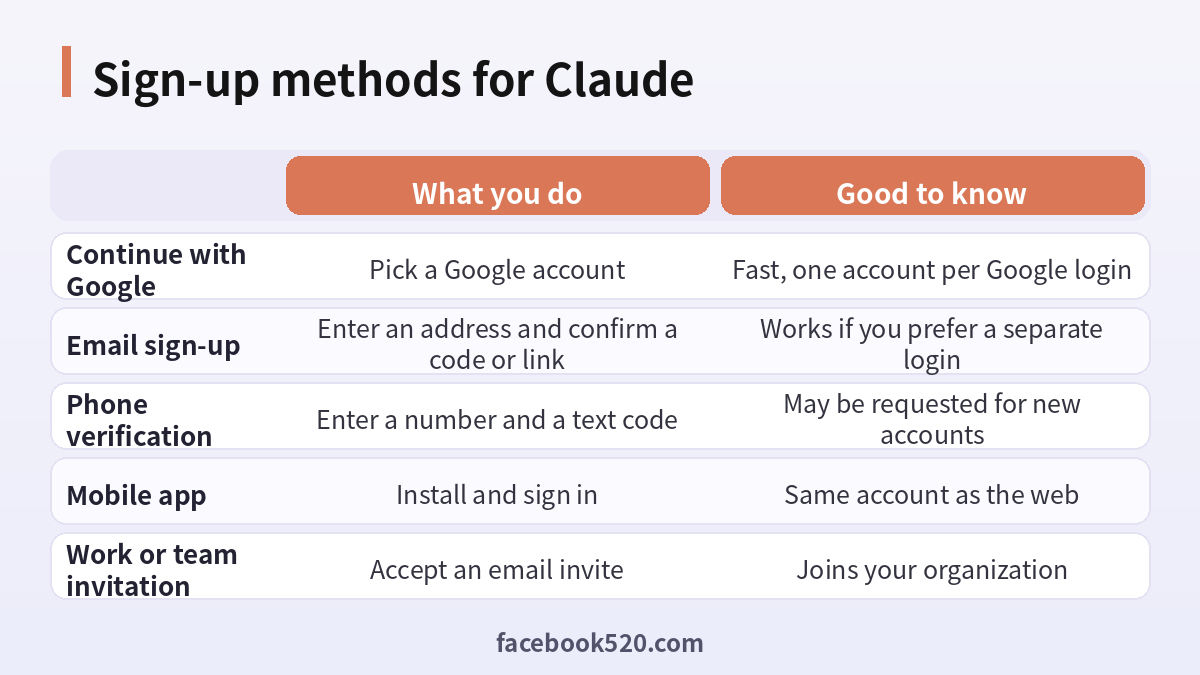
| Method | What you do | Good to know |
|---|---|---|
| Continue with Google | Pick a Google account | Fast, one account per Google login |
| Email sign-up | Enter an address and confirm a code or link | Works if you prefer a separate login |
| Phone verification | Enter a number and a text code | May be requested for new accounts |
| Mobile app | Install and sign in | Same account as the web |
| Work or team invitation | Accept an email invite | Joins your organization |
Step by step: sign up for Claude
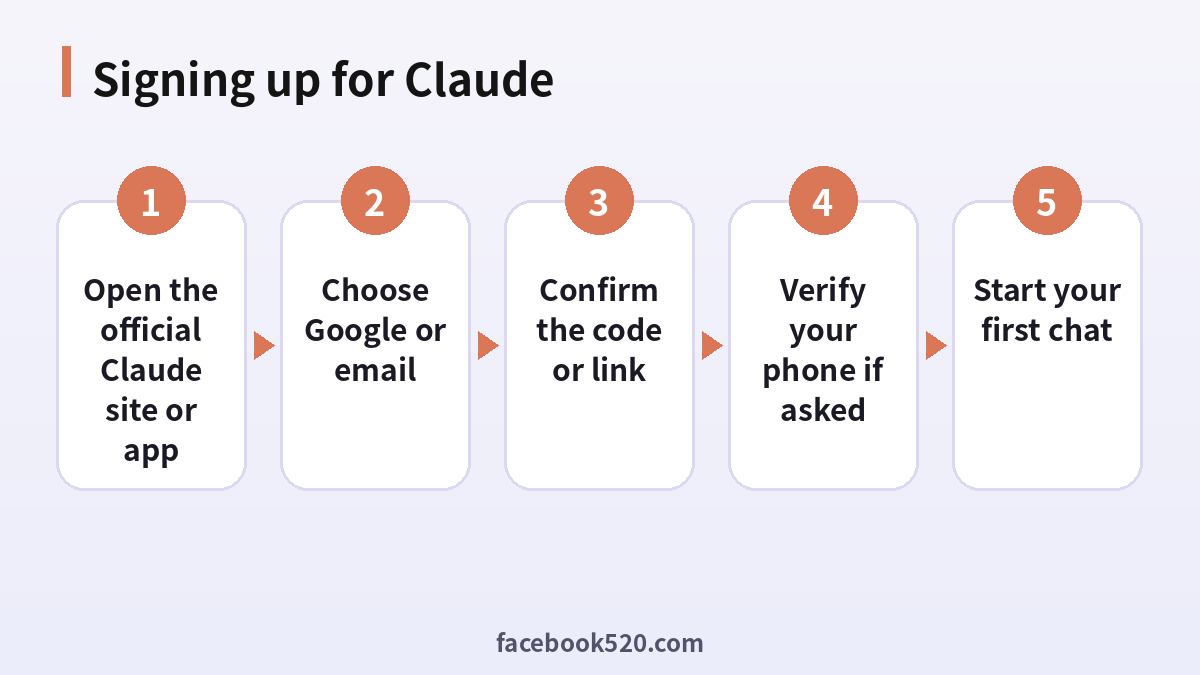
- Open the official Claude site or app. Type the address yourself or use the official listing in your device store. Be careful with ads and lookalike domains.
- Choose Google or email. Select continue with Google, or enter your email address to receive a sign-in code or link.
- Confirm the code or link. Open the message, enter the code or click the link, and return to the page.
- Verify your phone if asked. Enter your number and the text message code. This protects against automated sign-ups.
- Start your first chat. Accept the terms, review the introduction screens and send a first message.
Signing up with Google
Continue with Google is the fastest option. You pick a Google account from your browser or device, grant permission to share your basic profile, and the account is created. The upside is that you do not need a separate password. The downside is that your Claude access depends on that Google login, so protect it with two step verification and keep its recovery options current. If you later lose access to the Google account, you will lose access to Claude with it, unless you added another method.
Signing up with email
If you prefer to keep Claude separate from Google, use email. Enter the address, wait for the message and confirm. Use an address you can read on all your devices. Avoid temporary mailboxes, which are often blocked and which you can lose. If the message does not arrive, check spam, wait a few minutes and try once more. Typing the address twice carefully avoids many problems.
Phone verification
New accounts may be asked to verify a phone number. You enter the number with its country code, receive a text and type it in. Use a real number that you own. Some numbers, such as certain virtual or shared ones, may be rejected. A number can be used for a limited number of accounts. If the text does not arrive, check the country selection, signal and any message filters, wait a minute and request again, but not repeatedly. Never share the code with others.
What about several Gmail accounts
A common question is whether you can connect multiple Gmail accounts to Claude. Each Claude account is tied to one login identity. If you continue with Google using a different Gmail address, you get a separate Claude account with its own history, settings and plan. Accounts do not merge automatically. If you want several mailboxes in one place, keep one Claude account and use features that connect to Google services, where available, with the permissions you choose. Check the settings for integrations and read what access each one requests.
Choosing the account for work and for personal use
Keeping work and personal use apart is a good habit. A personal account is for your own experiments. A work account should be tied to a company address so that, if you leave, the company can manage access and data. Do not paste confidential company information into a personal account. If your employer provides Claude through a team arrangement, use that account and follow your company’s policy. Related information about the product is on the main Claude page.
Free use and paid plans
You can start for free, with limits that depend on demand and your region. Paid plans raise usage limits and unlock extra features, and there are plans for teams and organizations. You do not need to decide at sign-up. Use the free tier for a few days, notice what limits you hit, and then compare plans on the official page. Pay only inside the official site or app, never through a stranger’s offer to share or sell access.
First settings to check
After you sign up, open the settings. Review privacy options, including whether conversations may be used to improve models, where such a choice is offered. Look at the data controls for chat history and deletion. Set your preferred language and, if available, personalization or style options. Familiarize yourself with projects and how files and instructions are saved. A few minutes here avoids surprises later.
Securing the new account
Use a unique password if you signed up with email, and rely on a password manager. If you use Google sign-in, enable two step verification on the Google account. Keep your recovery email and phone current. Never share a login with friends or colleagues; invite them to create their own accounts or join a team plan. Sign out on shared computers. If you ever see a sign-in you do not recognize, change your password and review active sessions.
Common sign-up errors
| Problem | Likely cause | What to try |
|---|---|---|
| Service not available | Region not supported | Check the official list; do not use unofficial workarounds |
| No email arrives | Filtered or mistyped | Check spam, spelling, retry once |
| No text code | Carrier delay or rejected number | Wait, retry once, use another real number |
| Cannot sign in with Google | Browser blocks pop-ups | Allow pop-ups or use another browser |
| Account already exists | Used that email before | Use sign in, or the password reset option |
| Wrong account opened | Picked a different Gmail | Sign out and choose the right one |
If Claude says it is not available in your region
Availability depends on supported countries and territories. If your location is not supported, you cannot use the official service there, and the right action is to wait for expansion. Do not use unofficial tricks or buy accounts from sellers who promise access, since these can break the terms and put your data at risk. When you travel, you may see different behavior depending on where you are; check the official support pages for guidance.
Using the mobile app and other tools
After the account exists, install the app on your phone and sign in with the same method. Your conversations sync across devices. Developers can later use the same login to access tools such as Claude Code, or create a separate console organization for API usage. The chat account and the API account are managed separately for billing, even if they share an email, so do not assume that one covers the other.
Joining through a team invitation
If a manager sends you an invitation, open it from the email you received and sign up with that address. The invitation attaches your account to the organization, which may provide extra features and admin controls. If the invite fails, ask the administrator to send it again to the right email. Do not forward invitations to other people, because they are tied to specific addresses.
A short checklist for the first day
On the first day, do five small things. Confirm that the sign-in works on both your computer and your phone. Read the privacy settings once. Run three different kinds of task, such as writing, analysis and coding, so you learn where the assistant is strong. Note when you reach usage limits and at what time they reset. Finally, write down which email you used and how you signed up, because forgetting that detail is the main reason people think they have lost an account when they simply opened a second one with another address.
Understanding usage limits on a new account
Free and paid plans both include usage limits. They are applied over rolling windows and depend on how long your conversations are, which model you pick and how busy the service is. If you see a message that you have reached a limit, you can wait until it resets, shorten your conversations, start fresh chats for new topics or consider a paid plan. Long uploaded documents and extended conversations consume more allowance, so be deliberate. The exact numbers are not fixed, so rely on the messages inside the app rather than on old posts.
Working with files, images and projects
You can attach documents and images to a conversation where the app supports it, and use projects to keep related chats, instructions and files together. Name projects clearly and keep instructions short and specific. Do not upload documents that contain data you are not allowed to share. If a file does not upload, check its size and type, then try again after a refresh. Treat uploaded content as part of your account data and delete it when you no longer need it.
Account recovery and changing devices
If you forget how you signed in, try the sign-in page with each email you might have used and each Google account on your device. For email sign-in, request a fresh code. For Google sign-in, make sure you choose the same Google account. If you buy a new phone, install the app and sign in again; your history is stored with the account. If you lose access to your email entirely, start with that provider’s recovery process, since the Claude account depends on it.
Good habits for responsible use
Use the assistant as a helper, not as an unquestioned authority. Verify facts that matter, especially in medical, legal or financial topics. Do not enter passwords, payment card numbers or other secrets into the chat. When you share personal data about other people, think about whether you have the right to. Keep a copy of important results outside the app. These habits protect you whether you are a student, an employee or a hobbyist.
Getting the most from the first hour
Start with a clear task: summarize a document, plan a trip, debug a short function or draft an email. Give context and say what you want. Ask follow-up questions to refine the result. Try attaching a file if the interface allows it. Learn how to start a new conversation for a new topic and how to find earlier chats. Check any claim that matters, because AI answers can contain mistakes.
Three short examples
A student. Carla signs up with her university Gmail, verifies her phone and uses the free tier for study notes. She keeps a separate personal login for hobbies.
A freelancer with two inboxes. Jonas has a work and a personal Gmail. He signs up with each separately, accepts that they are separate histories and uses the work one for client projects.
An employee. Kai receives a team invitation, signs up with his company email and follows the company’s rules on what may be pasted into prompts.
After signing up for Claude
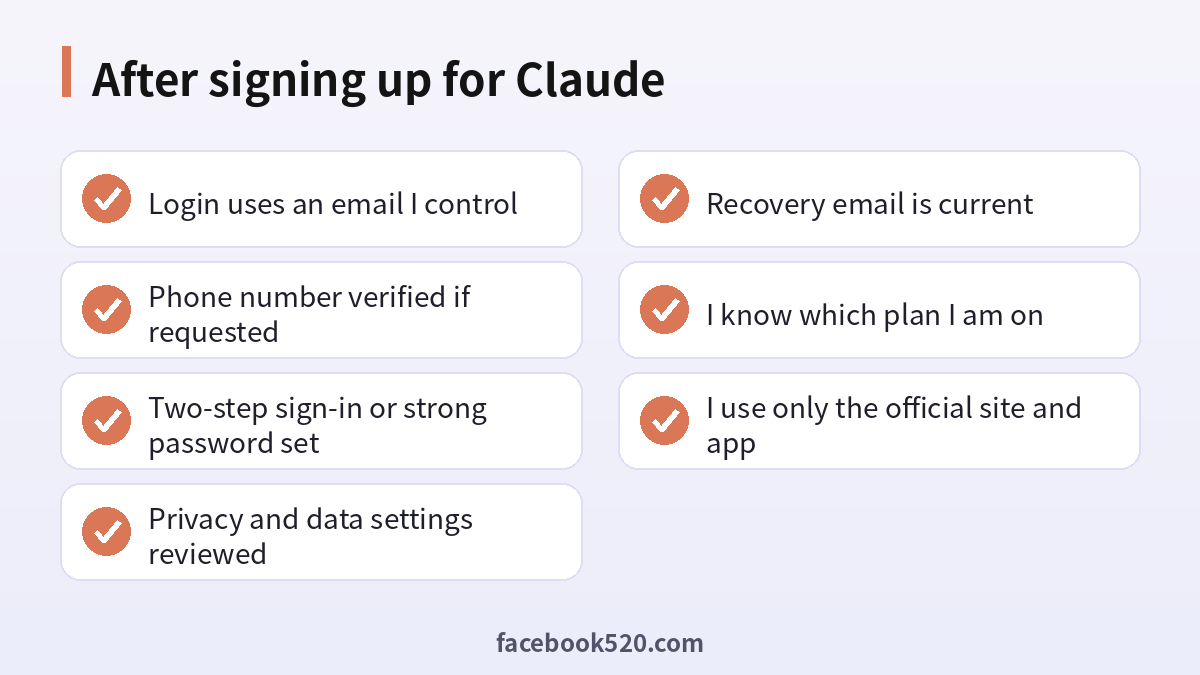
- Login uses an email I control
- Phone number verified if requested
- Two-step sign-in or strong password set
- Privacy and data settings reviewed
- Recovery email is current
- I know which plan I am on
- I use only the official site and app
Questions people ask
How do I sign up for Claude?
Open the official site or app, continue with Google or enter your email, confirm the code or link, verify your phone if asked and start chatting.
Is it free to create a Claude account?
Yes. You can sign up and use a free tier with limits. Paid plans are optional.
Why does Claude ask for my phone number?
Phone verification helps prevent automated and abusive sign-ups. Use a real number that you control, enter it with the correct country code and do not share the text code with anyone, including people who claim to be support.
Can I use more than one Gmail account?
Each Gmail login creates its own Claude account. Accounts do not merge, so use one for each purpose.
Can I sign up without Google?
Yes. You can use an email address and confirm with a code or link.
Why did the confirmation email not arrive?
It may be in spam, delayed or sent to a mistyped address. Check the spam and promotions folders, confirm the spelling, wait a few minutes and request again once. Repeated requests in a short period can slow things down.
Why is Claude not available in my country?
The service is offered only in supported regions. Check the official list of supported countries and avoid unofficial access methods, which can break the terms and put your account and data at risk. If your region is not listed, waiting for official expansion is the safe option.
Can I share my account with a friend?
No. Accounts are personal. Invite friends to create their own, or use a team plan for workplaces.
Can I change my email later?
Options depend on how you signed up. Check the account settings and the help center for current instructions. If you used Google sign-in, the identity is tied to that Google account, so a different address generally means a new account rather than a change to the existing one.
Are Claude chat and the API the same account?
They are managed separately. The API uses a console organization with its own billing and keys, so a chat subscription does not give you API credit and the reverse is also true.
Is it safe to buy a Claude account?
No. Purchased accounts can be taken back by the original owner, and your data would be exposed to the seller.
How do I delete my account?
Use the account deletion option in settings or contact support, and export anything you want to keep first. If you have a paid plan, cancel it before deleting so that you are not charged for a subscription attached to an account that no longer exists, and keep the confirmation email as proof.
