


How to Open a WhatsApp Account in 2026: Personal, Business App and Business Platform Setup
“How can I open a WhatsApp account?” is one of the most common questions people ask when they get a new phone, start a business, or want to run ads that send customers to a chat. The answer depends on which kind of account you need. A personal account takes only a few minutes and a working phone number. A business account on the free WhatsApp Business app adds a profile, catalog and automated replies. A WhatsApp Business Account (often shortened to WABA) on the WhatsApp Business Platform is the route for companies that need an API, multiple agents, and integrations. This 2026 guide walks through all three, explains how to find your WhatsApp Business Account ID, and shows how to set up click-to-WhatsApp ads without breaking Meta’s rules. Product screens and pricing change often, so confirm details in the official WhatsApp and Meta help pages. For registration basics, see our guide on registering a WhatsApp account, and for a broader overview read the WhatsApp account hub.
Step 1: Decide which WhatsApp account you actually need
Before you download anything, choose the account type that matches your goal. If you only want to chat with friends and family, install WhatsApp Messenger. If you sell products or services and want a professional profile, install the WhatsApp Business app. If you have many agents, high message volume or want to connect a CRM, you will need the WhatsApp Business Platform, which is accessed through Meta’s Cloud API or an official Business Solution Provider. Mixing these up is a common mistake: a phone number registered on the Business Platform cannot normally be used at the same time in the regular app unless you follow Meta’s coexistence or migration options, so plan your numbers before you start.
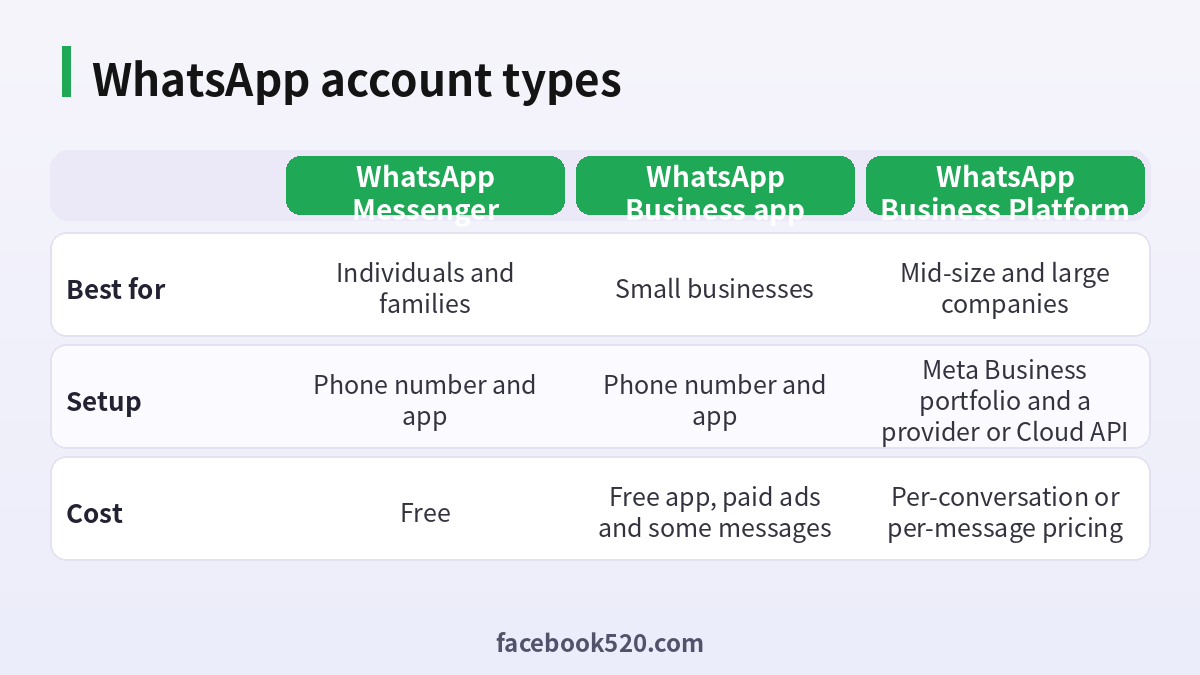
| Feature | WhatsApp Messenger | WhatsApp Business app | WhatsApp Business Platform |
|---|---|---|---|
| Best for | Individuals and families | Small businesses | Mid-size and large companies |
| Setup | Phone number and app | Phone number and app | Meta Business portfolio and Cloud API or provider |
| Business profile | No | Yes | Yes |
| Catalog and quick replies | No | Yes | Via integrations |
| Multiple agents | Linked devices only | Limited linked devices | Unlimited through software |
| Cost | Free | Free app, paid ads and some messages | Per-message pricing set by Meta |
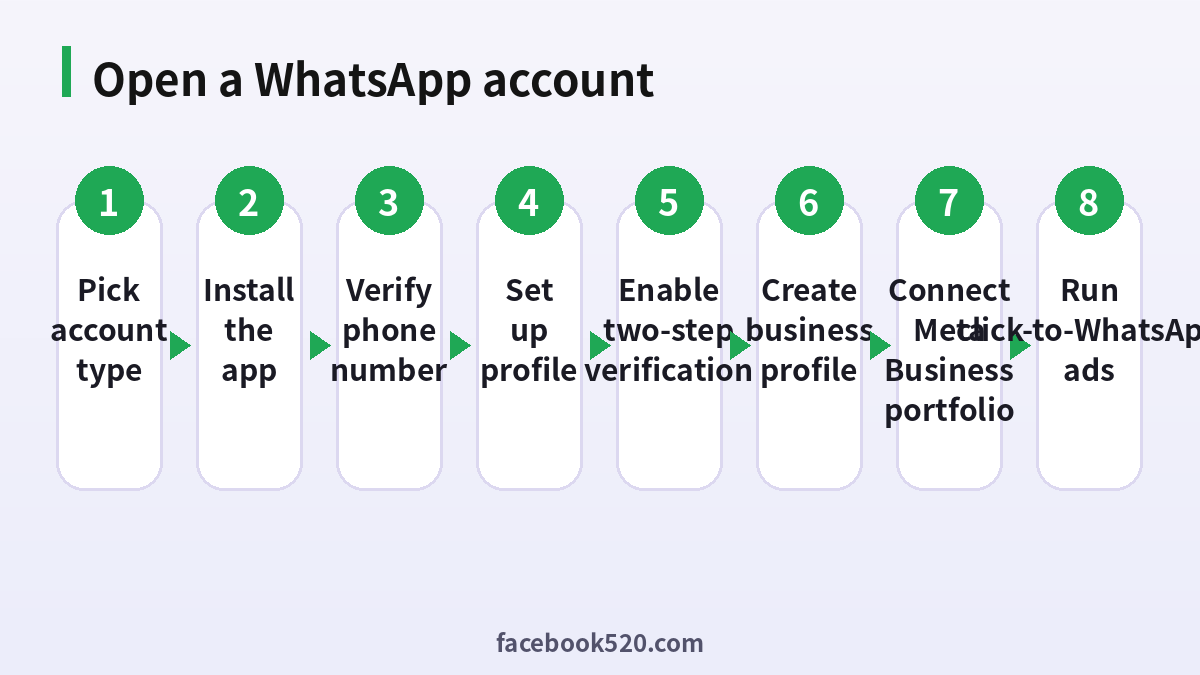
Step 2: Open a personal WhatsApp account
- Install the app: Download WhatsApp Messenger from the Apple App Store or Google Play. Use only the official listing from WhatsApp LLC.
- Open the app and accept the terms: Tap Agree and Continue.
- Enter your phone number: Choose your country code and type the number you can receive SMS or calls on.
- Verify the number: Enter the six-digit code sent by SMS, or request a call if the SMS does not arrive.
- Create your profile: Add a name and optional photo. You can edit them later.
- Restore a backup if you have one: On a new phone, WhatsApp offers to restore chats from Google Drive or iCloud.
- Turn on two-step verification: Go to Settings, Account, Two-step verification and set a six-digit PIN plus a recovery email.
- Add contacts and privacy settings: Allow contacts permission and review who can see your last seen, photo and groups.
The minimum age is 13 in most countries, and some regions set it higher. Never share your verification code with anyone, even a friend. Scammers use it to take over accounts.
Step 3: Open a WhatsApp Business app account
The WhatsApp Business app is designed for small companies and uses the same sign-up flow as the personal app, with extra tools. Download WhatsApp Business from the official store, verify your phone number, and choose a business name. The number can be a landline if it can receive a verification call, but a mobile number is easier. After verification, complete the business profile:
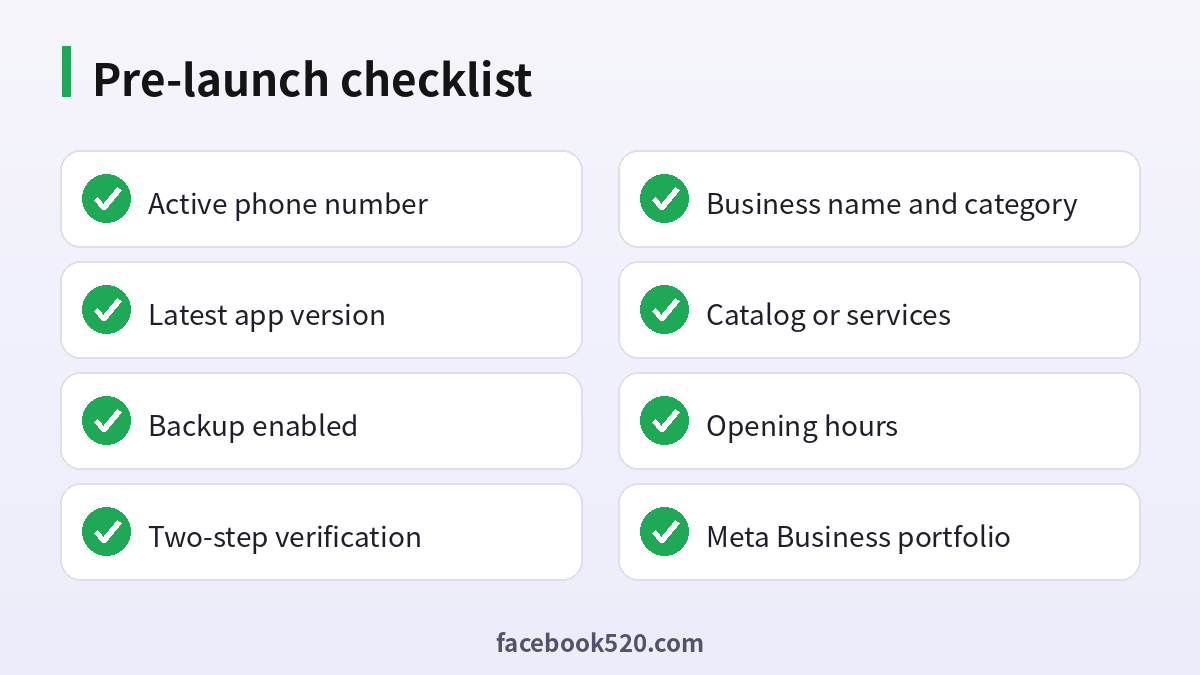
- Business name and category: Pick the closest category so customers understand what you do.
- Description, address and hours: Be accurate; this builds trust and avoids complaints.
- Email and website: Add official contact points.
- Catalog: List products or services with photos, prices and descriptions.
- Quick replies and greeting messages: Prepare answers to frequent questions and an away message for off hours.
- Labels: Tag chats as new customer, pending payment or completed order.
The Business app lets you link several devices and use WhatsApp Web, which suits small teams. Keep your cloud backup enabled and protect the phone with a screen lock. If you already use the personal app on the same number, you can usually migrate it to the Business app from within the app, but your chat history rules and the one-number-per-app limit apply, so read the prompts carefully.
Step 4: Create a WhatsApp Business Account (WABA) on the Business Platform
A WhatsApp Business Account is the container that holds your business phone numbers, templates, and settings on the Business Platform. You create it inside Meta’s ecosystem rather than in a mobile app. The usual path in 2026 looks like this:
- Create or open a Meta Business portfolio (formerly Business Manager) at business.facebook.com and make sure you are an admin.
- Open WhatsApp Manager from Business Settings, then Accounts, then WhatsApp Accounts, and choose Add.
- Create a new WhatsApp Business Account and name it. Add a phone number that can receive a verification code and is not already tied to another WhatsApp account, unless you are using an official migration.
- Verify the number by SMS or voice call.
- Set a display name that follows Meta’s naming rules. It must reflect your real business and may need approval.
- Add a payment method in WhatsApp Manager so Meta can bill any chargeable conversations or messages.
- Create message templates for notifications and marketing, and submit them for approval.
- Connect your tool: Use the Cloud API directly with a developer, or an official Business Solution Provider that offers an inbox and automation.
Business verification of your Meta Business portfolio unlocks higher messaging limits and is recommended for serious use. Meta may request documents such as company registration or a utility bill that match your business name. Always submit your own documents through the official verification flow and never use someone else’s.
How to find your WhatsApp Business Account ID
Developers and ad managers often ask where the WhatsApp Business Account ID is. It is a numeric identifier shown in the Meta Business portfolio. To find it, open Business Settings, go to Accounts, then WhatsApp Accounts, and select your account. The ID appears in the account details panel, usually near the top, and you can copy it. In WhatsApp Manager the same ID is shown in the account overview, along with the Phone Number ID for each number. Do not confuse the two: the WABA ID identifies the account, while the Phone Number ID identifies a specific number and is what you use when sending messages through the API. You will also see these IDs in the Meta for Developers dashboard under your app’s WhatsApp section. Treat the IDs as semi-private and never share access tokens, which are the real security credentials.
Setting up a WhatsApp ads account with click-to-WhatsApp ads
Meta does not sell a separate “WhatsApp ads account.” Instead, you run click-to-WhatsApp ads from a normal Meta ad account on Facebook and Instagram, with WhatsApp as the destination. The setup works like this:
- Link your WhatsApp account: In Meta Business Suite or Business Settings, connect your WhatsApp Business app number or WABA to your Facebook Page.
- Open Ads Manager and create a campaign. Choose the engagement objective, or the sales or leads objective where it is available, and select WhatsApp as the message destination.
- Choose your audience, placements and budget. Start with a small daily budget and test creatives.
- Write the ad and the welcome message. Add a clear call to action such as Send message, and prepare an opening message that sets expectations.
- Add billing information in the ad account settings, using a card, PayPal or other methods your country supports.
- Review and publish. Ads go through review, which usually takes from a few hours to a day.
Remember that ad delivery costs are charged by Meta, and in some cases conversations that start from a click-to-WhatsApp ad are free for a limited window. Check the current pricing page for the exact rules in your region. Follow Meta’s advertising policies, avoid prohibited content, and never promise results you cannot deliver.
Common problems when opening a WhatsApp account
The verification code does not arrive. Check signal, wait a few minutes, choose the call option and make sure the number is typed correctly. Avoid requesting many codes in a row, since this triggers a cool-down period.
“This phone number cannot be used” or similar messages. The number may be flagged, recycled from a previous owner, or tied to an existing WABA. Try a different number you legitimately own.
Account banned after setup. Common causes are bulk messaging, using unofficial modified apps, or sending to people who have not opted in. Use only the official apps and follow the Business Messaging Policy.
Display name rejected. Use your real business name and avoid generic terms, excessive capitalization or another brand’s name.
Cannot move a number to the Platform. Delete the account in the app or follow Meta’s migration steps before registering the same number in WhatsApp Manager.
Should you buy a ready-made WhatsApp account?
Ads for “verified WhatsApp Business accounts for sale” or bulk-registered numbers are widespread, but they are a poor idea. Accounts and numbers that are sold on are often registered with recycled or fake identities, they violate the WhatsApp Terms of Service, and they are frequently banned without notice. A seller can also keep control of the recovery details. For business purposes, it is safer and cheaper in the long term to register your own number, verify your own company and build an opt-in contact list. If you need to scale, use an official Business Solution Provider rather than a shortcut.
Cost overview: what you pay and when
| Item | Typical cost model | Notes |
|---|---|---|
| WhatsApp Messenger | Free | Standard data or Wi-Fi charges apply |
| WhatsApp Business app | Free | Optional paid features may appear in some markets |
| Cloud API access | Free to use | Messages are billed by Meta |
| Message templates | Per-message pricing by category | Marketing, utility, authentication and service categories differ |
| Click-to-WhatsApp ads | Auction-based ad spend | Set a daily or lifetime budget |
| Provider software | Monthly fee | Varies by vendor, features and seats |
Because Meta updates the pricing structure and country rate cards from time to time, always read the current pricing page before you budget. Start small, measure cost per conversation and cost per lead, and scale only when the numbers make sense.
Best practices for a healthy business account
Opt-in matters. Only message people who have given you their number and agreed to hear from you, and make it easy to opt out. Send relevant, timely messages, and use approved templates for notifications outside the 24-hour customer service window. Keep response times short, since fast replies improve customer satisfaction and quality ratings. Monitor your quality rating and messaging limit in WhatsApp Manager; a low rating can restrict sending. Use clear profile information, a real logo and an accurate address. Do not use unofficial or modified WhatsApp apps, auto-reply bots that violate policy, or scraped phone lists. Back up chats regularly and protect every device with a screen lock and two-step verification.
A 7-day launch plan for a small business
Day 1: Choose the number and install the WhatsApp Business app. Complete the profile. Day 2: Build the catalog with your top ten items and write quick replies. Day 3: Set the greeting and away messages, labels, and business hours. Day 4: Connect the account to your Facebook Page and Instagram profile so customers can reach you from both. Day 5: Create a small click-to-WhatsApp ad with a modest daily budget and a clear call to action. Day 6: Test the whole journey yourself, from ad to chat to order, and fix friction points. Day 7: Review results, collect feedback and decide whether to move to the Business Platform or stay on the app. This simple schedule keeps the setup manageable and the risk low.
Security habits for every WhatsApp account
Enable two-step verification on every number, review linked devices monthly and log out of any you do not recognise, and never scan a QR code sent to you by someone else. Be suspicious of messages that claim your account will be suspended unless you click a link. If you use a business number with several staff, document who has access and rotate access when someone leaves the company.
FAQ
Is it free to open a WhatsApp account?
Opening a personal account or a WhatsApp Business app account is free. Costs appear when you run ads, use the Business Platform for chargeable conversations, or pay a provider for software.
Can I have two WhatsApp accounts on one phone?
Many Android phones and the Business app allow a personal and a business account on the same device, each with its own number. Some phones also support dual-app features.
Do I need a SIM card to open an account?
You need a phone number that can receive an SMS or a call for verification. After verification, the account works over Wi-Fi or mobile data.
What is a WhatsApp Business Account ID?
It is the numeric ID of your WABA, shown in Business Settings and WhatsApp Manager. It differs from the Phone Number ID.
How do I create a WhatsApp Business Account for the API?
Create a Meta Business portfolio, open WhatsApp Manager, add a new WhatsApp Business Account, verify a phone number and connect the Cloud API or a provider.
Can I use my personal number for business?
You can, but it is better to use a dedicated number so you can separate conversations and avoid losing access if an employee leaves.
How do I verify my business?
Open Business Settings, choose Security Center and start Business Verification, then upload matching company documents.
What do click-to-WhatsApp ads cost?
You pay Meta for the ad delivery based on your budget and bidding. Message fees depend on the conversation category and country.
Why was my display name not approved?
It likely does not match your business, website or brand. Update the name or provide supporting evidence and resubmit.
Can I transfer my chat history to a new phone?
Yes. Use the in-app chat transfer or restore from your cloud backup using the same phone number.
Is it safe to use a free number from the internet?
No. Virtual or public numbers are shared, so someone else can request a code and take over the account.
What if my account gets banned?
Open the app, choose Request a Review, and explain that you follow the rules. If the problem continues use the official support form.
Conclusion
Opening a WhatsApp account is easy once you pick the right type. Use WhatsApp Messenger for personal chats, the WhatsApp Business app for a small shop, and the Business Platform for scale. Find your WhatsApp Business Account ID in Meta Business Settings, run click-to-WhatsApp ads from Ads Manager, and always use official tools, your own number and opt-in contacts. That keeps your account safe and your customers confident.

