


WhatsApp Sign Up Page (2026): How to Register and Create a WhatsApp Account
People often search for the WhatsApp sign up page expecting a web form where they can enter an email and password. WhatsApp does not work that way. There is no separate registration page for creating a new account on the website. A WhatsApp account is created inside the mobile app, and it is tied to your phone number. Once the account exists, you can also use WhatsApp Web or the desktop app by linking them to your phone.
This guide shows how to register, how verification works, how to set up your profile, how WhatsApp Business differs, and how to solve common registration problems.
Before you start
- A phone number that can receive an SMS or a call. WhatsApp sends a six-digit code to verify the number.
- A smartphone with the WhatsApp app installed. Download it from the Apple App Store or Google Play.
- Mobile data or Wi-Fi.
- A name you want people to see.
- Your contacts. If you grant permission, WhatsApp shows which of your contacts already use it.
Decide whether you want the standard WhatsApp Messenger for personal use or WhatsApp Business for a company. They use different apps, and one phone number can generally only be registered to one account at a time.
Step-by-step WhatsApp sign up
- Open WhatsApp and tap Agree and continue after reading the terms and privacy policy.
- Choose your country and type your phone number, then tap Next.
- Confirm the number when WhatsApp displays it.
- Wait for the SMS with the six-digit code, or choose the call option.
- Enter the code. The app will verify automatically in many cases.
- Enter your profile name and optionally add a profile photo.
- Allow access to contacts, photos and notifications as you prefer.
- Optionally set up a backup so your chats can be restored on a new phone.
That is the entire flow. If you are looking for the “WhatsApp registration page” on a computer, the correct approach is to register on the phone first, then open WhatsApp Web and scan the QR code to link the computer.
WhatsApp Business: when to use it
WhatsApp Business is a free app designed for small companies. It provides a business profile, a catalog, quick replies, labels and away messages. Larger companies can use the WhatsApp Business Platform with an API through a provider.
Choose WhatsApp Business if you reply to customers regularly. Keep in mind:
- A number registered on WhatsApp Messenger can be moved to Business, but follow the in-app migration guidance carefully.
- Fill in your business name, category, address, hours and website.
- Use labels to separate new customers, pending orders and paid orders.
- If you plan to run click-to-WhatsApp ads, see WhatsApp广告充值与付款方式教程.
Verification tips
- Use the right country code. A missing or incorrect prefix is the most common cause of failure.
- Wait before requesting another code. WhatsApp limits repeated attempts, and you may have to wait.
- Choose “Call me” if the SMS does not arrive.
- Turn on two-step verification in Settings, Account. It adds a PIN that is required when you re-register your number.
- Add an email for two-step verification recovery.
- Never share the six-digit code. Scammers often ask for it. WhatsApp will never ask you for it.
Account setup after registration
- Profile photo and About text. Keep them clear and professional if you use the account for business.
- Privacy. Review who can see your last seen, profile photo and status.
- Notifications. Customize for groups, chats and calls.
- Backups. Enable chat backup to cloud storage so you can restore chats after changing phones.
- Linked devices. Link WhatsApp Web or desktop for easier typing and file transfer.
- Groups. Create groups for family, teams or customers, and set who can add you to groups.
- Disappearing messages. Turn them on for sensitive chats if you want.
Common sign-up errors
- “You need the official WhatsApp to use this account.” Install the official app from your store.
- Code never arrives. Check signal, correct the number, then try the call option after the timer ends.
- “Try again in X hours.” You requested too many codes. Wait for the countdown.
- Number already in use. Registering on a new phone moves the account to that phone.
- Cannot verify a landline. Use the call option, since landlines cannot receive SMS.
- Account banned. Follow the in-app request to submit a review.
Next: activation and sales
After your account is ready, you can use it for customer chats and campaigns. Explore these resources:
- Guide to purchasing websites for Fb, Ins, Twitter, Snapchat, TikTok, LinkedIn, Pin, Reddit, WhatsApp, and YouTube accounts
- Selling accounts from various countries
- Other sign-ups: Telegram Sign Up and Facebook Sign Up.
Typical WhatsApp Users and What Works for Them
- Everyday personal users: WhatsApp registers an account with a phone number, then verifies it with a six-digit code by SMS or a call. After that you can link up to a few additional devices without keeping the phone online all the time.
- Small shops using the Business app: The WhatsApp Business app adds a business profile, a catalogue, labels, quick replies and away messages on top of the usual chat. It is designed for owners who answer customers themselves.
- Larger teams using the Business Platform: Companies that need several agents, automation and templates use the WhatsApp Business Platform, which is accessed through the API or through approved providers and is billed differently from the app.
- People who need two numbers on one phone: You can run a personal WhatsApp and a WhatsApp Business account on the same phone using different numbers. Keep them separate to avoid mixing customer messages with personal chats.
WhatsApp at a Glance
- Typical use: everyday messaging, customer service and business messaging.
- What you need: a phone number that can receive a code and the app.
- Common friction: codes that never arrive, chat migration to a new phone, and bans after spammy outreach.
- Security tools: a two-step verification PIN and linked-device review.
Which WhatsApp Route Fits? Comparison and Verdict
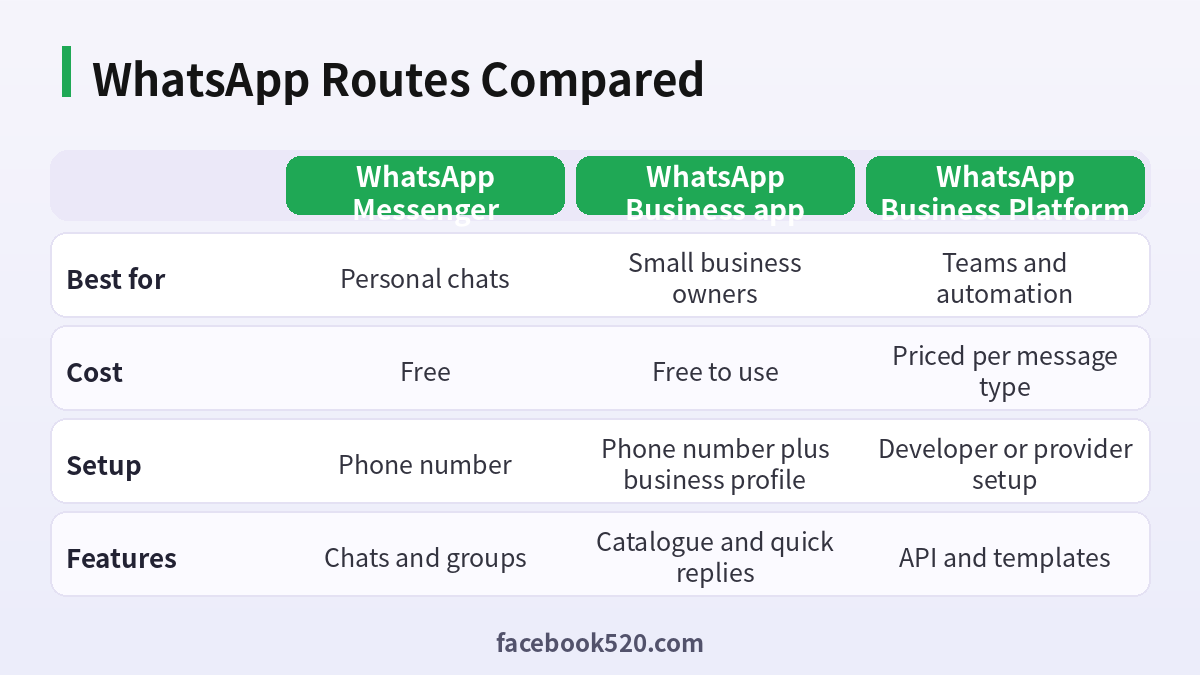
| Factor | WhatsApp Messenger | WhatsApp Business app | WhatsApp Business Platform |
|---|---|---|---|
| Best for | Personal chats | Small business owners | Teams and automation |
| Cost | Free | Free to use | Priced per message type |
| Setup | Phone number | Phone number plus business profile | Developer or provider setup |
| Features | Chats and groups | Catalogue and quick replies | API and templates |
Verdict: Use Messenger for personal chats, the Business app if you are a small company answering customers yourself, and the Business Platform when you need scale and automation. Do not use a personal number for business if you cannot afford to lose it.
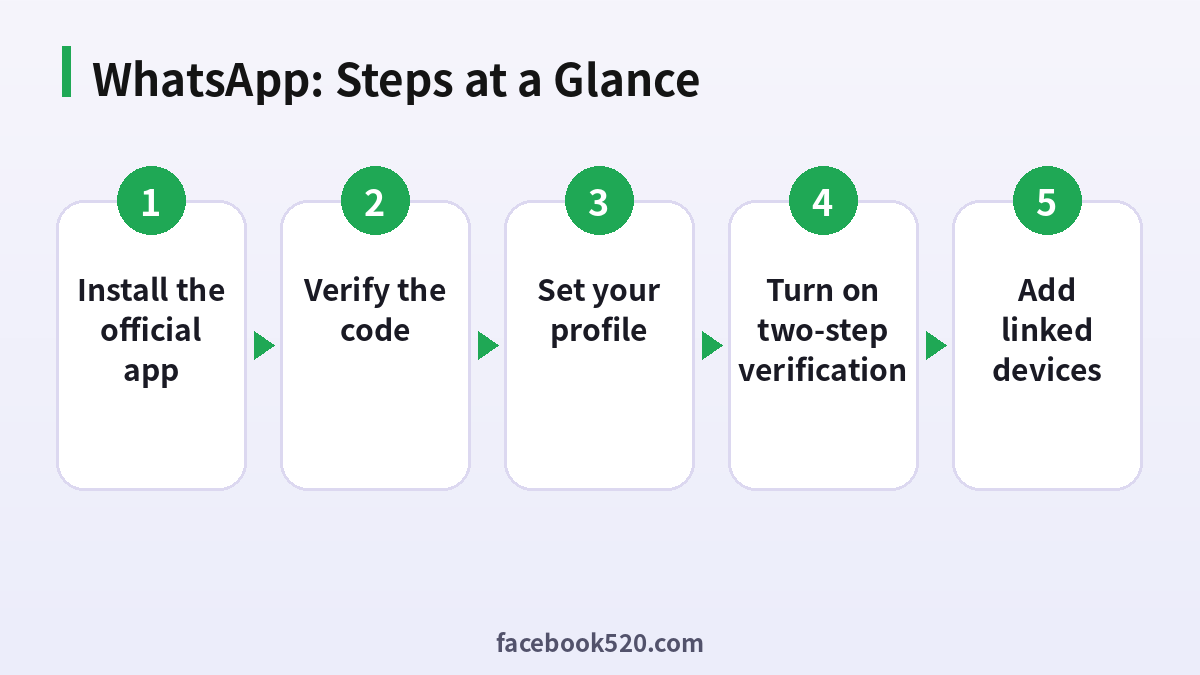
Set up WhatsApp the right way
- Install the official app: Download WhatsApp or WhatsApp Business from the official store.
- Enter your phone number: Use the country code and a number that can receive SMS or calls.
- Verify the code: Enter the six digit code that WhatsApp sends.
- Set your profile: Add a name and a photo, and for Business, a business profile with hours and address.
- Turn on two-step verification: Create a PIN and add a recovery email.
- Review privacy: Choose who sees your last seen, photo and status.
- Add linked devices: Use Linked devices if you want to use a computer or tablet.
Common WhatsApp Errors and What to Do
| Symptom | Likely cause | What to do |
|---|---|---|
| Code not arriving | Carrier or network delay | Wait, then request a call instead. |
| Number blocked from registration | Too many attempts or the number was flagged | Wait for the cooldown. |
| Banned account | Policy violations or spam reports | Request a review within the app. |
| Cannot link a new device | Primary phone is offline or outdated | Update the app and connect to the internet. |
| Lost two-step PIN | Forgotten PIN and no recovery email | Wait the required period before reset. |
| Business catalogue not showing | Products are not approved or profile is incomplete | Check commerce policies and complete the profile. |
Business app versus API
The Business app suits owners who answer messages by hand. The API suits companies that need automation, multiple agents and integration with other systems. You cannot use the same number on both simultaneously, so plan the migration before you choose.
Two-step PIN
The PIN is requested periodically and when you register the number again. Write it down in a safe place and add a recovery email. If you forget it and lack the email, you may face a waiting period.
Linked devices
You can use WhatsApp on other devices without keeping the phone connected all the time, but the phone should be used occasionally to keep the link active. Review the list of linked devices and remove any you do not recognise.
Broadcast lists and spam
Sending bulk promotional messages to people who did not opt in leads to reports and bans. Build your list with explicit consent, and give people an easy way to stop messages.
Click to WhatsApp ads
Businesses can run ads that open a WhatsApp chat. These are set up through Meta ads tools, not inside the WhatsApp app, so prepare your Meta business setup before planning them.
Labels and quick replies
Labels group chats into categories such as new, paid or follow up. Quick replies insert saved answers with shortcuts. Together they reduce response time and keep a small team consistent.
Number portability
Before moving a number to another phone or account type, back up chats and read the instructions in Help. Switching can erase messages if done incorrectly.
Getting started with a catalogue
On the Business app, add products or services with a title, price, description and image. Keep titles plain and accurate, because items that look misleading may be rejected. A catalogue turns conversations into a shopping experience and saves you from repeating details in every chat.
Away messages and greeting messages
Set a greeting message for new contacts and an away message for hours when you are offline. Give clear opening hours and an expected response time. This reduces repeated questions and keeps customers informed, especially across time zones.
Group admin practices
If you manage a community, set who can send messages and edit group info, and write rules in the description. Consider announcement groups for one-way updates. Large groups attract spam, so remove inactive members and review join requests when growth is quick.
Protecting your business number
Treat the number tied to your WhatsApp Business account as an asset. Use a SIM that will not expire, keep it active, store it in your business records and make sure more than one trusted person knows who controls it. Losing it can mean losing your customer relationships.
Message templates and the service window
On the Business Platform, you can reply freely within a service window after a customer writes to you. Outside that window you generally need an approved template. Plan how you will handle follow-ups so that you do not run into rules in the middle of a sale.
Verifying a business and the green tick
Meta offers business verification and, for some accounts, a verified badge. Eligibility changes and approval is not guaranteed. Focus on building an accurate profile first, and treat any offer from a third party that promises a badge for a fee with suspicion.
Understanding message types and quality
WhatsApp measures how recipients respond to messages. High block or report rates can reduce your messaging limits or lead to restrictions. Send relevant messages to people who expect them, keep the tone clear and include an easy way to opt out so that quality stays high.
Handling media, voice and documents
WhatsApp supports photos, voice notes, documents and location sharing, each with size limits that can change. For product catalogues or price lists, send a compact PDF or use the catalogue feature instead of many separate files, which makes it easier for customers to find the information.
Using status and channels
Status lets you share updates that disappear after a day and is a light way to remind customers about offers. WhatsApp Channels offer one-way broadcasts to followers. Treat them as promotion tools and keep the personal customer conversations in normal chats.
Preparing for scale
When message volume grows, consider whether the Business app is still enough. Signs you need more include several people answering from one phone, delayed responses and a need to integrate with other tools. Plan the move to the Business Platform early so that you do not lose chat history or numbers in a rush.
Security checkups for business owners
Review linked devices monthly, remove staff who have left, change the two-step PIN when roles change and watch for contacts asking for verification codes. WhatsApp support will never ask for your six digit code, and anyone who does is trying to take over your account.
Customer experience basics
Answer within a stated time, confirm orders in writing, send receipts and keep a polite tone even in disputes. Good communication reduces refunds and complaints, and it is the best protection against reports that could affect your number.
Seasonal planning
Before peak seasons, prepare saved replies, update the catalogue and tell customers about holiday hours. Test your away message and make sure more than one person can reply, so the number does not become a bottleneck when demand spikes.
A final word on choosing numbers
Pick a number that you will still control in three years, preferably on a postpaid or well maintained plan. Avoid numbers that are shared among several people or that belong to a former employee. Your WhatsApp account is only as stable as the number behind it.
Offline moments and backup plans
Decide in advance who answers messages when the main phone is lost or broken, store your backup option in a secure document and keep the recovery email current. A written plan turns a crisis into a routine procedure.
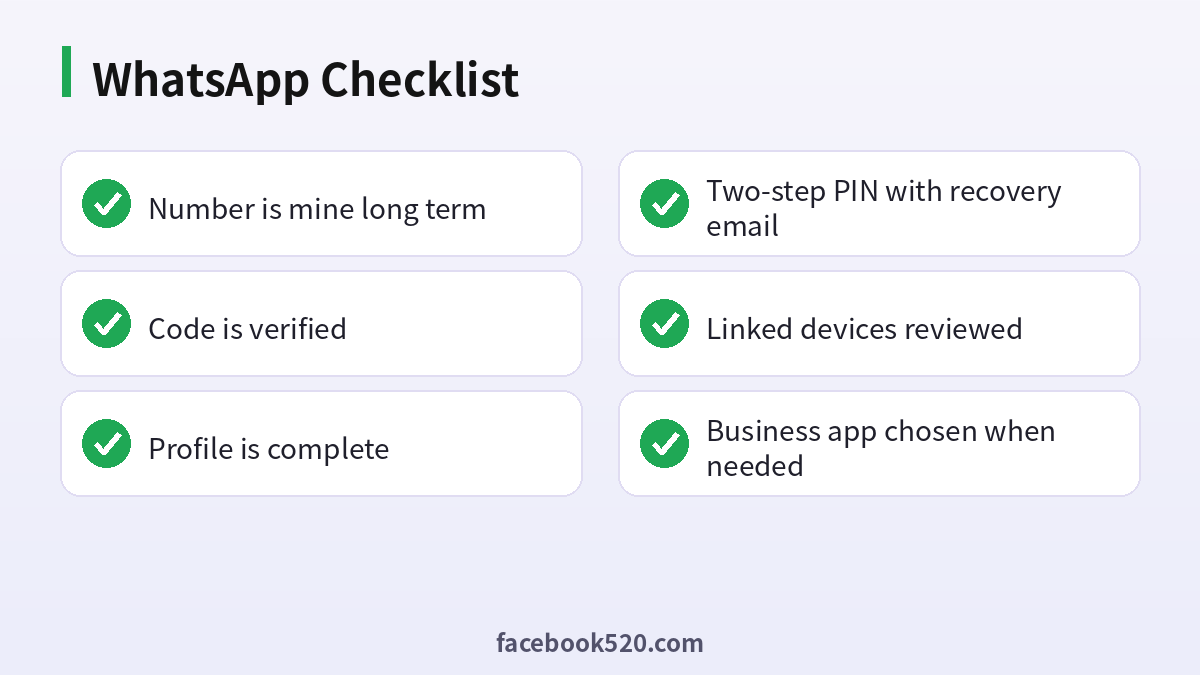
WhatsApp Self-Check List
- Number is mine long term
- Code is verified
- Profile is complete
- Two-step PIN with recovery email
- Linked devices reviewed
- Business app chosen when needed
- Opt-in plan for messages
FAQ
Is there a WhatsApp sign up page on the website?
No. You register inside the mobile app with your phone number.
Can I sign up with an email address?
No. WhatsApp accounts are tied to a phone number.
Is WhatsApp free?
Yes, the app is free and uses your internet connection. Business messaging through the API has separate charges.
Can I use one number on two phones?
Only one phone can be the main registered device, although you can link additional devices.
How do I move my account to a new phone?
Install WhatsApp on the new phone, register with the same number and enter the code. Restore your backup if prompted.
Is the Business app free?
The app is free. The Business Platform is priced per message type.
Can I change my number?
Yes with the Change number feature, so that chats move to the new number.
Why was my account banned?
Common causes are spam, bulk messaging and policy violations.
Do I need Facebook for WhatsApp Business?
No, but linking helps with ads and catalogue.
What is the difference between app and API?
The app is for manual use and the API is for scaled integration.
Can I have two WhatsApp accounts on one phone?
With the Business app and Messenger, or on some phones with dual apps.
How do I back up chats?
Use Chats then Chat backup in Settings.
Can I verify with a landline?
Often yes, by choosing the call option when requesting the code.
Can customers message me first?
Yes, and it opens a conversation window in which you can reply more freely.
