


How to Create a Google Business Account (2026): Google Account, Business Profile & Google Ads
“Google business account” is a phrase that covers several different things. Depending on your goal, you might need a Google account for business (a login), a Google Business Profile (the listing that appears in Search and Maps), a Google Ads account (to run ads), or a Google Workspace account (business email and apps). This guide explains each, shows you how to create them in a sensible order, and lists mistakes to avoid.
Google updates its screens often, so the exact wording may differ, but the process stays the same.
Before you start
Gather this information:
- Business name, category and description.
- Address or service area. Local businesses must use a real location or service area.
- Phone number and website.
- A dedicated email address that will be used only for the business, not a personal inbox.
- A payment method if you plan to run ads.
- Photos and logo for your profile.
The golden rule: create one main Google account for the business and keep its credentials safe. Add other people to it as managers rather than sharing the password.
Step 1: Create a Google account for business
- Go to the Google account creation page.
- Choose Create account, then To manage my business.
- Enter the business or contact name.
- Choose a Gmail address, or use an existing business email.
- Set a strong password.
- Verify your phone number and add a recovery email.
- Accept the terms.
- Enable 2-Step Verification right away.
If your company has its own domain, consider Google Workspace, which gives you an email at your domain, shared drive, meeting tools and admin controls. It is usually better for teams than free Gmail accounts.
Step 2: Create your Google Business Profile
A Business Profile (formerly Google My Business) lets customers find you in Search and Maps.
- Sign in and go to the Google Business Profile manager.
- Search for your business name. If it already exists, claim it; otherwise choose to add it.
- Select the business category that best describes your main activity.
- Enter your address, or choose service area if you visit customers.
- Add your phone number and website.
- Complete the verification. Google may offer a postcard, phone, email, text or video verification depending on the business.
- After verification, add your hours, products or services, photos and a description.
- Ask satisfied customers for reviews and reply to them.
Do not use fake addresses or keyword-stuffed names; they can lead to suspension.
Step 3: Open a Google Ads account
- Go to the Google Ads website and sign in with your business account.
- Click Start now and enter your website, goal and budget.
- If you do not want to run a campaign immediately, look for the option to create the account without a campaign.
- Confirm your billing country, time zone and currency. These usually cannot be changed afterward, so choose carefully.
- Add a payment method. Cards are common, and some countries support manual top-ups or bank transfers.
- Create your first campaign when ready. Start with a narrow, well-defined goal.
For advice on payments and top-ups, the principles are similar to those in Facebook广告充值与付款方式教程.
Verification tips
- Use consistent business information across your website, Business Profile and Ads account.
- Complete verification quickly. Unverified profiles do not appear in many results.
- Keep access for more than one person. Add a backup owner or manager.
- Use 2-Step Verification and keep recovery details updated.
- Do not share login codes or send them to anyone claiming to be from Google.
Account setup after registration
- Link accounts. Connect your Google Ads account to your Business Profile, Google Analytics and Search Console.
- Set up conversion tracking. Measure calls, form submissions or purchases.
- Add users. Invite team members with the right access level instead of sharing credentials.
- Review billing. Check payment profile details and set a monthly budget.
- Build your profile content. Photos, services and posts help conversions.
- Check regularly for messages, reviews and policy notices.
Common sign-up errors
- Verification not received. Make sure the information is accurate and wait the stated time; try an alternative method.
- Profile suspended. Usually due to mismatched address, name or category. Fix the information and request a reinstatement.
- Payment declined in Google Ads. Check card limits, international payment settings and billing address.
- Wrong currency chosen. Create a new Ads account with the right currency.
- Cannot create a business account. You may be signed in with a restricted account. Use a fresh Google account.
- Lost access. Use account recovery and confirm your backup email and phone.
Next: activation, buying and payment
If you need a ready-made or aged advertising account, read:
Our Chinese overview Google账号注册与开通教程 collects the main points in one place. If you also need a social media account, see How To Create A YouTube Account.
Typical Google Users and What Works for Them
- Individuals who need a Google account: A single Google account unlocks Gmail, Drive, YouTube and many other services. Keep your recovery phone and email current and enable two-step verification from day one.
- Local businesses: A Google Business Profile lets customers find you in Search and Maps. Verification confirms that you control the location, using a postcard, phone, email or video depending on eligibility.
- Advertisers: Google Ads accounts connect to a Google account and a billing profile. Currency and time zone are chosen on creation and generally cannot be changed, so choose with care.
- Companies needing shared tools: Google Workspace provides business email on your domain, shared drives and admin controls. It is a separate product from a free Google account and is billed per user.
Google at a Glance
- Typical use: one sign-in for Gmail, YouTube, Google Ads, Workspace and other services.
- What you need: a name, birth date, username and password, and usually phone verification.
- Common friction: a phone number used too many times, region and payment-profile mismatches, and missing recovery options.
- Security tools: two-step verification, passkeys and recovery information.
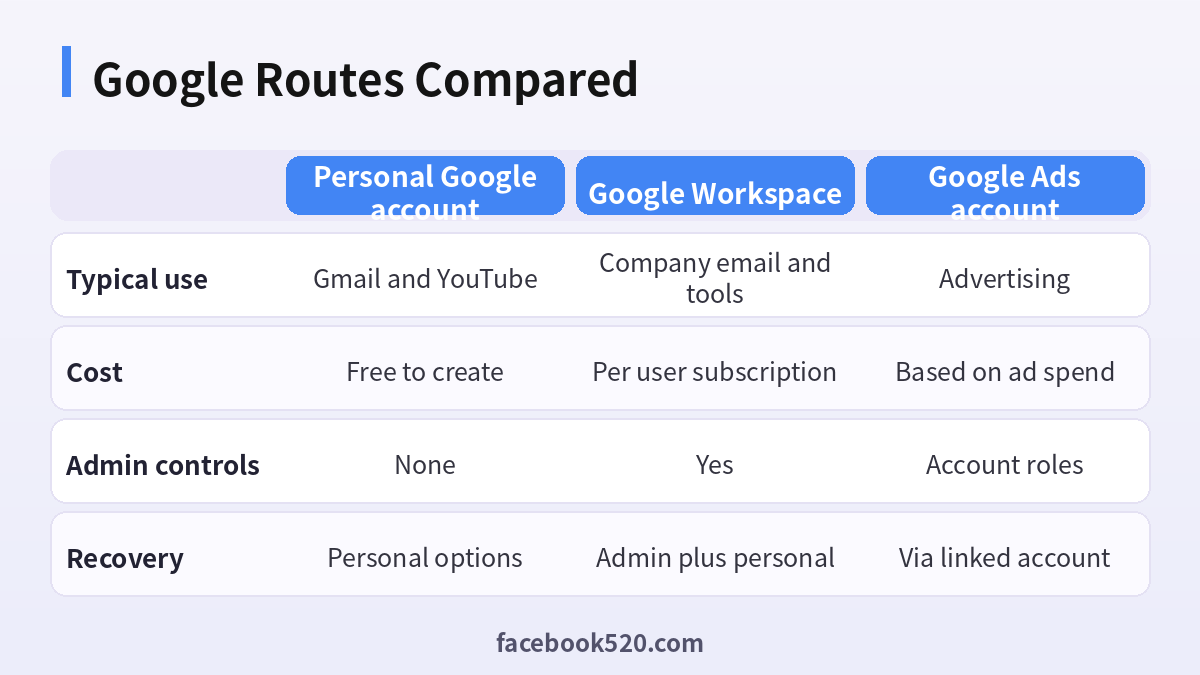
Comparing Your Google Routes: Table and Verdict
| Factor | Personal Google account | Google Workspace | Google Ads account |
|---|---|---|---|
| Typical use | Gmail and YouTube | Company email and tools | Advertising |
| Cost | Free to create | Per user subscription | Based on ad spend |
| Admin controls | None | Yes | Account roles |
| Recovery | Personal options | Admin plus personal | Via linked account |
Verdict: Create a personal account for yourself, a dedicated business account for your company assets, and use Workspace if you need domain email and admin control. Then connect Business Profile and Google Ads to the business account rather than to a personal one.
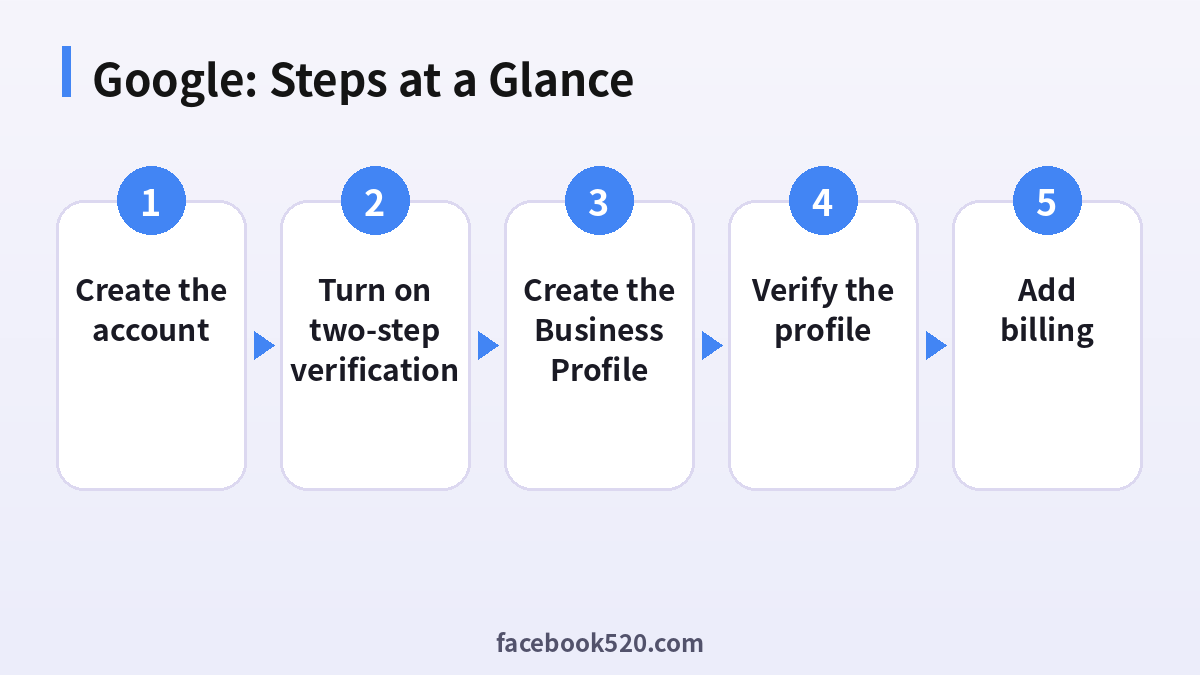
Building your Google setup in order
- Create the account: Use a real name or business name and a strong password.
- Add recovery options: Add a recovery phone and email you control.
- Turn on two-step verification: Use a security key, passkey or authenticator.
- Create the Business Profile: Add name, category, address or service area and hours.
- Verify the profile: Choose the verification method offered, such as video or postcard.
- Create the Google Ads account: Pick goals, currency and time zone.
- Add billing: Choose automatic or manual payments and check the billing address.
Google Problems and Fixes
| Symptom | Likely cause | What to do |
|---|---|---|
| Phone number cannot verify | Number is used too often | Use another number. |
| Business Profile suspended | Incorrect details or policy issues | Fix details and reinstate. |
| Verification postcard not arriving | Address problems | Check address and request again. |
| Ads account suspended for payment | Failed charges | Update the payment method. |
| Cannot edit currency | Currency is locked | Create a new account if required. |
| Workspace domain not verified | DNS records missing | Add the verification record. |
Separate personal and business
Keeping assets under a dedicated business account avoids exposing your personal Gmail to customers and makes it easy to transfer responsibility when staff change.
Business Profile guidelines
Use your real name, category and address. Adding extra keywords to the name can lead to suspension. Edit hours for holidays so customers are not misled.
Billing profiles in Google Ads
A payments profile is linked to ad accounts and stores your legal name and address. Check these details before the first payment because they appear on invoices.
Roles and access
Add team members with the lowest role that lets them do their job. Admin roles should be limited to a few trusted people.
Workspace email
If you use your own domain, Workspace gives you branded email addresses and shared calendars. Set up SPF, DKIM and DMARC to protect deliverability.
Security checkup
Run Security checkup in your Google account every quarter to review devices, third party access and recovery options.
Region specific notes
Verification methods and payment options differ by country. Rely on Google Help for the options available in your country.
Choosing between a Business Profile and a website only
A Business Profile appears in Maps and local results and is free to create, which makes it worth doing for almost any local business. A website complements it by providing details and booking options. Use both and make sure the name, address and phone number are consistent across them.
Local SEO basics
Fill out every field in your Profile, choose accurate primary and secondary categories, upload clear photos and respond to reviews. Consistent business information across the web helps Google trust your listing, and fresh photos and posts show customers that you are active.
Reviews and replies
Reply to reviews politely, including negative ones, and never offer incentives for positive reviews. Report fake reviews through the proper tool. Reviews influence both ranking and customer decisions, so a regular routine is better than occasional bursts.
Google Ads campaign types for beginners
Search campaigns show text ads to people searching for your keywords, Performance Max uses automation across Google channels, and Display and Video reach audiences on other sites and YouTube. Start with one campaign type, a modest budget and clear conversion tracking, and learn before you expand.
Conversion tracking basics
Install conversion tracking through Google tag or Google Tag Manager so that Ads can see which clicks lead to calls, forms or purchases. Without tracking, you cannot optimise, and you may spend on clicks that never convert. Test the tag after installation and confirm that it fires on the right page.
Billing thresholds and payment methods
Depending on your setup, Google Ads may charge when you reach a threshold or on a monthly invoice. Understand the model before you launch, check for tax lines and keep invoices. Prepaid options may be available in some countries and are worth considering if you want strict spending control.
Handling a policy rejection
If an ad is disapproved, open the policy manager, read the reason and fix the ad or the landing page before appealing. Repeated submissions without changes may count against you. Keep a record of your changes in case you need to contact support.
Ownership and handover
Make sure the business, not an employee, owns the Google account tied to your assets. Add more than one owner to the Business Profile, record who holds the recovery phone and email, and document the setup so a replacement can take over without a crisis.
Measuring local performance
Business Profile insights show how people found you, how many called, requested directions or visited your website. Review them monthly and compare with your ad data. If calls are high but sales are low, look at your phone handling and opening hours before spending more on advertising.
Setting a sensible first Google Ads budget
Begin with a daily budget you could afford to lose entirely while you learn, and run a single campaign long enough to gather data. Avoid changing many settings at once. Review search terms weekly and add negative keywords to stop irrelevant clicks.
Ads policies you should read
Google has policies about prohibited content, restricted products, misleading claims and destination quality. Read them for your industry before launching, since some categories need certification or have limits by country. Fixing issues before launch is faster than recovering from a suspension.
Verification pitfalls for service-area businesses
If you serve customers at their location and do not have a storefront, hide your address and set a service area. Using a virtual office or a shared address as a storefront can lead to suspension, so be accurate about how you operate.
Linking Analytics and Search Console
Connect Google Analytics and Search Console to see how visitors behave and which searches bring them. Linking these tools with Ads allows you to import goals and audiences, which helps optimise campaigns later. Take time to confirm the data matches your expectations before relying on it.
Protecting the business account
Use a security key or passkey for owners, review third-party app access, and log out unused sessions. Do not share passwords by email. Give access through roles so that you can remove a person without changing credentials everywhere.
Documentation worth keeping
Keep a simple document that lists the account email, the recovery phone owner, the Business Profile ID, the Ads customer ID, the payments profile and the people with access. It takes ten minutes to create and can save days in an emergency.
Common beginner mistakes
Using a personal Gmail for everything, forgetting to verify the profile, setting the wrong currency, launching broad campaigns without tracking and ignoring policy messages are the mistakes we see most. A short checklist before every launch prevents nearly all of them.
A final word on structure
Whatever your size, think of your Google presence as a small system: an owner account, a business profile, an ads account, analytics and billing, each with named owners. Draw it on one page, share it with your team and update it when something changes.
Testing before spending
Before turning on your first campaign, call your own business number, search for the business name, check the website on a phone and submit the contact form. If a customer would be confused at any step, fix it first, because advertising amplifies whatever experience you already have.
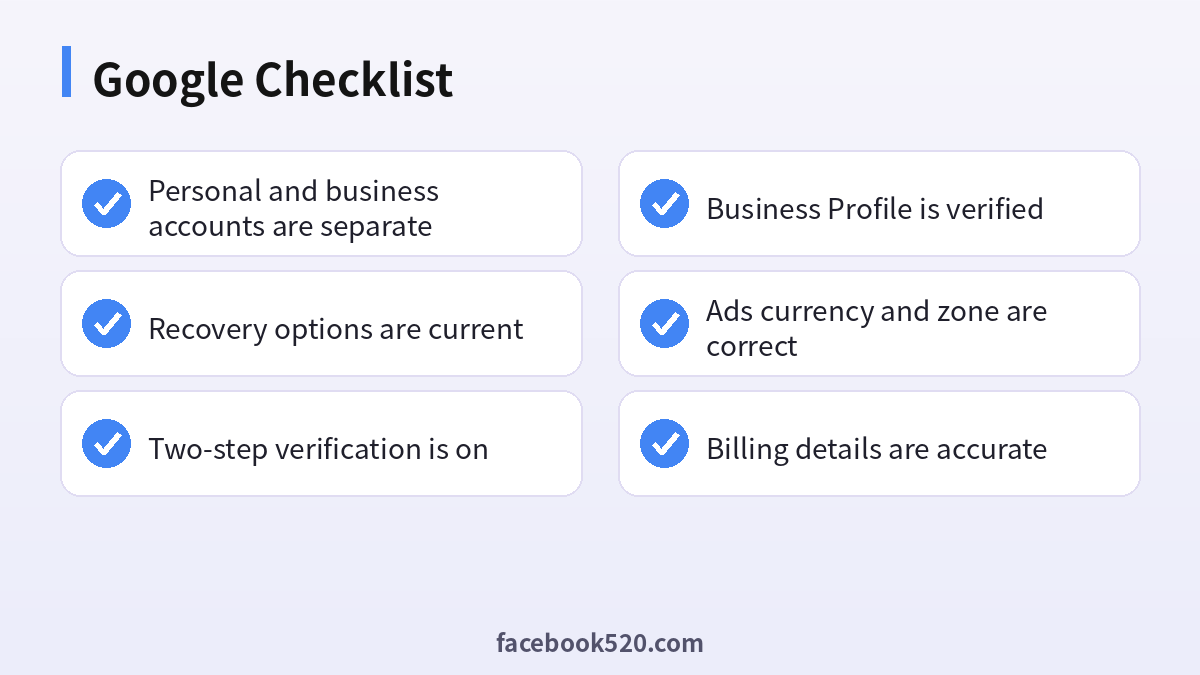
Google: Before-and-After Checklist
- Personal and business accounts are separate
- Recovery options are current
- Two-step verification is on
- Business Profile is verified
- Ads currency and zone are correct
- Billing details are accurate
- Roles are limited
FAQ
Is a Google business account free?
Creating a Google account and a Business Profile is free. Google Ads costs money only when you run campaigns, and Workspace is a paid service.
Do I need a website for a Business Profile?
No, but a website helps customers trust and contact you.
Can I use a personal Gmail for business?
You can, but a separate account is easier to manage and transfer.
Can I change my Google Ads currency?
Not after the account is created. You would need to open a new account.
How long does verification take?
It ranges from instant to about a week, depending on the method.
Can I create a Google account without a phone number?
Sometimes, but a phone improves recovery and is often requested.
Can I change my Gmail address?
Generally no. You would create a new account or use an alias.
Is Google Workspace free?
It is paid per user, with trials sometimes available.
Can I move my Ads account to another Google account?
You normally grant access to another user instead.
Why was my ad account suspended?
Payment, policy or suspicious activity.
How do I recover a hacked Google account?
Use the Google recovery page from a known device.
Which currency should I choose?
The one you will pay with, as it generally cannot be changed.
Can two people manage one Business Profile?
Yes by adding owners or managers.
