


How To Create A YouTube Account (2026): Step-by-Step Sign-Up Guide
Here is the first thing to know about learning how to create a YouTube account: YouTube does not have a separate sign-up system. You sign in with a Google account, and your public presence on YouTube is a channel attached to that account. That means you can watch, like, comment and subscribe as soon as you have a Google account, and you create a channel when you want to upload videos or post publicly.
This guide explains each step, from creating a Google account to setting up a channel, a Brand Account for a business, and basic verification.
Before you start
- Decide which email you want to use. You can create a new Gmail address or use an existing email address for your Google account.
- Have a phone number nearby. Google may ask you to verify it by text message.
- Choose a channel name. It should be easy to remember and match your topic or brand.
- Plan for personal or brand use. If you will share the channel with a team, use a Brand Account instead of a personal channel.
- Prepare a profile photo and banner if you want the channel to look professional from day one.
Step-by-step: create a Google account and sign in to YouTube
- Go to the YouTube website or open the YouTube app.
- Click Sign in, then choose Create account.
- Select whether the account is for yourself, a child or for work or business.
- Enter your first and last name.
- Enter your birthday and gender.
- Choose a Gmail address or enter an existing email address.
- Create a strong password.
- Verify your phone number if prompted and add a recovery email.
- Review and accept the terms of service.
Once these steps are complete, you can use YouTube as a signed-in viewer. You can create playlists, subscribe to channels and save videos to Watch later.
How to create a YouTube channel
To post videos or comments publicly, create a channel:
- Sign in to YouTube and click your profile picture.
- Select Create a channel (or go to your channel settings).
- Choose your channel name. By default it is your Google account name, but you can use a custom name.
- Upload a profile picture and add a handle, which is your unique @name.
- Click Create channel.
The channel is created immediately. Open YouTube Studio to upload videos, edit your description, set up the banner image and review the default upload settings.
Personal channel vs Brand Account
- Personal channel. Linked to a single Google account. Simple, but only you can manage it.
- Brand Account channel. Lets you use a different name from your Google account and add other people as managers or owners. It is ideal for businesses, teams and agencies.
To create a Brand Account channel, choose Create a channel and select the option to use a custom name. Then use the permissions page to add managers. Keep at least two owners so access is never lost if one account has problems.
Verification tips
- Verify your phone number in YouTube Studio under Feature eligibility to unlock features such as longer videos and custom thumbnails.
- Turn on 2-Step Verification for the Google account in the security settings.
- Add a recovery email and phone number. They protect you if you forget your password.
- Use a descriptive profile photo and description. It helps viewers recognize your channel.
- Check the Studio dashboard for notices related to community guidelines and copyright.
Account setup after registration
- Channel description. Write two or three sentences that describe the topic and posting schedule.
- Banner and logo. Use the recommended sizes shown in the customization panel.
- Links. Add your website and social profiles.
- Upload defaults. Set the default category, visibility and language to save time.
- First video. Start with a short, useful video so the channel has content for visitors.
- Playlists. Group videos by topic to help viewers binge your content.
- Analytics. Check watch time and click-through rate weekly to learn what works.
Common sign-up errors
- “Phone number cannot be used for verification.” The number may have been used too many times. Try another number.
- Gmail address unavailable. Add numbers or a period to the name.
- Can’t create a channel. Make sure you are signed in to the right Google account, and are not using a child or restricted account.
- Handle already taken. Pick a variation that still matches your brand.
- Feature not available. Some features need phone verification or account history first.
- Locked out after sign-up. Use the account recovery page and confirm your recovery details.
Next: activation, buying and payment
If you need a Google account for advertising or a business, see How to create a Google Business account. To learn more about ready-made accounts, read YouTube账号购买指南 in Chinese. Related reads:
- Guide to purchasing websites for Fb, Ins, Twitter, Snapchat, TikTok, LinkedIn, Pin, Reddit, WhatsApp, and YouTube accounts
- Facebook, Twitter, Instagram, Pinterest, Snapchat, LinkedIn, YouTube accounts for sale
- Selling accounts from various countries
Who Uses YouTube and How: Scenarios
- Viewers who only want playlists and subscriptions: Signing in with a Google account gives you subscriptions, history and playlists. You do not need a channel for that, and you can keep watching privately without creating one.
- Creators starting a first channel: Create a channel from your Google account, choose a name and handle, and upload a banner and profile picture. A channel is created in a few clicks, but its identity, such as the handle and the name, is what viewers see everywhere.
- Brands and teams: Use a Brand Account so that more than one person can manage the channel without sharing one Google password. Add managers with different roles, and keep at least two trusted people with access.
- Businesses connecting ads: Google Ads and YouTube channels can be linked, which allows you to run video campaigns that point to your channel. Plan the structure before you start, since links between assets are easier to set up than to untangle later.
YouTube at a Glance
- Typical use: long-form video and Shorts publishing, channel growth and video ads.
- What you need: a Google account plus a channel name and a profile picture.
- Common friction: channel name changes are limited, monetization requires meeting official thresholds, and copyright or community-guideline strikes affect a channel.
- Security tools: Google two-step verification and brand-account permission management.
Which YouTube Route Fits? Comparison and Verdict
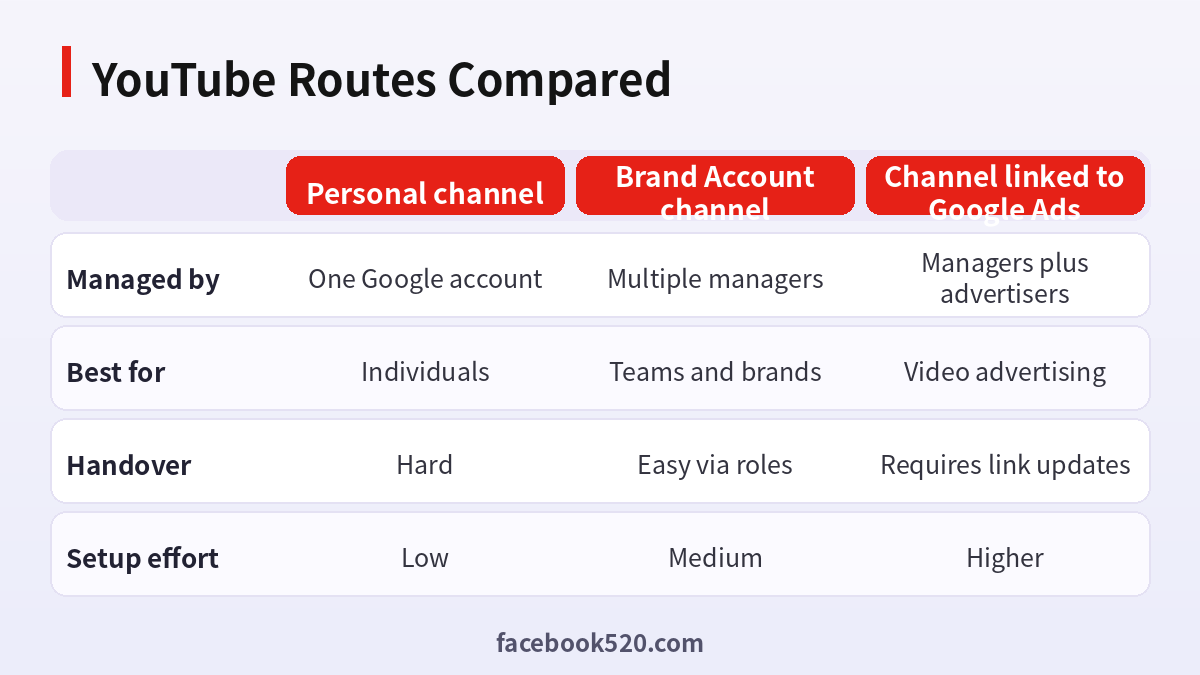
| Factor | Personal channel | Brand Account channel | Channel linked to Google Ads |
|---|---|---|---|
| Managed by | One Google account | Multiple managers | Managers plus advertisers |
| Best for | Individuals | Teams and brands | Video advertising |
| Handover | Hard | Easy via roles | Requires link updates |
| Setup effort | Low | Medium | Higher |
Verdict: Individuals can use a personal channel, but a Brand Account is safer for anything that might grow into a business or involve multiple people. Link Google Ads only after the channel is stable, and keep recovery details with the organisation rather than with one person.
From Google account to first upload
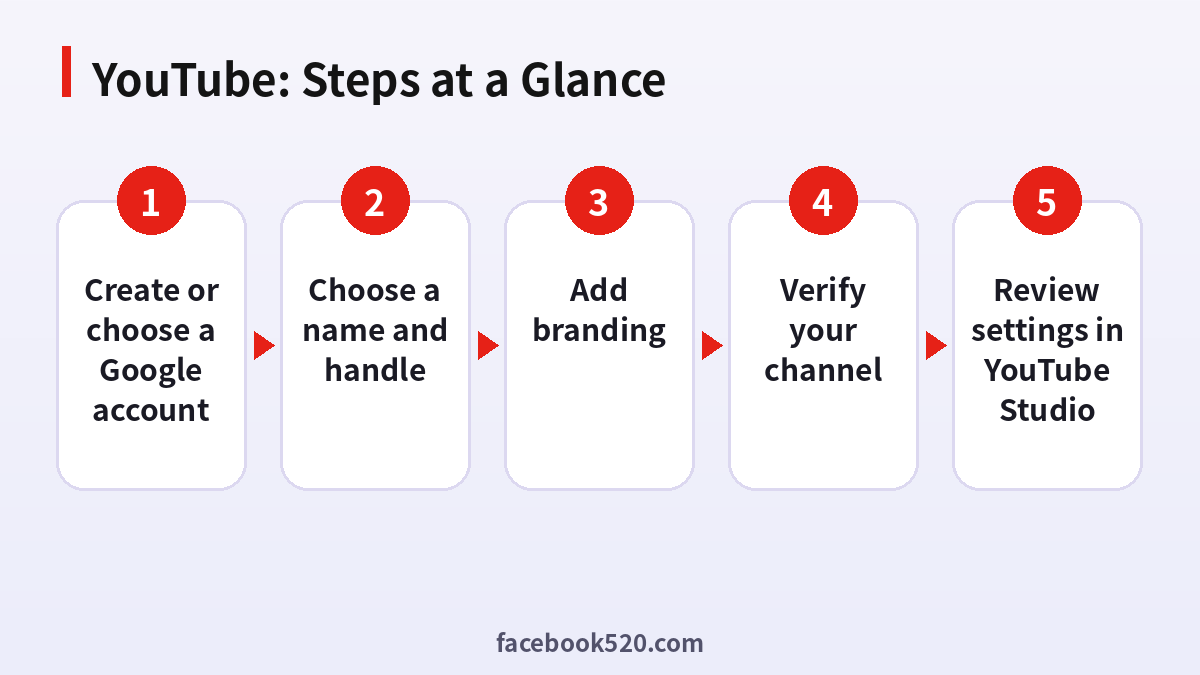
- Create or choose a Google account: Use a stable email and phone number and enable two-step verification.
- Open YouTube and create a channel: Click your profile picture and select Create a channel, choosing a personal or Brand Account option.
- Choose a name and handle: Pick a name viewers will remember and a short handle for your channel URL.
- Add branding: Upload a profile picture and banner, and write a description with keywords.
- Verify your channel: Verify with a phone number to unlock features such as longer videos and custom thumbnails.
- Upload a first video: Add a title, description, thumbnail and appropriate audience setting.
- Review settings in YouTube Studio: Check defaults, permissions and monetisation requirements.
Common YouTube Errors and What to Do
| Symptom | Likely cause | What to do |
|---|---|---|
| Cannot create channel | The account is restricted or the browser blocks required steps | Try another browser or device and check account status. |
| Handle unavailable | Another channel already uses it | Choose a variation closer to your name. |
| Phone verification failed | The number was used for too many verifications | Use a different number or wait. |
| Upload stuck at processing | Large file or temporary service issue | Wait, check the file format and retry. |
| Copyright claim on first upload | Audio or footage matches protected content | Replace the content or use licensed audio. |
| Cannot access Studio features | Features need verification or a minimum channel age | Verify and wait if required. |
Brand Account details
A Brand Account is a channel that is not tied to a single personal Google identity for management. Several people can have access, and ownership can be transferred. This is helpful for teams and for businesses that expect staff changes.
Handles and URLs
A handle is the short name that begins with an at sign and appears in your channel URL. It can be changed within limits, so choose carefully. Keep it aligned with usernames on other platforms to help viewers find you.
Monetisation basics
The YouTube Partner Programme has thresholds based on subscribers and watch hours or Shorts views, and these can change. Check YouTube Studio for the current requirements in your region, and do not plan income around them until you qualify.
Copyright and music
Use original content, licensed music or the audio library provided by YouTube. A copyright claim on your first videos can limit visibility or monetisation. Learn the difference between claims and strikes in the Help Center.
Shorts versus long videos
Shorts are vertical short-form clips that reach viewers through a dedicated feed, while long videos build watch time and a deeper relationship. Many channels use both, starting with Shorts for discovery and moving to long form.
Community and comment moderation
Set up basic moderation early: hold potentially inappropriate comments for review, block certain words and decide who can comment. It is easier to build healthy habits on a small channel than to repair a noisy one later.
Keep recovery details current
Update the recovery email, phone number and two-step verification as your life changes. A channel with outdated recovery options is one lost phone away from being locked.
Thumbnails and titles
A thumbnail and a title are the two things viewers see before deciding to click. Use a clear image with limited text and a title that promises one specific outcome. Avoid misleading promises, because retention matters more than clicks.
Playlists and channel layout
Organise videos into playlists by topic and set a channel trailer for new visitors. This improves session time and helps viewers who land on one video discover related content.
Handling a locked channel
If your channel is disabled or your Google account is locked, use the official appeal or recovery form from a device you used before. Do not create a replacement channel for the same content, since that can be treated as evasion.
Analytics that matter early
Early on, focus on impressions click-through rate and average view duration. These show whether packaging and content match. Ignore vanity numbers until you can see a consistent pattern across several videos.
Setting up YouTube Studio for the first time
Open YouTube Studio and review the dashboard, content tab, analytics tab and customisation tab. Set default upload settings such as category, language and visibility, so that each new video starts from a sensible template and you do not have to repeat the same choices manually.
Subtitles and accessibility
Add captions to your videos, either by uploading your own or reviewing the automatic ones. Captions help people watching without sound, viewers who speak another language and anyone with hearing loss, and they give the platform more text to understand your content.
Planning a content calendar
Choose a realistic publishing rhythm you can keep for three months. A smaller number of consistent uploads works better than a burst followed by weeks of silence. Batch your filming, keep a list of ideas and review analytics monthly to decide what to keep, change or stop.
Working with sponsors later
When a channel grows, brands may reach out. Verify the identity of any sponsor before sharing details, never send passwords or give channel access and ask for a written agreement that states deliverables and payment terms. Scams target growing channels frequently.
Understanding the review of your first uploads
New channels sometimes see delays while videos are processed and checked. Upload in a quiet period, keep file formats standard, such as MP4 with common codecs, and avoid uploading many large files at once. If a video is flagged, read the notice and follow the appeal path instead of re-uploading the same file.
End screens and cards
Use end screens to suggest your next video or invite viewers to subscribe, and cards for relevant links during playback. These small additions increase session time, which helps viewers discover more of your content. Do not add too many elements, since a cluttered screen distracts from the video.
Choosing a channel focus
A channel that speaks to one topic is easier for viewers to understand and easier for the platform to recommend. If you have several interests, consider whether separate channels or playlists would serve your audience better than one mixed channel.
YouTube Self-Check List
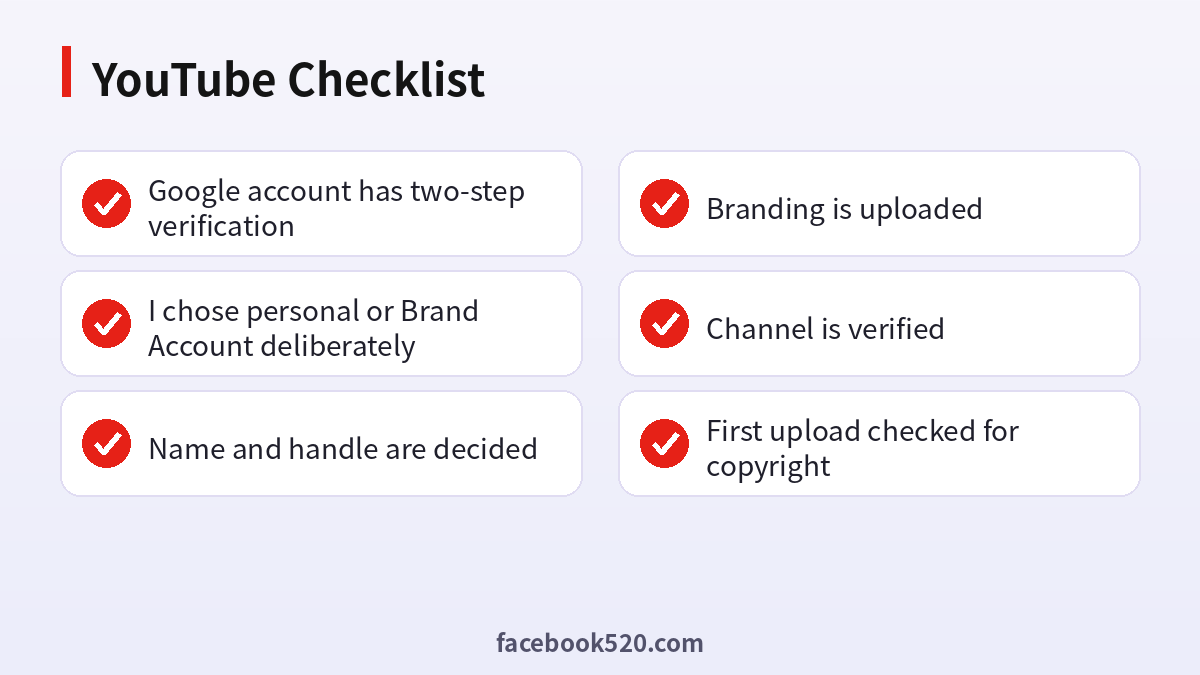
- Google account has two-step verification
- I chose personal or Brand Account deliberately
- Name and handle are decided
- Branding is uploaded
- Channel is verified
- First upload checked for copyright
- Recovery details are current
FAQ
Do I need a Gmail account to use YouTube?
You need a Google account, but you can use any email address when creating it.
Is a YouTube account free?
Yes. Creating an account and a channel is free.
Can I have more than one channel?
Yes. You can create multiple channels, often as Brand Accounts, under the same Google account.
How do I change my channel name?
Use YouTube Studio, then Customization, then Basic info. Name changes are limited in frequency.
Why can’t I upload longer videos?
You need to verify your phone number to unlock longer uploads.
Do I need a channel to watch YouTube?
No. A Google account is enough for subscriptions and playlists.
Can I have multiple channels?
Yes, with a personal or Brand Account structure, depending on the way you set them up.
How do I switch to a Brand Account?
When you create a channel you can choose a custom name, which creates a Brand Account. Existing channels can sometimes be moved, depending on setup.
When can I monetise?
When you meet the Partner Programme thresholds and policy requirements. Check YouTube Studio for details.
Why is my video blocked in some countries?
Rights holders can restrict content by region. Choose different audio or content.
Is a channel linked to my Gmail?
Personal channels are linked to the Google account. Brand Accounts are separate for management but still require Google accounts for managers.
How do I add another manager?
Open YouTube Studio settings and permissions, and invite managers with specific roles.
Do I need to verify with a phone?
Verification unlocks features such as longer uploads and custom thumbnails.
Can I delete a channel and keep my Google account?
Yes, you can delete a channel’s content or the channel and keep the account.
