


Telegram Sign Up (2026): Step-by-Step Guide to Create a Telegram Account
Telegram is a fast messaging app known for large groups, channels, bots and strong privacy options. A Telegram sign up is simpler than on most social platforms because the account is tied to your phone number rather than an email address. This guide shows how to create a Telegram account on mobile and desktop, how to set a username, how to secure the account and what to do if the verification code does not arrive.
Before you start
- A working phone number that can receive an SMS or a call. This is the only required piece of identity.
- The Telegram app. Download it from the App Store, Google Play or the official Telegram website. The desktop apps are available for Windows, macOS and Linux, and there is also a web version.
- A name to show to your contacts. It does not have to be your legal name.
- A photo if you want people to recognize you.
- A second device (optional). If you later want to use Telegram on a desktop, you will approve the login from your phone.
Step-by-step Telegram sign up
- Open the Telegram app and tap Start Messaging.
- Select your country and enter your phone number.
- Tap Next and confirm the number.
- Telegram sends a code in an in-app message if you are already logged in elsewhere, or by SMS. You can request a phone call if SMS fails.
- Enter the code.
- Enter your first name, and optionally a last name and profile photo.
- Allow or skip permission requests for contacts and notifications.
You now have an account. Telegram automatically shows contacts who already use the app.
Set a username
A username is optional, but it lets people find you without sharing your number.
- Open Settings.
- Tap Username (or “Set username”).
- Choose a name between five and thirty-two characters using letters, numbers and underscores.
- Save. If the name is taken, try another.
Your public link will look like t.me/yourusername, which is handy for business cards and bio links.
Verification and security tips
- Turn on two-step verification. Go to Settings, Privacy and Security, then Two-Step Verification, and set a password plus a recovery email. This stops someone with your SMS code from taking over the account.
- Check active sessions. Under Devices, you can see where you are logged in and end any unknown sessions.
- Control who can see your phone number. In Privacy, set the phone number visibility to My Contacts or Nobody.
- Limit who can add you to groups. This reduces spam invites.
- Never share login codes. Telegram will never ask you for it.
- Keep your SIM active. Losing the number may make recovery harder if you did not add a second method.
Account setup after registration
- Profile. Add a photo, short bio and username.
- Notifications. Mute noisy groups and set custom sounds for important chats.
- Folders. Organize chats into folders such as Work, Groups and Channels.
- Join channels. Find topics you care about via search.
- Create your own channel or group for announcements or community discussions, and pin a welcome message.
- Bots. Explore bots for reminders, translation and automation.
- Backup. Telegram stores messages in the cloud, so you can access them from any device.
Common sign-up errors
- Code does not arrive. Check the number and country code, wait a minute, request an SMS again, or choose the call option.
- “Phone number banned” or “too many attempts.” Wait for the time shown in the message and avoid repeated requests.
- Wrong country selected. Correct the country prefix and retry.
- Login from a new device is blocked. Approve the login from an existing device, or use the code in the app.
- Cannot set a username. It may be taken or violate length rules.
- Account restricted. Reduce mass messaging and joining many groups quickly, and contact Telegram support through the in-app help.
Next: activation and business use
If you plan to use Telegram for community or sales, set up a channel and a backup admin, and write a clear pinned message. For multi-platform messaging with an assistant, see OpenClaw AiChatSale supports LINE, WhatsApp, Telegram, Discord and Slack. If you would rather buy a ready-to-use account, our Chinese guide Telegram账号购买指南 explains types, pricing factors and an inspection checklist. For WhatsApp, read WhatsApp Sign Up.
Who Uses Telegram and How: Scenarios
- Everyday messaging users: Telegram signs you up with a phone number and a verification code. You can then use it on several devices, with cloud-synced chats, which is different from apps that tie you to one phone.
- Channel and community owners: Public channels and groups use usernames that people can search for. Plan the name before you create it, and keep admin rights with more than one trusted person.
- Bot builders: Bots are created through @BotFather inside Telegram, where you receive a token. Treat the token like a password, and never post it in public chats or repositories.
- Advertisers: Telegram Ads and channel promotion are separate from account creation and have their own requirements. Learn how the platform handles ads before planning a campaign.
Telegram at a Glance
- Typical use: messaging, channels and group communities, and bot automation.
- What you need: a phone number that can receive a code.
- Common friction: delayed codes, temporary limits on number attempts, and restrictions after mass invites.
- Security tools: a two-step verification password, active-session management and phone-number visibility settings.
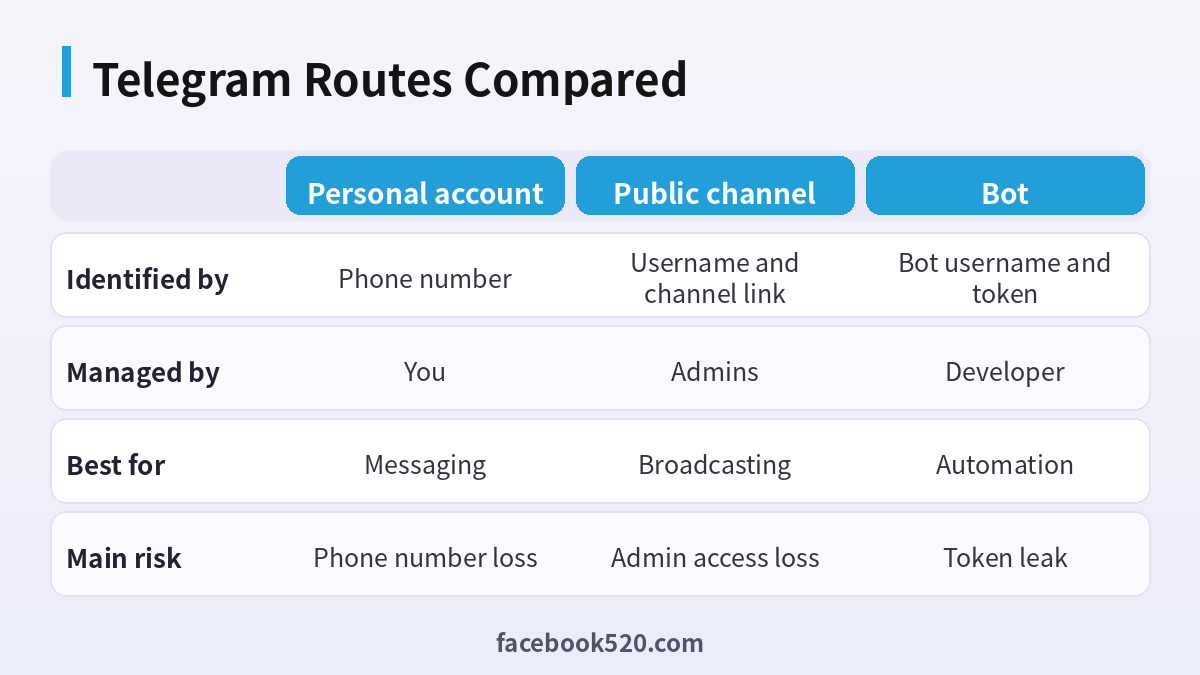
Telegram Options Compared, With a Verdict
| Factor | Personal account | Public channel | Bot |
|---|---|---|---|
| Identified by | Phone number | Username and channel link | Bot username and token |
| Managed by | You | Admins | Developer |
| Best for | Messaging | Broadcasting | Automation |
| Main risk | Phone number loss | Admin access loss | Token leak |
Verdict: Create a personal account with a phone number you will keep, secure it with two-step verification, and only then create channels or bots. Spread admin rights across trusted people, and store bot tokens in a secrets manager rather than in chat messages.
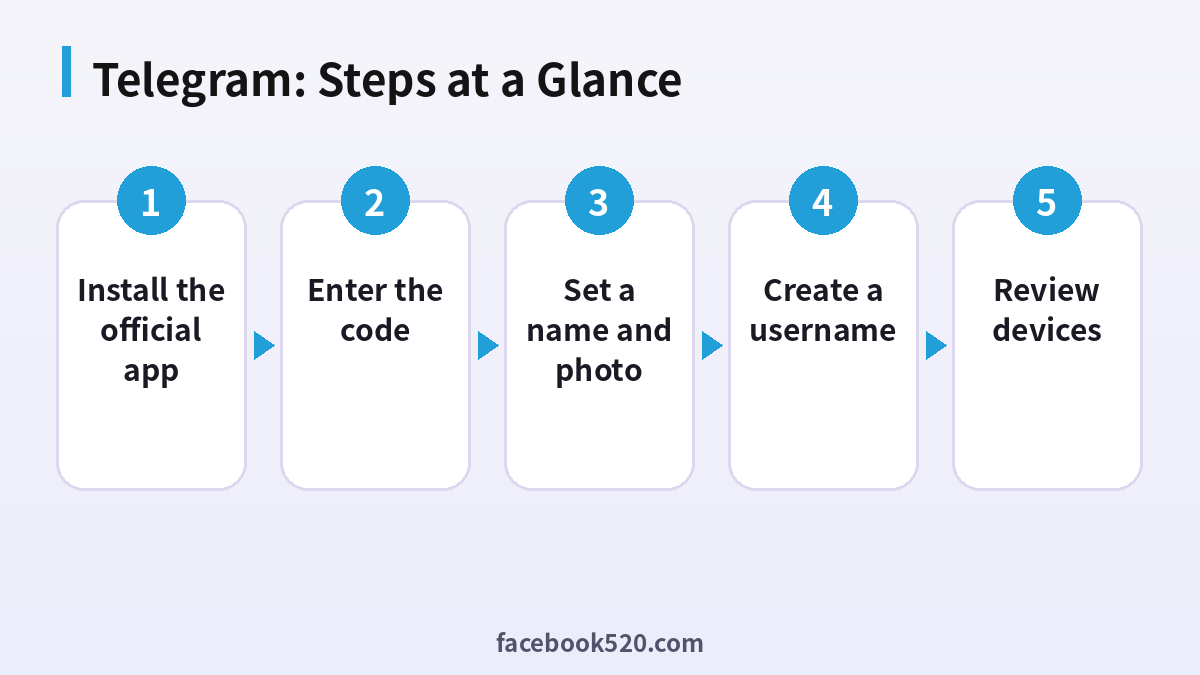
Getting started on Telegram safely
- Install the official app: Download Telegram from the official store or website.
- Enter your phone number: Use international format, and request the code.
- Enter the code: The code appears in Telegram on another device or arrives by SMS.
- Set a name and photo: Choose a name people will recognise.
- Create a username: Choose a short, unique username if you want to be found.
- Enable two-step verification: Add a password and recovery email in Settings.
- Review devices: Open Devices and check active sessions regularly.
Telegram Troubleshooting Table
| Symptom | Likely cause | What to do |
|---|---|---|
| Code not received | Network delay or temporary limits | Wait, check other devices and request again later. |
| Flood wait error | Too many attempts in a short time | Wait for the displayed time. |
| Username taken | Someone already holds it | Add a variation. |
| Banned phone number | The number was flagged by the platform | Use the official appeal with details. |
| Cannot create channel | Account is too new or restricted | Wait and try again. |
| Bot token invalid | Token was revoked or mistyped | Regenerate it in @BotFather. |
Phone numbers are identity
Telegram uses your phone number as the primary identifier. If you lose control of the number, someone else may receive login codes. Use a number you own for the long term and avoid temporary numbers for important accounts.
Two-step verification matters
This password protects your account even if someone receives your SMS code. Choose a unique password and set a recovery email you can access. Without it, losing control of the number could mean losing the account.
Sessions and devices
Check Settings then Devices to see where your account is logged in. Terminate sessions you do not recognise, and set a timer for automatic termination of old sessions.
Channels versus groups
Channels broadcast to subscribers, while groups allow members to talk with each other. Choose based on whether you want to publish or to discuss. You can add a discussion group to a channel.
Usernames and Fragment
Telegram usernames can be claimed and in some cases traded on Fragment. Check the current rules before buying or selling any username, and be cautious about unofficial markets.
Privacy settings
Choose who can see your phone number, last seen time and profile photo, and who can add you to groups. These settings reduce spam and unwanted contact.
Spam and scams
Fake support accounts and investment channels are common. Telegram does not ask for your login code, and nobody legitimate will either. Report and block suspicious contacts.
Telegram Premium and what it changes
Premium is an optional subscription that adds larger upload limits, extra reactions and other perks. It does not change how your account is identified or protected, so evaluate it only for the features you will really use.
Secret chats versus cloud chats
Cloud chats sync across devices and are stored on Telegram servers. Secret chats use end-to-end encryption and stay on the device where they were started. Choose secret chats for sensitive conversations and remember that they cannot be restored on a new device.
Folders and organisation
Chat folders let you separate work, friends and channels. When you manage a community or several channels, folders reduce the risk of replying in the wrong chat and help you stay on top of notifications.
Moderating a new group
Set roles for admins, enable slow mode if the group gets noisy, and pin rules. Add moderators in different time zones so the group remains safe throughout the day, and review join requests if you want to control growth.
Linking a channel and a discussion group
A channel can be linked to a discussion group so that every post has a comment thread. This keeps announcements clean and gives your audience a place to talk, and it lets you moderate comments separately from the broadcast.
Backing up important content
Export chat history with the desktop app if you need records, and keep your important files outside Telegram as well. Accounts can be restricted or lost, and a backup makes recovery much less painful.
Handling stolen sessions
If you see an unfamiliar session, terminate it immediately, change your two-step password and check the connected apps. Contact support if the account has been modified, and warn your contacts to ignore messages sent during the incident.
Using Telegram for customer communication
If you run a small business, a channel can broadcast updates and a group or a bot can handle questions. Set out expected response times, and pin a message that explains how to reach you. Do not ask customers to send sensitive information in public groups.
What happens when a phone number changes
If you change your number, use the Change number feature in Settings to move the account without losing chats. If the old number is lost before you do this, access may depend on an existing session, so keep at least one logged in device and the two-step password.
Language, region and discovery
Public channels are discoverable through search and by sharing links, so there is little regional gating, but local regulation and network conditions can limit access in some countries. Do not assume that your audience can reach a link in every location.
Setting expectations for new channels
Growth on Telegram usually comes from outside sources such as other platforms, search and recommendations from other channels. Prepare a consistent posting schedule and a clear description, and share your link where your target audience already spends time.
Group links and invite safety
Invite links can be shared widely, so set them to require approval if the group should stay controlled, and revoke links that were posted publicly by mistake. For paid or private communities, check membership manually, and avoid sharing the link in places you cannot moderate.
Recognising impersonation
Scammers copy the name and photo of admins and public figures to message members directly. Admins never need your login code, and legitimate announcements appear in the official channel. Teach members to check the username and not the display name when someone asks for money or personal details.
Notifications and focus
Mute noisy groups, use folders to separate important chats and schedule quiet hours. A tidy notification setup keeps your account responsive for real customers or friends without burying you in updates from busy public groups.
Telegram on desktop and web
The desktop app offers fast file handling and easy export of data, while the web client is handy on shared computers but should be logged out after use. Always confirm the session list after using a public machine and terminate any that you no longer need.
Planning for admin succession
If a channel is valuable, appoint a co-owner you trust, document how the channel is managed and ensure someone else knows the recovery details. Losing the single owner account can freeze the channel, so build redundancy before it is needed.
Choosing between a public and a private channel
A public channel gets a username and shows up in search, which suits brands that want discovery. A private channel is joined by invite link only and suits paid or internal communities. You can change the type later, but links shared earlier may break, so decide before you promote the channel anywhere.
Pinned messages and channel descriptions
Use the description to explain what the channel offers, how often you post and how to contact you, then pin your most important message. New visitors decide within seconds whether to join, and a clear pinned post answers the questions they would otherwise ask in the comments.
A short monthly security routine
Once a month, check active sessions, review who has admin rights, confirm that your recovery email still works and update the two-step password if people with knowledge of it have left. This takes five minutes and prevents most account takeovers that affect channels and groups.
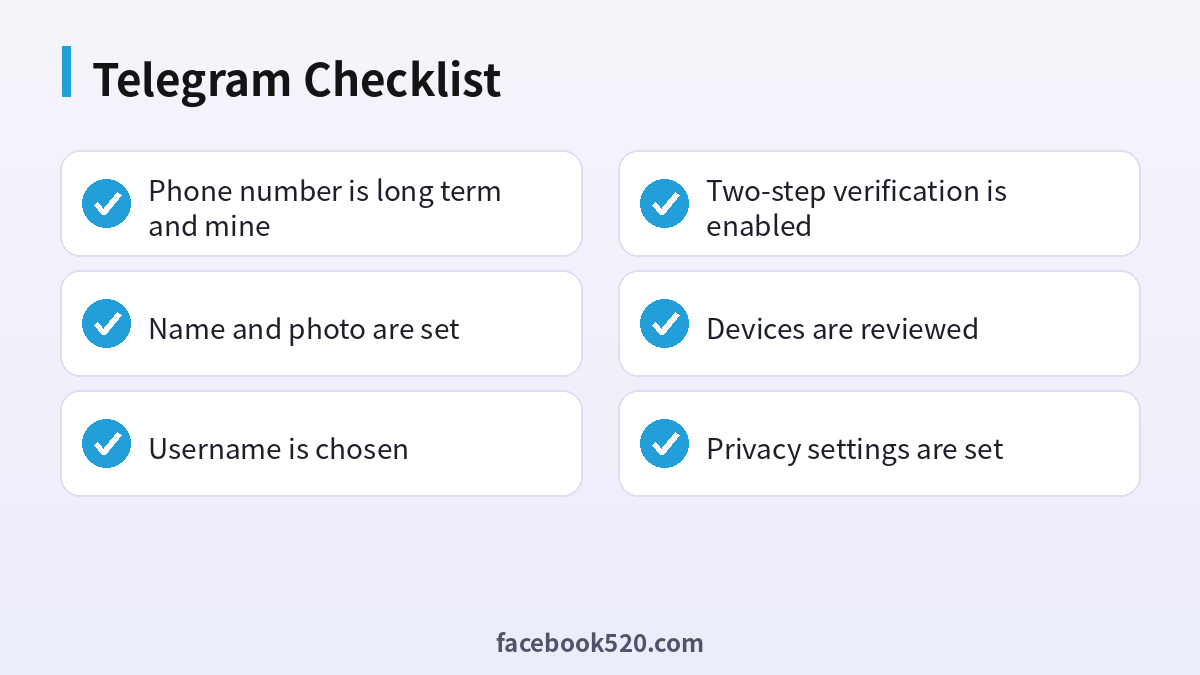
Telegram Checklist
- Phone number is long term and mine
- Name and photo are set
- Username is chosen
- Two-step verification is enabled
- Devices are reviewed
- Privacy settings are set
- Admin roles are shared
FAQ
Do I need an email to join Telegram?
No. Your phone number is enough. An email is only used for two-step verification recovery.
Is Telegram free?
Yes, the app is free, with an optional paid subscription for extra features.
Can I use Telegram on multiple devices?
Yes. Log in on phones, tablets and computers at the same time.
Can I hide my phone number?
Yes. Choose who can see it in Privacy settings and use a username.
Can I have more than one Telegram account?
Yes, the app supports several accounts, each with its own phone number.
Can I use Telegram without a phone number?
The account needs a phone number to register, though usernames can hide the number from others.
What is a username?
A public handle starting with an at sign that lets people find you without your number.
How do I make a bot?
Message @BotFather, choose a name and username, and store the token.
Why did I get a flood wait?
Too many actions in a short time. Wait.
How do I delete my account?
Use the self-destruct timer in Settings under Privacy, or the deactivation page.
Can I recover a deleted account?
Generally no. Deleted accounts cannot be restored.
How do I report spam?
Open the chat and use the report option.

