


Instagram Create Account (2026): Step-by-Step Sign-Up Guide
If you want to share photos, post Reels or promote a brand, you need to create an Instagram account first. The sign-up takes only a couple of minutes, but a few early choices, such as your username, account type and security settings, affect how well the account performs later. This guide walks you through Instagram sign up on mobile and web, then shows you how to set it up properly and what to do when something goes wrong.
Instagram updates its interface regularly, so button names may differ slightly.
Before you start
- An email address or phone number that you can access immediately.
- A username idea that is short, easy to spell and consistent with your other platforms. If you run a brand, use the brand name.
- A strong password that you do not use anywhere else.
- Your date of birth. Instagram requires users to be at least 13.
- Decide on the purpose. Personal use, creator or business. You can change the account type later.
Step-by-step sign-up
On a mobile phone:
- Download the Instagram app and open it.
- Tap Create new account.
- Enter your mobile number or email address and tap Next.
- Choose a password, then enter your name and birthday.
- Pick a username. Instagram suggests one, and you can change it.
- Enter the confirmation code that is sent to you.
- Choose whether to sync contacts and follow suggested accounts, or skip these steps.
On a computer:
- Go to the Instagram website and select Sign up.
- Enter your email or phone number, full name, username and password.
- Enter your birthday and confirm the code.
You can also sign up using a Facebook account if you prefer to link them. If you plan to run ads, linking Instagram with a Facebook Page is useful.
Verification and security tips
- Confirm your email or phone immediately. Unverified accounts are more likely to face restrictions.
- Turn on two-factor authentication from Accounts Center, using an authentication app or SMS.
- Add both an email and a phone number to make recovery easier.
- Do not share your login or confirmation code with anyone.
- Check logged-in devices regularly and sign out of any you do not recognize.
- Be careful with third-party apps. Revoke access to apps you no longer use.
Account setup after registration
- Profile photo. Use a clear photo or logo that stays recognizable at small sizes.
- Bio. Write a short sentence about who you are or what you offer, and add a link if available.
- Account type. Go to Settings and switch to a professional account, either Creator or Business, if you want insights, contact buttons and ad tools.
- Privacy. Choose public or private, and check who can message or tag you.
- First posts. Publish three to nine posts before you start following many accounts or promoting heavily, so visitors see real content.
- Follow gradually. Follow people in your niche over several days, not hundreds in one hour.
- Link with Facebook. Connecting a Facebook Page allows you to promote posts and manage messages in Meta Business Suite.
Common sign-up errors
- “We couldn’t create your account.” Try again later, use another network or the app instead of the website.
- Code not received. Check spam, verify the number and request a new code after a few minutes.
- Username taken. Add a word, number or underscore, or use a period.
- Account disabled after sign-up. New accounts that behave like bots, for example mass following or posting links in the first hour, can be flagged. Appeal through the in-app form.
- “Suspicious activity” prompt. Complete the verification step and then wait before taking more actions.
- Cannot sign up from a shared network. Too many sign-ups from one IP address may be limited. Try mobile data.
Next: activation, buying and payment
If you are planning ads, read Facebook广告充值与付款方式教程 for payment options, and our overview of account structure in Differences between Facebook bill account, FB BM accounts and FB business accounts. For account purchasing guides, see the Chinese article Instagram账号购买指南 or this overview: Facebook, Twitter, Instagram, Pinterest, Snapchat, LinkedIn, YouTube accounts for sale.
More background:
- Facebook Twitter LinkedIn Youtube WhatsApp Snapchat Messenger Pinterest Instagram selling accounts from various countries
- How do I register and purchase 70+ accounts on TikTok, YouTube, Instagram, Facebook, X, Reddit, Medium, and LinkedIn?
Typical Instagram Users and What Works for Them
- Casual users: A personal account is enough for sharing photos with friends. You can keep it private, approve followers, and use Close Friends for stories you want to share with a smaller audience. Start here if you do not need analytics or business tools.
- Creators: A professional account set up as Creator unlocks insights, a category label and message controls. It is meant for people building an audience around content rather than selling directly. You can switch back to a personal account if it does not suit you.
- Small businesses and shops: A professional account set up as Business adds contact buttons, insights, ads access and options for shopping features where available. Link it to a Facebook Page and Meta Business Suite so that posting, messages and ads are managed from one place.
- Agencies and social media managers: Request access through Meta Business Suite or the Accounts Center instead of asking for passwords. This keeps each client’s account secure and avoids repeated login challenges when several people sign in from different places.
Instagram at a Glance
- Typical use: photo and Reels content, brand presence and social commerce.
- What you need: an email or phone number, a username and a password.
- Common friction: verification codes that do not arrive, extra checks after linking to a Meta account, or temporary limits after unusual activity.
- Security tools: authenticator-app two-factor authentication and login-activity checks.
Instagram Options Compared, With a Verdict
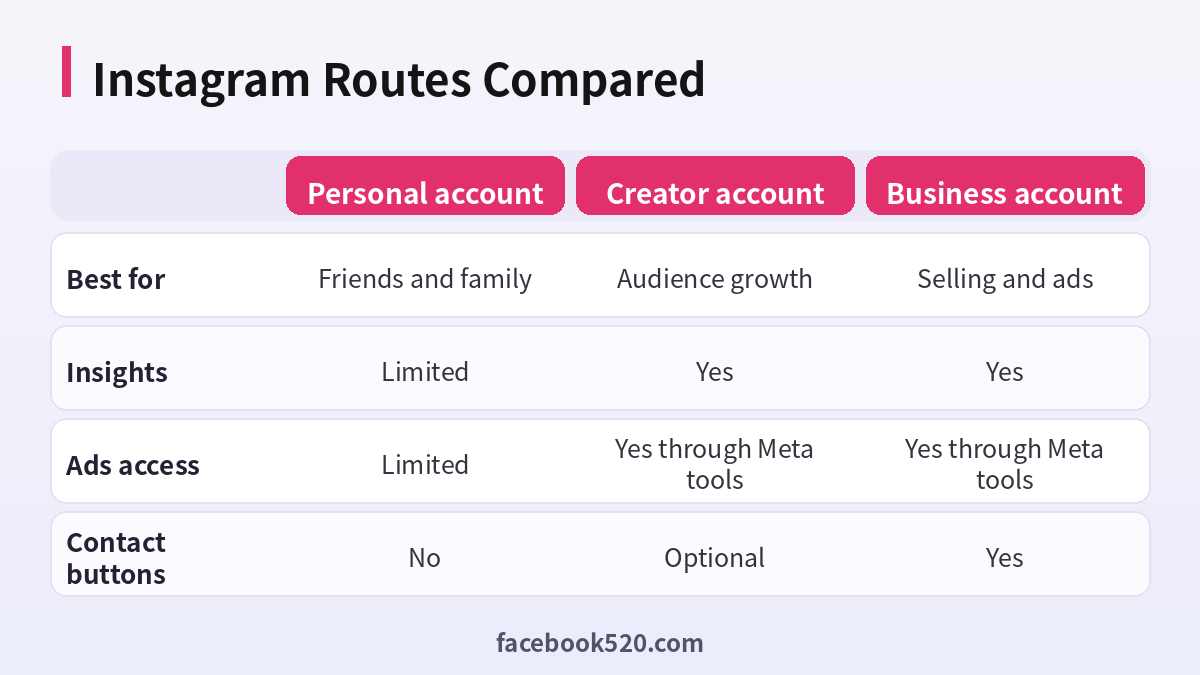
| Factor | Personal account | Creator account | Business account |
|---|---|---|---|
| Best for | Friends and family | Audience growth | Selling and ads |
| Insights | Limited | Yes | Yes |
| Ads access | Limited | Yes through Meta tools | Yes through Meta tools |
| Contact buttons | No | Optional | Yes |
Verdict: Begin with a personal account, then switch to a professional account when you want insights or ads. Choose Creator for audience building and Business for selling, and connect to a Facebook Page only after your identity and recovery options are clear.
What to do in the first week
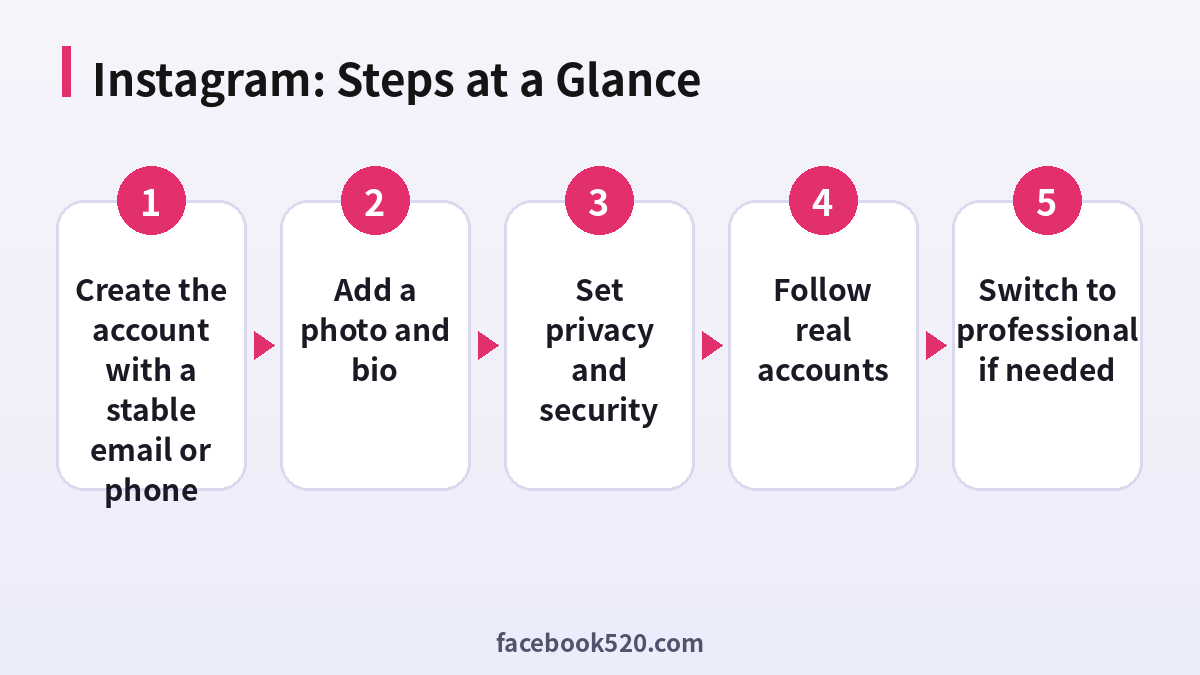
- Create the account with a stable email or phone: Use an address you control and will keep for years.
- Pick a username and name: Choose a username that matches your brand elsewhere, and add a display name people can search.
- Add a photo and bio: Use a recognisable image, and write a short bio with a keyword.
- Set privacy and security: Decide between public and private, turn on two-factor authentication and review login activity.
- Follow real accounts: Follow people and topics you are genuinely interested in, rather than following thousands at once.
- Post consistently: Share a few posts or Reels per week, and reply to comments.
- Switch to professional if needed: After the first week, move to Creator or Business if the extra tools are useful.
Instagram Troubleshooting Table
| Symptom | Likely cause | What to do |
|---|---|---|
| Code not received | Carrier delay or too many requests | Wait, then request again or use email. |
| Account suspended after sign-up | Automation flagged the behaviour | Use the in-app appeal and wait before trying again. |
| Username taken | It already exists | Add a descriptor or underscore, or choose another. |
| Cannot link a Facebook Page | You lack the necessary role on the Page | Ask a Page admin to grant access. |
| Action blocked | Too many actions in a short time | Slow down for a day or two. |
| Business option missing | Region or account type limitations | Check the Help Center and try again later. |
Accounts Center and why it matters
Accounts Center lets you connect Instagram and Facebook accounts for simpler sign-in and shared settings. It is useful for managing security in one place, but it also links the fate of your accounts. Decide deliberately which accounts to connect and review the settings regularly.
Reels versus feed posts
Reels are short vertical videos shown to a wider audience, while feed posts mainly reach existing followers. If your goal is discovery, include Reels in your plan. If you want to nurture a community, posts and stories also matter.
Music and licensing for professional accounts
Business accounts have access to a commercial music library, and other music may be limited for business use. Check the audio options before planning content that depends on a specific song.
Meta Business Suite basics
Meta Business Suite lets you schedule posts, read messages and view insights for connected Pages and professional accounts. Even a single creator benefits, because it reduces the temptation to log in everywhere and helps keep access organised.
Staying safe from scams
Fake support accounts and phishing messages target new users. Instagram never asks for your password in a direct message. Use the in-app security checkup and verify emails from Instagram inside Settings.
Growing without shortcuts
Avoid buying followers or using bots. Engagement from real followers matters more than counts, and automation is a quick path to limits or removal. Plan a content calendar and iterate based on insights.
Regional notes
Features like shopping and subscriptions depend on region and eligibility. Check the Help Center for your country, and treat this guide as the sequence rather than a guarantee of availability.
Instagram Stories and Highlights
Stories are short-lived posts that appear above the feed, and Highlights keep the best of them on your profile. For new accounts, Highlights are a good place to explain who you are, what you offer and how to contact you, so visitors understand quickly.
Handling messages and requests
Message requests from unknown accounts can contain spam and phishing. Use the filters in Settings to hide offensive words, restrict accounts that bother you, and never click links that promise verification or giveaways.
Choosing a profile category
If you switch to a professional account, you choose a category that is displayed on your profile. Pick one that best describes what you do, because it affects how people perceive the account and is easy to change later if your focus shifts.
Backing up your content
Save original photos and videos on your device or in cloud storage rather than relying on Instagram as the only copy. If an account is restricted, your archive makes it easy to rebuild elsewhere, and the data download tool in Settings can provide a copy of your information.
When to use the archive
Archive posts rather than deleting them when you want to hide content temporarily. You can restore them later, keeping likes and comments, which is useful when rebranding or testing different styles.
Using Close Friends and Restrict
Close Friends allows you to share stories with a chosen list, and Restrict limits interactions from a specific account without notifying them. These tools help you keep control of who sees what as the account grows.
Collabs and tags
Collab posts appear on both accounts and can double reach. Tagging brands and locations helps discovery, but only tag accurately, since misleading tags are reported often and can hurt the account.
Time zones and posting windows
Check your insights to see when followers are active, then schedule posts in those windows. If your audience is in several regions, test two or three time slots and keep the one that consistently performs better.
Hashtags and keywords
Use a few relevant hashtags and include keywords in captions and your profile name. Instagram search relies on text, so descriptive captions help people find you more than a long list of unrelated tags.
Understanding the Following and For You style feeds
Instagram offers a feed of accounts you follow and a suggested content experience. For discovery, content must be understandable by people who have never seen your account, so use clear captions, readable text on video and consistent topics rather than inside jokes only your followers understand.
Tips for a first Reel
Open with a clear hook in the first two seconds, keep the clip short, add captions so it works without sound and end with a prompt such as asking a question. Check the insights after a few days to see where viewers stopped watching, then adjust the next one.
Regional and language settings
Your language and region settings affect suggested accounts, available features and which advertisers can reach you. Update them if you move, and check your content language if you want to appear in searches in a particular market.
Reviewing your account health
Open Account Status in settings to see whether any of your content has been removed or limited from recommendations. If something is flagged, read the explanation, remove the content if it really breaks the rules and appeal if you believe it does not. Checking monthly prevents surprises.
Working with brands and partnership labels
If you post paid content, use the partnership label tool so that the relationship is visible to viewers. Keep records of agreements and payments, and never accept deals that ask for your password or for access to your account in exchange for payment.
Archiving versus deleting
Archive when you want to take a post off your profile without losing its comments and likes, and delete only when you are certain. Instagram keeps deleted content for a limited period in the recently deleted area, which can help you recover mistakes quickly.
Instagram Checklist
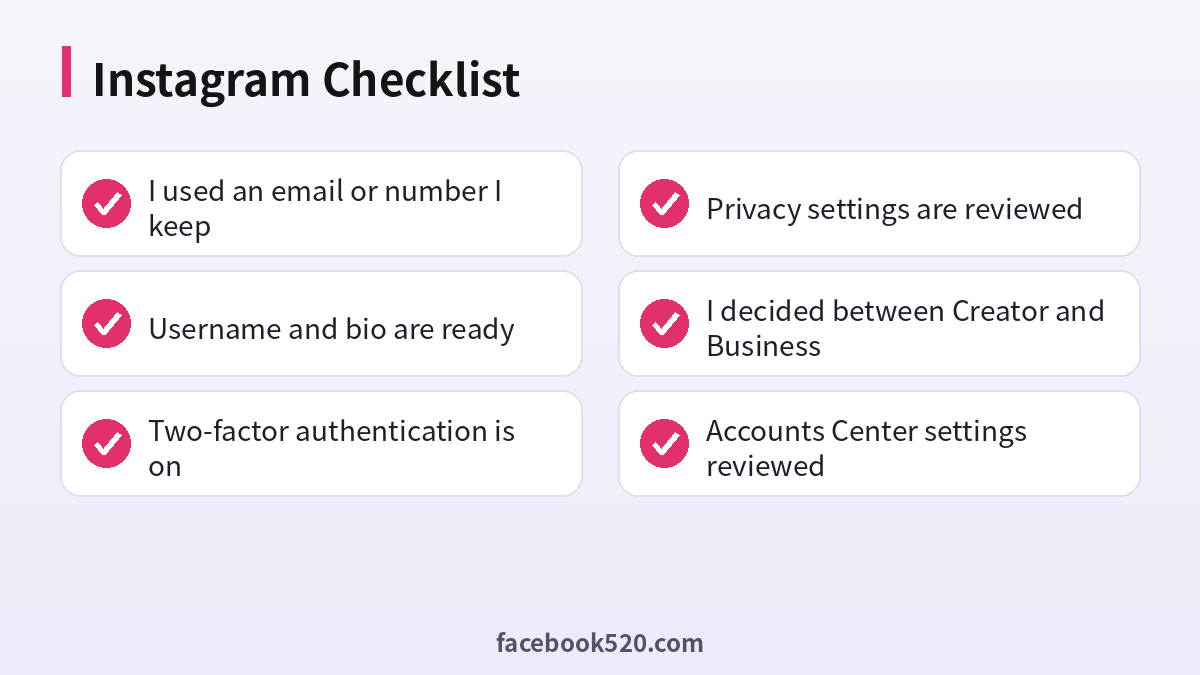
- I used an email or number I keep
- Username and bio are ready
- Two-factor authentication is on
- Privacy settings are reviewed
- I decided between Creator and Business
- Accounts Center settings reviewed
- First posts are scheduled
FAQ
Is Instagram free?
Yes, creating an account and using the app is free.
Can I create an Instagram account without Facebook?
Yes. You can sign up with just an email or phone number.
Can I have multiple Instagram accounts?
Yes. Instagram allows you to switch between several accounts in the app. Use different emails or phone numbers for each.
What is the difference between a creator and a business account?
Creator accounts focus on content and audience insights. Business accounts add tools for shops, contact options and ads.
Can I change my username later?
Yes, from Edit profile. Changing it will change your profile link as well.
Can I switch back to personal?
Yes, in settings you can switch account type, although some insights data may no longer be available.
Why can I not create an account?
Common reasons are too many attempts, an unsupported number, or device restrictions. Wait and use a different method.
Do I need a Facebook account?
No, but linking one helps with ads and Pages.
How do I get verified?
Meta Verified and similar programs have eligibility rules that change, so read the official page.
What size should my profile photo be?
A square image that looks good when cropped into a circle.
Can I use Instagram on a computer?
Yes, the website supports many features, though some creation tools are better in the app.
How do I recover a hacked account?
Use the in-app help for hacked accounts and the email link, then change your password.
Can I schedule posts?
Yes with Meta Business Suite or the built-in scheduling tools for professional accounts.
