


Facebook Sign Up (2026): Step-by-Step Guide to Create a Facebook Account
Whether you want to reconnect with friends, join groups, sell on Marketplace or run business ads, everything starts with a Facebook sign up. The process takes only a few minutes, but small details such as the email you use, the phone number you verify and the privacy settings you pick can save you trouble later. This guide shows you how to create a Facebook account on the web and on mobile, what to expect during verification, how to set up the account after registration, and how to solve the most common sign-up errors.
Facebook changes its screens from time to time, so the exact button names may look slightly different on your device. The overall steps stay the same.
Before you start
Prepare these things first:
- A real email address or mobile number that you can access right now. You will need it to receive a confirmation code.
- Your real date of birth. Facebook requires users to be at least 13 years old, and the date you enter affects your privacy defaults.
- A strong, unique password. Use at least twelve characters, mixing letters, numbers and symbols, and do not reuse a password from another site.
- A stable internet connection. Switching networks halfway can interrupt the verification step.
- The name you want to use. Use the name you are commonly known by, since it is how friends will find you.
If you plan to use Facebook for business, create a personal account first. Business tools such as Meta Business Suite and Ads Manager are then connected to that personal profile.
Step-by-step Facebook sign up
On a computer (Facebook sign up website):
- Open the Facebook home page in your browser and click Create new account.
- Enter your first name and surname.
- Enter your mobile number or email address.
- Create a password.
- Choose your date of birth and gender option.
- Click Sign Up.
- Enter the confirmation code that Facebook sends to your email or phone.
On a phone (iOS or Android):
- Install and open the Facebook app, then tap Create new account.
- Follow the prompts to enter your name, birthday, mobile number or email, and password.
- Tap Sign up and confirm the code that is sent to you.
- Choose whether to save your login information, and decide whether to sync contacts.
Once the code is confirmed, your account is created and you land on the home feed.
Verification (email / phone) tips
Facebook uses verification to confirm you are a real person and to protect the account.
- Use a contact you will keep. If you sign up with an email, add a mobile number later, and vice versa. Two recovery options protect you if you lose access.
- Wait for the code. It usually arrives within a minute. If not, check the spam folder or request a new code after a short pause.
- Do not request too many codes. Repeated requests in a short time can lock the verification step for a while.
- Photo or video selfie checks. Occasionally, a new account is asked for extra identity confirmation. Follow the on-screen instructions and use a well-lit, clear photo of yourself.
- Avoid sharing codes. The code is only for you. Never send it to anyone else.
Account setup after registration
Right after the account is created, spend ten minutes on these steps:
- Add a profile picture and cover photo. Profiles with a photo look more trustworthy and help people recognize you.
- Fill in basic information. City, school or workplace are optional, but they help you find people you know.
- Review privacy settings. Go to Settings and privacy, then Privacy checkup. Decide who can see your posts, friend list and contact details.
- Turn on two-factor authentication. Go to Accounts Center and Password and security, then add an authentication app or text message as a second step.
- Add a backup email and phone. This makes recovery much easier.
- Find friends carefully. Start with people you know in real life and add friends gradually rather than sending dozens of requests on day one.
- Join a few groups and follow pages that match your interests so your feed becomes useful.
Common sign-up errors and how to fix them
- “We couldn’t create your account.” Try a different browser or the mobile app, clear your cache and cookies, and make sure your information is entered correctly.
- No confirmation code. Check the spam folder, confirm the number format with the country code, and wait a few minutes before requesting another one.
- “This email or phone number is already in use.” You may already have an account. Try the login page and the password recovery option.
- Account temporarily restricted after sign-up. Brand new accounts are checked closely. Use the account normally for a few days, avoid mass actions, and complete any verification request.
- Name not accepted. Use your real first and last name without symbols, numbers or unusual characters.
- Repeated failures on a shared network. Many sign-ups from the same IP address in a short time can trigger limits. Try a different network.
Next: activation, payment and business use
Once your personal profile is ready, you can create a Facebook Page, open a Meta Business account and set up Ads Manager. To understand the different account structures used for advertising, read Differences between Facebook bill account, FB BM accounts and FB business accounts. When you are ready to pay for ads, see Facebook广告充值与付款方式教程 for payment methods, currency and top-up tips.
Other helpful reads:
- Facebook Overseas Account Three Unlimited Placement Southeast Asian Slot CASINO Games Going Global
- How to advertise on Facebook, Google, Twitter, TikTok and Line?
- Signing up on other platforms: TikTok Sign Up and Instagram Create Account.
Typical Facebook Users and What Works for Them
- People who want a personal profile only: A personal profile is for connecting with friends and joining Groups. Sign up with your real name and a number or email you control, because Facebook relies on identity checks and your recovery options depend on that information.
- Small businesses that will advertise: A business does not run ads from a personal profile directly. You create or are given access to a Facebook Page, connect it in Meta Business Suite or a Meta business portfolio, and use Ads Manager with a payment method. Plan this structure before you create anything.
- Agencies and freelancers managing client assets: Ask clients to add you as a partner or give task access to their Page and ad account instead of sharing their login. This protects both sides and avoids the security checks that trigger when someone logs in from a new location.
- Marketplace and Groups users: Facebook Marketplace and Groups have their own eligibility rules, and new accounts may face limits at first. Spend a few days with normal activity before you attempt anything intense.
Facebook at a Glance
- Typical use: personal networking, Page management and Meta advertising.
- What you need: a phone number or email, a real name and birth date; advertising also needs a Page and an ad account.
- Common friction: identity checks, restricted or disabled ad accounts, and recovery flows after suspicious logins.
- Security tools: two-factor authentication, trusted contacts and logged-in device management.
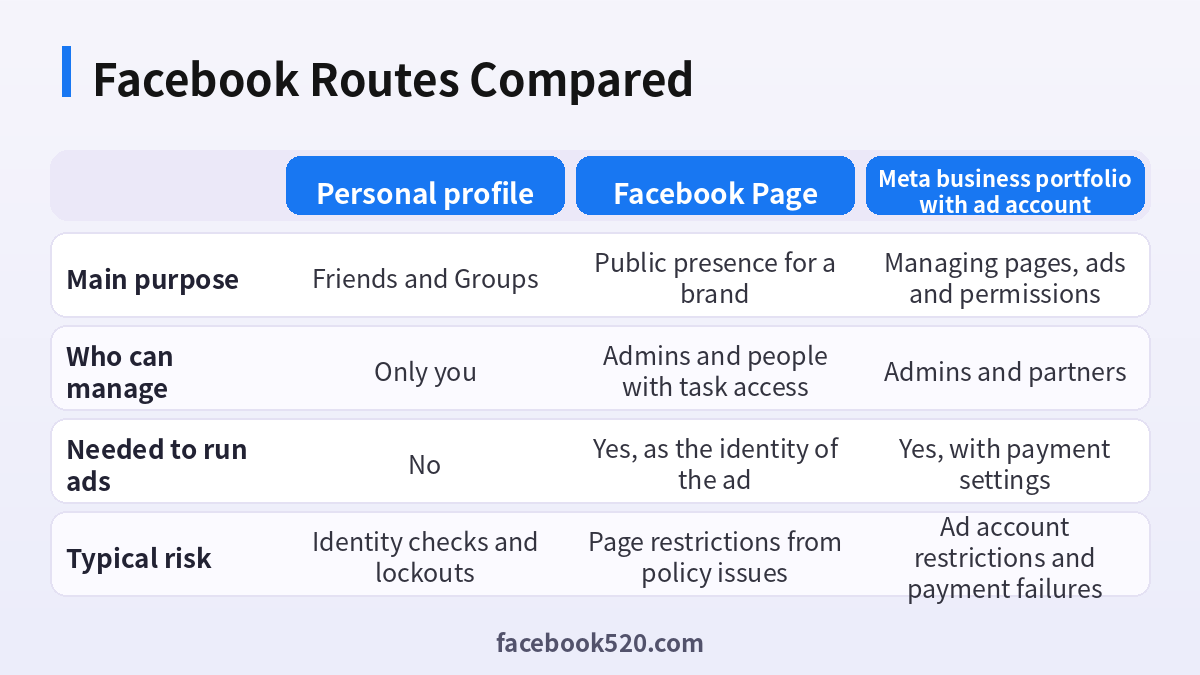
Comparing Your Facebook Routes: Table and Verdict
| Factor | Personal profile | Facebook Page | Meta business portfolio with ad account |
|---|---|---|---|
| Main purpose | Friends and Groups | Public presence for a brand | Managing pages, ads and permissions |
| Who can manage | Only you | Admins and people with task access | Admins and partners |
| Needed to run ads | No | Yes, as the identity of the ad | Yes, with payment settings |
| Typical risk | Identity checks and lockouts | Page restrictions from policy issues | Ad account restrictions and payment failures |
Verdict: Open a personal profile first, then create a Page for the brand and keep the ad account inside a Meta business portfolio. Do not try to run ads from a profile, and never share your personal login with a vendor. A clean structure makes recovery and handover much easier later.
First-week plan after you sign up
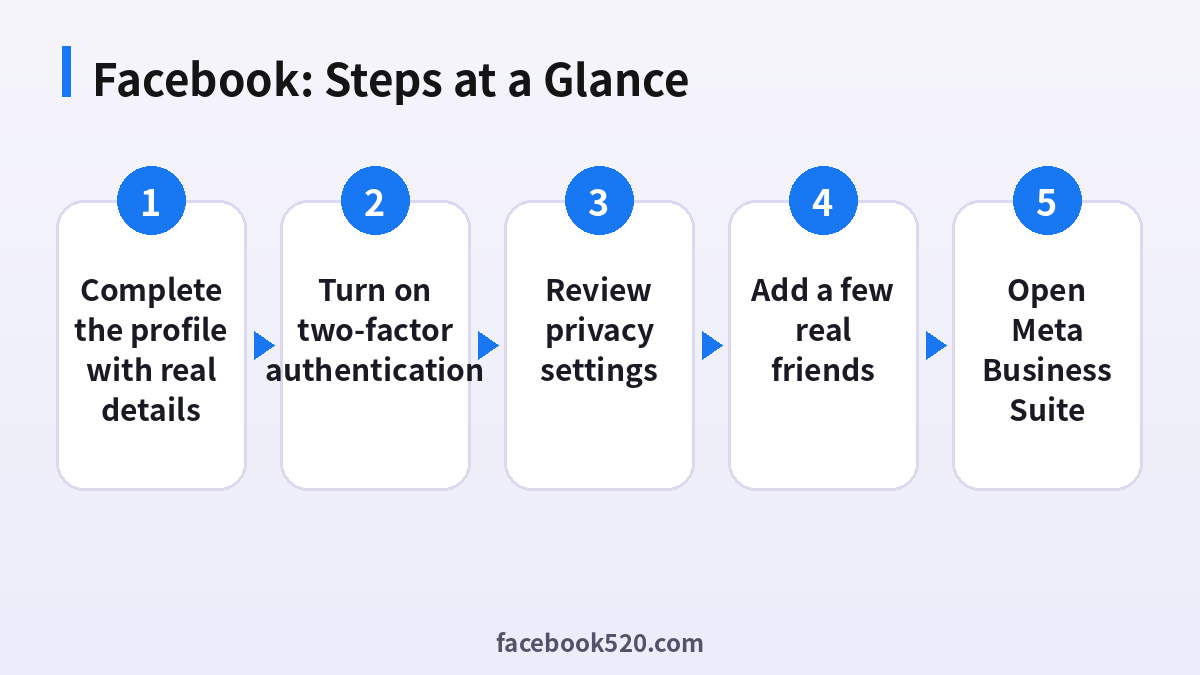
- Complete the profile with real details: Add a profile photo, a short bio and your hometown or city. Complete profiles are less likely to be flagged as fake.
- Confirm contact methods: Verify the email and the phone number, then add a second recovery option if available.
- Turn on two-factor authentication: Use an authenticator app rather than SMS where possible, and save recovery codes offline.
- Review privacy settings: Check who can find you by phone number or email and who can send friend requests.
- Add a few real friends: Connect with people you actually know. Avoid sending many requests in the first days.
- Create a Page if you are a business: Choose a category, add contact details and a profile image, and invite no one until the structure is clear.
- Open Meta Business Suite: Connect the Page and plan the ad account and payment method.
Facebook Problems and Fixes
| Symptom | Likely cause | What to do |
|---|---|---|
| We need to confirm it is you | Unusual login location or a new device | Complete the identity check using the official flow and do not create a second account. |
| Phone number cannot be used | The number was used too many times for verification | Use another number you control or wait before trying again. |
| Email already in use | You or someone else has an account on that address | Use the password reset flow to find out. |
| Account disabled right after sign-up | Automated systems flagged the account | Use the in-app appeal and do not repeat sign-up from the same device in a loop. |
| Cannot create a Page | The account is too new or restricted | Wait a few days of normal use and try again. |
| Cannot add a payment method | Billing country or card issuer mismatch | Match billing details to the card and try a different card if needed. |
Why real information matters
Facebook may ask for ID if the account is locked or suspicious. If you signed up with information that does not match, you will not be able to prove the account is yours. Accurate details are your best recovery insurance.
Two-factor authentication done properly
Prefer an authenticator app and store backup codes in a secure place. If you rely only on SMS, losing the phone number can leave you locked out. Keep a second recovery email on a different provider.
What a Page can and cannot do
A Page lets you publish, receive messages, run ads and use Insights. It does not replace a personal profile, which remains the login identity behind it. Keep at least two trusted admins on every business Page so that one lost login does not block the brand.
Starting small with Groups and Marketplace
New accounts often face temporary limits in Groups and Marketplace. Use the account normally for a while, post sensible content and avoid copy-pasting identical messages in many places, which is a quick way to be limited.
Ad accounts and billing basics
Ad accounts hold the currency, time zone and payment method, and some of these cannot be changed later. Choose them carefully when you create the account, and set a spending limit so a mistake cannot become an expensive one.
When you should not create another account
If you are locked out, resist the temptation to create a new profile. Duplicate accounts can be flagged, and your original account and its Pages stay stuck. Use the official recovery tools first.
Regional differences
Verification methods, available payment options and Marketplace availability vary by country. Treat the official Facebook Help Center as the source for your region, and use this guide as the plan for the order of steps.
Handing over a Page safely
If you are passing a business Page to someone else, add them as an admin or give them task access, wait until they confirm that they can manage it, and only then remove your own access. Never hand over a personal login, because the personal profile stays your identity and security responsibility.
Keeping an activity log
Write down the date of sign-up, the email and number used, the devices that logged in, and when you turned on two-factor authentication. If anything goes wrong, this log makes appeals faster and more credible, and it helps you avoid mixing up recovery options across several accounts.
Warming up a new account
Use the account like a normal person for the first week: browse the feed, react to a few posts, follow a handful of Pages related to your interests and send only a few friend requests. Sudden bursts of posting, messaging or joining Groups are what usually trigger limits on new accounts.
Facebook sign-up for different countries
Sign-up methods, age rules and verification steps depend on where you live, and some regions favour phone verification over email. If an option is missing in the app, check the Help Center for your country before trying workarounds that risk the account.
Signs your account is at risk
Unexpected login alerts, password reset emails you did not request, or friends reporting strange messages from you are early warning signs. Change your password at once, log out other sessions in Settings and check that your recovery email and phone are still yours.
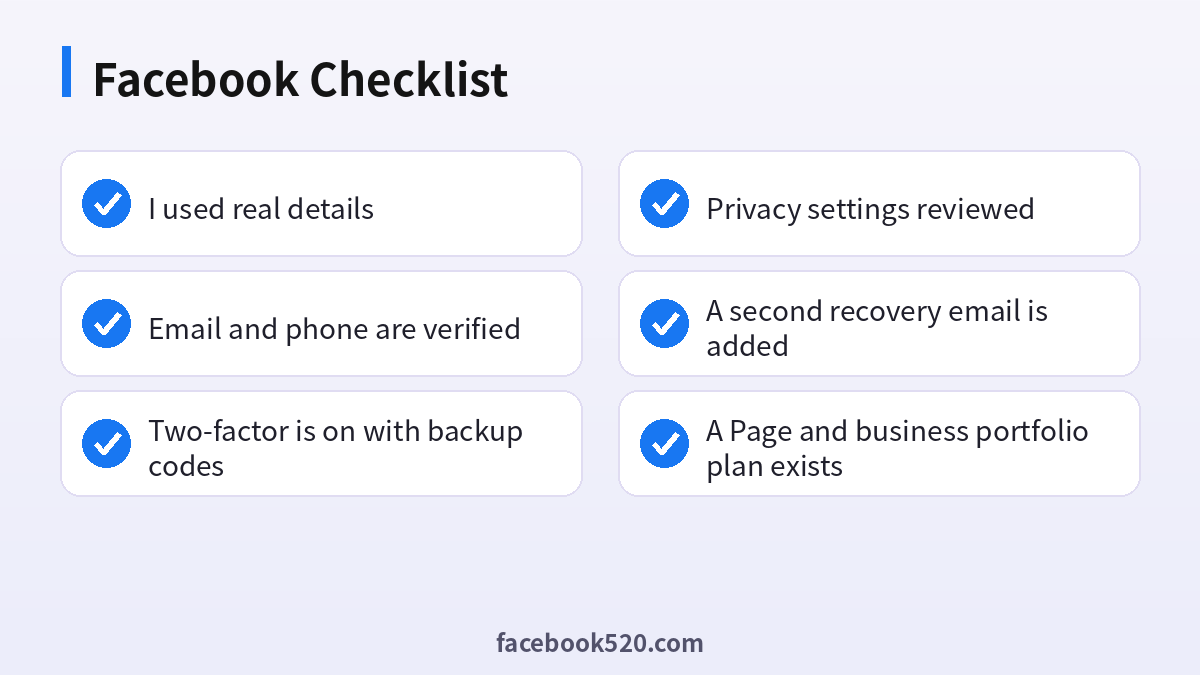
Facebook: Before-and-After Checklist
- I used real details
- Email and phone are verified
- Two-factor is on with backup codes
- Privacy settings reviewed
- A second recovery email is added
- A Page and business portfolio plan exists
- Ad account currency and limit decided
FAQ
Is Facebook free to join?
Yes. Creating an account is free.
Can I sign up without a phone number?
Usually yes, with an email address, although Facebook may ask for a phone number later for security.
Can I have two Facebook accounts?
Facebook’s rules expect one personal profile per person. If you need a second presence, use a Page or a different, legitimate setup.
How old do I have to be?
At least 13, and some countries set a higher minimum age.
What should I do if I forget my password?
Use the Forgotten password link on the login page and follow the recovery steps with your email or phone.
Why was my new Facebook account disabled?
Automated systems may flag unusual behaviour, mismatched information or rapid actions. Use the official appeal and avoid repeating sign-up loops.
Do I need a personal profile to create a Page?
Yes. Pages are managed through personal profiles, which is why account security matters for business assets.
Can I run ads without a Page?
Most ad formats require a Page as the identity of the ad, so plan to create one.
Is a Meta business portfolio free?
Creating a portfolio is free. Costs come from ad spend and any paid features you choose.
How long before I can use Marketplace?
It varies by account age, activity and region, and is not guaranteed on a fixed day.
Can I change my name later?
Names can be changed within limits, and large changes may require verification. Avoid choosing a throwaway name.
How do I add a team member to a Page?
Page settings let admins assign roles or task access, which is safer than sharing a password.
