


Twitter Sign Up (2026): Step-by-Step Sign-Up Guide
Signing up for X, still widely called Twitter, takes only a few minutes. This guide covers the steps, the choices that are hard to change later, and the settings that keep a new account secure and in good standing.
The steps are written from a practical point of view: what to prepare, what to click, what to expect, and what to do when something goes wrong. Interface labels may differ slightly from your screen as Twitter (X) updates its design.
What you need before you start
- A valid email address or phone number that you can access.
- Your date of birth (it is used to set age-appropriate settings and cannot be freely changed later).
- A profile picture and a short bio for later.
- An authenticator app for two-factor authentication.
Twitter (X) sign-up: step by step
- Open x.com (or the app) and select Create account.
- Enter your name, email or phone and date of birth.
- Confirm the verification code that X sends.
- Choose a password that is long and unique.
- Pick a username (handle); you can change it later but old links will break.
- Add a profile photo, banner and bio.
- Follow a handful of relevant accounts and choose your interests so the timeline is useful.
Take your time on the first screens. Details such as your username, country and date of birth are often difficult or impossible to change later, so enter them carefully.
Verification tips for Twitter (X)
- If X sends a code to your phone, enter it promptly; codes expire quickly.
- New accounts may be asked for extra verification when signing up from an unusual network.
- Use one email per account; reusing the same email across accounts can create problems.
- Add a recovery email and phone in Settings and privacy.
First-day setup checklist
- Turn on two-factor authentication using an authenticator app.
- Set your handle, display name and bio.
- Review privacy settings for tagging, DMs and discoverability.
- Switch to a professional account if you are a business or creator.
- Connect your email and phone for recovery.
- Post gradually and engage with real accounts in your niche.
Keep the account secure from day one
- Use a long, unique password stored in a password manager.
- Turn on two-factor authentication with an authenticator app instead of SMS where possible.
- Add a recovery email and phone number that you control.
- Do not reuse the email address of a closed or lost account.
- Review logged-in devices from time to time and sign out of those you do not recognise.
Common sign-up problems and fixes
- Cannot receive the SMS code: Try email verification instead or a different network; some carriers delay messages.
- “Something went wrong” while signing up: Clear the browser cache, try the mobile app or wait a while; repeated attempts can trigger temporary limits.
- Account locked just after creation: Follow the unlock steps and complete the verification X requests. Avoid mass-following on day one.
- Username is taken: Add a number or an underscore, or choose a more specific brand name.
- Verification email not delivered: Check spam, confirm the address is spelled correctly and request a new one.
- Too many attempts: If you repeat the sign-up several times quickly, the platform may temporarily block you. Wait a few hours, switch to a stable network and try again carefully.
- Using a VPN or unusual network: Sign-ups from changing locations can trigger extra checks. A normal, stable connection in your own country usually works best.
Using Twitter (X) for business
If you represent a business, use a company email and switch the account to a professional profile. Keep the login details in a shared password manager and assign more than one admin so you are never locked out.
Whatever platform you are on, a business setup is easier when it is documented: who owns the account, which email recovers it, who has admin access, and where credentials are stored. Write this down on the first day, before the account is used for anything important.
Getting started on the right foot
A fresh Twitter (X) account is a blank slate. Complete the profile, follow a handful of relevant accounts, and use the product the way a normal person would for the first week. That quiet start makes later changes, such as connecting a business tool or payment method, much less likely to trigger extra checks.
Choosing the right login method
Most services let you register with an email and password or with a Google, Apple or Microsoft login. A social login is faster and often safer because it inherits that account’s two-factor protection, but it ties Twitter (X) to a provider you must keep access to. An email-based account is more portable, as long as the email address is one you will keep for years. Whichever you pick, write down which method you used, because logging in later with the wrong one is the most common reason people think their account has disappeared.
Personal use or business use?
Decide this before you register. Personal accounts are simplest, but they may lack analytics, team access and advertising tools. Business or professional accounts add those tools and are easier to share with colleagues. If you are unsure, start with the personal or standard setup, use it for a short time, and convert to the business option when you know what you need. Converting is usually easy; merging two separate accounts afterwards usually is not.
Your first 30 days on Twitter (X)
- Week one: complete the profile, set security and privacy, and explore the main features without rushing.
- Week two: start regular but moderate activity that matches your purpose.
- Week three: connect external tools (analytics, payment, team members) one at a time.
- Week four: review what worked, remove unused settings and document how the account is managed.
Privacy settings worth reviewing
- Who can find you by email address or phone number.
- Who can message or contact you.
- Whether your activity or location is visible.
- Which apps and websites have access to your account.
- How your data is used for personalisation and advertising.
If you ever lose access
Keep the recovery email and phone current, save backup codes in a safe place, and note the date and device you used to register. When something goes wrong, start with the official password-reset or account-recovery page, answer security questions honestly and avoid anyone who offers to “unlock” the account for a fee. Recovery requests that include accurate account details, such as the registered email, approximate creation date and device, are processed much more smoothly.
Quick troubleshooting checklist
- Check that the email or phone number was typed correctly.
- Look in spam, promotions and blocked-sender folders for verification messages.
- Try a different browser or the official mobile app.
- Disable extensions that block scripts or captchas.
- Switch from mobile data to Wi-Fi or the other way round.
- Wait a few hours if you have made many attempts.
- Contact the platform’s help centre with screenshots of the exact error message.
Staying in good standing
A new Twitter (X) account is judged on behaviour. Be consistent about where you log in from, avoid mass actions in the first days, respect the community or advertising rules, and answer verification prompts quickly. If a warning appears, read it carefully and follow the instructions rather than creating another account to get around it. Accounts with a clear, gradual history are far more resilient than those that look as if they were created only to push volume.
Web, desktop or mobile app: which should you use?
You can usually register on any of them, but the experience differs. The mobile app is the best choice for phone-number verification and camera features, while the website is easier for pasting long text, managing business tools and keeping several windows open. If one route gives an error, try the other before assuming something is wrong with your details. Keeping both installed also gives you a backup way in if one login prompt misbehaves.
Frequently misunderstood points
- A Twitter (X) account is not the same thing as a business or advertising account; those are extra layers on top.
- Verification is not the same as a verified badge. The first confirms you control an email or phone; the second is a separate programme or paid feature.
- Deleting the app does not delete the account.
- Signing up with a social login does not create a separate password; recovery goes through that provider.
- Usernames, countries and birth dates are often permanent, so decide once and carefully.
Mistakes to avoid when signing up for Twitter (X)
- Using a temporary or shared email address.
- Entering a false date of birth or country that does not match your later activity.
- Skipping two-factor authentication.
- Creating several accounts on the same device in a short time.
- Handing over your login details to a third party “to speed things up”.
Typical X (Twitter) Users and What Works for Them
- First-time users: Sign-up needs a name, an email or phone number and a date of birth. Pick a username you will keep, because it appears in your profile link and every reply you write.
- Brands opening an official presence: Register with a shared company mailbox instead of a personal email so that recovery and handover stay possible when staff change.
- Operators with more than one account: X lets you add several accounts in the app, but each should have its own email and a distinct purpose.
X (Twitter) at a Glance
- Typical use: real-time news, brand voice and advertising.
- What you need: an email or phone number, a handle and a birth date.
- Common friction: automation or bulk interactions can lead to restrictions, and appeals need a clear explanation.
- Security tools: authenticator-app two-factor authentication and connected-app review.
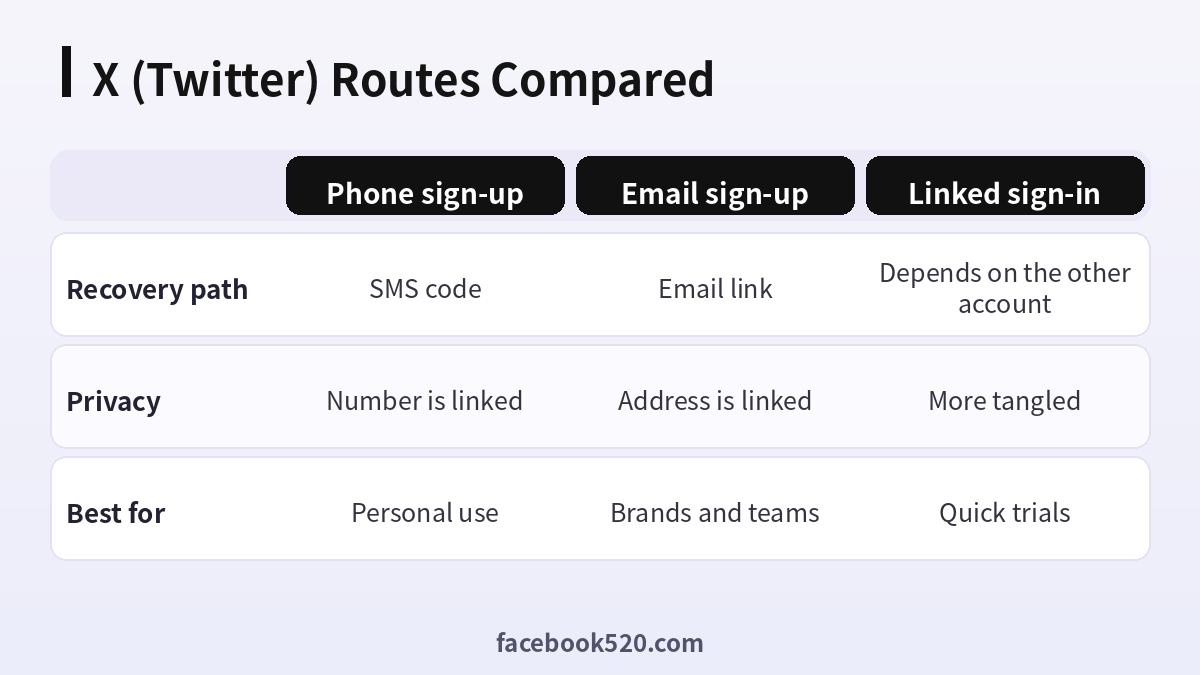
X (Twitter) Options Compared, With a Verdict
| Factor | Phone sign-up | Email sign-up | Linked sign-in |
|---|---|---|---|
| Recovery path | SMS code | Email link | Depends on the other account |
| Privacy | Number is linked | Address is linked | More tangled |
| Best for | Personal use | Brands and teams | Quick trials |
Verdict: Individuals can use a phone or email they will keep for years. Brands should use a shared company mailbox. Linked sign-in is convenient, but it ties two accounts together, so avoid it for anything long-term.
A calm first week on X
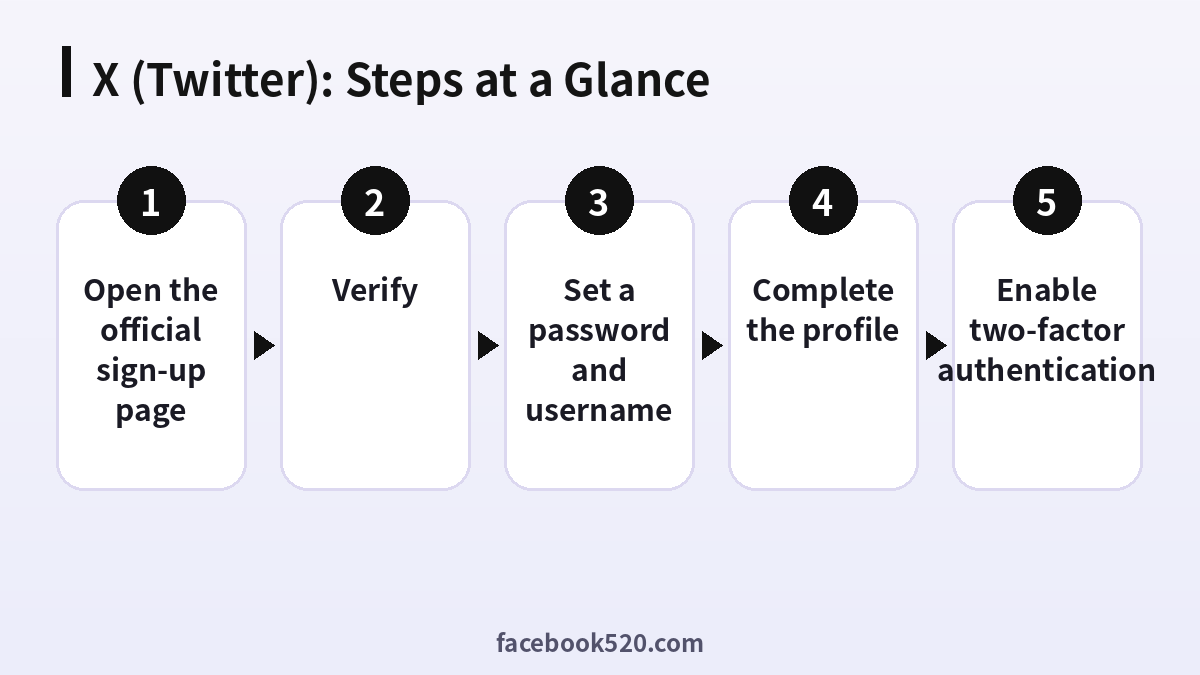
- Open the official sign-up page: Use the website or the official app, not links from messages.
- Enter your details: Name, email or phone number, and your real date of birth.
- Verify: Enter the code you receive and finish any human check.
- Set a password and username: Choose a long password and a short, memorable handle.
- Complete the profile: Add a photo, a bio line and one link.
- Follow a few real accounts: Avoid mass following in the first days.
- Enable two-factor authentication: Turn it on in Security and save the backup code.
X (Twitter) Troubleshooting Table
| Symptom | Likely cause | What to do |
|---|---|---|
| No verification code | Carrier delay or the number is blocked | Wait, then retry or use email. |
| Username taken | Already in use | Add a detail such as a number or niche word. |
| Account limited after sign-up | Rapid actions triggered a check | Appeal in the app and slow down. |
| Repeated human checks | Unusual network | Switch to a stable connection. |
| Email already registered | An account exists | Use password reset to find it. |
Bio and pinned post
Visitors decide to follow after looking at your bio and pinned post. Use one sentence to say who you are and what you post, add a link and pin the post that best represents you.
A gentle ramp-up
Spend the first days reading, liking and replying a little. Avoid bursts of identical posts, copy-pasted replies and mass follows, which are the quickest way to get a new account limited.
Privacy settings
Check who can find you by email or phone, who can message you and who can tag you. The defaults may not match your needs, and five minutes now saves cleanup later.
Handling several accounts
Give each account its own email, its own topic and its own voice. Posting the same template from many accounts looks like coordinated behaviour and invites limits.
Date of birth
Age settings affect which features are available, and changing the date later is limited, so enter the real one at sign-up.
Choosing between email and phone for the long term
Think about which one you will still control in five years. A phone number changes with carriers and moves, while a shared mailbox on your own domain can outlive staff changes. Whichever you choose, add the other as a secondary recovery method after sign-up so that a single lost contact never locks you out.
Using a username that survives rebrands
Handles are public in every reply, link and mention, so choose one that still works if your offer changes. Avoid years, product names and jokes that will date quickly. Reserve the same handle on other networks if you plan to build one identity, and write it down together with the registration email.
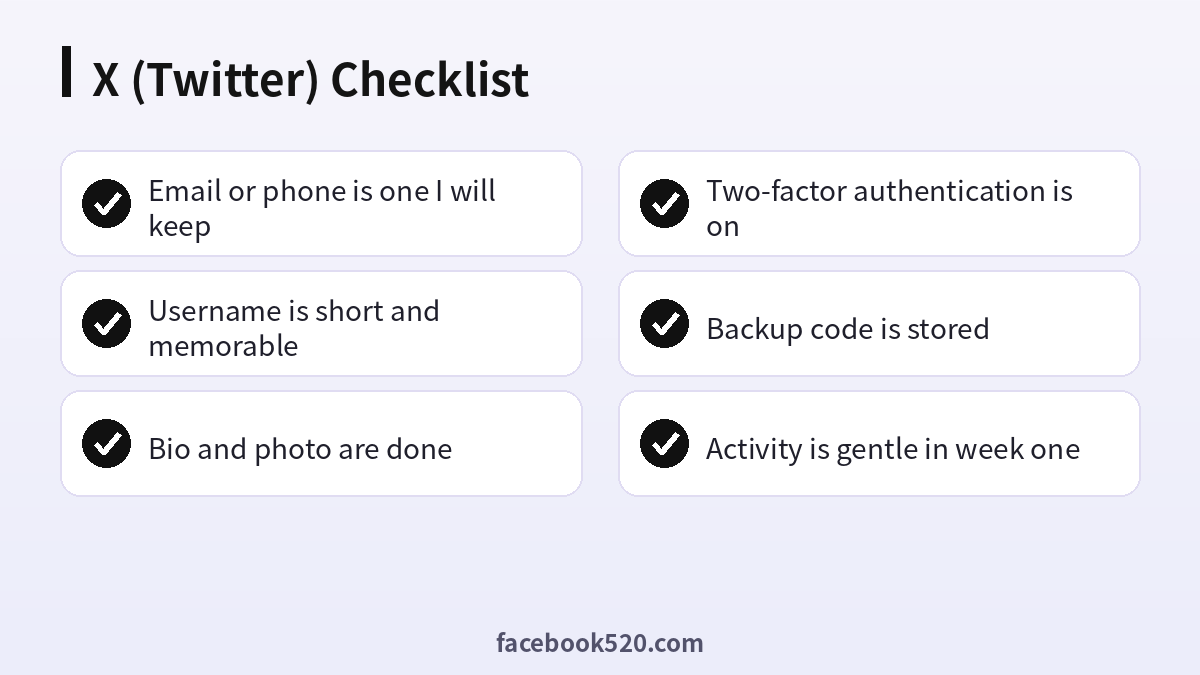
X (Twitter) Checklist
- Email or phone is one I will keep
- Username is short and memorable
- Bio and photo are done
- Two-factor authentication is on
- Backup code is stored
- Activity is gentle in week one
Twitter (X) sign-up FAQ
Is Twitter the same as X?
Yes. Twitter was rebranded as X, but the account type and sign-up process are the same.
Do I need a phone number?
Often you can sign up with an email, but X may ask for a phone number to verify the account.
Can I create several accounts?
You can have more than one account, but each needs its own credentials and verification.
How do I recover access if I forget my password?
Use “Forgot password” on the login page and the email or phone linked to the account.
How long does it take to set up Twitter (X)?
The sign-up itself usually takes about five minutes. Completing the profile and security settings takes a little longer.
What if I already have an account?
Log in instead of creating a second one. Use the password reset option if you have forgotten the details.
Is it safe to let someone else register for me?
It is better not to. Anyone who creates the account first also holds the first recovery details, so do the registration yourself and add colleagues as members afterwards.
Can I change my email address later?
In most cases yes, through the account or security settings, but you will need access to both the old and new address, so update it before the old one is closed.
Can I have more than one X account?
Yes, within the rules, with separate emails and clear purposes.
Why was my new account limited?
Fast or repetitive actions can trigger checks. Appeal in the app and slow down.
Can I change my date of birth later?
Changes are restricted, so enter the true date at sign-up.
How do I delete my account?
Deactivate it in settings. It is removed after a waiting period during which you can restore it.

