


Discord Setup for a New Account in 2026: Sign Up, Secure Your Profile and Get Discord Nitro the Official Way
Discord started as a chat tool for gamers and is now used by study groups, creators, open source projects, companies and communities of every kind. If you have just decided to join, the first questions are how to set up the account properly and whether you need Nitro, the paid subscription. This guide covers the registration flow, the first settings to change, the security steps that prevent most account takeovers and the official way to get or upgrade to Discord Nitro. Prices in this article are the United States prices published by Discord in 2026. They can vary by country and currency, so always read the price on the checkout screen. For a shorter registration walkthrough, see our Discord sign up guide, and for the full account reference, see the Discord account guide.
Before you start
You need an email address you can open, a username idea and a device. Discord works in a browser, as a desktop app for Windows, macOS and Linux, and as a mobile app for Android and iOS. Download the app only from discord.com or the official app stores. Discord requires users to be at least 13 years old or the minimum age in their country, so enter your real birth date. A false birth date can cause problems later, because Discord may ask you to confirm your age group for some settings and features.
How to create the account
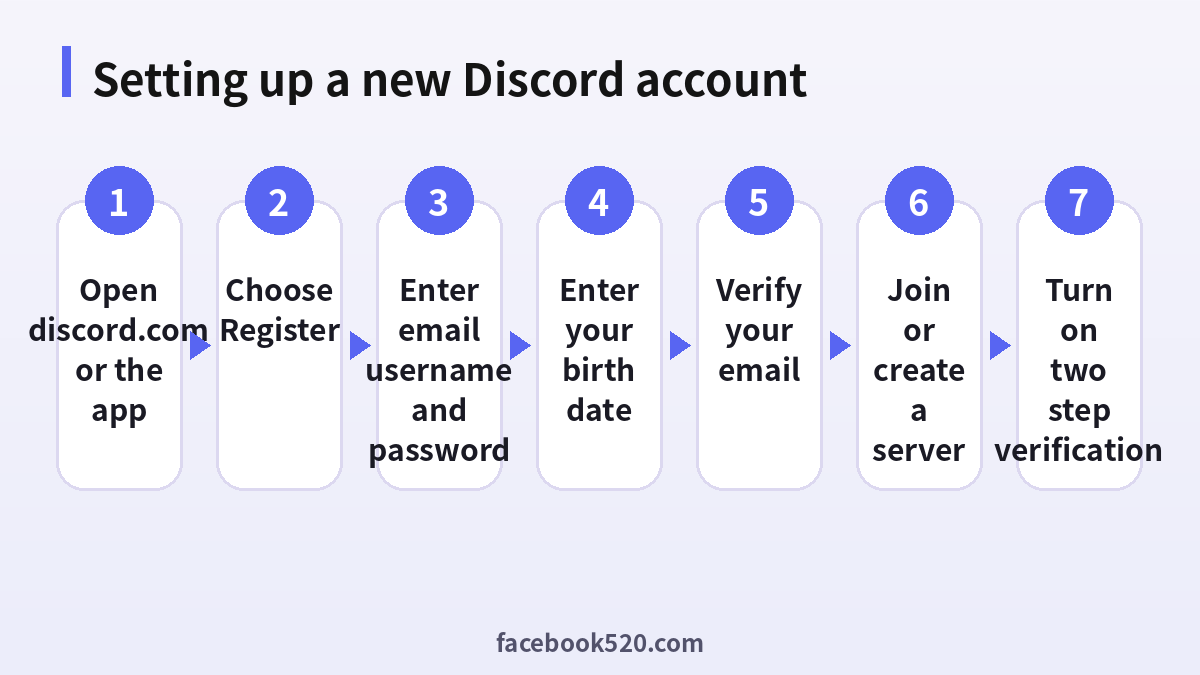
- Go to the official Discord website or open the app and select Register.
- Enter your email address, a display name, a username and a password. Usernames are lowercase and unique across the service, and the display name can be changed more freely.
- Select your date of birth.
- Complete the captcha if the page shows one.
- Open the verification email that Discord sends and confirm the address.
- Choose a profile picture and, if you like, a short bio.
- Join a server using an invitation link or create your own server from a template.
Verify your email and phone
Verified email is required for many actions, including joining some servers and sending messages in them. Servers can also demand a verified phone number from new members as an anti-spam rule. Adding a phone number is optional, but it makes recovery easier. Use your own number, and avoid temporary number services, because the number may be recycled and then used to take your account.
Turn on two-step verification right away
Two-step verification is the single most useful protection. Open User Settings, go to My Account and enable multi-factor authentication. Discord supports authenticator apps, security keys and passkeys, and SMS as a backup in some regions. Save the backup codes in a password manager or print them and store them safely. If you lose your phone and do not have backup codes, recovery can take a long time. Do not scan QR codes that strangers send you, because a login QR code gives the other person access to your account.
Privacy and safety settings to change first
Open Privacy and Safety and review who can send you direct messages and friend requests. A sensible default is to allow messages only from friends or from members of servers you trust. Turn on the filters for direct messages from unknown senders and read the settings for age-restricted content. Disable the option to share your activity if you do not want others to see what you play or listen to. Review connected apps and remove those you do not recognize.
Joining and moderating servers
Join servers through invitation links from sources you trust. Read the rules channel before you post, and note the verification steps, such as reacting to a message or answering a question. If you create a server, set a verification level, enable the safety setup recommended by Discord and assign moderator roles carefully. A server with open invitations and no rules attracts spam.
What Discord Nitro is
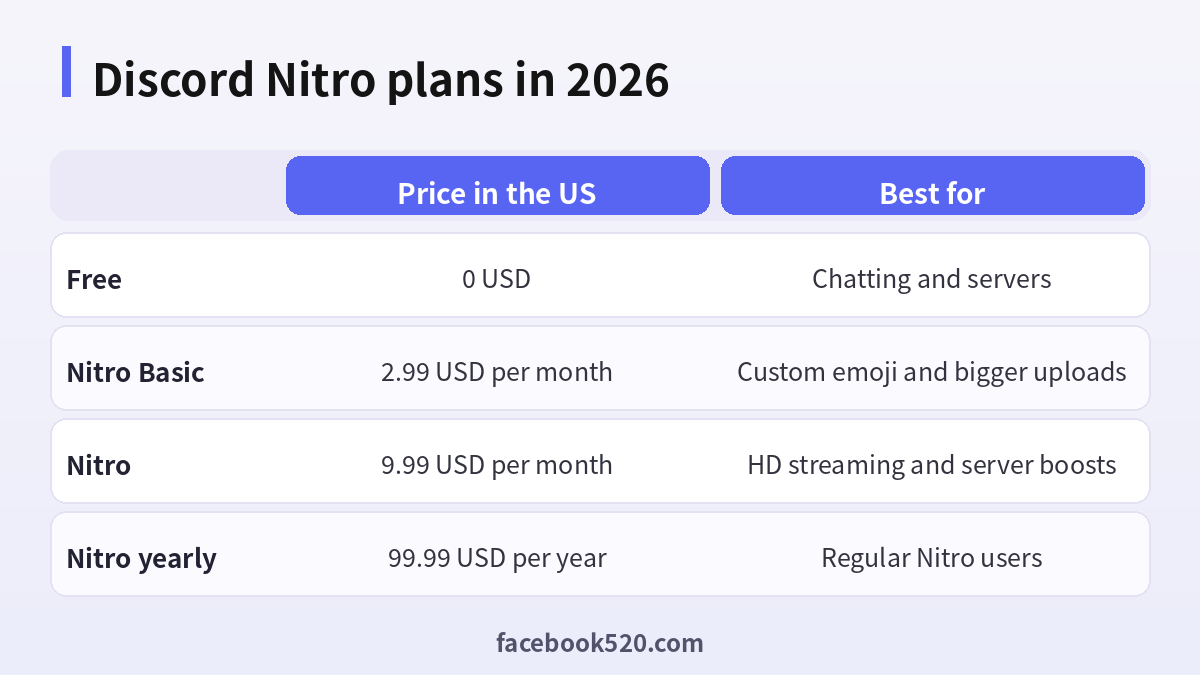
Nitro is an optional subscription that adds perks. In the US, Nitro Basic costs 2.99 USD per month or 29.99 USD per year, and Nitro costs 9.99 USD per month or 99.99 USD per year. Basic gives custom emoji everywhere, a larger upload limit and a few profile options. The full subscription adds HD streaming, the biggest upload limit, more profile customization, server boosts and access to extras. Nitro does not change how Discord moderates your account, and it does not remove age checks.
| Plan | Price in the US | Best for |
|---|---|---|
| Free | 0 USD | Chatting and servers |
| Nitro Basic | 2.99 USD per month | Custom emoji and bigger uploads |
| Nitro | 9.99 USD per month | HD streaming and server boosts |
| Nitro yearly | 99.99 USD per year | Regular Nitro users |
How to get or upgrade to Nitro the official way
Open User Settings, select Nitro or Subscriptions, choose Nitro Basic or Nitro, pick monthly or yearly billing and add a payment method. Confirm the price and the renewal date before you press subscribe. If you already have Nitro Basic and want the full plan, use the same page to change the plan. Mobile purchases may be billed through the app store, and prices there can differ. Gift Nitro is sold in the Gift Inventory and in the shop, and the recipient redeems it with the link or code. Never buy Nitro from a third party who asks for your password or a login code, because discounted Nitro is often paid with stolen cards and can be revoked later.
Common new account problems
If the verification email does not arrive, check spam and wait before requesting another email. If you see a message that the account is disabled, use the official appeal form on the support site. If you cannot join a server, the invitation may have expired or the server may require phone verification. If friends cannot find you, share the exact username instead of the display name.
Good habits for the first month
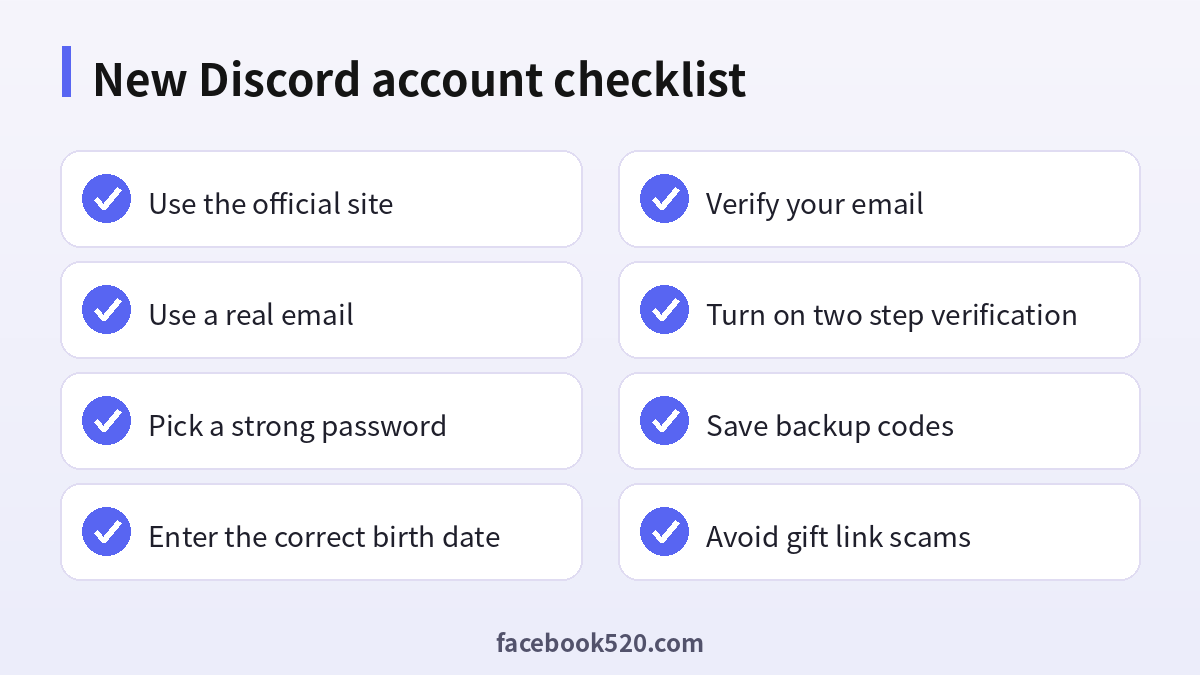
Do not click links in unexpected direct messages, even from friends, because hacked accounts spread phishing links. Treat any offer of free Nitro as a scam unless it appears in your own Discord settings or in an official promotion. Keep the app updated and review active sessions every few weeks. Decide whether you really need Nitro by tracking which perks you miss, and use the free plan until you have a clear reason to pay.
Devices, apps and browsers
Use the latest version of the official app or a modern browser when working with Discord. Keep your operating system updated, install security patches and avoid rooted or modified devices, which weaken protection. Browser extensions can read pages you visit, so remove those you do not trust. On mobile, download apps only from official stores, review the permissions they ask for and turn off those that are not needed. Lock your device with a PIN or biometrics so that a lost phone does not become a lost account.
Common mistakes to avoid with Discord
Most problems come from a handful of avoidable habits. People reuse the same password across several services, ignore security notices, click links in unexpected messages, install unofficial apps that promise extra features, or buy accounts and access from resellers. Others skip reading the terms, which leads to restrictions they did not expect, or forget to write down renewal dates and recovery details. Spend a few minutes reading the official help pages, keep your details up to date and treat anything that sounds too good to be true as a warning sign.
A monthly review habit
Set a reminder once a month to review your Discord setup. Check your security settings, payment method, connected apps and notification preferences. If you pay for anything, compare the charge with what you actually used and decide whether to keep, change or cancel. Update your recovery details if you changed phone number or email. Delete old data you no longer need. Ten minutes a month prevents most surprises and keeps your costs and risks under control.
Quick recap checklist
Before you finish, confirm the essentials for Discord:
- You are using the official website or app.
- Your password is unique and two-step verification is on.
- Recovery email and phone are current.
- Privacy settings match what you are comfortable sharing.
- You know the price, renewal date and how to cancel if money is involved.
- You saved receipts, confirmation emails and backup codes in a safe place.
- You know where to find the official help center.
Account security basics for Discord
Protect your Discord account before anything else. Use a long, unique password stored in a password manager, turn on two-step verification, and make sure the recovery email and phone number are ones you control. Review the list of devices and active sessions every few months and sign out of any you do not recognize. Never share one-time codes, even with someone who claims to work for support, because genuine support teams never ask for them. If you sign in on a shared or public computer, log out afterwards and avoid saving passwords in the browser.
When to contact official support
Contact support when you have tried the basic fixes and the problem remains, when you see an unexpected charge, when you suspect your account was accessed by someone else or when you are locked out. Prepare the account email, the date and time of the problem, the exact message you saw and screenshots. Describe what you did step by step and what you expected to happen. Use only the contact methods listed on the official site and ignore anyone who offers to fix things for a fee through social media or private messages.
Official sources versus unofficial offers
When you search for help with Discord, you will find both official pages and third-party offers. The comparison below shows why it pays to stay with official channels.
| Aspect | Official source | Unofficial offer |
|---|---|---|
| Price | Clearly shown at checkout | Often unclear or too low |
| Support | Documented help channels | Unreliable or none |
| Account safety | Protected by the platform | Risk of bans and data theft |
| Refunds | Governed by published terms | Rarely honored |
| Updates | Always current | Outdated or wrong |
Keeping up with changes
Features, prices and rules around Discord change more often than most people expect. Follow the official blog, release notes or help center, and read the emails you receive about policy updates instead of deleting them. When a guide such as this one gives a number or a menu name, treat it as a starting point and confirm it on the official site. If a change affects you negatively, you can usually adjust your plan, settings or usage, so act early rather than waiting for a problem.
Recognizing scams and fake offers
Scammers often imitate well-known brands such as Discord. Typical signs are urgent messages, requests for passwords or verification codes, links to look-alike websites, promises of free upgrades or guaranteed results, and payment requests through unusual channels. Always type the official address yourself or use a saved bookmark, check the sender of every email and never pay through a link sent by a stranger. If you think you were tricked, change your password, review recent activity, contact your bank if money was involved and report the message to the platform.
Helping family members and colleagues
If you are setting up Discord for someone else, such as a parent, a teenager or a coworker, guide them rather than doing everything silently. Explain why strong passwords and two-step verification matter, show them how to recognize suspicious messages and agree on who to ask before they click or pay for anything. For minors, follow age requirements and use the available parental or family controls. For teams, document who owns the account, who can approve spending and what to do when someone leaves.
Privacy and personal data
Before you enter personal information anywhere, ask what is really required. Use only the details that Discord needs, review the privacy settings after setup and limit who can see your profile, activity and contact information. Avoid posting documents, addresses, financial data or photos that reveal your location. Check which third-party apps are connected to your account and remove those you no longer use. If you work with client or company data, follow your organization’s policy and do not mix it with personal accounts.
Troubleshooting checklist
If something does not work as expected with Discord, go through the basics in order before contacting anyone:
- Check your internet connection and try again on a different network.
- Update the app or refresh the page, then restart the device.
- Clear the cache or try a private browser window without extensions.
- Confirm that you are signed in with the correct account and email.
- Look for the exact error message and search the official help center for it.
- Wait a short time before repeating an action, since repeated attempts can trigger temporary limits.
- If nothing helps, collect screenshots and contact official support.
Choosing between the app, the browser and the desktop client
The browser version is the fastest way to try Discord because nothing needs to be installed, and it is a good choice on a shared or work computer. The desktop client adds better voice quality, push-to-talk, game overlays and screen sharing with sound, so it is worth installing if you plan to talk with friends or run a community. The mobile app is best for notifications and quick replies. You can use all three at once with the same account, and settings such as your profile and server list follow you. Adjust the notification settings per server so that a busy community does not drain your battery or interrupt your sleep, and mute servers that you only visit now and then.
Budgeting for Nitro and server boosts
If you decide to subscribe, treat Nitro like any other subscription. Write down the renewal date, check whether the yearly price is lower than twelve monthly payments and ask whether you will use the perks every week. Server boosts are a separate way to support a community, and they require the full Nitro plan or a separately bought boost. Do not boost a server just because someone in chat asks, and do not send money to strangers who promise Nitro in exchange. A small, clear budget keeps the hobby enjoyable.
Frequently asked questions
Is Discord free to use?
Yes. The core features are free, and Nitro is an optional extra.
How old do I have to be to use Discord?
You must be at least 13 or the minimum age in your country.
Do I need a phone number?
Not always, but some servers require a verified phone number and it helps with recovery.
How do I get Discord Nitro?
Open User Settings, choose Nitro, select a plan and pay with a card or another available method.
What is the difference between Nitro and Nitro Basic?
Basic has fewer perks and costs less. Nitro adds HD streaming, server boosts and the largest upload limit.
Can I upgrade from Nitro Basic to Nitro?
Yes, from the subscription settings, and the price difference is handled by Discord.
Is cheap Nitro from third-party sellers safe?
No. Such offers often use stolen cards or ask for your login, and they can be revoked.
What should I do if my account is hacked?
Change your password, remove unknown sessions and apps, enable two-step verification and contact support.
Can I change my username later?
Yes, with some limits, and display names are more flexible.
Does Nitro remove age checks?
No. Age requirements apply to all accounts.
Summary
Create the account on the official site, verify the email, turn on two-step verification, adjust privacy settings and buy Nitro only through Discord when you actually need the perks.

