


Facebook Business Account (2026): How to Set Up a Business Page, Business Manager and Ad Account the Right Way
Searching for “Facebook business account” usually means one of three things: you want a Page for your brand, you want to run ads, or you want a central place for several people to manage everything. Facebook does not have a separate “business login” with its own username and password. Instead, a personal profile is used to sign in, and the business assets live next to it: a Page, a Meta Business portfolio (the tool still widely called Business Manager), and an ad account. Understanding how those pieces fit together saves you from the most common problems, such as ad accounts that cannot be recovered or Pages that only one person can reach. This guide explains the structure, walks through the setup and covers payment and security. Menus change often, so treat the labels as a guide and follow the official prompts if they differ.
How a Facebook business account really works
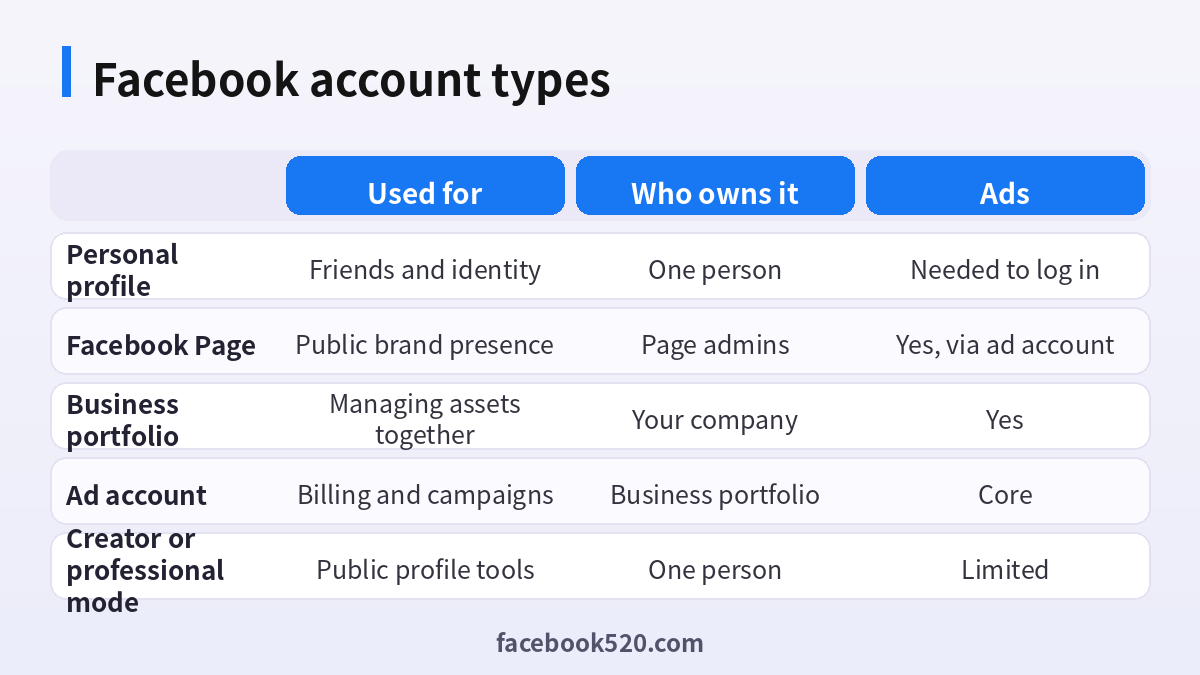
There are four layers.
- Personal profile. The login. Meta needs a real person behind every business asset, which is why fake or duplicate profiles cause trouble.
- Facebook Page. The public face of your business: name, category, posts, reviews and messages. Customers like or follow a Page, not your profile.
- Meta Business portfolio (Business Manager). A container that holds the Page, ad accounts, pixels, catalogs and the people who can access them. It belongs to the company, not to one employee.
- Ad account. Where campaigns, billing and payment methods live. It is attached to the business portfolio and to a Page that runs the ads.
You do not need all four on day one. A local shop may only need a Page. A company running ads for clients needs the whole stack.
Do you need a Page, a portfolio or both?
| Goal | Minimum setup | Recommended |
|---|---|---|
| Post updates and chat with customers | Page | Page plus a backup admin |
| Boost a post once in a while | Page and a simple ad account | Business portfolio |
| Regular advertising | Page, ad account | Business portfolio and roles |
| Agency managing clients | Business portfolio | Portfolio with partner access |
| Selling in a shop or catalog | Page, catalog | Business portfolio |
Before you start
Gather the following so that the setup takes minutes, not hours:
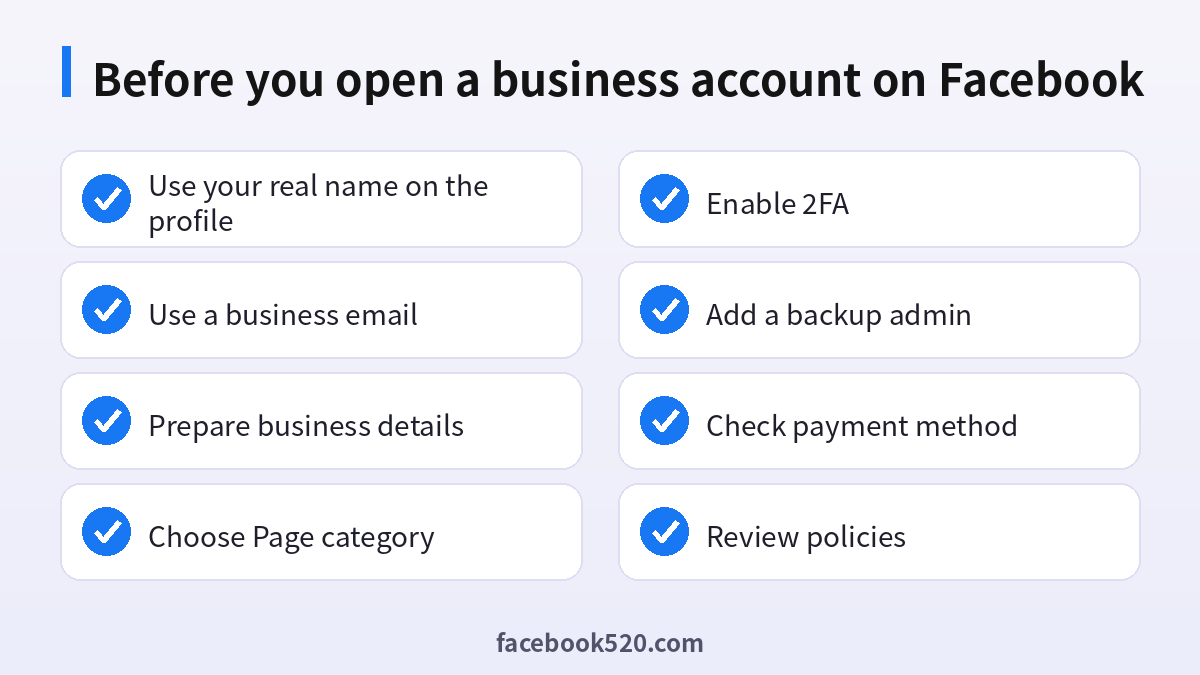
- A real personal Facebook profile that is in good standing. If you do not have one yet, follow our guide to Facebook sign up.
- A business email address that more than one trusted person can access.
- Your legal business name, address, phone and website. Meta may ask you to confirm them later.
- A logo (a square image) and a cover photo for the Page.
- A payment method that is in the name of the business, if you plan to advertise.
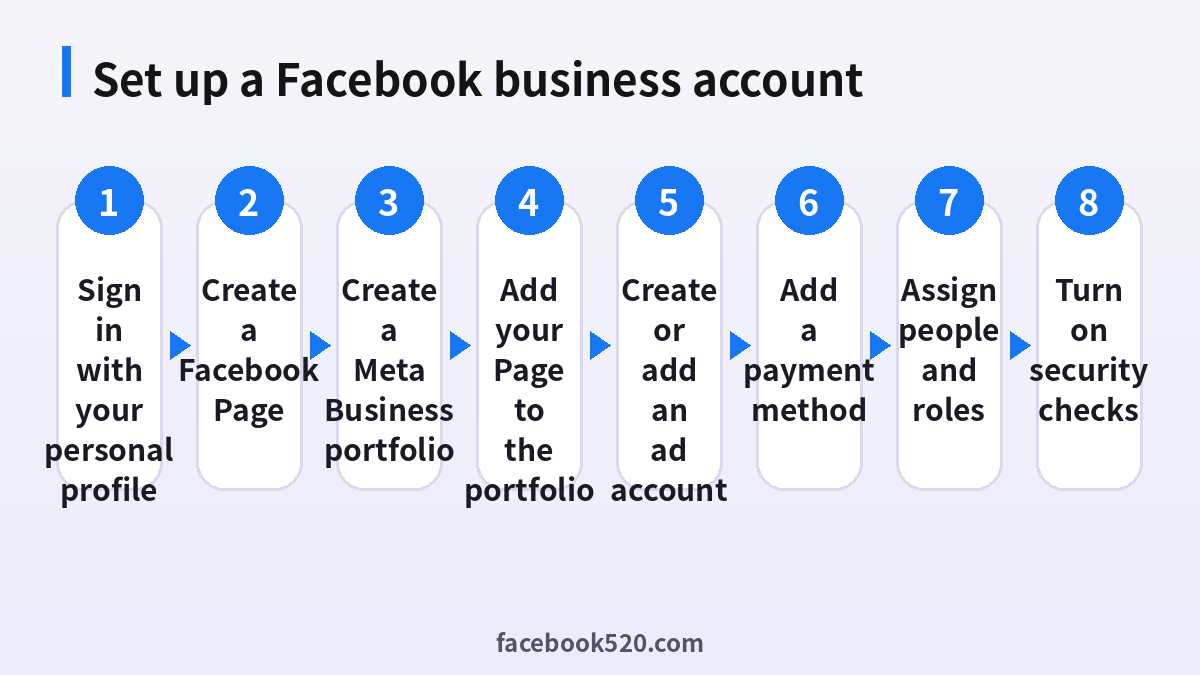
Step 1: Create the Facebook Page
- Log in with your personal profile and open the Pages section from the menu.
- Choose to create a new Page.
- Enter the Page name. Use your brand name and avoid adding extra words that look like spam.
- Select a category (for example Restaurant, Retail, Consulting). You can add more later.
- Add a short description, contact details and a profile picture and cover photo.
- Publish the Page and add a call-to-action button such as Message or Call.
Do not create several Pages for the same business. Duplicates split your audience and may be flagged.
Step 2: Create your Meta Business portfolio
- Go to the Meta Business Suite or Business settings page and choose to create a business portfolio.
- Enter the business name, your name and a business email address.
- Confirm the email address with the code that is sent to you.
- Add your business details when asked: country, address and website.
If the business is already known to Meta (for example a colleague created one), ask for access instead of creating a second portfolio. Our overview of Facebook Ads Manager and ad accounts covers how assets are shared across a business.
Step 3: Add your Page to the portfolio
In Business settings, open Accounts, choose Pages, and add the Page you own. If you created the Page with your personal profile you can claim it directly. If it belongs to a client, request access instead of claiming it. This keeps responsibility clear.
Step 4: Create or add an ad account
An ad account is where you set the currency, the time zone and the payment method. Two important notes:
- The currency and time zone of an ad account cannot normally be changed later, so choose carefully.
- Add the ad account to the portfolio so that it does not depend on one person’s profile.
You can create a new ad account or request access to an existing one that your company already uses. Avoid buying or borrowing ad accounts from others; they are tied to the original owner’s history and are a leading cause of lost spend and sudden blocks.
Step 5: Add a payment method
Facebook supports cards, some local payment options and, in some countries, direct debit or bank transfer. Add the method in billing settings, set a spending limit if you want one, and confirm any verification Meta asks for. For more detail on how Facebook payments work, see our guide to Facebook account payments and top-up. If a payment fails, check the card’s billing address, the online payment setting with your bank, and whether the ad account is restricted.
Step 6: Assign people and roles
Business settings let you add people by email and give them access to specific assets. Use the principle of least privilege:
- Admin access only for owners and one trusted backup.
- Employee access for people who run campaigns or reply to messages.
- Partner access for agencies, so that they work from their own business account rather than receiving your password.
Never share your personal password. If someone leaves the company, remove them in one place and the access disappears everywhere.
Step 7: Secure everything
- Turn on two-factor authentication on every admin profile and require it in the portfolio’s security settings.
- Keep at least two admins so that losing one profile does not lock you out.
- Verify your business if Meta offers it. Verification supports higher limits for some features.
- Review login alerts and authorized devices from time to time.
If an admin profile is disabled or hacked, the business assets can be affected. Learn how recovery works in Facebook account recovery before you need it.
Facebook business account vs related tools
People often mix up the available tools, so here is a quick summary.
| Tool | Main purpose | Needs a Page? |
|---|---|---|
| Meta Business Suite | Daily posting, inbox, insights | Yes |
| Business settings | Assets, people, permissions | Not strictly |
| Ads Manager | Create and track campaigns | Yes, for ads |
| Commerce Manager | Shops and catalogs | Yes |
| Creator Studio and professional mode | Content tools for individuals | Optional |
If you also use Instagram for your brand, you can connect an Instagram professional account to the same business. Our Instagram account guide explains the account types.
Common mistakes and how to avoid them
- Using a fake profile. Profiles with invented names are frequently disabled, and the assets attached to them become inaccessible.
- One admin only. If that person is locked out, you cannot recover quickly.
- Using a personal credit card for several unrelated clients. Keep billing separated by business.
- Buying aged ad accounts or Pages. They carry unknown history and may be shut down.
- Ignoring policy notices. Read the notice and act before the deadline; appeals work best when you respond quickly.
- Changing the Page name repeatedly. Frequent changes can trigger review.
Troubleshooting
I cannot create a business portfolio. The profile may be new or restricted. Use it normally for a while, confirm the email and phone number and try again.
My Page is not visible. It may be unpublished, restricted by age or country settings, or under review.
The ad account is disabled. Open the Account Quality page, read the reason and submit the appeal inside the tool. Do not create dozens of new accounts; that can make things worse.
Payments are declined. Check the card, the billing country and any security prompts from your bank. Use a payment method in the same country as the ad account when possible.
Page roles: who should get which level of access
A Facebook Page can be managed by several people, and the role you give each person decides what they can do. Meta changes the labels and the exact permission list from time to time, so check the screen in your own account, but the logic is stable: some access levels cover everything including adding or removing admins, others only cover posting, replying to messages, running ads or reading insights. Follow the principle of least access:
- Keep full control for two trusted people only, so the Page never depends on one login.
- Give an editor or content-level role to the person who posts every day.
- Give message and community access to whoever answers comments and inbox questions.
- Give ad-only access to an agency or freelancer who runs campaigns, and remove it when the contract ends.
When someone leaves the team, remove their access the same day and review who still has it once a quarter.
Choosing the Page name, category and username
The name of the Page should match what customers already call your business, without extra keywords added for search. Pages that look keyword-stuffed or that imitate another brand are more likely to be reviewed and refused. Pick a category that describes the main activity, for example a local business type or a brand or product category, and fill in the contact details, hours and website so the Page looks like a real organization. A short username (the part after facebook.com/) is easier to print and say aloud; if your preferred name is taken, add the city or a short word rather than random numbers. Changing the name later is possible but is reviewed, so settle it before you promote the Page.
Meta Business Suite and the shared inbox
Once the Page exists, Meta Business Suite is the place where you schedule posts, read the inbox for Facebook and Instagram messages, and see basic insights in one view. Use it to reply to comments and messages from a single screen and to set up saved replies for frequent questions such as opening hours or delivery. If several people answer customers, agree on one rule for who answers what, so the same customer does not get two different replies. Notifications can be set per person, which keeps the admin from receiving every alert.
Ad account basics: currency, time zone and spending limits
When you create an ad account, two settings deserve attention: the currency and the time zone. In most cases they cannot be changed afterwards, so choosing the wrong ones means creating a new ad account later and starting its history again. Choose the currency in which you will actually pay and the time zone of the team that reads the reports, because daily budgets and reporting days follow that time zone. A spending limit on the account is optional but useful when an agency runs campaigns, since it caps what can be charged even if a campaign is set up incorrectly. Remember also that a new ad account usually starts with a modest spending limit that grows as payments succeed, so do not plan a large launch on day one.
Why a card or payment method gets declined
Payment failures are among the most frequent reasons a campaign does not start. Typical causes are:
| Cause | What to check |
|---|---|
| Card not enabled for online or international use | Ask the bank to allow the transaction type |
| Billing name or address does not match the card | Re-enter the details exactly as the bank has them |
| Not enough available balance or limit | Check for pending authorizations |
| Bank security check | Approve the verification prompt in the banking app |
| Currency mismatch | Confirm the card can be charged in the ad account currency |
| Prior failed attempts | Wait, then try again instead of retrying repeatedly |
If the card is fine and the error continues, add a second payment method rather than repeating the same attempt, and contact support through the official help center.
Business verification and domain verification
Some features, for example higher limits or certain advertising and messaging tools, may ask you to verify the business. Verification generally means submitting official documents that show the legal name, address or phone number of the company, and confirming control of your website domain by adding a DNS record or a file to the site. Prepare documents in the same name that appears in the portfolio, because mismatches are the usual cause of rejection. Domain verification is worth doing even if it is not required, because it ties your website to your portfolio and makes later ad and tracking settings easier to manage.
If your personal profile is locked or you cannot log in
A business account depends on a personal profile, so a locked profile can block access to the Page and the ad account. If you lose access, use the official recovery and identity-confirmation flow on facebook.com/login/identify rather than creating a duplicate profile, because duplicates can lead to further restrictions. Make sure at least one other trusted person has admin access to the Page and the portfolio; this backup admin is the single most useful protection against a lockout. Keep a record of the email addresses used for the account, and do not pay third parties who promise to restore access, since they are a common scam.
Frequently asked questions
Can I have a Facebook business account without a personal profile?
No. Business tools are accessed through a personal profile, although you can keep your personal content private and use the profile only for work.
Is a Facebook business account free?
Creating a Page and a business portfolio is free. You only pay for ads and any paid features you choose.
What is the difference between Business Manager and Business Suite?
Business settings (the older Business Manager) manage assets and permissions. Business Suite is a daily workspace for posting and messages.
How many Pages can I manage?
Meta does not publish a single fixed number for everyone. Create Pages only for real brands and locations.
Can two people manage the same Page?
Yes. Add them in the Page or business settings with the role they need.
Do I need a business account to run Facebook ads?
You need a Page and an ad account. Using a business portfolio is strongly recommended for control and security.
Can I change the name of my business account?
You can change the business portfolio name in settings and the Page name through the Page’s name request. Changes may be reviewed.
Can I connect Instagram and WhatsApp?
Yes, a professional Instagram account and a WhatsApp Business account can be connected to the same portfolio.
Why was my ad account restricted right after creation?
Common reasons include a new profile with little history, payment issues, policy concerns or a mismatch in business details. Check Account Quality and appeal.
Can I transfer a Page to another business?
Yes, by adding the Page to the other portfolio and removing it from the first, subject to permissions and verification.
How do I delete a business account?
You can remove assets from the portfolio or delete the Page. Deleting a portfolio involves removing its assets first. Back up what you need before you start.
Is it safe to give an agency access?
Yes, if you use partner access rather than sharing passwords, and you can revoke it at any time.
Conclusion
A Facebook business account is not a single login but a structure: a real personal profile, a Page, a Meta Business portfolio and an ad account with a payment method. Build it in that order, assign at least two admins, turn on two-factor authentication and keep billing under the business. That structure makes advertising easier, protects you from lockouts and lets your team grow without sharing passwords.
