


YouTube Account (2026): Complete Guide to Sign-Up, Setup, Top-Up & Payment
A YouTube account starts with a Google account, and a channel is what you create on top of it. From there you can add brand accounts, manage monetisation, run ads through Google Ads and subscribe to Premium. This guide gives the full picture in one place.
This guide is organised as a hub: it explains each account type in YouTube, how registration works, how advertising and payment fit in, what to think about if you want to buy a ready-made account, and how to keep everything secure. Where a topic deserves a deeper walk-through, you will find a link to a dedicated article.
YouTube account types at a glance
| Type | Best for | Notes |
|---|---|---|
| Google account | The login that owns the channel | Needed to watch, subscribe and comment |
| Personal channel | Individual creators | Tied to your own Google account |
| Brand account channel | Brands and teams | Can have several owners and managers |
| YouTube Studio | Managing videos and analytics | Opened from your channel |
| YouTube Ads account | Advertising | Managed in Google Ads and linked to your channel |
| YouTube Premium account | Ad-free viewing | Subscription tied to a Google account |
Most problems people have with YouTube come from mixing these layers up: using a personal login for a team, or expecting an ad account to behave like a profile. Decide which layers you really need, then build them one at a time.
How to sign up for YouTube
- Sign in to YouTube with a Google account, or create one.
- Click your profile icon and choose Create a channel.
- Enter a channel name and handle.
- Upload a profile picture and a banner.
- Verify with a phone number to unlock features such as longer videos and custom thumbnails.
A detailed walk-through with troubleshooting is available in the how to create a YouTube channel.
Business and advertising accounts
YouTube video ads are created and managed in Google Ads. You link your YouTube channel to the Google Ads account, upload the video, choose a campaign type and set a budget. The same principles explained for old Google ad accounts apply, which you can read about in how to apply for and purchase an old Google ad account.
Good practice for any advertising account:
- Create the business structure first, then the ad account, then the payment method.
- Give every person the lowest role they need.
- Start with a small budget and one clear objective.
- Keep a record of account IDs, owners and billing details.
Payments, top-ups and billing
- Google Ads accounts are paid by card or bank transfer, depending on your country.
- You can choose automatic payments or prepaid funds in some regions.
- Check the account’s currency and timezone, which are fixed after the first setup.
- Premium subscriptions are paid separately through your Google account.
For a related, more detailed guide see the YouTube channel creation guide.
Buying a ready-made YouTube account
People buy existing channels to save time on subscribers, history and content. A careful buyer checks analytics, strikes, ownership and monetisation, and secures the channel immediately after transfer. More detail is in the multi-platform accounts-for-sale overview.
- Ask for the creation date and proof of history.
- Confirm who controls the original email and phone.
- Test the login yourself before paying the balance.
- Change every credential and enable two-factor authentication immediately.
- Document what you bought and from whom.
Security checklist for YouTube
- Use two-step verification on the Google account.
- Prefer a brand account for team channels.
- Share access with roles instead of passwords.
- Keep recovery email and phone up to date.
- Review connected apps in Google security settings.
Which setup is right for you?
- Individuals and hobbyists: a personal YouTube account is enough.
- Creators and small shops: a creator or business profile unlocks analytics and selling tools.
- Agencies and companies: a structured business setup with several admins, a documented process and a dedicated payment method.
- Teams testing campaigns: several accounts with clear naming and separate budgets.
Planning your first month on YouTube
- Week one: create or review the account, finish profile details and secure it.
- Week two: publish a few pieces of content and learn what the analytics show.
- Week three: if you need paid reach, set up the ad account and payment method and test a small budget.
- Week four: review results, keep what works and document the process for your team.
How the pieces fit together
Think of YouTube as three layers. The first is the identity layer: the login, email and phone that prove who controls the account. The second is the presence layer: the profile, channel, page or community people actually see. The third is the commercial layer: advertising accounts, billing, catalogues and team roles. Problems appear when the layers are mixed, for example when a company’s advertising depends on one person’s personal login. Keep the identity layer secure and documented, build the presence layer for your audience, and add the commercial layer only when you are ready to spend.
Build it yourself or buy a ready-made account?
Creating a new YouTube account costs nothing but time, and it gives you a clean, documented history. Buying a ready-made one can save weeks, particularly when age or an existing audience matters, but it adds the work of verifying what you receive and securing it. A balanced approach is to build your main brand assets yourself and consider buying only for secondary or test accounts, after you have a verification routine. Whichever way you go, record who controls each credential.
What does it cost to run YouTube?
- The account itself is free; creating a profile, page or channel normally costs nothing.
- Advertising is the main variable cost, and you decide the budget.
- Optional subscriptions or purchases (premium tiers, coins, verified badges) are billed separately.
- Tools around the platform, such as scheduling software or design tools, add monthly costs.
- Time is the hidden cost: content, community management and reporting.
Because pricing in these areas changes often, always confirm current numbers on the official pages and treat any quoted figure as a snapshot.
Team access and handovers
When several people work on YouTube, give each person their own login and a role, and avoid sharing one password. Keep a short register of who has admin rights, which email recovers the account and where two-factor backup codes are stored. When someone leaves, remove their access first and then rotate any shared secrets. If you hand an account to a client or a new owner, transfer ownership formally through the platform’s tools, check that recovery details have been replaced and keep a copy of the agreement.
Glossary
- Identity: the login credentials and recovery details of an account.
- Role: a permission level such as admin, editor or analyst.
- Ad account: the object that holds campaigns, budgets and billing.
- Pixel or tag: a snippet that measures conversions from your website.
- Top-up: adding prepaid funds to an ad or service balance.
- Warm-up: the period of gradual, normal activity that helps a new account build trust.
Pre-launch checklist for campaigns
- Confirm the account owner, admin roles and recovery email.
- Check the currency, time zone and billing country.
- Add a primary and a backup payment method.
- Install tracking and test it.
- Prepare creatives, landing pages and a small test budget.
- Set spending limits and notification emails.
Measuring what matters
After the setup is done, decide in advance how you will judge results on YouTube. For organic activity that may be reach, saves and follower growth; for paid activity it is cost per result and return on spend. Review the numbers weekly instead of daily, because short-term swings are noisy, and write down what you changed each time so you can connect cause and effect. A simple spreadsheet with date, change, budget and result is usually enough to start.
Recovering access when something goes wrong
If a login stops working, begin with the official recovery page and use the email or phone that you registered. Gather evidence of ownership: the sign-up email, the approximate creation date, devices you used and any receipts from paid features. Avoid anyone who contacts you offering to restore the account for a fee, and never share your password. If a business asset depends on the account, the roles you set up earlier with a second administrator are your best insurance, because another admin can often restore access without a full recovery request.
Common mistakes
- Using one personal login for every business function.
- Changing account details repeatedly in the first days.
- Ignoring the currency and time zone of the ad account.
- Having only one administrator.
- Letting cards expire without a backup payment method.
Who Uses YouTube and How: Scenarios
- People creating a first channel: A personal Google account is enough to start. Choose a channel name and handle you can live with, because they appear everywhere.
- Brands and teams: Create a Brand Account so several people can manage the channel with their own logins and so ownership does not depend on one individual.
- Creators planning to earn: Monetisation through the YouTube Partner Program depends on thresholds and policies that change over time, so read the current requirements in Studio before planning revenue.
YouTube at a Glance
- Typical use: long-form video and Shorts publishing, channel growth and video ads.
- What you need: a Google account plus a channel name and a profile picture.
- Common friction: channel name changes are limited, monetization requires meeting official thresholds, and copyright or community-guideline strikes affect a channel.
- Security tools: Google two-step verification and brand-account permission management.
Which YouTube Route Fits? Comparison and Verdict
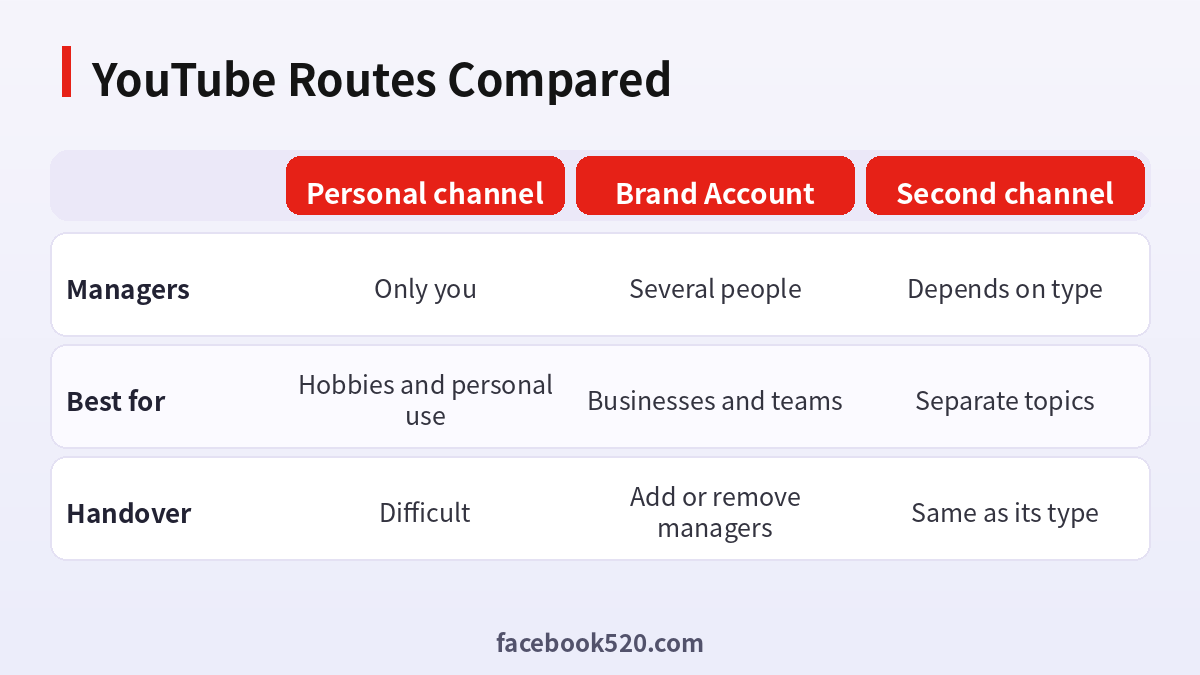
| Factor | Personal channel | Brand Account | Second channel |
|---|---|---|---|
| Managers | Only you | Several people | Depends on type |
| Best for | Hobbies and personal use | Businesses and teams | Separate topics |
| Handover | Difficult | Add or remove managers | Same as its type |
Verdict: Create a Brand Account if more than one person will touch the channel or you might sell or hand it over later. Stay with a personal channel for solo, low-stakes use. Use a second channel only when the topics or audiences are really different.
Opening a channel properly
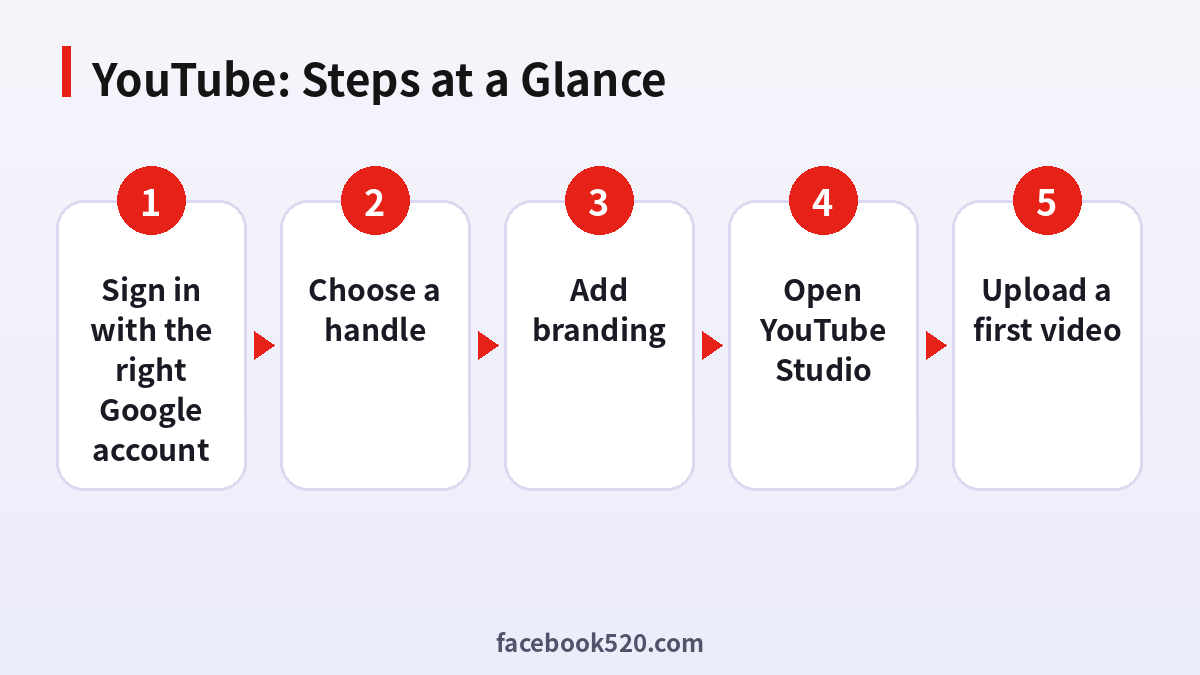
- Sign in with the right Google account: Use an account whose email you will keep.
- Create the channel: Click your profile picture, choose Create a channel and pick a personal or custom name.
- Choose a handle: Pick a short handle that matches your name.
- Add branding: Upload a profile picture and a banner.
- Open YouTube Studio: Check the dashboard, settings and upload defaults.
- Verify your phone: Phone verification unlocks features such as longer videos and custom thumbnails.
- Upload a first video: Test privacy settings with an unlisted upload.
Common YouTube Errors and What to Do
| Symptom | Likely cause | What to do |
|---|---|---|
| Cannot create a second channel | The type or limit applies | Use the channel switcher or a Brand Account. |
| Handle not available | Already taken | Try variants with your topic. |
| Upload stuck | Network or file issue | Try a different format or connection. |
| Custom thumbnails disabled | Account not verified | Verify the phone number in Studio. |
| Cannot see Studio | Wrong Google account | Switch accounts at the top right. |
Naming for search
A channel name that includes your topic can help people understand you, but a short brand name is easier to remember. Combine them with a clear banner and a description in the About page.
Studio defaults to set early
Set default title formats, categories and visibility before you upload many videos. It saves time and keeps the library consistent.
Understanding the audience tab
Studio’s audience pages show countries, ages and when viewers are online. Use them to pick posting times and the language of your next videos.
Playlists and sections
Playlists tell viewers what to watch next and also tell YouTube how videos relate. Create two or three around your main topics from the start.
Account safety
Use two-step verification and a recovery email, and review which apps have access to your Google account. A channel is only as safe as the Google account behind it.
Choosing between one channel and several
Several channels split attention and effort. Create a second only when topics or languages are clearly distinct, and give each its own branding. Many creators do better by building one channel with playlists for different topics than by managing several half-empty ones.
Thumbnails and titles
Viewers decide in a moment whether to click. Use a clear, large subject in the thumbnail, keep the title honest and specific, and test one change at a time so that you can tell which change moved the click rate in Studio.
Setting up for the long term
Write down which Google account owns the channel, which email recovers it, and who holds the backup codes. Move that note to a secure place. If you ever need help or want to hand over the channel, that single page saves days of confusion.
Reading the first reports in Studio
After the first few uploads, open the Analytics tab and look at impressions, click-through rate and average view duration together. Impressions tell you whether YouTube is testing the video, click-through tells you whether the package works, and view duration tells you whether the content keeps its promise. Change only the weakest of the three next time.
Copyright and reused material from day one
Use music, clips and images that you created or have a clear right to use. Claims on a new channel can limit monetisation later, and removing a problem video is easier than arguing about it. Keep a small folder with licences and source links for every asset you use, so you can answer a claim in a few minutes.
Community posts and comments
Once the channel has the feature, use community posts to ask what viewers want next and reply to early comments within the first hours. Early engagement helps you learn what people care about and builds the habit of two-way conversation that keeps viewers returning.
YouTube Self-Check List
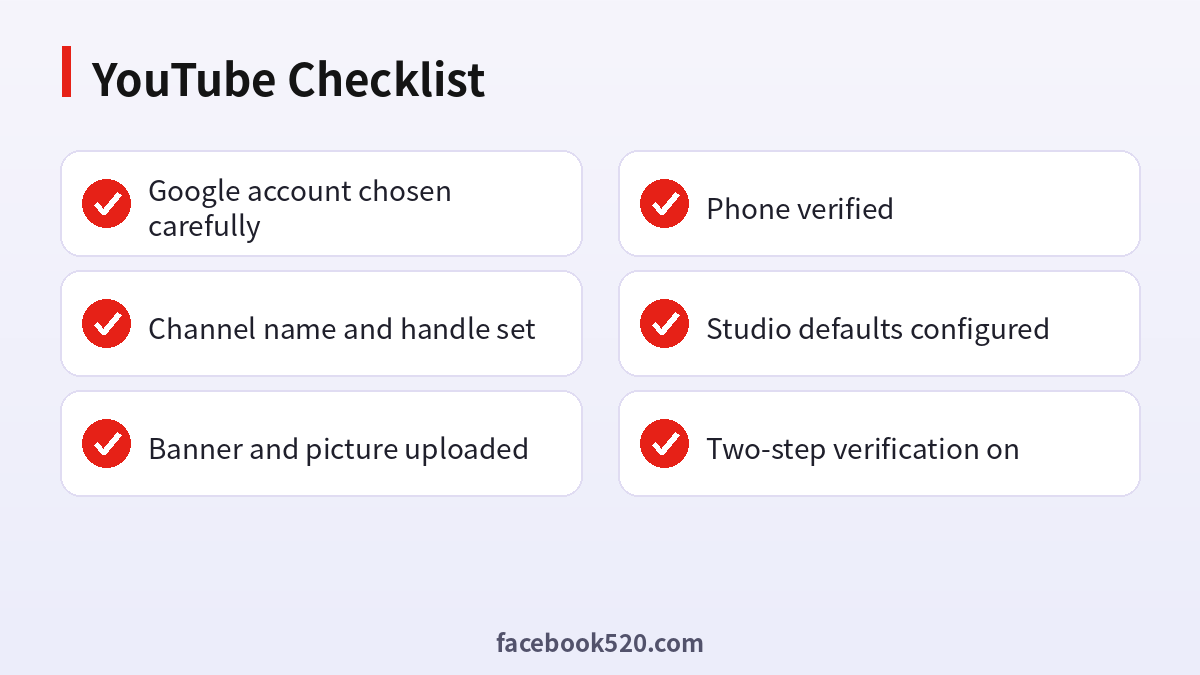
- Google account chosen carefully
- Channel name and handle set
- Banner and picture uploaded
- Phone verified
- Studio defaults configured
- Two-step verification on
YouTube account FAQ
Do I need a separate Google account for YouTube?
No, but a dedicated account is cleaner for business use.
What is a brand account?
A channel that is not tied to a single person’s personal identity and can have several managers.
How do I pay for YouTube ads?
Through the linked Google Ads account using the payment methods available for your country.
Can I change my channel name?
Yes, within the limits shown in YouTube Studio.
How many YouTube accounts can I have?
Policies differ, but you can usually manage several accounts as long as each has its own verified credentials and is used in line with the platform’s rules.
What should I do if I lose access?
Use the official recovery flow first. Keep recovery email and phone current, and never pay anyone who promises a guaranteed unlock.
Can I have more than one YouTube channel?
Yes, through Brand Accounts or the channel switcher, as the platform allows.
How many subscribers do I need to earn?
Thresholds are set by the platform and can change, so check the YouTube Partner Program page in Studio.
Can I change my handle later?
Yes, with limits on how often.
Why can I not upload long videos?
Phone verification may be required. Verify in Studio.
