


Open an Account in Twitter 2026: Sign-Up Steps on X, Handle Choice, Business Setup and Fixes for Verification Problems
Many people still say Twitter when they mean X, and many still search for open an account in twitter. The network has changed its name and some of its screens, but the basic job is the same: you create an account with a name, a contact method and a handle, confirm that you are a real person, and start following others. This guide walks through that process on the web and in the mobile app, explains how to pick a handle you will not regret, shows what changes if you want a business or professional presence, and gives fixes for the problems new users meet most, such as a verification code that never arrives or a message that says you cannot sign up right now. Prices for paid features are not quoted because they vary by country and change over time.
Before you start: what you need
Gather four things first. A working email address or phone number that you control, because the account needs at least one way to confirm it is yours. A name you are comfortable showing publicly, which can be a person or a brand. A date of birth, which the service asks for. And ten quiet minutes, because the verification screens work best when you do not jump between networks. If you plan to run the account for a company, create it using a shared company mailbox rather than one person’s private address, so that access survives staff changes.
Choosing between the web and the app
You can open an account in a desktop browser or in the mobile app. The web version is easier if you want to type longer bios and upload a header image from your computer. The app is convenient for confirming a phone number by text and for allowing notifications. Both lead to the same account, so you can start on one and continue on the other. Use only the official site and the official app listing in your device store, and be cautious of lookalike pages that ask for your password before you even have an account.
Personal and business use compared
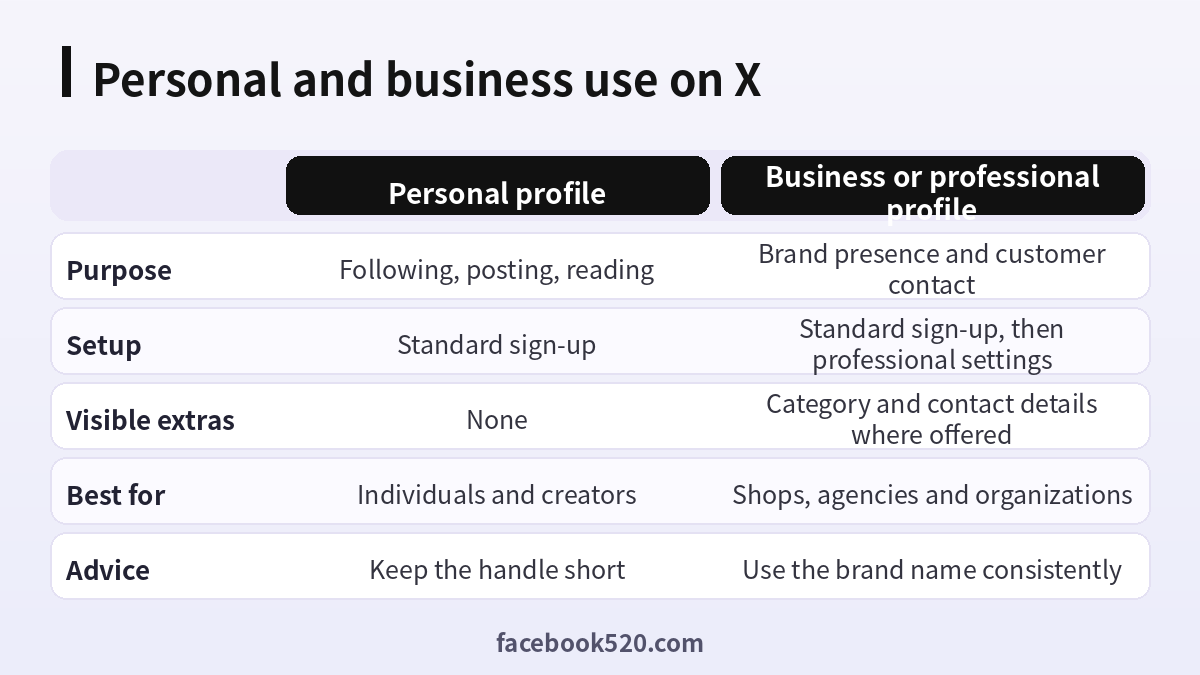
| Aspect | Personal profile | Business or professional profile |
|---|---|---|
| Purpose | Following, posting, reading | Brand presence and customer contact |
| Setup | Standard sign-up | Standard sign-up, then professional settings |
| Visible extras | None | Category and contact details where offered |
| Best for | Individuals and creators | Shops, agencies and organizations |
| Advice | Keep the handle short | Use the brand name consistently |
Step by step: open an account in Twitter on X
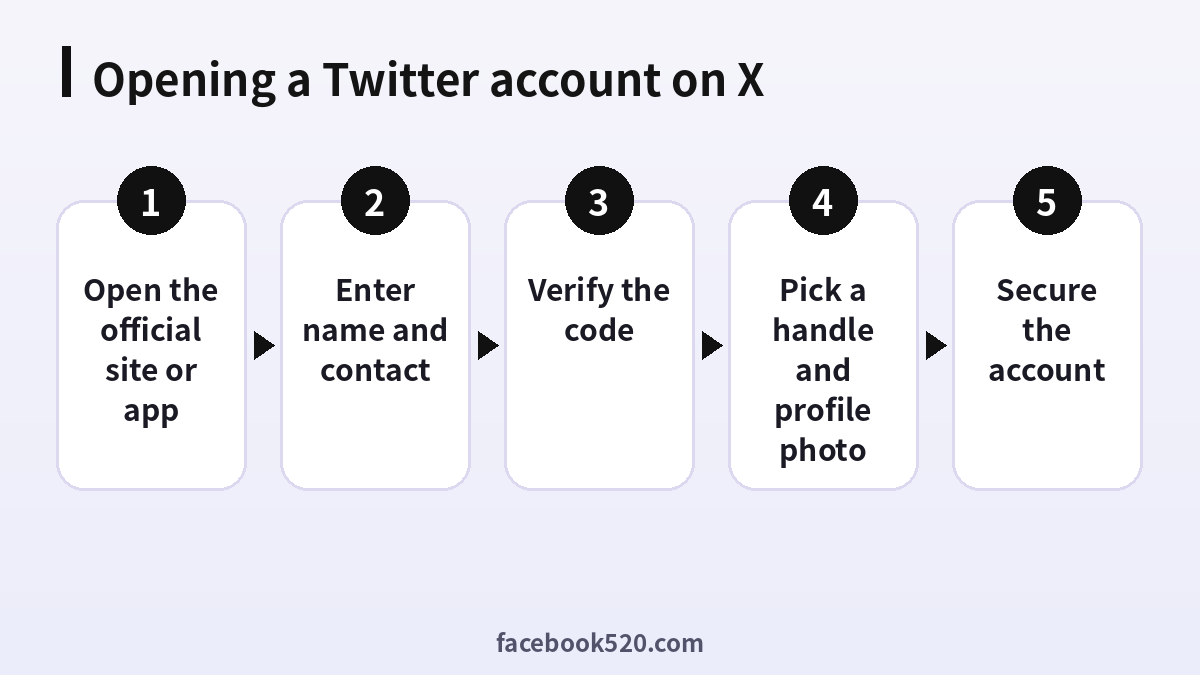
- Open the official site or app. Go to the official address in your browser or install the app from your store, then choose the option to create an account.
- Enter name and contact. Provide your display name and either an email address or a phone number. Add your date of birth when asked.
- Verify the code. A short code is sent to the contact you entered. Type it in to prove you control it.
- Pick a handle and profile photo. Choose the username that appears after the at sign and upload a picture so the account does not look empty.
- Secure the account. Create a strong password, then open settings and turn on extra sign-in protection.
How to choose a handle
Your handle is the part after the at sign. It appears in links, in replies and when people mention you, so treat it as a small piece of branding. Short handles are easier to read and to type. Avoid long strings of digits, which look like automatically generated accounts. For a person, a variation of your real name works well. For a business, use the brand name or the closest available version, and use the same wording across other platforms so customers can find you. If your first choice is taken, add a clear word such as hq or official only if it is true, rather than random numbers.
Display name versus handle
The display name is what appears in bold and can be changed freely. The handle is the unique identifier and is limited in length and in the characters it accepts. You can usually change either later, but changing a handle breaks old links to your profile, so choose carefully at the beginning. Keep the display name consistent with how you present yourself elsewhere, and avoid stuffing it with keywords or emoji, which can make a new account look low quality.
Setting up the profile so it looks real
An empty account gets few followers and is more likely to be treated with suspicion by other people. Spend five minutes on a clear profile picture, a short bio that says who you are or what the business does, a location if relevant and a link to your website. Add a header image that matches your brand colors. Pin a first post that introduces you. Follow some accounts relevant to your interests or industry so the home timeline has useful content on day one.
Opening a business or professional presence
There is no separate sign-up page just for businesses. You open a normal account and then adjust its settings and profile. In your settings, look for options related to professional or business profiles and choose a category if one is offered. Add contact details that customers can use. Decide who in the company will have access, and avoid sharing a single password in chat. Where team access features are available, use them instead. Write a bio that states what you sell or do and how to reach support. You can read more about the network on the page for Twitter.
Using a shared mailbox for a company account
If the account represents an organization, register it with a role based address such as a social media or marketing mailbox, and store the credentials in a team password manager. When the person who created the account leaves, the company still controls the recovery email. This one habit prevents the most common business problem: a brand account that nobody can recover because it was tied to an employee’s personal phone or inbox.
If the verification code does not arrive
| Symptom | Likely cause | What to try |
|---|---|---|
| No email code | Message filtered or typo | Check spam and the spelling of the address |
| No text message | Carrier delay or blocked sender | Wait a few minutes, then request again once |
| Code says invalid | Old code used | Use the newest code only |
| Too many attempts | Safety limit | Pause for a while and retry later |
| Need another method | Contact method rejected | Try the other option, email or phone |
Avoid pressing the resend button repeatedly because that can trigger rate limits. If one contact method fails, switch to the other. Make sure you are not using a temporary or disposable mailbox, which the service may refuse.
When it says you cannot sign up right now
Sometimes the sign-up flow stops with a general error. Typical reasons are an unusual network, a browser extension interfering with the page, too many attempts from the same connection, or automated checks that need more time. Try a different browser or the mobile app, turn off extensions that block scripts, switch from a shared or public connection to your normal one, and try again after some hours. Do not use tools that promise to bypass checks. If the problem persists, the help center is the right place to ask.
Security settings to turn on immediately
Open your settings and find the security section. Enable two step sign-in, preferably with an authenticator app, because text message codes can be intercepted if a phone number is hijacked. Review which apps have access to your account and remove any you do not recognize. Check the sessions list for devices you do not use. Save backup codes somewhere safe. Use a password you use nowhere else, ideally generated by a password manager.
Privacy choices for a new account
You can keep your posts public so anyone can see them, or protect them so only approved followers can. Business accounts normally stay public. Personal accounts may choose to limit who can find them by email or phone number, and who can tag or message them. Review the discoverability settings during the first week. If you plan to use the account for professional work, keep a separate private account for friends and family.
Notifications and the first settings pass
New accounts tend to send a lot of email and push alerts. Open the notification settings and decide what matters: mentions and replies are usually useful, while recommendations and digest emails can be switched off. On the mobile app, allow notifications only after you know which ones you want, and you can adjust sound and banner style in your phone settings. Review the content preferences too, such as muted words, sensitive content filters and the language shown, so that the timeline feels comfortable from the start.
Learning the basics: posts, replies, reposts and lists
A post is your own message, a reply is an answer to someone else, and a repost shares another account’s message with your followers. Lists let you group accounts by topic without following all of them, which is handy for tracking a competitor set or a news source set. Bookmarks save posts privately for later. Spend a short while experimenting with each one on a private test post, then delete it. Understanding these basics prevents the awkward mistakes new users make, such as replying publicly when they meant to send a direct message.
Building a posting routine that you can keep
A small, steady routine beats a rushed burst. Decide on two or three topics you will talk about, and aim for a modest number of posts per week. Use a simple calendar to plan a few pieces ahead, mixing short observations, links to useful material and replies to others. Check your analytics now and then to see which posts earned attention, and repeat what worked. If you manage a business account, write down a tone of voice and a short list of subjects to avoid, so that anyone on the team posts in the same style.
Handling direct messages and spam safely
Strangers sometimes send direct messages with links promising giveaways, verification help or investment tips. Treat them as suspicious. Do not click links in messages from accounts you do not know, never share a login code, and never enter your password on a page you reached from a message. The platform will not ask you for a code over a direct message. If something looks wrong, report the account and block it. For a business account, publish an official support contact in the bio so customers know where genuine help comes from.
What happens after you open the account
The first days matter. Post a few useful updates before following large numbers of accounts, because rapid following behavior can look automated. Reply thoughtfully to others in your field. Avoid buying followers or using automation tools, which can lead to restrictions. If your account is ever limited or suspended, the process in the guide to a suspended Twitter account explains the appeal route. Consistency beats bursts of activity.
Paid options without confusion
Some features, such as a verification badge and extended posting options, are sold through a subscription. You do not need it to open or use an account. If you consider it later, read the details on the official subscription page for your region, check whether you would buy through the web or an app store, and note the renewal date. Never pay a third party for a badge, because only the platform can assign one.
Opening more than one account
People often need a personal account and a business account, or accounts for different brands. This is generally possible, but each account needs its own handle and should have its own email. Use the account switcher in the app rather than logging out and in repeatedly. Keep a simple table of which email, phone number and owner belongs to each account, and keep it in a shared secure place.
Three short examples
A freelance designer. Lena registers with her personal email and picks her name as the handle. She sets a portfolio link in her bio, pins an introduction post and turns on two step sign-in the same day.
A local bakery. The owner creates the account with the shop’s shared mailbox, uses the shop name as the handle, writes opening hours in the bio and lets two employees manage posts through team access instead of sharing the password.
A student group. The club president opens an account with a club email, then writes the recovery steps in a shared document so the next committee can take over when she graduates.
After opening your Twitter account
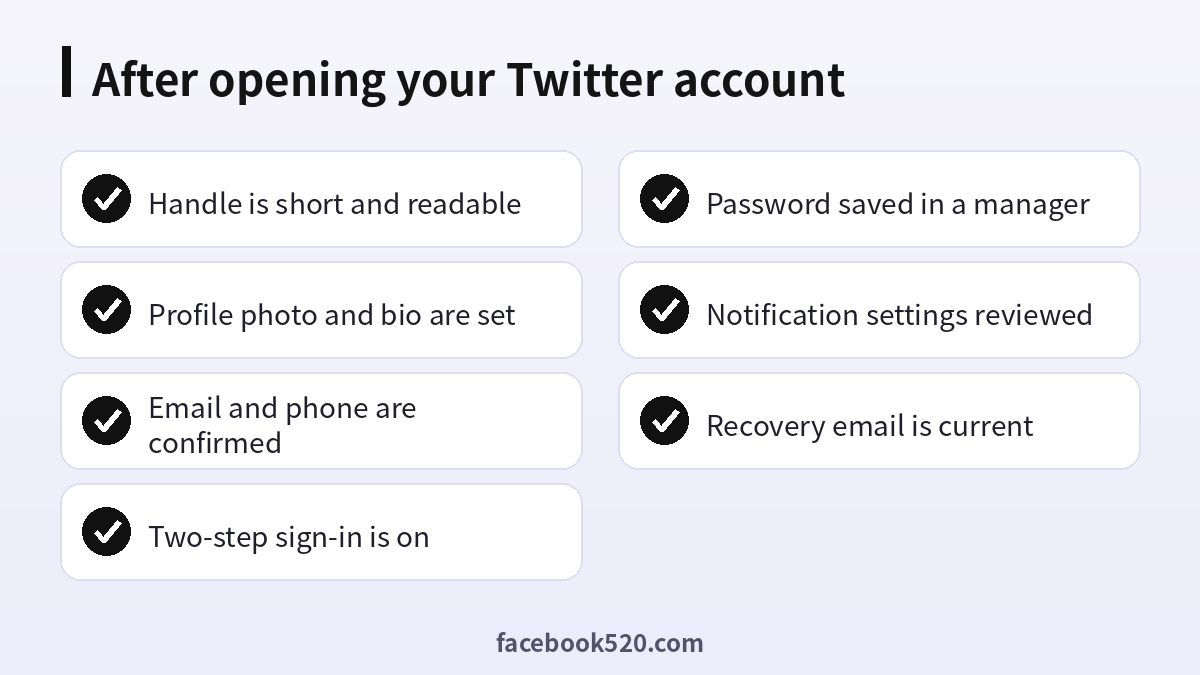
- Handle is short and readable
- Profile photo and bio are set
- Email and phone are confirmed
- Two-step sign-in is on
- Password saved in a manager
- Notification settings reviewed
- Recovery email is current
Questions people ask
Is it free to open an account in Twitter?
Yes. Creating an account is free. Paid subscriptions exist for extra features but are optional, and you can use the service fully as a regular member without ever opening a billing page.
Do I need a phone number?
Usually an email address or a phone number is enough. The service may ask for additional verification depending on your connection and activity.
Can I open a Twitter account for my business?
Yes. Create a normal account with a company mailbox, then adjust the profile and professional settings and add contact details.
How do I choose a good handle?
Keep it short, readable and consistent with your name or brand, and avoid long strings of numbers.
Why did my verification code not arrive?
It may be filtered as spam, delayed by your carrier or mistyped. Wait a few minutes, check the address and request a new code once.
Can I change my handle later?
Yes, in most cases. Remember that old links to your profile will stop working after the change.
Can I have two accounts?
You can create more than one account, each with its own handle and, ideally, its own email.
Is the account still called Twitter?
The service has been renamed X, but many people still search for the old name. The steps are the same.
How do I make the account more secure?
Use a unique password, turn on two step sign-in, review connected apps and keep your recovery email up to date.
Why does it say I cannot sign up?
The network, browser or too many attempts may be the cause. Try another browser or the app and wait before retrying.
Can I buy a verified badge from someone?
No. Only the platform assigns badges, and anyone offering one for a fee outside the official subscription should be avoided.
How do I delete an account if I change my mind?
Use the deactivation option in your account settings and follow the prompts. There is a waiting period during which you can still restore it, after which the account and its handle are removed. Download your data first if you want to keep an archive of your posts.

