


How to Set Up a YouTube Account 2026: Google Sign-In, Channel Creation, Brand Accounts for Business and First-Week Settings
Anyone can watch YouTube without an account, but you need one to subscribe, comment, save playlists and, above all, to upload videos of your own. People who ask how to set up youtube account usually mean one of two things. Either they want a personal login for watching and commenting, or they want a channel for publishing, often for a business. This guide covers both. It explains how YouTube relies on a Google account, how to create the channel, what a Brand Account is and when a company should use one, which first-week settings matter, and how to fix the usual sign-in snags. Money related features such as memberships and payouts are mentioned only in general terms, since they depend on your country and eligibility.
How YouTube accounts work
YouTube does not have a separate registration system. You sign in with a Google account, the same login used for Gmail and many other services. Your viewing history, subscriptions and playlists attach to that Google account. A channel is an additional layer: it is the public page that holds your videos, and you create it when you want to upload or comment under a public name. One Google account can own a main channel and can be linked to several other channels through Brand Accounts. Understanding this structure removes most of the confusion new creators feel.
Step zero: get a Google account you control
If you already have a Gmail address you can use it. If not, create a Google account on the official sign-up page with your name, birthday and a password, then confirm a phone number or recovery email when asked. For a business, avoid tying everything to one person’s private login. Create a dedicated company Google account first and use that as the owner. Write the recovery details in a secure shared place so that access survives staff changes.
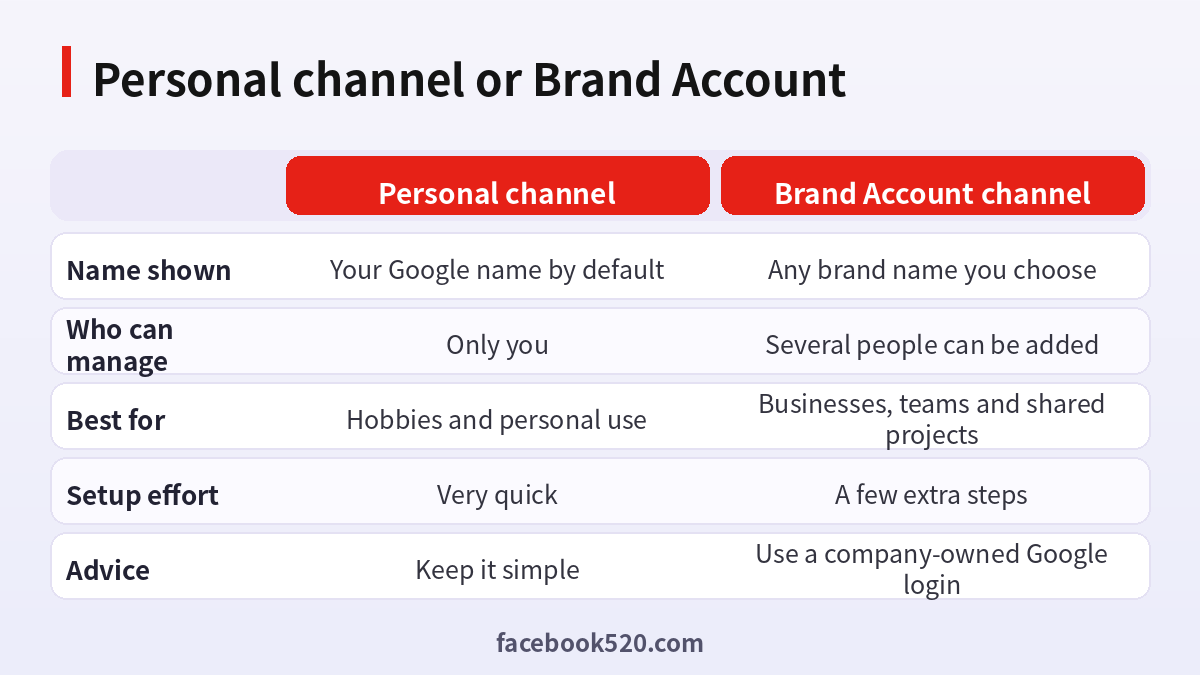
Personal channel or Brand Account
| Aspect | Personal channel | Brand Account channel |
|---|---|---|
| Name shown | Your Google name by default | Any brand name you choose |
| Who can manage | Only you | Several people can be added |
| Best for | Hobbies and personal use | Businesses, teams and shared projects |
| Setup effort | Very quick | A few extra steps |
| Advice | Keep it simple | Use a company-owned Google login |
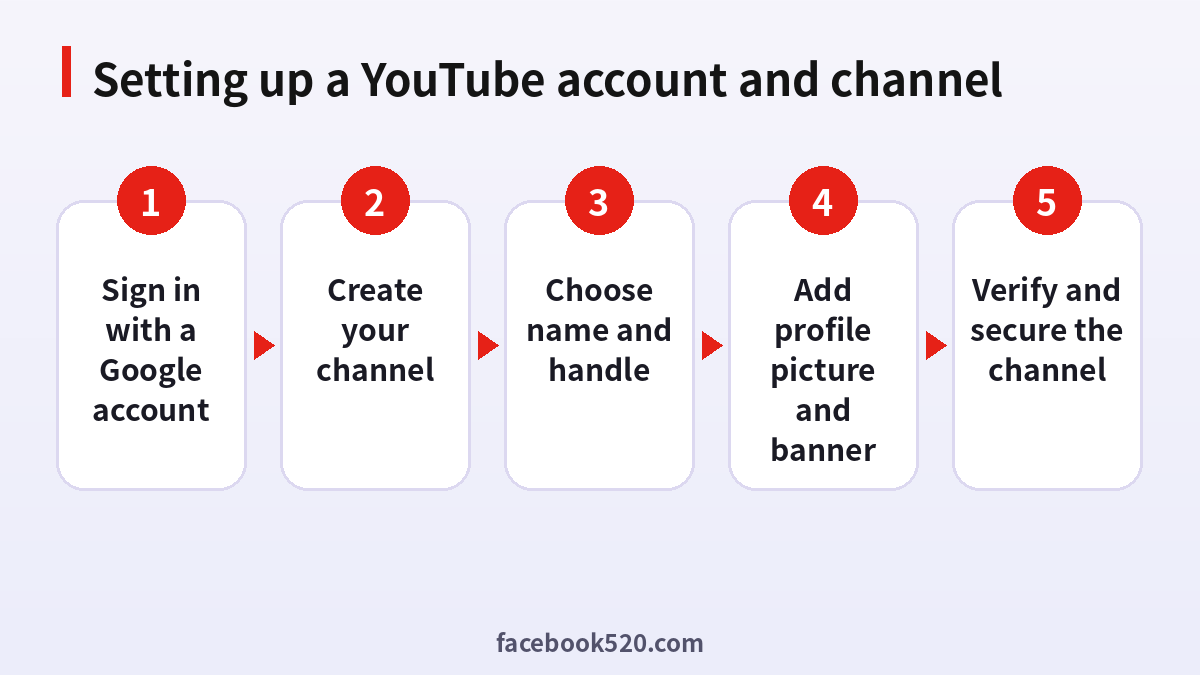
Step by step: set up a YouTube account and channel
- Sign in with a Google account. Open the official YouTube site or app and sign in, or create the Google login first.
- Create your channel. Click your profile picture, choose the option to create a channel and follow the prompt.
- Choose name and handle. Decide on the channel name and the handle, which becomes part of your channel address.
- Add a profile picture and banner. Upload images that reflect your topic or brand.
- Verify and secure the channel. Confirm your phone number if requested and turn on stronger sign-in protection.
Naming the channel and choosing a handle
Pick a name that tells viewers what to expect and that you can live with for years. Short, pronounceable names are easier to remember than long keyword strings. The handle is a unique identifier that appears in your channel address and in mentions. Choose one that matches your name or brand on other platforms. If you plan to change topics later, avoid a name that boxes you in. Check that the name does not look like an existing channel, since lookalikes can cause confusion and sometimes complaints.
Setting up a business account on YouTube
For companies, the standard approach is a channel that sits under a Brand Account. During channel creation you can choose to use a custom name rather than your personal name, which creates a channel that is not tied to your private identity. After that you can invite managers and owners from the account settings. This lets a marketing team share responsibility without sharing a password. You can read general guidance on the platform at YouTube and, for related questions, the overview of the YouTube service.
Roles and permissions
Brand Account channels allow different roles. An owner can manage everything, including who has access. A manager can handle most day to day work, such as uploading and editing videos. A communications role can reply to comments without touching other settings. Give each person the least access they need, and review the list every few months. Remove people who change roles. Invitations should go to individual work emails so that you can always see who has access.
Branding the channel
A new channel looks plain until you add a few elements. Upload a profile picture that is recognizable even at a tiny size. Add a banner with the channel name and, if you like, the upload schedule. Write a description that says in plain words what the channel is about, and add links to your website and other profiles. Set a contact email for business enquiries if you want to receive offers. Create a short channel trailer or a pinned first video that explains who you are.
Verifying your phone number
Some features, such as uploading longer videos, adding custom thumbnails or going live, require verifying a phone number. You will receive a code by text or a voice call. Use a number that you control and that can receive messages. If the code does not arrive, check the number and the country selection, wait a few minutes and request a new one. Do not request many codes in a row. One phone number can only be used a limited number of times, so use the number belonging to the owner of the channel.
Upload defaults worth setting
Before the first upload, open the channel settings and set defaults: the visibility you want a new video to start with, the category, the language of the title and description and the license. Setting private as the default can protect you from accidentally publishing a draft. Check that the default description contains your standard links and a short channel summary. These settings save time and prevent mistakes when you publish regularly.
Privacy and safety choices
Review what is public on your channel, such as your subscriptions and saved playlists. Decide whether comments should be held for review. Use the tools to block words and to hide users who repeatedly cause problems. If your content is aimed at children, you will need to follow the platform’s audience settings. Always turn on two step sign-in for the Google account, because the channel is only as safe as the login behind it.
Common sign-in problems
| Symptom | Likely cause | What to try |
|---|---|---|
| Cannot find create channel option | Signed in to the wrong account | Switch to the intended Google account |
| Name cannot be changed | Recent change limit | Wait and try again later |
| No phone code | Number or carrier issue | Re-enter the number and wait a few minutes |
| Channel missing after switching | Brand Account not selected | Use the account switcher |
| Uploads blocked | Verification incomplete | Finish phone verification |
Setting up on mobile versus desktop
The mobile app is good for quick uploads and for responding to comments. The desktop studio gives more control over titles, descriptions, thumbnails, subtitles and analytics. Many creators set up the channel on a computer and then install the app for everyday use. Make sure you are signed in to the same Google account on both. If the app shows a different channel than the browser, use the switcher in the account menu.
Getting ready to publish
Before your first public upload, plan three videos rather than one so that visitors have something to explore. Write a title that states the benefit clearly. Create a thumbnail that is readable on a phone screen. Add a description with timestamps and relevant links. Choose a visibility setting, and if you are unsure, upload as unlisted to test how it looks. Check that audio is clear, because viewers forgive average video far more easily than poor sound.
Planning your channel before you press create
A few minutes of planning avoids rebuilding later. Write down who the channel is for, what problem or interest it serves and what format you can maintain: tutorials, reviews, interviews, short clips or live sessions. Look at three channels in your area and note what they do well and what is missing. Decide on a simple schedule you can keep for three months. A channel that publishes steadily with modest ambitions grows better than one that opens with a burst and goes quiet.
Understanding Studio, the control room of your channel
After creating the channel you will use YouTube Studio for almost everything: uploading, editing details, answering comments and reading analytics. Spend your first session exploring its sections. The content area lists your videos and their status. The analytics area shows views, watch time and where viewers come from. The customization area controls branding and layout. The settings area holds defaults and permissions. Knowing where things live saves time when you need to fix a title or hide a comment quickly.
Writing titles, descriptions and thumbnails that help viewers
Titles should promise something specific and deliver it. Put the most important words first, because titles are cut off in some lists. Descriptions should open with a clear summary, followed by timestamps, links to resources and a short note about the channel. Thumbnails must be readable at small size: few words, strong contrast, a clear subject. Avoid misleading imagery, which hurts trust and watch time. Keep a template for your channel so that your videos look related when they appear together.
Playlists and channel layout
Playlists group related videos and encourage viewers to keep watching. Create a few early on, even with one or two videos, such as a beginner series or a product walkthrough. On the channel home page, feature a trailer for new visitors and a different section for returning subscribers. Keep the layout tidy: too many sections confuse people. Revisit the layout every month and move your best performing or most useful videos to the top.
Comments, community and moderation
Reply to early comments, because they signal that a real person is behind the channel and they encourage others to join in. Set up filters for words you do not want to see and consider holding potentially inappropriate comments for review. Pin a helpful comment that answers the most common question. For business channels, agree on a response policy: who replies, how fast and what topics should be passed to customer support through a different channel.
Accessibility and subtitles
Subtitles help viewers who are deaf or hard of hearing, people watching without sound and viewers who speak a different language. You can upload your own caption files or review the automatically generated captions and correct mistakes. Clear audio, readable on-screen text and descriptive titles make your channel easier to use for everyone. Accessibility also improves how people understand your videos, which usually means they watch for longer.
Understanding what it costs
Setting up a YouTube account and channel is free. Paid items include the viewer subscription called YouTube Premium and, for creators, optional features such as channel memberships, which you offer to your audience. Whether and how a channel can earn money depends on programs and eligibility rules in your country. This article does not quote any figure; check the official help pages for the conditions that apply to you. Never pay someone to hand you a monetized channel, because eligibility belongs to the original owner and checks are tied to that identity.
Protecting a business channel
Treat the channel as a business asset. Keep the owner login with a dedicated company mailbox, enable two step verification with an authenticator app, store recovery codes offline and keep the list of managers short. If a manager leaves, remove them the same day. Do not give your password to editors or agencies. Invite them with a limited role instead. Review login alerts and the devices list from time to time.
Three short examples
A hobbyist. Marcos signs in with his existing Google account, creates a personal channel in two minutes, uploads a banner and starts with unlisted videos he shares with friends.
A small clinic. The practice manager creates a company Google account, builds a Brand Account channel under the clinic name, and invites the marketing assistant as a manager rather than sharing the password.
A teacher. Aiko sets up a channel for her classes, turns on comment review, sets uploads to private by default and publishes only after checking each lesson.
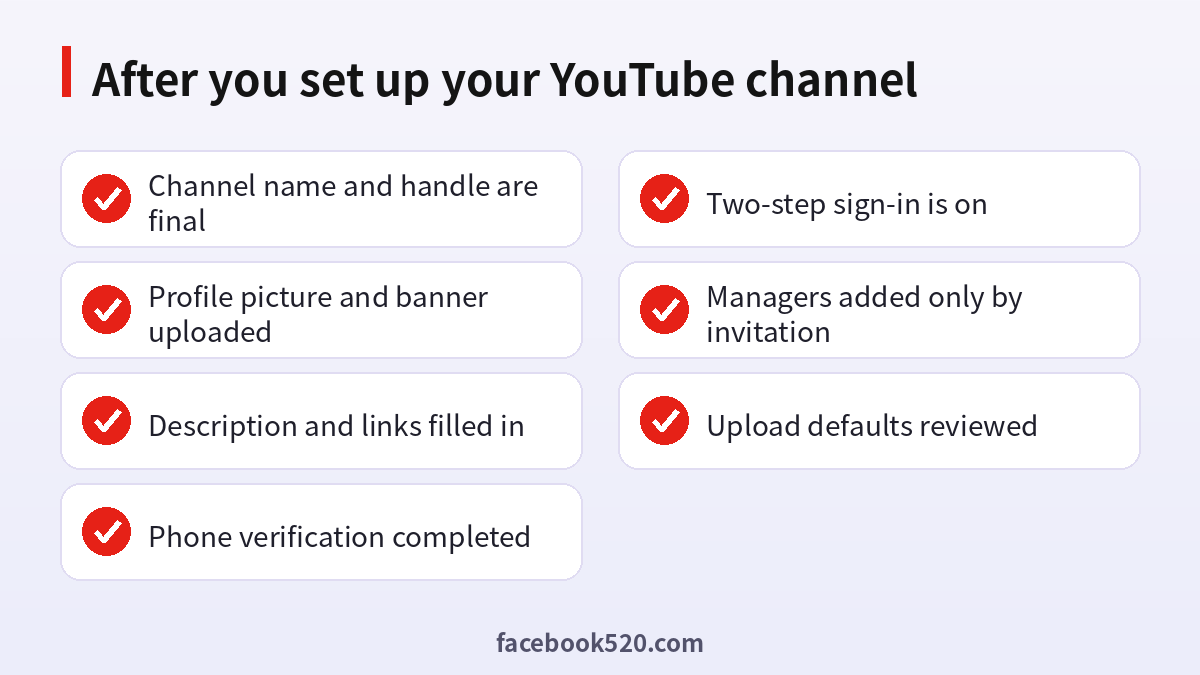
After you set up your YouTube channel
- Channel name and handle are final
- Profile picture and banner uploaded
- Description and links filled in
- Phone verification completed
- Two-step sign-in is on
- Managers added only by invitation
- Upload defaults reviewed
Questions people ask
Do I need a Google account to use YouTube?
You can watch without one, but to subscribe, comment or upload you need to sign in with a Google account.
Is it free to set up a YouTube account?
Yes. Creating an account and a channel is free. Premium and channel memberships are optional paid features, and you never need them to upload videos or to build a following on your own channel.
How do I create a business account on YouTube?
Create a channel under a Brand Account with your business name, ideally owned by a company Google login, and invite managers from settings.
Can I have more than one channel?
Yes. A Google account can be linked to several channels through Brand Accounts, switchable from the account menu.
Why do I need to verify my phone?
Verification unlocks features such as longer uploads, custom thumbnails and live streaming, and helps prevent abuse.
Can I change my channel name later?
Yes, but changes may be limited in frequency and the new name can take a little time to appear everywhere. Choose a name you can keep for a long time, so that links, mentions and viewer habits stay consistent.
What is a handle?
A handle is a unique identifier beginning with the at sign that forms part of your channel address and is used in mentions.
How do I let a colleague help manage my channel?
Use the permissions section of the Brand Account settings and invite them by email with a suitable role.
Is it safe to share my password with an editor?
No. Give editors a limited role through the invitation system so you can remove access at any time.
Can I buy a monetized channel?
You should not. Eligibility and payouts depend on the original owner and are not transferable through private deals.
Why can I not upload a video?
Your account may need phone verification, or there may be a limit for new channels. Check the prompts in the upload screen, make sure the file format and size are supported, and try again from a stable connection or a different browser if the upload stalls.
What should I do if I lose access?
Use the account recovery steps for your Google account with the original email or phone, and contact the help center if needed. Having a current recovery email and phone number saved before a problem happens makes this much faster, so check them when you finish the setup.

