


Gemini Sign Up in 2026: How to Create a Gemini Account Step by Step
If you are wondering how to sign up for Gemini, the good news is that there is no separate registration form. Gemini is Google’s AI assistant, and you use it with a Google account. If you already have Gmail, YouTube or an Android phone signed in, you can usually open Gemini and start chatting within a minute. If you do not have a Google account yet, you create one first and then open the Gemini web app or install the mobile app. This 2026 guide explains every step, what to do if you use a work or school account, how the free and paid options differ, which privacy settings to check, and how to fix common sign-in problems. Gemini’s availability, features and plan names change often, so always confirm the latest details in the official Google help pages. For a broader overview of the product, see our Gemini account guide, and for plan prices read Gemini Pro pricing and how to pay.
What you need before you sign up
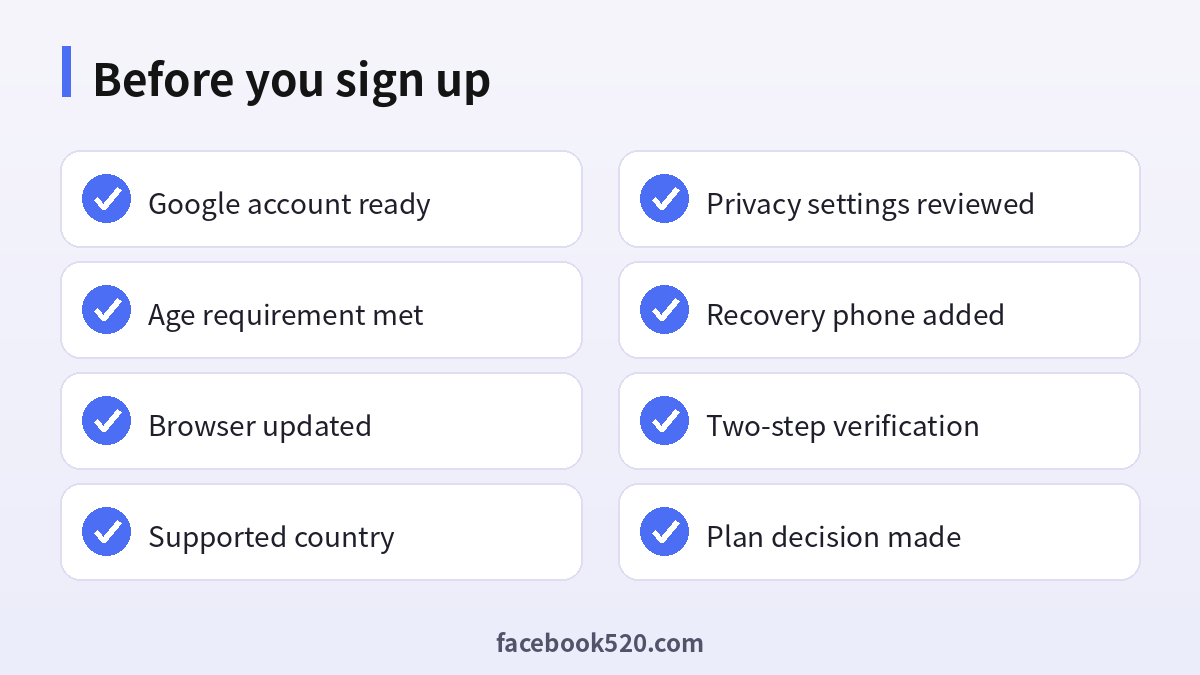
Signing up for Gemini takes only a few requirements. First, a Google account: a personal Gmail address works, and so does any email address you have registered with Google. Second, an eligible country and language: Gemini is available in many regions, but availability varies, and some features roll out gradually. Third, age eligibility: Google sets minimum ages for its services, and the rules for teens and children differ by country and account type. Accounts managed through Family Link or school administrators may have Gemini turned off by default or controlled by the manager. Fourth, a modern browser or phone: the latest version of Chrome, Safari, Edge or Firefox works for the web, and the Gemini app is available for Android and iOS. Finally, decide whether you want to stay on the free version or try a paid Google AI plan later.
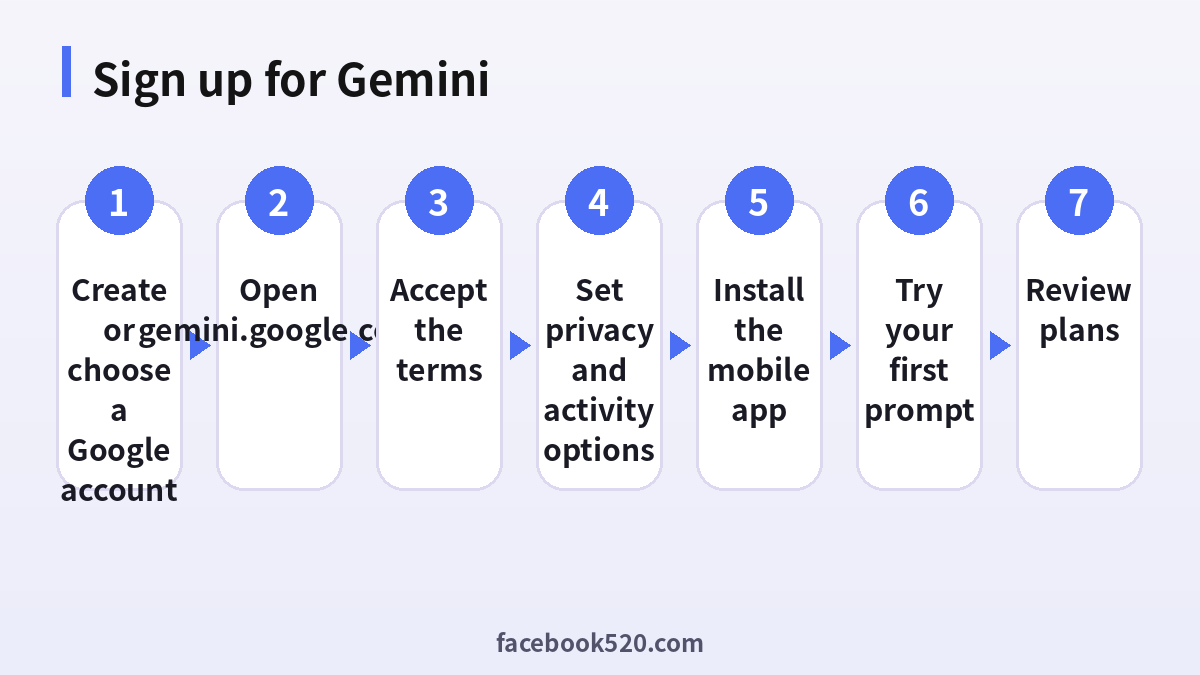
Step 1: Create or choose a Google account
If you already have a Google account, skip to step 2. If not, go to accounts.google.com and choose Create account. Enter your name, birth date and gender, pick a Gmail address or use your own email, and create a strong password with at least twelve characters. Add a recovery phone number and recovery email so you can regain access later. Google may ask you to verify your phone number by SMS. After the account is created, turn on two-step verification in the Security section. Consider creating a passkey so you can sign in with your fingerprint, face or device lock instead of a password. If you want to separate AI experiments from personal mail, create a dedicated account with your own details. Do not use another person’s account or buy accounts from third parties; it violates Google’s terms and puts your data at risk.
Step 2: Open Gemini on the web
- Go to gemini.google.com in your browser.
- Sign in with your Google account. If you are signed in to several accounts, choose the one you want to use.
- Read and accept the terms and privacy notice that appear on first use.
- Choose your activity settings: Gemini may ask whether to save your conversations to your account. You can change this later.
- Type your first prompt in the message box, for example “Summarize this article” or “Plan a three-day trip.”
- Explore the side panel to see your recent chats, settings and extensions or connected apps.
If you see a message that Gemini is not available for your account, check whether you are using a work or school account. Administrators can disable Gemini or require specific settings. Try with a personal account, or ask your administrator.
Step 3: Install the Gemini app on your phone
On Android, Gemini may already be built in as an assistant option, or you can install the Gemini app from Google Play. On iPhone, download the Gemini app from the App Store or use Gemini inside the Google app. Open it, sign in with the same Google account, and grant the permissions you are comfortable with, such as microphone access for voice. Review which features need access to other apps, like your calendar or emails, and enable them only if you need them. You can talk to Gemini by voice, upload photos, and share screenshots for help. Keep the app updated, because new features and security fixes arrive through updates.
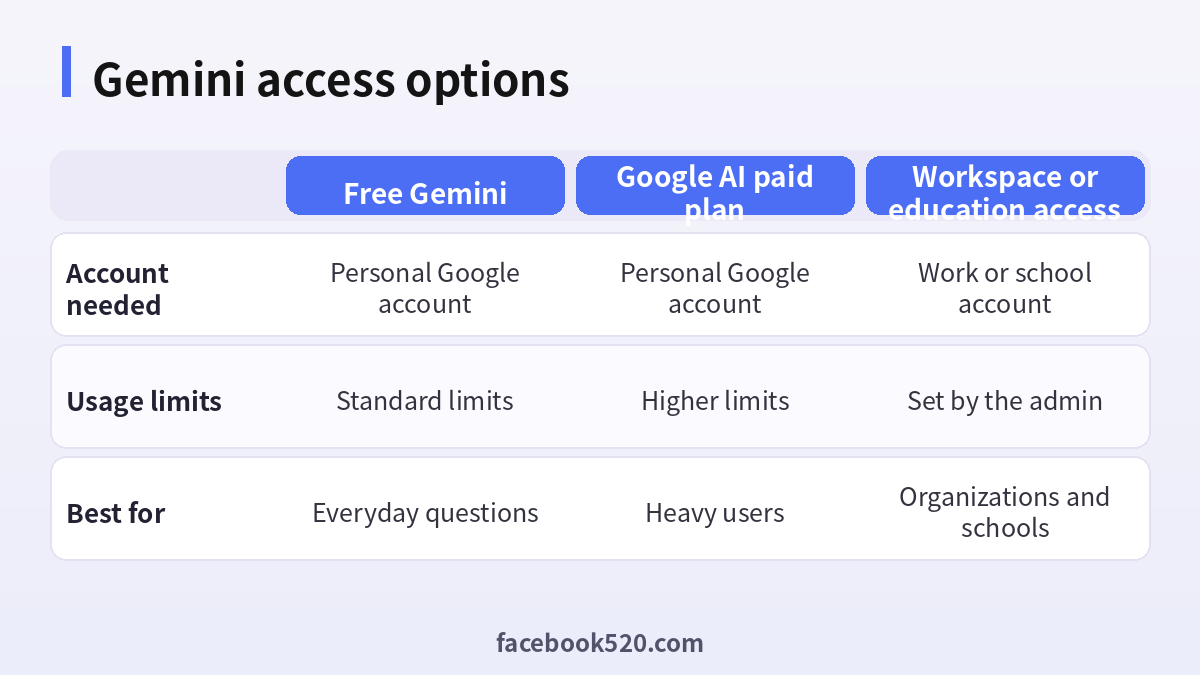
Free versus paid Gemini plans
| Feature | Free Gemini | Google AI paid plan | Workspace or education |
|---|---|---|---|
| Account needed | Personal Google account | Personal Google account | Work or school account |
| Usage limits | Standard limits | Higher limits and more advanced models | Set by the organization |
| Extras | Core chat and image features | Additional storage and premium tools may be bundled | Admin controls and data protections |
| Cost | Free | Monthly subscription | Per-user licence or included |
| Best for | Everyday questions | Heavy users and creators | Teams, schools and companies |
Plan names, prices and bundled benefits change regularly, and some regions offer trials. Check the subscription page inside your account for the current offer, and note the renewal date if you start a trial. Pay only through the official Google or app store checkout and never through unofficial resellers.
Privacy and activity settings you should review
Gemini can save your conversations to your Google account so that it can personalize answers and let you revisit chats. In the settings, you can see and delete your activity, turn saving off, and choose how long activity is kept before it is automatically deleted. Reviewers may read some conversations to improve the service when activity is on, so avoid typing passwords, banking details, medical records or confidential company data. If you connect Gemini to other Google apps, review what data the extension can access. Use the Google Account privacy checkup to manage these settings in one place. For children and teens, parents should discuss safe use and, where available, use supervision tools.
Fix common Gemini sign-up and sign-in problems
“Gemini isn’t available for your account.” This usually means a region, age or administrator restriction. Try another account that meets the requirements or contact your administrator.
Verification code not arriving. Check that your number is correct, wait a few minutes, request a call, and avoid repeated attempts. For more help, see Gemini verification code not working.
You are signed in to the wrong account. Use the profile picture menu to switch accounts, or open Gemini in a private window.
The page loads but nothing happens. Update your browser, disable extensions that block scripts, clear cache, and try again.
Account locked or suspicious activity. Use Google’s account recovery page and verify with a known device and location.
The app crashes on your phone. Update the app and the operating system, restart the phone, and reinstall if needed.
Tips for your first week with Gemini
Start with simple tasks: summarize an article, draft an email, explain a concept, or brainstorm ideas. Be specific in your prompts by stating the goal, audience and format. Ask follow-up questions to refine answers, and double-check facts that matter, since AI can make mistakes. Use image upload for homework help or to understand a chart, and use voice mode when you are on the go. Create a habit of reviewing generated text before you use it. If you use Gemini for work, check your organization’s policies for AI use and data sharing.
Why you should not buy a Gemini or Google account from third parties
Search results are full of listings for “cheap Gemini Pro accounts” or “ready-made Google accounts.” These are generally shared logins, accounts created with stolen payment details or accounts that can be recovered by the seller later. You risk losing your chats, being locked out, or having your personal information misused. Creating a free Google account takes a few minutes and gives you full control. If you want paid features, subscribe through the official page with your own payment method.
What you can do with Gemini after signing up
| Use case | Example prompt | Tip |
|---|---|---|
| Writing | “Draft a polite email asking for a deadline extension” | State tone, length and audience |
| Studying | “Explain photosynthesis for a 12-year-old with an example” | Ask for quizzes to test yourself |
| Planning | “Create a three-day itinerary for Lisbon with a modest budget” | Verify opening hours and prices |
| Coding | “Explain this Python error and suggest a fix” | Test the code before using it |
| Images | “Describe what is in this photo” or “make a poster idea” | Check the output for accuracy |
| Research | “Compare two approaches and list pros and cons” | Confirm facts with trusted sources |
Gemini works best when you give context. Instead of asking a vague question, explain what you are trying to achieve, what you already know, and what format you want back. If the first answer is off, say what is wrong and ask for a revision. You can also upload documents or screenshots, depending on your plan and region, and ask Gemini to summarize or extract key points. Treat the output as a draft and not as the final truth.
Using Gemini on Android and iPhone in daily life
On Android, you can often invoke Gemini by holding the power button or saying a wake phrase, if you enable it in settings. It can set reminders, answer questions, help write messages and, with permission, interact with other apps. On iPhone, you open the dedicated app or use the feature inside the Google app. Check the permission screen carefully and give access only to the apps you want Gemini to see. If you share your phone with family members, sign out or use a separate profile so that your chats and activity stay private. In shared spaces, remember that voice replies may be heard by others nearby.
Safety, accuracy and good habits
Generative AI can sound confident while being wrong. For anything involving health, money, law or safety, use Gemini only as a starting point and confirm with a qualified professional or official source. Do not paste confidential contracts, passwords, or customer data. Keep your Google account secure with two-step verification and a passkey, and review your connected apps from time to time. If you notice unusual activity, change your password and sign out of other devices. Teach children and teens to ask for help when an answer seems strange, and talk with them about not sharing personal details with any chatbot.
Gemini for school, work and teams
Many organizations enable Gemini through Google Workspace or Google for Education. In that case, you sign in with the account issued by the organization, and the administrator controls availability, data handling and which features appear. Typical benefits include assistance in Gmail, Docs, Sheets and Meet, with enterprise-level data protections described in the Workspace terms. If you are a student, ask your school which tools are approved and follow academic integrity rules: use AI to understand and improve your work, and disclose use where required. If you are a manager, document who can use AI, what data is allowed, and how outputs are reviewed before they are shared with customers.
Troubleshooting checklist if you still cannot sign up
First, confirm the URL is gemini.google.com and not a lookalike site. Second, try a different browser and disable VPN or proxy tools, which can trigger regional blocks. Third, make sure your device date and time are correct, because wrong clocks can break sign-in. Fourth, test with another network. Fifth, check Google’s service status page for outages. Sixth, if the account is new, sign in to Gmail or YouTube first to complete the account setup, and try again later. Seventh, contact Google support through the help center if you see an error code, and attach a screenshot.
Staying updated on features and pricing
Google updates Gemini frequently, adding models, tools and plan options. Follow the official Google blog or the product release notes to see what is new, and reread the plan page before you renew a subscription. Features may arrive first in certain countries or on specific devices, so a friend might see something you do not. If you are comparing assistants, test the same prompts in each product and judge accuracy, speed, privacy and cost, not only brand names.
A short plan to get value from Gemini in 30 days
In week one, use Gemini for three small tasks per day, such as rewriting a paragraph, summarizing a long email and brainstorming meal ideas. In week two, build a prompt library: save the prompts that gave you useful results and reuse them. In week three, try more advanced uses like analyzing a document, comparing options in a table or practicing a language. In week four, evaluate: how much time did it save you, and did you reach the usage limit on the free version? If yes, compare the paid plan with your actual needs, and start with a monthly term so you can cancel easily. Keep notes on mistakes you spotted so you remember where to double-check next time.
Finally, remember that signing up is only the first step. The real value comes from clear prompts, careful review and safe habits, so take your time, experiment, and keep your account protected.
FAQ
Is Gemini free to sign up for?
Yes. You can use a free version with a Google account. Paid plans are optional and add higher limits and features.
Do I need a Gmail address?
You need a Google account. A Gmail address is convenient, but you can create an account with another email address.
Can I sign up with a work or school account?
Sometimes. Administrators decide whether Gemini is available, so you may need their approval.
What is the minimum age?
It depends on the country and account type. Check Google’s current age requirements in your region.
Where do I download the Gemini app?
From Google Play on Android or the App Store on iPhone. Use only the official Google listing.
Can I use Gemini without signing in?
Some limited use may be possible in certain regions, but a Google account gives you the full experience and saved chats.
How do I delete my Gemini activity?
Open the activity settings in Gemini or your Google account and delete individual items or set auto-delete.
Can I use two Gemini accounts?
Yes, by switching between Google accounts, though each account has its own history and plan.
How do I upgrade to a paid plan?
Open the plans page from the Gemini menu or your Google account and follow the checkout steps.
Is it safe to enter personal data into Gemini?
Avoid sensitive information, review your activity settings, and follow your organization’s rules.
Why is Gemini not working in my country?
It might not be available yet, or your account may not meet the requirements.
How do I cancel my subscription?
Go to the Google subscriptions page or the app store where you subscribed and choose Cancel.
Conclusion
Signing up for Gemini is as simple as signing in with a Google account at gemini.google.com or in the mobile app. Prepare a secure account, review your privacy settings, start with the free version, and upgrade only if you need higher limits. Always use official channels, and avoid third-party account sellers.
