


Canva Pro Free Trial (2026): Plans, Pricing & How to Pay
People searching for Canva Pro pricing usually want three answers: what each plan includes, what it really costs per month, and how to pay without surprises. Below you will find a clear comparison of the plans, a step-by-step payment walkthrough, tips for keeping spending under control, and fixes for the most common billing problems.
What is Canva Pro?
Canva is an online design platform for social posts, presentations, videos and documents. Canva Pro adds premium content, Brand Kit, Background Remover, Magic Resize and much larger storage. Canva regularly offers a free trial of Canva Pro (commonly 30 days for new users). After the trial it converts to a paid subscription unless you cancel before the date shown.
Canva Pro plans and pricing at a glance
Prices below are reference list prices in US dollars that have been published recently. Taxes, currency conversion, regional pricing and promotions can change what you see at checkout, so always confirm on the official page (canva.com) before you pay.
| Plan | Reference price | What it is for |
|---|---|---|
| Canva Free | free | Basic editor, a large library of free templates and limited storage. |
| Canva Pro | about $15/month or about $120/year (individual) | Premium templates and stock, Brand Kit, Magic Resize, Background Remover, scheduling and 1 TB storage. |
| Canva Teams | per user, per month; minimum seats | Shared brand controls, approvals and team folders. |
| Canva for Education / Nonprofits | free for eligible organisations | Pro-level tools after eligibility verification. |
| Canva Enterprise | custom | Advanced security, SSO and governance. |
How Canva Pro billing works
- The trial usually asks for a payment method up front and shows the first charge date. Cancel before that date if you do not want to continue.
- Monthly and annual billing both exist; annual works out noticeably cheaper per month.
- Prices vary by country and currency, and local taxes can be added at checkout.
- You can pause or cancel from Account settings, then Billing and teams; access continues until the end of the paid period.
None of this is complicated, but each point is something people commonly discover only after the first invoice.
Which Canva Pro plan should you choose?
- Occasional posts: The free plan is enough; try Pro for one project only.
- Regular social media or small business: Pro pays for itself quickly through Brand Kit and Magic Resize.
- A team of designers: Teams.
- Students and teachers: Check Canva for Education before paying.
A useful rule of thumb is to begin with the lowest plan that lets you do real work, track how often you hit its limit for two or three weeks, and only then move up. Most of the plans can be changed or cancelled later, so there is little reason to start on the most expensive tier “just in case”.
Payment methods you can usually use
Canva Pro checkout generally accepts major credit and debit cards (Visa, Mastercard and often American Express). Depending on your country you may also see PayPal, Apple Pay, Google Pay or local wallets, and in-app purchases are processed by Apple or Google when you subscribe inside a mobile app. The exact list is shown at checkout and depends on your billing country, so trust the screen rather than an old forum post.
A few practical points about cards:
- Use a card that allows online and recurring (subscription) payments, and that is enabled for international merchants.
- Make sure the billing name and address match what your bank has on file; mismatches are a frequent reason for declines.
- If your bank uses 3-D Secure, approve the prompt in your banking app quickly; the session may time out.
- Virtual cards can work, but some issuers block subscription merchants or cap the first transaction. Test with the amount you actually need.
Step-by-step: how to pay for Canva Pro
- Sign up or log in at canva.com.
- Open Account settings, then Billing and plans, or click the “Try Pro” button.
- Choose Canva Pro and tick the free trial option if it is offered to you.
- Enter a card (PayPal and local methods are offered in some regions).
- Note the trial end date in your calendar so you can cancel in time if needed.
- Open the editor and confirm Pro features appear (crown icons disappear).
Ways to keep your Canva Pro spending under control
- Put a calendar reminder two days before the trial ends.
- If you only need Pro for a short project, use the trial, finish the work and cancel.
- Check whether your workplace already has a Canva Teams plan before paying yourself.
- Download final designs before the plan changes if you used Pro-only assets.
Common payment and access problems
- No free trial offered: Trials are limited to eligible accounts and are not repeated. Check that you are logged in with an account that has never used a trial.
- Charged after cancelling: Confirm the cancellation email and the status in Billing; if you cancelled after the renewal date, contact Canva support for a refund request.
- Card declined: Try a second card, confirm online and international payments are enabled, and check there is no temporary hold from your bank. Waiting an hour and retrying often clears security checks.
- Charged but plan not active: Refresh the page, sign out and back in, and confirm you are on the same account that was used at checkout. If the plan still does not show, keep the receipt and contact the support team of the service you paid.
- Wrong country or currency shown: Pricing follows your billing country and sometimes your IP location. Do not try to bypass it; set the correct billing address in your account instead.
- Unexpected renewal: Subscriptions renew automatically. Check the next billing date in your account and cancel at least a day before it if you do not want another cycle.
How to cancel or change your Canva Pro plan
You cancel in the same place you subscribed: the website billing page for web purchases, the Apple subscriptions page for iPhone purchases, or Google Play subscriptions for Android purchases. Cancelling normally stops the next renewal but keeps access until the end of the period you already paid for. Downgrades usually take effect at the next renewal, while upgrades are normally effective immediately with a prorated charge. Keep your receipt emails; they are the quickest proof if you ever need help.
Monthly or yearly billing: how to decide
The annual option for Canva Pro can look attractive because the per-month figure is lower. The catch is commitment: if you stop using the service after three months you have still paid for twelve. Treat yearly billing as a reward for habits you have already proven, not as a way to start.
A short checklist before you subscribe
- Confirm the plan name and price on the official Canva Pro page the same day you buy, since promotions and limits change.
- Log in with the account you actually want to keep; changing the account tied to a subscription later can be awkward.
- Decide who pays: a personal card, a company card or a team plan with central billing.
- Note the renewal date and the cancellation route in your calendar.
- Save the receipt email in a folder; you will need it for expense claims or support requests.
Is Canva Pro worth paying for?
Instead of asking whether Canva Pro is “good”, ask whether you will use it often enough to benefit from the extra limits. Write down the tasks you want it for, try them on the free or entry plan, and upgrade only when a limit actually gets in your way. This keeps spending tied to real value.
Invoices, receipts and company cards
If you pay for Canva Pro as part of your work, look for the billing or invoices section in your account settings. There you can usually download receipts, update the company name and tax number for future invoices, and change the billing email. Use a dedicated company card where possible and a shared mailbox for receipts, so subscriptions do not disappear when a team member leaves. For teams with several users, a business or team plan with central billing is generally easier to audit than many individual subscriptions.
Mistakes to avoid
- Buying the most expensive plan before you know your real usage.
- Subscribing inside a mobile app and then looking for the cancel button on the website, or the reverse.
- Sharing your login with someone who offers to “activate” or “top up” the plan for you; use official checkout only.
- Forgetting a free trial and being charged on the first renewal date.
- Ignoring the usage or credit counter until it is empty in the middle of a deadline.
What if prices or limits change?
AI and software subscriptions move quickly. A plan that included a certain allowance last quarter may be reorganised, renamed or repriced this quarter, and a new tier can appear between the ones you know. When that happens, read the notice email from Canva instead of assuming nothing changed, compare the new allowance with what you actually used, and decide whether to stay, downgrade or switch to another tool. Existing subscribers are normally told about price changes ahead of renewal, which gives you time to cancel if the new terms no longer make sense.
Matching Canva Pro to Your Situation
- Individuals and students: Canva has a free plan, and eligible students and teachers have had access to education offers. Check the official page for current eligibility.
- Professionals: Canva Pro has been offered for individuals who need premium content and brand tools. Compare it with your real needs.
- Teams: Canva Teams offers collaboration and brand control for groups. Seat-based billing applies.
Canva Pro at a Glance
- Typical use: online design, templates and brand kits.
- What you need: an email or social sign-in, and a payment method may be required even for a trial.
- Common friction: automatic conversion to paid after a trial, and differences between team and education eligibility.
- Security tools: sign-in protection and team-member permission management.
Canva Pro Options Compared, With a Verdict
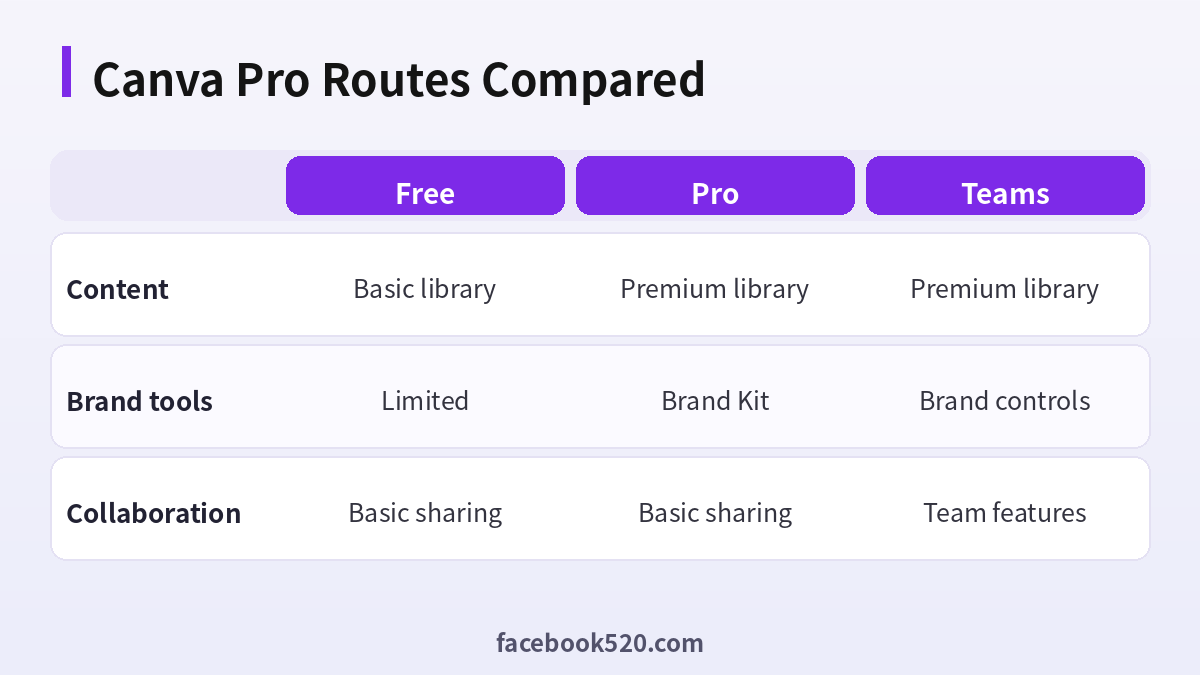
| Factor | Free | Pro | Teams |
|---|---|---|---|
| Content | Basic library | Premium library | Premium library |
| Brand tools | Limited | Brand Kit | Brand controls |
| Collaboration | Basic sharing | Basic sharing | Team features |
Verdict: Use Free for simple designs, upgrade to Pro when you need premium content or brand tools, and move to Teams when several people share templates and approvals. Verify current features on the official page.
Choosing a Canva plan
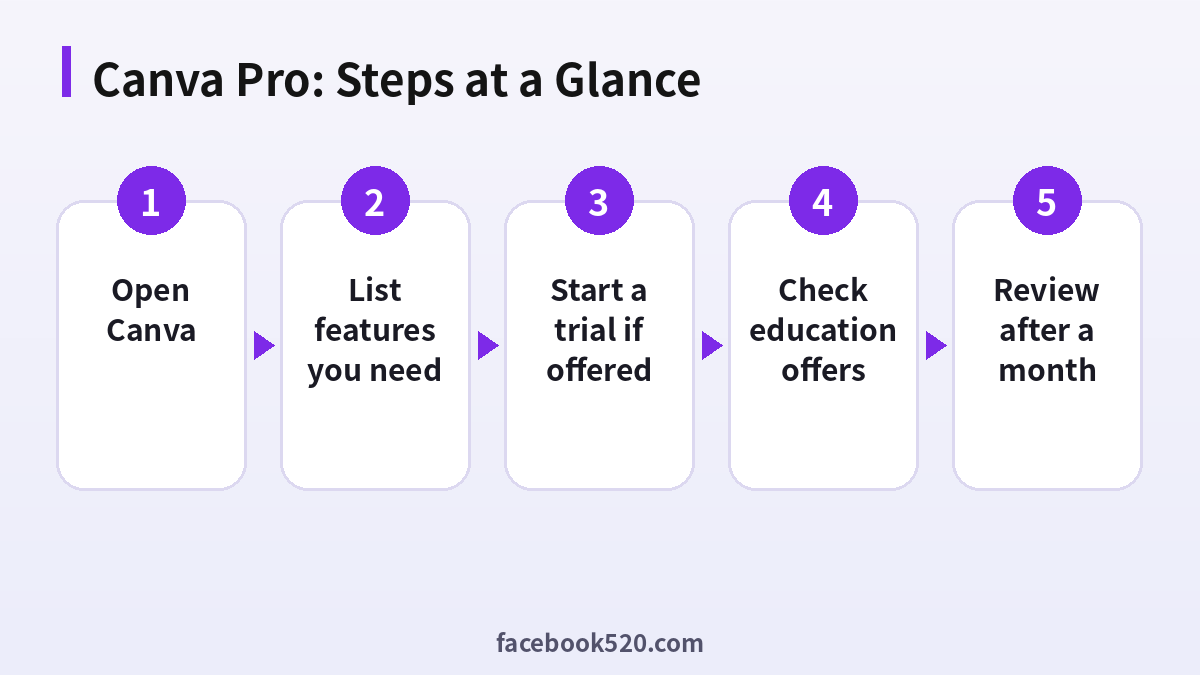
- Open Canva: Sign in with your account.
- Open Plans or pricing: Read current names.
- List features you need: Brand Kit, resize, premium content.
- Start a trial if offered: Use it on a real project.
- Check education offers: If you qualify.
- Compare billing options: Monthly and annual.
- Review after a month: Cancel what you do not use.
Canva Pro Troubleshooting Table
| Symptom | Likely cause | What to do |
|---|---|---|
| Premium content locked | Plan lacks it | Upgrade or choose free assets. |
| Brand Kit missing | Plan difference | Check plan features. |
| Trial ended | Auto renewal | Cancel before the end. |
| Team invite fails | Wrong email | Resend. |
| Billing error | Card issue | Update payment. |
What the free plan covers
The free plan covers many everyday designs with a library of templates and elements. Some premium items are marked, and using them requires a plan. Test your workflow before you pay.
What Pro adds
Pro has been described as adding premium content, background removal, resize tools and the Brand Kit. Check the current list because features are updated.
Teams and approvals
Teams plans help several people keep the same fonts, logos and colours, and may include approval workflows. They are billed per seat, so count how many people really need them.
Education and nonprofit offers
Eligible educators, students and some organisations have had access to special offers. Eligibility must be confirmed through the official process.
Licensing of assets
Content in the library has licence terms that differ by item. Read the terms for commercial use and avoid reselling templates as they are.
Print and export
Check export formats and print options for your project. Some features may need a plan.
Shared and resold plans
Avoid buying shared logins or reseller offers, which can break terms and be cancelled without notice.
Managing the subscription
Change or cancel in the billing page or in the store used. Note the renewal date.
Hedging on specifics
Plans and features change. Verify them on the official site.
Building a simple brand kit
Even on the free plan you can keep a short list of your brand colours, fonts and logo files in one folder and reuse them in each design. If you later upgrade to a plan with a Brand Kit, you can load them in minutes. Consistency makes small teams look professional without extra cost.
Templates, resizing and workflow
Start from a template that is close to your goal, then change text, colours and images. If you need the same design in several sizes, plan this before you start, because resizing features may belong to a paid plan. Saving versions with clear names makes it easy to return to an earlier version.
Canva Pro Checklist
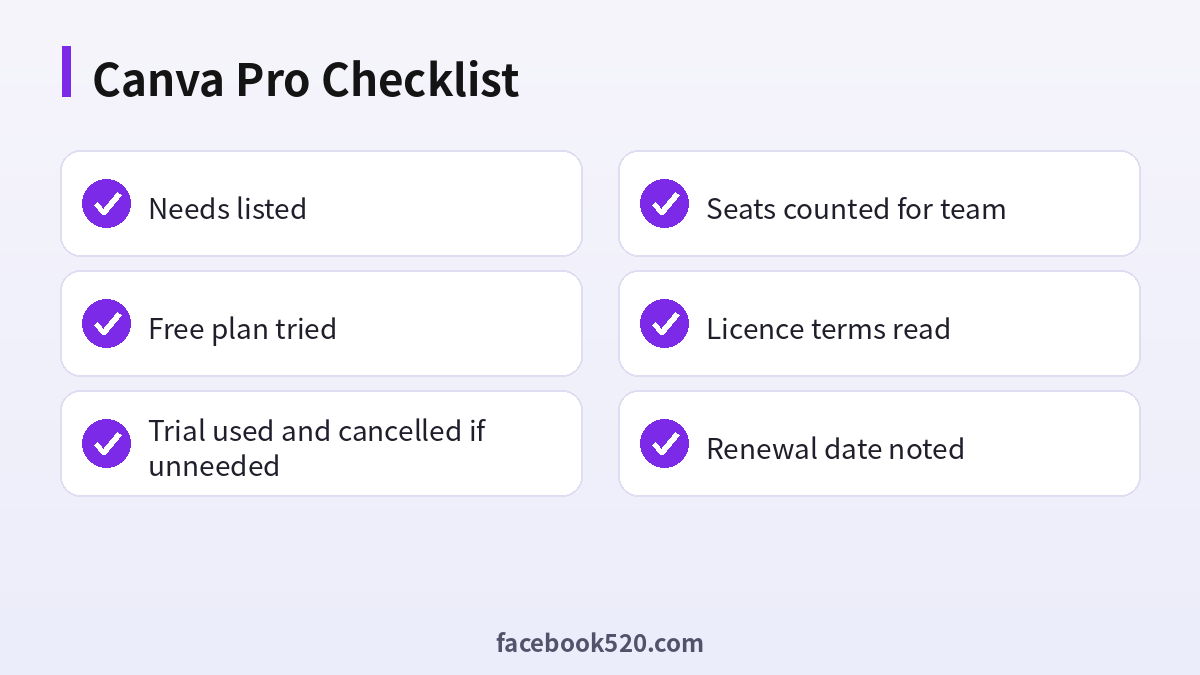
- Needs listed
- Free plan tried
- Trial used and cancelled if unneeded
- Seats counted for team
- Licence terms read
- Renewal date noted
Canva Pro FAQ
How long is the Canva Pro free trial?
Often 30 days for new users, but the length and availability depend on region and promotions.
How do I cancel Canva Pro?
Account settings, Billing and plans, then cancel subscription. You keep Pro until the paid period ends.
Is Canva Pro worth it?
If you design every week and use Brand Kit, Background Remover or Magic Resize, yes. If not, stay on the free plan.
Can I get Canva Pro cheaper?
Annual billing, education or nonprofit eligibility and official promotions are the legitimate routes.
Is it safe to pay for Canva Pro through third parties?
The only fully safe route is paying Canva directly on its official site or in its official app. Be cautious with anyone who asks for your login details, or sells “cheap” access without a clear, verifiable receipt.
Do Canva Pro prices differ by country?
Yes. Prices, taxes and available payment methods vary by country and platform. The checkout page always shows the final amount.
Is Canva free?
There is a free plan with limits.
Can students get discounts?
Education offers have existed. Check eligibility.
Can I share my plan?
Follow the official terms.
Does Canva Pro include all premium content?
Plans differ in what premium content they include, and some items may cost extra. Check the label on the element before using it.
Can several people use one Canva Pro account?
The official terms limit how accounts may be shared. Use a team plan for several people.
Related guides
- ChatGPT subscription and plans
- Gemini Pro plans
- How do I register and purchase 70+ accounts on TikTok, YouTube, Instagram, Facebook, X, Reddit, Medium, and LinkedIn?
- ChatGPT、Gemini、Perplexity、Claude、Copilot 等 AI 平台最喜欢引用的100个网站
If you are also setting up other platforms for your business, the 70+ accounts register and purchase overview gives a broader map of what is available.
