


Threads Account Suspended for No Reason in 2026: Why It Happens, How to Appeal and Recover It and What to Do When the Verification Code Does Not Arrive
Few things are more frustrating than opening Threads and seeing a message that your account was suspended when you are sure that you did nothing wrong. People then search for phrases such as “threads account suspended for no reason”, “how to recover threads account” and “Threads verification code not received”. The honest answer is that automated systems sometimes make mistakes, and that many suspensions have a specific cause that is not obvious. This guide explains why accounts are suspended, how to request a review, what to do when the code does not arrive and how to lower the risk of a repeat. It follows the official Meta and Instagram help pages as of October 2026, and the exact screens can change. For the basics of how the Threads profile connects to Instagram, see our Threads sign up guide.
How Threads accounts relate to Instagram
A Threads profile is linked to an Instagram account, and the username and many settings come from Instagram. That means a problem on one side can affect the other. If Instagram disables the account, Threads access normally goes with it. If Threads applies a restriction by itself, you might still be able to use Instagram. The notice you see tells you which system took action, so read it carefully and take a screenshot before you do anything else.
Common reasons for a suspension
The platform rarely tells you the exact reason, but the usual causes include posting very fast, following or unfollowing many accounts in a short time, repeated identical replies, links that look like spam, impersonation, copyrighted material, content that breaks community rules, use of unofficial automation tools, logging in from many places at once and buying followers or engagement. A hacked account that starts posting spam also gets suspended. Sometimes a new account is flagged because its behavior looks like a bot. If you used a scheduling or growth tool that is not an official partner, remove its access.
How to request a review
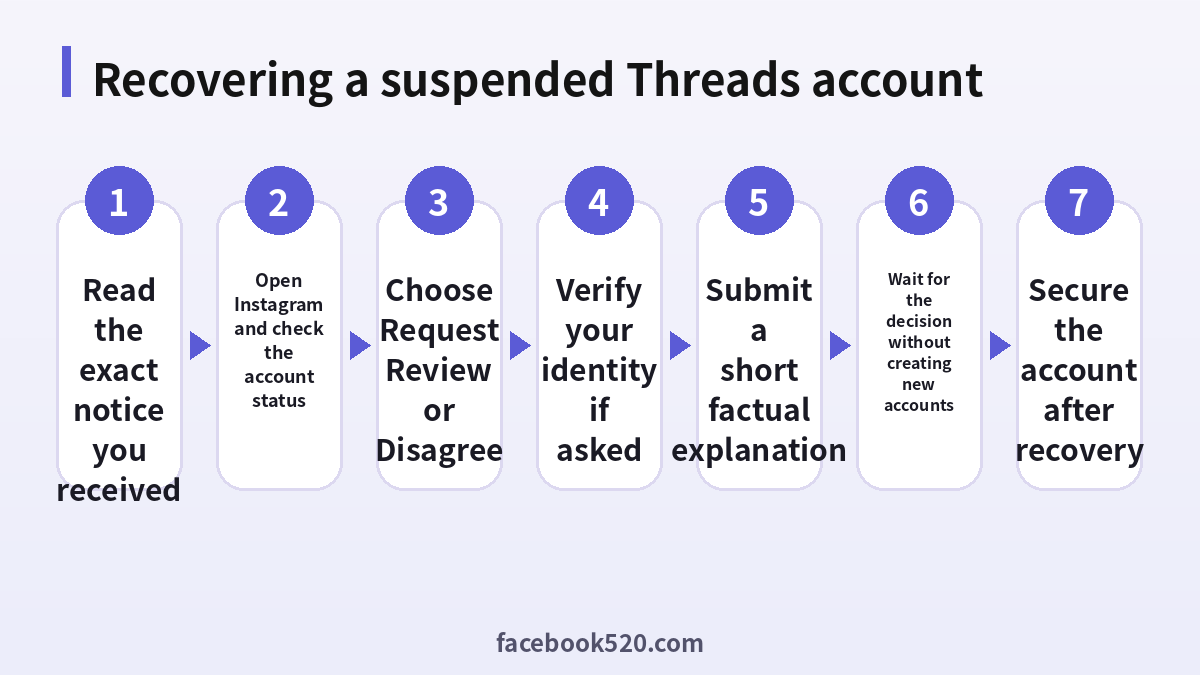
- Open the Threads or Instagram app and read the message on the screen.
- Select the option to request a review or to disagree with the decision.
- Follow the steps, which may ask for your username, email, phone number and a reason.
- If asked, take a photo of yourself or upload a government ID following the on-screen rules. Use only the official upload page.
- Write a short, polite and factual statement, such as “I believe my account was suspended by mistake and I follow the community rules”.
- Submit once, and keep the confirmation email.
- Wait for the reply, which can take from hours to several days.
Time limits and what not to do
Meta states that you have a limited time to appeal, commonly up to 180 days, after which a disabled account may be permanently removed. Do not create a new account in the meantime to get around the suspension, because that can be linked to the old one and make the decision worse. Do not send dozens of appeals, and do not pay anyone who claims to have a contact inside Meta, because such offers are scams. Meta Verified subscribers can reach prioritized support, but it does not guarantee that the account will be restored.
Verification code not received
A code can fail to arrive for several reasons: the phone number or email on file is old, the carrier delays text messages, the message went to spam, too many requests were made or the app version is outdated. Check the exact address or number that the screen shows, look in the spam and promotions folders and wait a few minutes. Request only one new code, and do not keep pressing the button, because repeated requests can lock you out for a while. Turn off any VPN, switch between Wi-Fi and mobile data and update the app. If you no longer have access to the number or email, use the option for another way to verify or the account recovery form on the Instagram help center.
| Problem | Common cause | What to do |
|---|---|---|
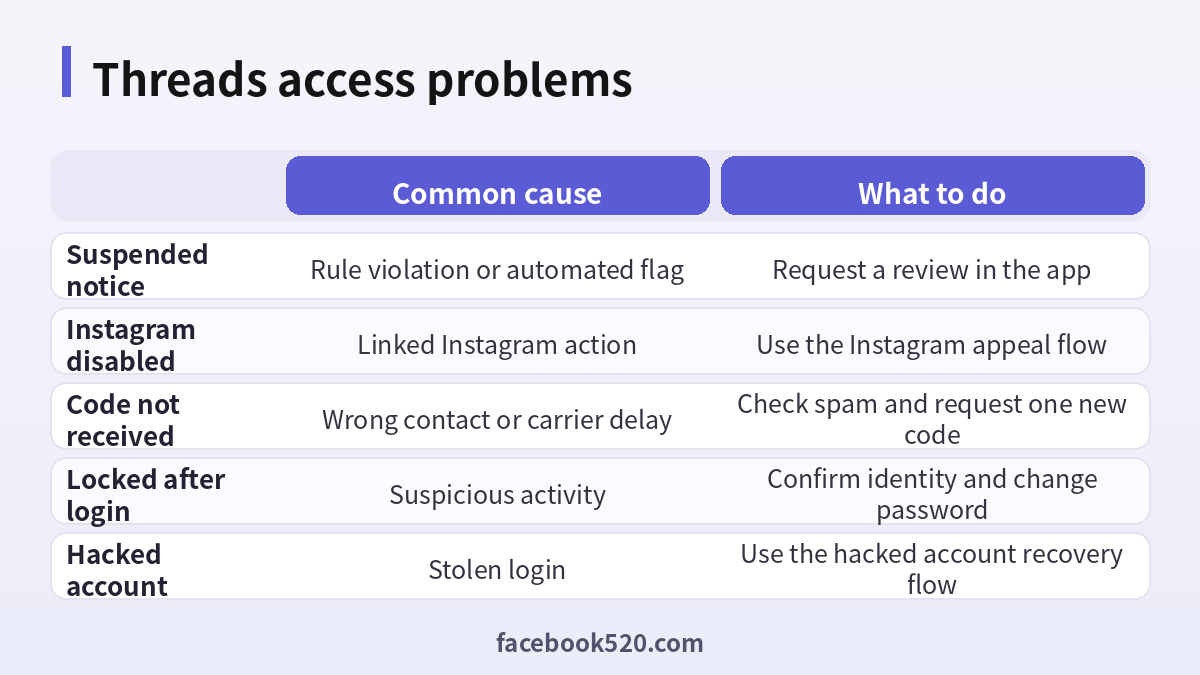
| Suspended notice | Rule violation or automated flag | Request a review in the app |
| Instagram disabled | Linked Instagram action | Use the Instagram appeal flow |
| Code not received | Wrong contact or carrier delay | Check spam and request one new code |
| Locked after login | Suspicious activity | Confirm identity and change password |
| Hacked account | Stolen login | Use the hacked account recovery flow |
If you think the account was hacked
Signs include posts you did not write, changed email or phone number, unknown devices in the login list and messages from Meta about a changed password. Use the official hacked account recovery page, and check the email for a message that lets you reverse a change. Change the password on every service where you used the same one, remove unknown connected apps and turn on two-factor authentication with an authenticator app.
After you get access back
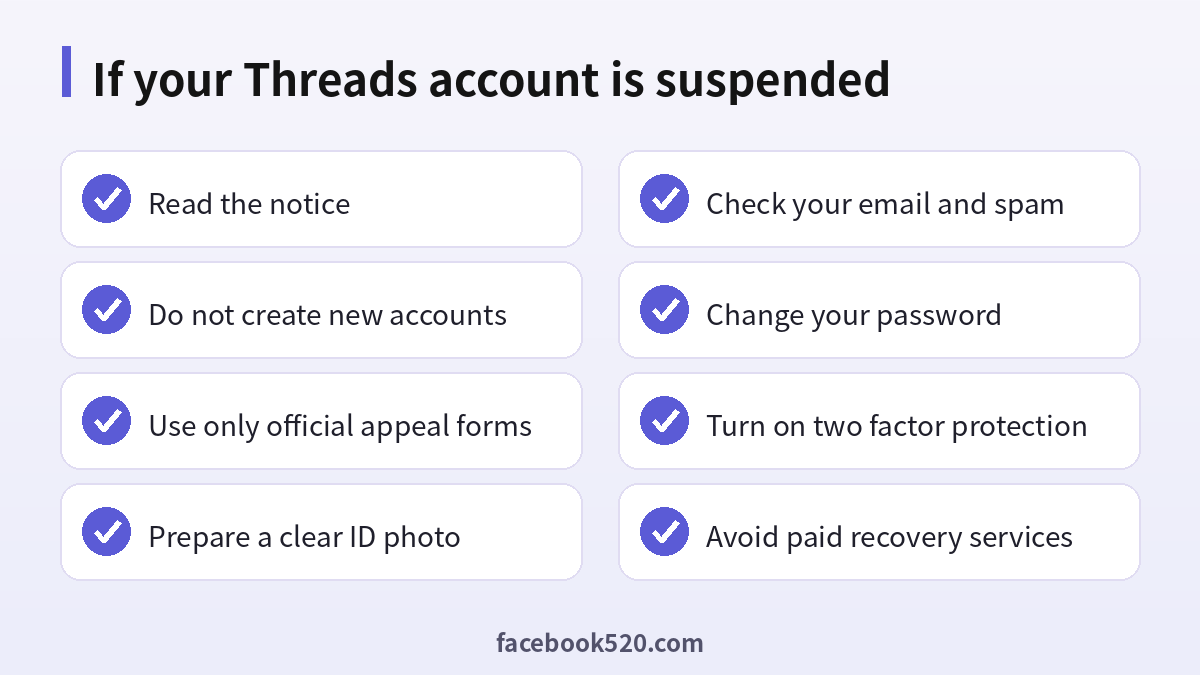
Review the apps connected to your account and remove those you do not recognize. Turn on two-factor authentication, update your recovery email and phone number and check your login activity. Slow down posting, avoid mass actions and write original replies. Read the community guidelines for the kind of content you share, since repeated violations make later suspensions harder to reverse.
Reducing the risk of future suspensions
Behave like a human, not a bot. Space out follows and replies, do not use automation, avoid posting the same link repeatedly and keep your profile information honest. If you run a business or creator account, keep documents ready to prove who you are, and avoid sharing the login with several people. Back up your content, because a suspended account may be inaccessible while you wait for a review.
Troubleshooting checklist
If something does not work as expected with Threads, go through the basics in order before contacting anyone:
- Check your internet connection and try again on a different network.
- Update the app or refresh the page, then restart the device.
- Clear the cache or try a private browser window without extensions.
- Confirm that you are signed in with the correct account and email.
- Look for the exact error message and search the official help center for it.
- Wait a short time before repeating an action, since repeated attempts can trigger temporary limits.
- If nothing helps, collect screenshots and contact official support.
Official sources versus unofficial offers
When you search for help with Threads, you will find both official pages and third-party offers. The comparison below shows why it pays to stay with official channels.
| Aspect | Official source | Unofficial offer |
|---|---|---|
| Price | Clearly shown at checkout | Often unclear or too low |
| Support | Documented help channels | Unreliable or none |
| Account safety | Protected by the platform | Risk of bans and data theft |
| Refunds | Governed by published terms | Rarely honored |
| Updates | Always current | Outdated or wrong |
Recognizing scams and fake offers
Scammers often imitate well-known brands such as Threads. Typical signs are urgent messages, requests for passwords or verification codes, links to look-alike websites, promises of free upgrades or guaranteed results, and payment requests through unusual channels. Always type the official address yourself or use a saved bookmark, check the sender of every email and never pay through a link sent by a stranger. If you think you were tricked, change your password, review recent activity, contact your bank if money was involved and report the message to the platform.
Keeping up with changes
Features, prices and rules around Threads change more often than most people expect. Follow the official blog, release notes or help center, and read the emails you receive about policy updates instead of deleting them. When a guide such as this one gives a number or a menu name, treat it as a starting point and confirm it on the official site. If a change affects you negatively, you can usually adjust your plan, settings or usage, so act early rather than waiting for a problem.
Helping family members and colleagues
If you are setting up Threads for someone else, such as a parent, a teenager or a coworker, guide them rather than doing everything silently. Explain why strong passwords and two-step verification matter, show them how to recognize suspicious messages and agree on who to ask before they click or pay for anything. For minors, follow age requirements and use the available parental or family controls. For teams, document who owns the account, who can approve spending and what to do when someone leaves.
Privacy and personal data
Before you enter personal information anywhere, ask what is really required. Use only the details that Threads needs, review the privacy settings after setup and limit who can see your profile, activity and contact information. Avoid posting documents, addresses, financial data or photos that reveal your location. Check which third-party apps are connected to your account and remove those you no longer use. If you work with client or company data, follow your organization’s policy and do not mix it with personal accounts.
When to contact official support
Contact support when you have tried the basic fixes and the problem remains, when you see an unexpected charge, when you suspect your account was accessed by someone else or when you are locked out. Prepare the account email, the date and time of the problem, the exact message you saw and screenshots. Describe what you did step by step and what you expected to happen. Use only the contact methods listed on the official site and ignore anyone who offers to fix things for a fee through social media or private messages.
Account security basics for Threads
Protect your Threads account before anything else. Use a long, unique password stored in a password manager, turn on two-step verification, and make sure the recovery email and phone number are ones you control. Review the list of devices and active sessions every few months and sign out of any you do not recognize. Never share one-time codes, even with someone who claims to work for support, because genuine support teams never ask for them. If you sign in on a shared or public computer, log out afterwards and avoid saving passwords in the browser.
Common mistakes to avoid with Threads
Most problems come from a handful of avoidable habits. People reuse the same password across several services, ignore security notices, click links in unexpected messages, install unofficial apps that promise extra features, or buy accounts and access from resellers. Others skip reading the terms, which leads to restrictions they did not expect, or forget to write down renewal dates and recovery details. Spend a few minutes reading the official help pages, keep your details up to date and treat anything that sounds too good to be true as a warning sign.
Quick recap checklist
Before you finish, confirm the essentials for Threads:
- You are using the official website or app.
- Your password is unique and two-step verification is on.
- Recovery email and phone are current.
- Privacy settings match what you are comfortable sharing.
- You know the price, renewal date and how to cancel if money is involved.
- You saved receipts, confirmation emails and backup codes in a safe place.
- You know where to find the official help center.
A monthly review habit
Set a reminder once a month to review your Threads setup. Check your security settings, payment method, connected apps and notification preferences. If you pay for anything, compare the charge with what you actually used and decide whether to keep, change or cancel. Update your recovery details if you changed phone number or email. Delete old data you no longer need. Ten minutes a month prevents most surprises and keeps your costs and risks under control.
Devices, apps and browsers
Use the latest version of the official app or a modern browser when working with Threads. Keep your operating system updated, install security patches and avoid rooted or modified devices, which weaken protection. Browser extensions can read pages you visit, so remove those you do not trust. On mobile, download apps only from official stores, review the permissions they ask for and turn off those that are not needed. Lock your device with a PIN or biometrics so that a lost phone does not become a lost account.
Writing a good appeal message
Keep it short. State your username, say that you believe the decision was a mistake, mention that you follow the rules and ask for a review. Do not attack the company, make threats or write long stories. Do not claim things that are not true, such as saying that you never used a third-party tool if you did. If you recognize what might have triggered the flag, such as a burst of follows, you may mention it briefly and say that you will avoid it. A calm, honest message is more likely to be read and handled correctly by a reviewer.
What to prepare before you start
Collect the email address and phone number linked to the account, the username, the approximate date you created it and the last device you used. Have a clear photo of yourself and, if asked, a valid ID ready, and use good lighting so that the text and your face are visible. Make sure the email inbox works, because decisions and requests are sent there. Having everything ready avoids failed attempts that can slow the process down.
Business accounts and creators
If the account represents a brand, a shop or a public figure, a suspension can cost real money. Keep a second admin on the connected Instagram or business tools, document your posting schedule and avoid sharing your password with agencies. Ask agencies to use official partner tools and roles instead. If you run ads, check the ad account status separately, because ad restrictions and account suspensions are different decisions. Use the business support channels available to you, and keep records of every case number and date.
Frequently asked questions
Why was my Threads account suspended for no reason?
Often a system flagged unusual activity or a rule violation, and the message does not explain it. A review can fix mistakes.
How do I appeal?
Use the request review option in the app and follow the identity steps.
How long does recovery take?
From a few hours to several days, and sometimes longer.
Should I create a new account?
No. It can be linked to the suspended account and make things worse.
Can Meta Verified help?
It can give prioritized support, but it does not guarantee a result.
Why is the verification code not arriving?
The contact details may be old, the message may be delayed or in spam, or too many requests were made.
What if I lost access to my phone number?
Use the alternative verification method or the account recovery form on the help center.
Is it safe to pay a service to recover the account?
No. Such offers are scams.
What if my account was hacked?
Use the official hacked account flow, change the password and turn on two-factor authentication.
How can I prevent a suspension?
Avoid automation and spam-like behavior, and follow the community guidelines.
Summary
Read the notice, use only official review forms, wait without opening new accounts and secure the account once access returns.

