


Pinterest Sign Up (2026): Step-by-Step Sign-Up Guide
Pinterest is a visual discovery engine for ideas, products and inspiration. Creating a personal account takes a few minutes and gives you boards, pins and search; you can convert it to a business account later.
Everything below follows the current 2026 sign-up flow in general terms. Screens and wording change from time to time, so treat the steps as a map and follow what the official page shows if something looks different.
What you need before you start
- An email address or Google, Facebook or Apple login.
- Your date of birth.
- Topics you care about so Pinterest can personalise your feed.
- Optionally a website you will want to claim later.
Pinterest sign-up: step by step
- Go to pinterest.com and click Sign up.
- Enter your email, password and date of birth, or continue with Google, Facebook or Apple.
- Pick a username and profile photo.
- Answer the questions about your interests.
- Choose at least a few topics to follow.
- Create your first board and save pins.
- Install the browser extension or mobile app for easier saving.
Most of the work is in the first five minutes. Fix mistakes now rather than later; some of the early choices are permanent.
Verification tips for Pinterest
- Confirm the email address in Settings.
- Use a real birthday; age settings can affect experience.
- If you sign up with a social login, keep that account accessible for recovery.
- Add a phone number for stronger security.
First-day setup checklist
- Create boards with clear names.
- Save pins with descriptive notes.
- Follow topics and people in your field.
- Enable two-factor authentication.
- Switch to a business account if you plan to promote content.
- Claim your website after converting.
Keep the account secure from day one
- Use a long, unique password stored in a password manager.
- Turn on two-factor authentication with an authenticator app instead of SMS where possible.
- Add a recovery email and phone number that you control.
- Do not reuse the email address of a closed or lost account.
- Review logged-in devices from time to time and sign out of those you do not recognise.
Common sign-up problems and fixes
- Interests screen keeps repeating: Pick at least five topics and reload the page.
- Email already in use: Use password reset or log in with the original method.
- Account suspended: Follow the instructions in the notice to appeal.
- Cannot log in with Google: Check that you are using the right Google account.
- Pins not showing: New accounts may take time to build a feed; keep saving and following.
- Too many attempts: If you repeat the sign-up several times quickly, the platform may temporarily block you. Wait a few hours, switch to a stable network and try again carefully.
- Using a VPN or unusual network: Sign-ups from changing locations can trigger extra checks. A normal, stable connection in your own country usually works best.
Using Pinterest for business
If you represent a brand, convert to a business account instead of making a second personal profile. The conversion is free and unlocks analytics and ads.
Whatever platform you are on, a business setup is easier when it is documented: who owns the account, which email recovers it, who has admin access, and where credentials are stored. Write this down on the first day, before the account is used for anything important.
Getting started on the right foot
A fresh Pinterest account is a blank slate. Complete the profile, follow a handful of relevant accounts, and use the product the way a normal person would for the first week. That quiet start makes later changes, such as connecting a business tool or payment method, much less likely to trigger extra checks.
Choosing the right login method
Most services let you register with an email and password or with a Google, Apple or Microsoft login. A social login is faster and often safer because it inherits that account’s two-factor protection, but it ties Pinterest to a provider you must keep access to. An email-based account is more portable, as long as the email address is one you will keep for years. Whichever you pick, write down which method you used, because logging in later with the wrong one is the most common reason people think their account has disappeared.
Personal use or business use?
Decide this before you register. Personal accounts are simplest, but they may lack analytics, team access and advertising tools. Business or professional accounts add those tools and are easier to share with colleagues. If you are unsure, start with the personal or standard setup, use it for a short time, and convert to the business option when you know what you need. Converting is usually easy; merging two separate accounts afterwards usually is not.
Your first 30 days on Pinterest
- Week one: complete the profile, set security and privacy, and explore the main features without rushing.
- Week two: start regular but moderate activity that matches your purpose.
- Week three: connect external tools (analytics, payment, team members) one at a time.
- Week four: review what worked, remove unused settings and document how the account is managed.
Privacy settings worth reviewing
- Who can find you by email address or phone number.
- Who can message or contact you.
- Whether your activity or location is visible.
- Which apps and websites have access to your account.
- How your data is used for personalisation and advertising.
If you ever lose access
Keep the recovery email and phone current, save backup codes in a safe place, and note the date and device you used to register. When something goes wrong, start with the official password-reset or account-recovery page, answer security questions honestly and avoid anyone who offers to “unlock” the account for a fee. Recovery requests that include accurate account details, such as the registered email, approximate creation date and device, are processed much more smoothly.
Quick troubleshooting checklist
- Check that the email or phone number was typed correctly.
- Look in spam, promotions and blocked-sender folders for verification messages.
- Try a different browser or the official mobile app.
- Disable extensions that block scripts or captchas.
- Switch from mobile data to Wi-Fi or the other way round.
- Wait a few hours if you have made many attempts.
- Contact the platform’s help centre with screenshots of the exact error message.
Staying in good standing
A new Pinterest account is judged on behaviour. Be consistent about where you log in from, avoid mass actions in the first days, respect the community or advertising rules, and answer verification prompts quickly. If a warning appears, read it carefully and follow the instructions rather than creating another account to get around it. Accounts with a clear, gradual history are far more resilient than those that look as if they were created only to push volume.
Web, desktop or mobile app: which should you use?
You can usually register on any of them, but the experience differs. The mobile app is the best choice for phone-number verification and camera features, while the website is easier for pasting long text, managing business tools and keeping several windows open. If one route gives an error, try the other before assuming something is wrong with your details. Keeping both installed also gives you a backup way in if one login prompt misbehaves.
Frequently misunderstood points
- A Pinterest account is not the same thing as a business or advertising account; those are extra layers on top.
- Verification is not the same as a verified badge. The first confirms you control an email or phone; the second is a separate programme or paid feature.
- Deleting the app does not delete the account.
- Signing up with a social login does not create a separate password; recovery goes through that provider.
- Usernames, countries and birth dates are often permanent, so decide once and carefully.
Mistakes to avoid when signing up for Pinterest
- Using a temporary or shared email address.
- Entering a false date of birth or country that does not match your later activity.
- Skipping two-factor authentication.
- Creating several accounts on the same device in a short time.
- Handing over your login details to a third party “to speed things up”.
Matching Pinterest to Your Situation
- Casual users: Sign up with email, Google or Apple, pick interests and start saving pins. You can later convert to a business account.
- Creators and bloggers: Use a professional presentation, claim your site and design pins with the blog audience in mind.
- Shops: Prepare product photos, descriptions and a catalog before you open the account.
Pinterest at a Glance
- Typical use: visual discovery, content traffic and business promotion.
- What you need: an email or Google sign-in, and website details for a business account.
- Common friction: failed website claims, incomplete business setup and ad disapprovals.
- Security tools: a strong password, two-step verification and a review of linked accounts.
Pinterest Options Compared, With a Verdict
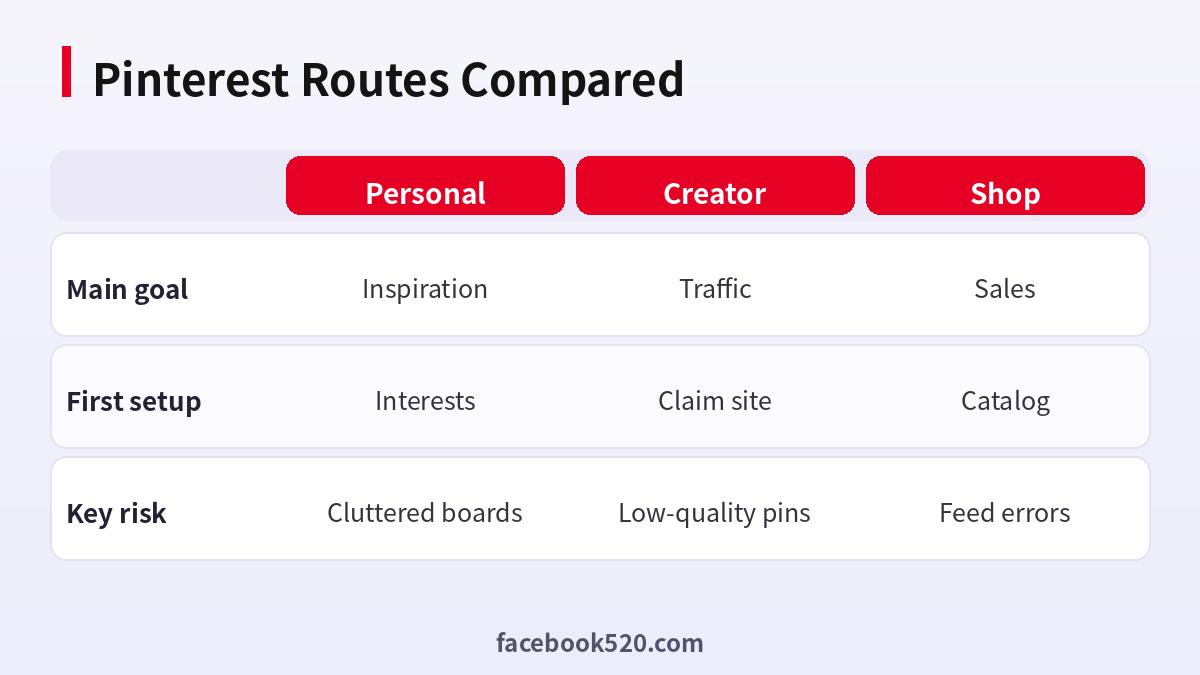
| Factor | Personal | Creator | Shop |
|---|---|---|---|
| Main goal | Inspiration | Traffic | Sales |
| First setup | Interests | Claim site | Catalog |
| Key risk | Cluttered boards | Low-quality pins | Feed errors |
Verdict: Start personal if you only collect ideas, set up a business profile if you plan to publish regularly, and prepare a catalog before you open a shop. Keep email and recovery details stable.
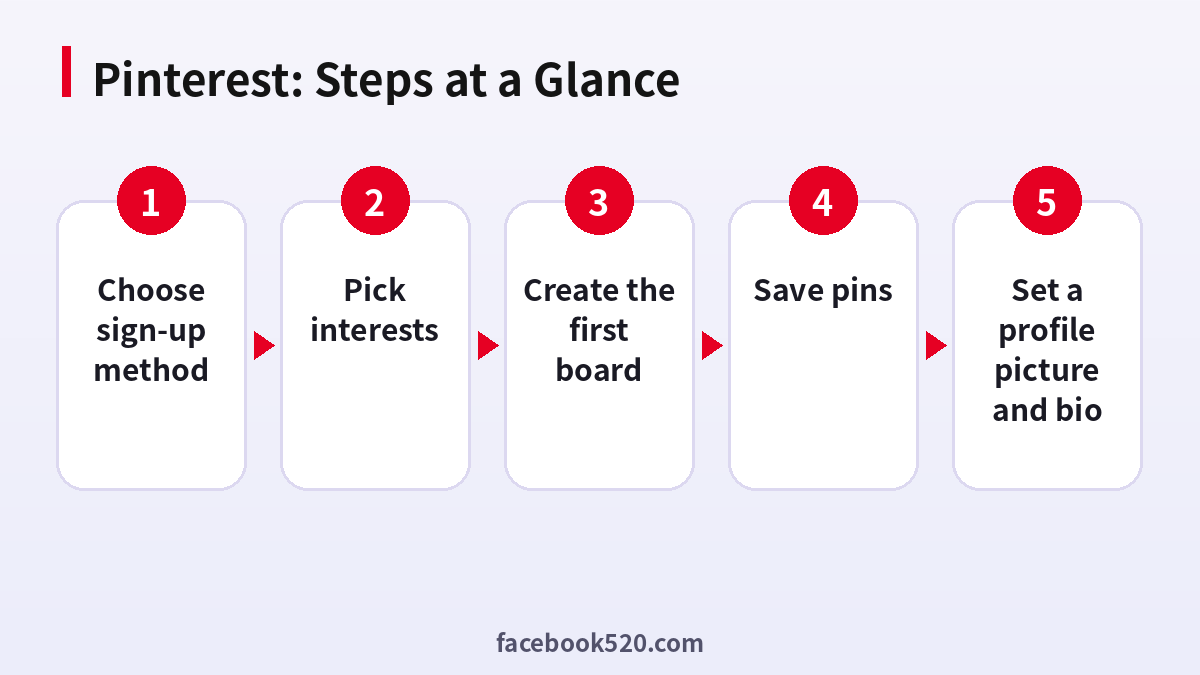
Opening a Pinterest account
- Choose sign-up method: Email, Google or Apple.
- Confirm email: Click the link in the message.
- Pick interests: These guide your home feed.
- Create the first board: Name it with keywords.
- Save pins: Save several from sources you trust.
- Install the browser button: Save from websites easily.
- Set a profile picture and bio: State what you pin about.
Pinterest Troubleshooting Table
| Symptom | Likely cause | What to do |
|---|---|---|
| Email not received | Spam filter | Check spam. |
| Username unavailable | Taken | Add a detail. |
| Account suspended | Policy issue | Appeal in the notice. |
| Pin not saving | Site blocks saving | Upload an image manually. |
| Feed empty | Few interests | Choose more topics. |
Starting with search
Search for topics you care about and save the pins that fit. The system learns from what you save, and the home feed becomes more relevant within a few days.
Using boards and sections
Group pins into boards and sections. Clear organisation helps you find ideas later and helps others follow your boards.
Browser button and saving rules
Use the browser button to save from sites. Respect copyright and credit sources. Pins that link back to the original page tend to last longer.
Creating original pins
Upload your own images with clear titles and descriptions, and link them to a page that matches the pin.
Notifications and privacy
Adjust notifications so that they are useful. Check whether boards are public or secret, and who can see your profile.
Following creators
Follow creators in your niche and note what they pin. Learn from their formats without copying them.
Two-factor and security
Turn on two-factor authentication and check logged-in devices. Use a unique password.
Moving to a business account
When you publish regularly, convert to a business account and claim your site. You can keep your existing boards.
Region and language
Pinterest recommendations depend on region and language. Set both to match your audience, and write descriptions in that language.
How the home feed learns
Every save, click and search teaches Pinterest what you want to see. Spend the first week saving only the ideas you would really use, and avoid saving things at random, because a messy start produces a feed full of things you do not want and takes longer to correct than to build well.
Writing pin titles and descriptions
Use plain language with the words people type into search. A title like a simple phrase describing the result works better than a slogan. Add a sentence or two of description that explains what the pin shows, and avoid stuffing a list of unrelated keywords, which looks spammy and gives viewers nothing to hold on to.
Image quality and layout
Choose sharp vertical images with a clear subject. If you add text, keep it short and readable on a phone. Avoid heavy watermarks and cluttered collages. Pins that look clean in a small preview are saved more often, and saves are the signal that the system uses to show your pins to more people.
Organising for the long term
Review your boards every few months. Merge boards that overlap, archive ones that no longer matter and move your best pins to the top. A tidy profile is easier to follow, and it signals to visitors that you take the account seriously, which matters if you later add business tools.
Safe sharing and links
Be careful with links from pins that lead to unfamiliar sites, and do not enter your Pinterest password on any page that is not Pinterest. If a pin promises a prize or a free product in exchange for your login, report it and move on, since these are common routes into account theft.
Planning pins around a blog or a shop
If you publish a blog or sell something, create at least two pin designs for each page, with different text overlays and colours. Pin them a few days apart instead of all at once. This spreads your content across the feed, shows you which design earns more saves, and keeps your profile active without needing daily work.
A checklist for the first week
On day one set up the profile and interests. On days two and three create three boards and save ten pins each. On day four add the browser button and try saving from a favourite site. On day five check settings for privacy and notifications. On days six and seven review the feed and refine your interests.
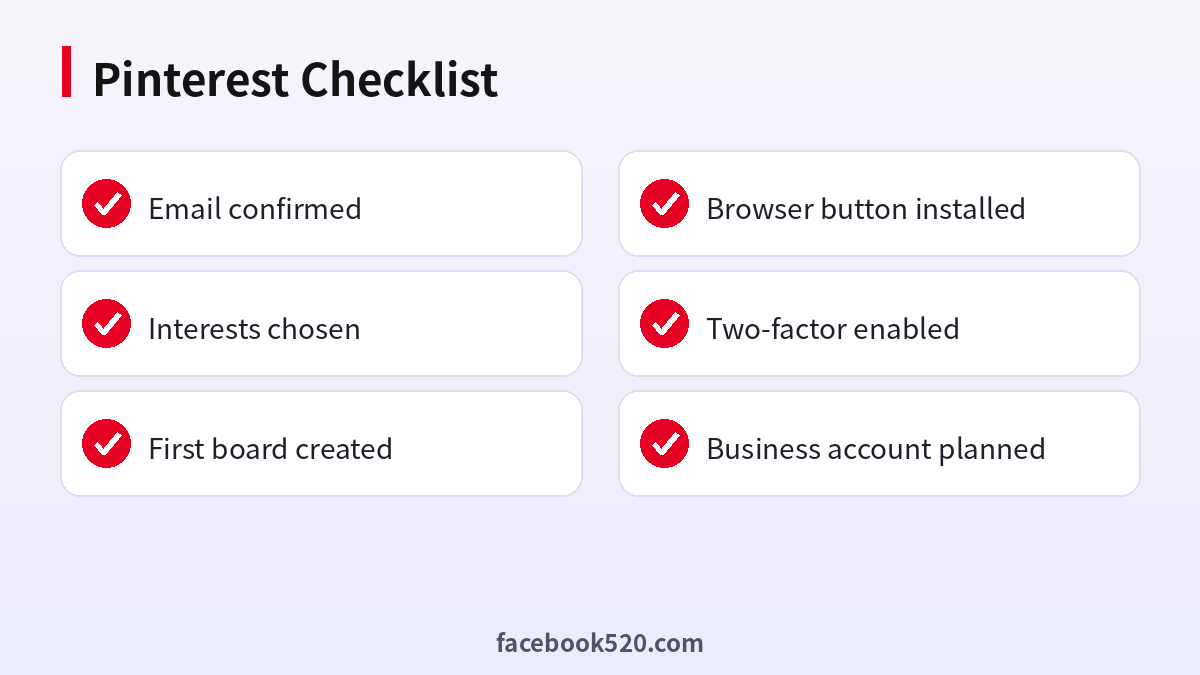
Pinterest Checklist
- Email confirmed
- Interests chosen
- First board created
- Browser button installed
- Two-factor enabled
- Business account planned
Pinterest sign-up FAQ
Is Pinterest free?
Yes. Only ads cost money.
Can I sign up without Google?
Yes, with an email.
Do I need a website?
No, but it helps for business use.
Can I use a different name?
Yes, but business accounts should use the real brand name.
How long does it take to set up Pinterest?
The sign-up itself usually takes about five minutes. Completing the profile and security settings takes a little longer.
What if I already have an account?
Log in instead of creating a second one. Use the password reset option if you have forgotten the details.
Is it safe to let someone else register for me?
It is better not to. Anyone who creates the account first also holds the first recovery details, so do the registration yourself and add colleagues as members afterwards.
Can I change my email address later?
In most cases yes, through the account or security settings, but you will need access to both the old and new address, so update it before the old one is closed.
Do I need a business account?
Only for analytics, ads and claiming.
Why was my account suspended?
A policy issue. The notice explains the reason.
How do I delete my account?
Use the deactivate or delete options in settings.

