


LinkedIn Register (2026): Step-by-Step Sign-Up Guide
LinkedIn is the professional network where your profile doubles as a CV, a lead-generation page and a search result. A careful registration pays back for years.
The steps are written from a practical point of view: what to prepare, what to click, what to expect, and what to do when something goes wrong. Interface labels may differ slightly from your screen as LinkedIn updates its design.
What you need before you start
- A professional email address.
- Your name exactly as you use it professionally.
- Your current job title, employer and location.
- A clear headshot.
LinkedIn sign-up: step by step
- Go to linkedin.com and choose Join now.
- Enter your email and a password, or continue with Google or Apple.
- Add your first and last name.
- Enter your location and your most recent job title and company, or your school if you are a student.
- Confirm your email using the code or link.
- Add a profile photo and a headline.
- Connect with colleagues and classmates to grow your network.
Take your time on the first screens. Details such as your username, country and date of birth are often difficult or impossible to change later, so enter them carefully.
Verification tips for LinkedIn
- Use your real name; LinkedIn may ask for identity checks if it looks suspicious.
- Confirm your email and, if asked, your phone.
- Add a work email to verify a workplace.
- Complete the profile to at least intermediate level before sending many connection requests.
First-day setup checklist
- Write a headline with value rather than only your job title.
- Fill in the About section with your focus and results.
- Add experience, education and skills.
- Set your public profile URL.
- Enable two-factor authentication.
- Turn on Open to work or creator mode only if suitable.
Keep the account secure from day one
- Use a long, unique password stored in a password manager.
- Turn on two-factor authentication with an authenticator app instead of SMS where possible.
- Add a recovery email and phone number that you control.
- Do not reuse the email address of a closed or lost account.
- Review logged-in devices from time to time and sign out of those you do not recognise.
Common sign-up problems and fixes
- Account restricted after sign-up: Complete the identity verification if requested and avoid mass invitations at first.
- Email already in use: Use password reset or another email.
- Cannot receive the code: Check spam and try again; try a different email.
- Profile not found in search: New profiles take a little time to appear; complete the profile.
- Connection requests limited: Send fewer, more personal invitations.
- Too many attempts: If you repeat the sign-up several times quickly, the platform may temporarily block you. Wait a few hours, switch to a stable network and try again carefully.
- Using a VPN or unusual network: Sign-ups from changing locations can trigger extra checks. A normal, stable connection in your own country usually works best.
Using LinkedIn for business
Companies should create a Page from an existing personal profile with an admin role, not a separate fake profile. Add several admins, and manage billing for LinkedIn Ads under Campaign Manager.
Whatever platform you are on, a business setup is easier when it is documented: who owns the account, which email recovers it, who has admin access, and where credentials are stored. Write this down on the first day, before the account is used for anything important.
Getting started on the right foot
A fresh LinkedIn account is a blank slate. Complete the profile, follow a handful of relevant accounts, and use the product the way a normal person would for the first week. That quiet start makes later changes, such as connecting a business tool or payment method, much less likely to trigger extra checks.
Choosing the right login method
Most services let you register with an email and password or with a Google, Apple or Microsoft login. A social login is faster and often safer because it inherits that account’s two-factor protection, but it ties LinkedIn to a provider you must keep access to. An email-based account is more portable, as long as the email address is one you will keep for years. Whichever you pick, write down which method you used, because logging in later with the wrong one is the most common reason people think their account has disappeared.
Personal use or business use?
Decide this before you register. Personal accounts are simplest, but they may lack analytics, team access and advertising tools. Business or professional accounts add those tools and are easier to share with colleagues. If you are unsure, start with the personal or standard setup, use it for a short time, and convert to the business option when you know what you need. Converting is usually easy; merging two separate accounts afterwards usually is not.
Your first 30 days on LinkedIn
- Week one: complete the profile, set security and privacy, and explore the main features without rushing.
- Week two: start regular but moderate activity that matches your purpose.
- Week three: connect external tools (analytics, payment, team members) one at a time.
- Week four: review what worked, remove unused settings and document how the account is managed.
Privacy settings worth reviewing
- Who can find you by email address or phone number.
- Who can message or contact you.
- Whether your activity or location is visible.
- Which apps and websites have access to your account.
- How your data is used for personalisation and advertising.
If you ever lose access
Keep the recovery email and phone current, save backup codes in a safe place, and note the date and device you used to register. When something goes wrong, start with the official password-reset or account-recovery page, answer security questions honestly and avoid anyone who offers to “unlock” the account for a fee. Recovery requests that include accurate account details, such as the registered email, approximate creation date and device, are processed much more smoothly.
Quick troubleshooting checklist
- Check that the email or phone number was typed correctly.
- Look in spam, promotions and blocked-sender folders for verification messages.
- Try a different browser or the official mobile app.
- Disable extensions that block scripts or captchas.
- Switch from mobile data to Wi-Fi or the other way round.
- Wait a few hours if you have made many attempts.
- Contact the platform’s help centre with screenshots of the exact error message.
Staying in good standing
A new LinkedIn account is judged on behaviour. Be consistent about where you log in from, avoid mass actions in the first days, respect the community or advertising rules, and answer verification prompts quickly. If a warning appears, read it carefully and follow the instructions rather than creating another account to get around it. Accounts with a clear, gradual history are far more resilient than those that look as if they were created only to push volume.
Web, desktop or mobile app: which should you use?
You can usually register on any of them, but the experience differs. The mobile app is the best choice for phone-number verification and camera features, while the website is easier for pasting long text, managing business tools and keeping several windows open. If one route gives an error, try the other before assuming something is wrong with your details. Keeping both installed also gives you a backup way in if one login prompt misbehaves.
Frequently misunderstood points
- A LinkedIn account is not the same thing as a business or advertising account; those are extra layers on top.
- Verification is not the same as a verified badge. The first confirms you control an email or phone; the second is a separate programme or paid feature.
- Deleting the app does not delete the account.
- Signing up with a social login does not create a separate password; recovery goes through that provider.
- Usernames, countries and birth dates are often permanent, so decide once and carefully.
Mistakes to avoid when signing up for LinkedIn
- Using a temporary or shared email address.
- Entering a false date of birth or country that does not match your later activity.
- Skipping two-factor authentication.
- Creating several accounts on the same device in a short time.
- Handing over your login details to a third party “to speed things up”.
Matching LinkedIn to Your Situation
- Job seekers: Create the account with your real name and a current email, then fill in the headline, About section and recent roles. Recruiters read these fields first.
- Sales and business-development users: A complete profile, a clear photo and relevant posts build credibility before you send connection requests with a short note.
- Companies: A Page is created from a personal profile and managed by admins. Keep at least two admins to avoid lock-outs.
LinkedIn at a Glance
- Typical use: professional networking, employer branding and B2B lead generation.
- What you need: a real name, a work email or phone number and a reasonably complete profile.
- Common friction: identity checks, limits after too many connection requests and Company Page admin-rights issues.
- Security tools: two-step verification and sign-in device checks.
Which LinkedIn Route Fits? Comparison and Verdict
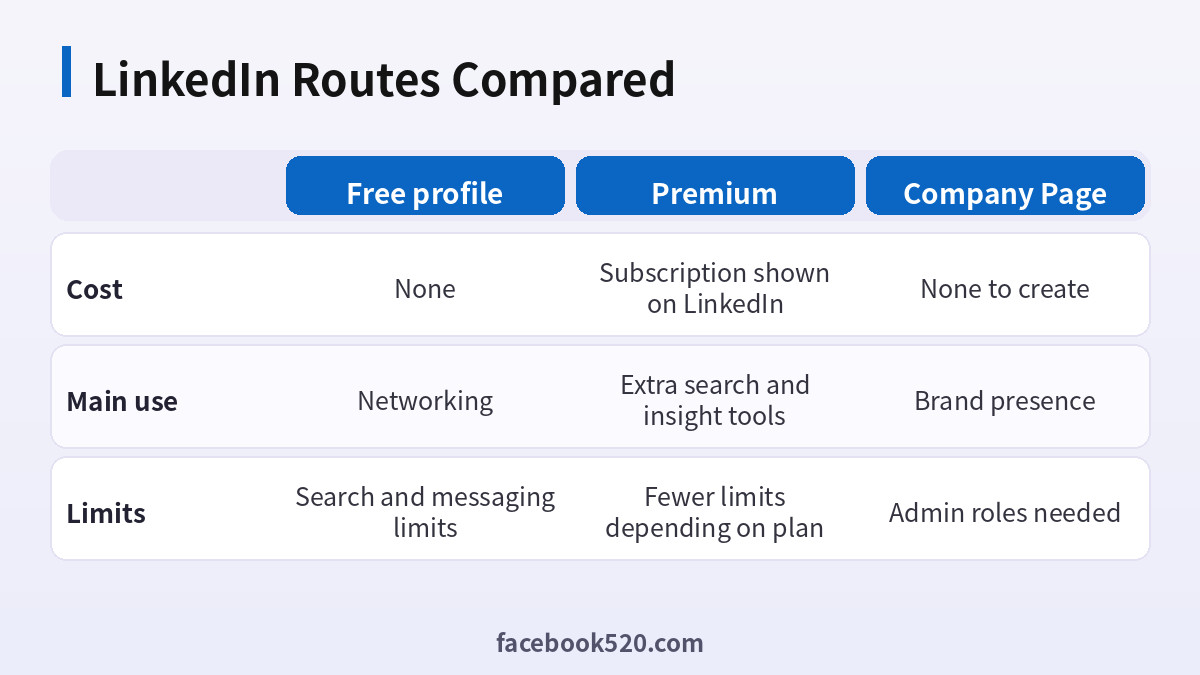
| Factor | Free profile | Premium | Company Page |
|---|---|---|---|
| Cost | None | Subscription shown on LinkedIn | None to create |
| Main use | Networking | Extra search and insight tools | Brand presence |
| Limits | Search and messaging limits | Fewer limits depending on plan | Admin roles needed |
Verdict: Start free with a complete profile, consider Premium only after you know which feature you need and verify what the current plan includes, and create a Company Page only with at least two admins. Never share logins.
Opening LinkedIn properly
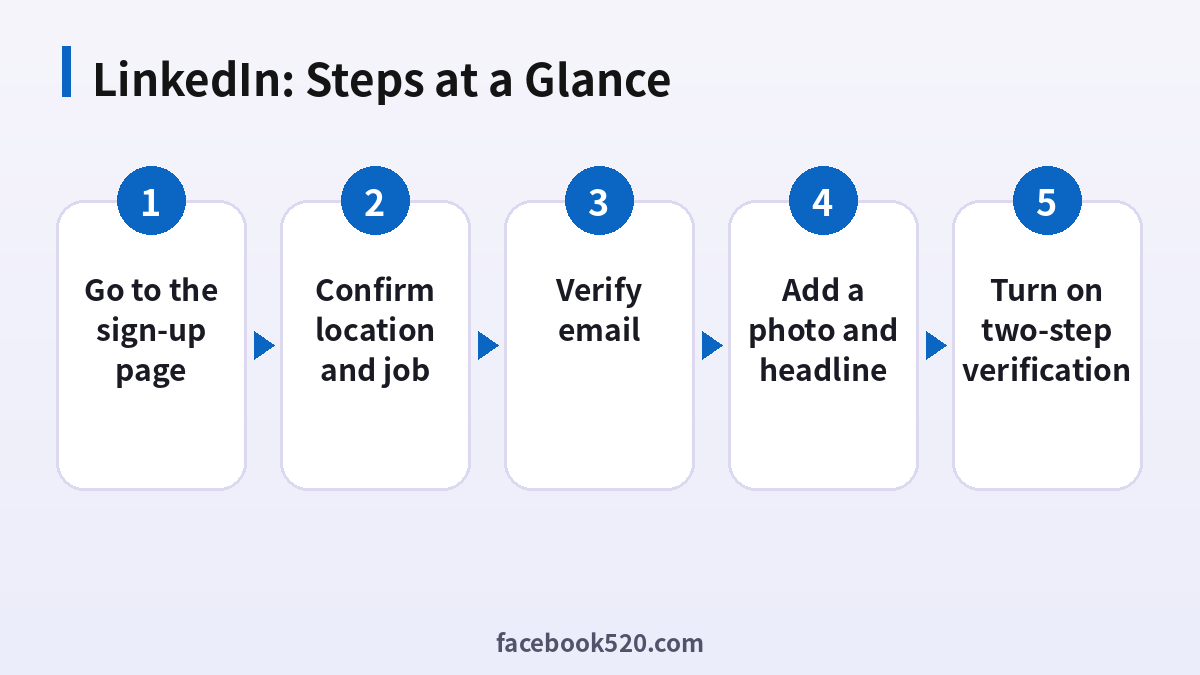
- Go to the sign-up page: Use the official site.
- Enter name, email and password: Use your real name.
- Confirm location and job: Add current role.
- Verify email: Enter the code.
- Add a photo and headline: Make them clear.
- Build the About section: Explain what you do.
- Turn on two-step verification: Find it in sign-in settings.
Common LinkedIn Errors and What to Do
| Symptom | Likely cause | What to do |
|---|---|---|
| Identity check requested | Unusual sign-up | Follow the prompt. |
| Connection requests limited | Too many sent | Slow down and personalise. |
| Account restricted | Policy issue | Use the notice to appeal. |
| Email already in use | Account exists | Use password reset. |
| Cannot add photo | File limits | Use a supported format. |
Name and profile accuracy
LinkedIn expects real names and honest information. Using a nickname or an exaggerated title can get a profile limited, and it hurts trust with people reading it. Use the name colleagues know you by.
Headline and About section
The headline appears everywhere, so write what you do and for whom. In the About section use plain sentences about problems you solve, and end with how to contact you.
Experience and skills
List roles with short, concrete achievements. Add skills that match the jobs or clients you want, and ask colleagues for recommendations after you have worked together.
Connection etiquette
Send requests with a short note explaining why you want to connect, and do not pitch in the first message. Accept requests from people you recognise and be careful with unknown accounts.
Privacy and visibility
Check who can see your connections, whether you appear as viewing profiles and whether you are open to recruiters. Adjust them for your situation.
Premium considerations
Premium plans add things like extra insights or messaging options. The plans, names and prices change by period and region, so check the offer screen for the current list before deciding.
Verification and security
LinkedIn offers verification options for identity and workplace in many regions. Use official flows only and be suspicious of messages asking for codes.
Creating a Company Page
Create the Page from your profile with a business name, logo and tagline. Add a second admin so that the Page does not depend on one person, and review who has access after staff changes.
Content rhythm
Post useful, specific content once or twice a week. Comment on others’ posts with substance. Consistent activity helps more than occasional bursts.
Profile photo and banner
A clear, well-lit face photo with a neutral background makes your profile feel real. Use the banner to say something about your work, such as a simple graphic with your focus area. Avoid group photos, logos in place of a face for personal profiles, and heavy filters, which reduce trust in a professional context.
Using Open to Work and recruiter settings
You can tell recruiters you are open to work, either visibly with a frame or privately to recruiters only. Choose the option that fits your situation, and list the job titles and locations you want. Review the setting after you find a role, because an out-of-date signal sends the wrong message.
Writing posts that get read
Start with a clear first line, use short paragraphs and share something specific you learned or built. Avoid copy-pasting generic motivational posts. Ask one real question at the end, reply to every comment during the first day and note which topics bring in the connections you actually want.
Staying safe from scams
Fake recruiters and investment offers are common. Check the person’s profile age and connections, look up the company on its own website and never pay money to get a job. If a message asks for a code or to move quickly to another app, report it and block the sender.
LinkedIn Self-Check List
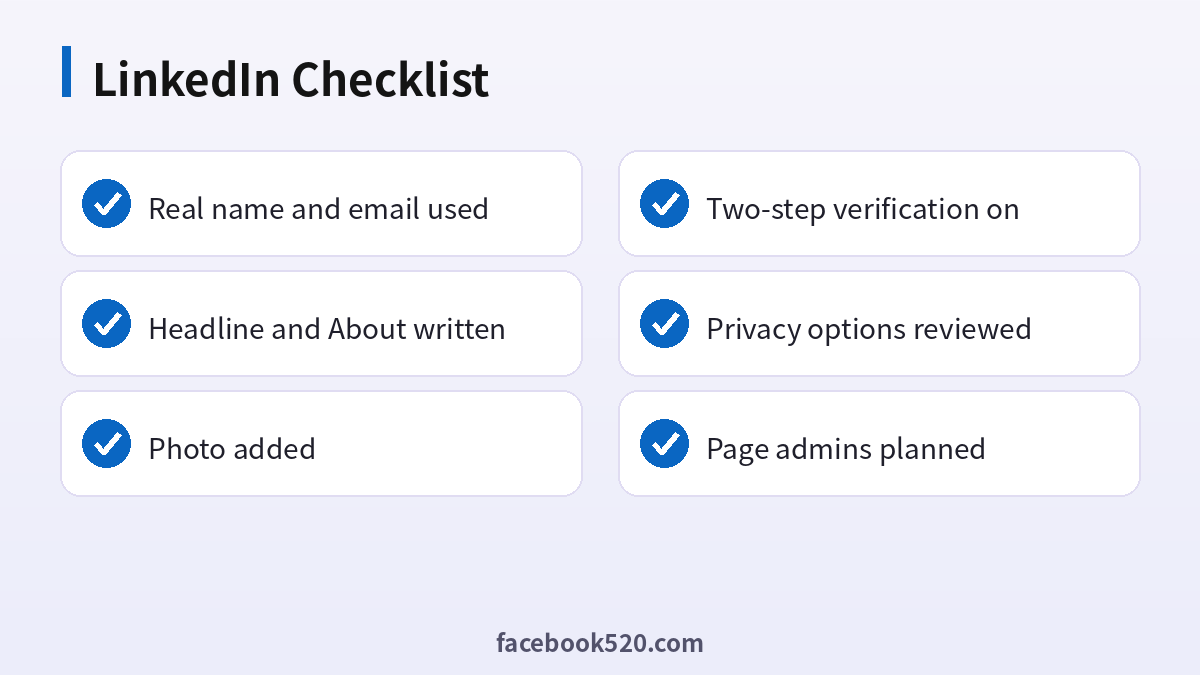
- Real name and email used
- Headline and About written
- Photo added
- Two-step verification on
- Privacy options reviewed
- Page admins planned
LinkedIn sign-up FAQ
Is LinkedIn free?
Yes. Premium plans are optional.
Can I use a personal email?
Yes, but a professional email looks better and helps verification.
Can I create a company page without a personal profile?
No. Pages need an admin with a personal profile.
Can I change my profile URL?
Yes, in the public profile settings.
How long does it take to set up LinkedIn?
The sign-up itself usually takes about five minutes. Completing the profile and security settings takes a little longer.
What if I already have an account?
Log in instead of creating a second one. Use the password reset option if you have forgotten the details.
Is it safe to let someone else register for me?
It is better not to. Anyone who creates the account first also holds the first recovery details, so do the registration yourself and add colleagues as members afterwards.
Can I change my email address later?
In most cases yes, through the account or security settings, but you will need access to both the old and new address, so update it before the old one is closed.
Is LinkedIn Premium worth it?
It depends on your goals. Read the current plan description and try a trial if offered.
Can I use a nickname?
LinkedIn expects real names.
How many connections can I send?
Limits exist and change, so send thoughtful requests.
Can I have two profiles?
One person should have one profile.
How do I make a Company Page?
Create it from your profile with the Page option.

