


Messenger Account in 2026: How It Works With Facebook, Using Messenger Without an Active Facebook Profile (DEMA), messenger.com Shutdown, End-to-End Encrypted Chats and Backup PIN, Security, Privacy, Recovery and Deletion
Messenger is one of those apps people rarely think about until something goes wrong: the website suddenly redirects to Facebook, old chats disappear after switching phones, a friend’s hacked profile starts sending strange links, or you want to quit Facebook but keep talking to family on Messenger. A Messenger account is tied to Facebook in ways that are not obvious, and the rules changed again in 2026.
This guide explains how a Messenger account actually works today: why it depends on a Facebook account, how to keep Messenger while your Facebook profile is deactivated, what happened to messenger.com and the desktop apps, how encrypted chat backup and the backup PIN work, and how to secure, recover, pause or delete the account. If you are starting from zero, first read our Facebook sign up guide; for the full picture of the profile behind Messenger, see the Facebook account guide and the Facebook hub.
What a Messenger account is in 2026
There is no separate “Messenger-only” sign-up anymore. Meta’s Messenger Help Center is direct about it: you need to create a Facebook account to use Messenger. Your Messenger identity is your Facebook identity — the same name, profile picture, friends list and login.
That has a few practical consequences:
- One login for both. Changing your Facebook password changes your Messenger password. Two-factor authentication set on Facebook protects Messenger too.
- Accounts Center controls both. Personal details, password and security, and deactivation or deletion live in Meta’s Accounts Center (Meta is gradually moving people to “Meta Account” settings, so the menu may look slightly different on your phone).
- Old Messenger-only accounts must be updated. If you once created Messenger with just a phone number years ago, Meta now asks you to update it to a Deactivated Except Messenger Account (DEMA) to keep using it.
You need to be at least 13 to have a Facebook account, and therefore to use Messenger. Some countries set a higher age.
Messenger without an active Facebook profile: DEMA
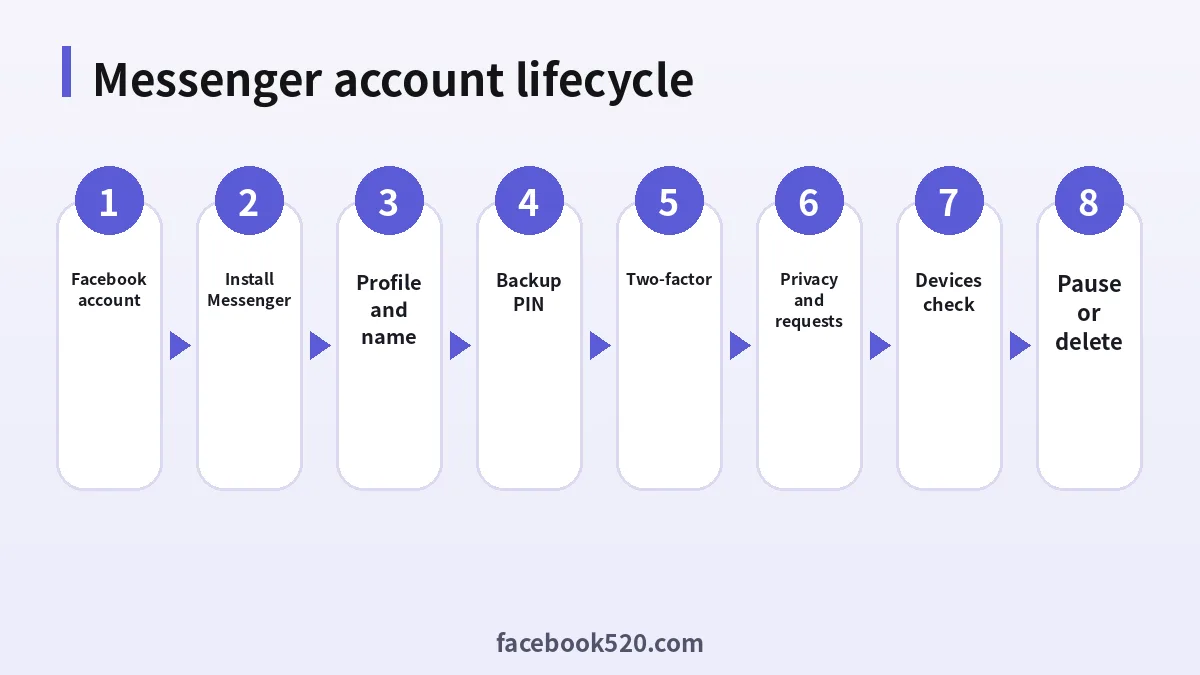
Plenty of people want Messenger but not Facebook. Meta’s official answer is the Deactivated Except Messenger Account (DEMA). You create (or already have) a Facebook account, deactivate the Facebook side, and choose to keep Messenger.
According to Meta’s help pages, when you have a DEMA:
- You can still chat with friends on Messenger.
- Your picture is visible in your Messenger conversations.
- Other people can search for you on Messenger and message you.
- You are not searchable on Facebook.
- Your Facebook profile stays deactivated and can be reactivated at any time.
- You may need to confirm your birthday and create a password for security.
Using Messenger does not reactivate your Facebook profile. That is the key difference from simply logging back in to Facebook.
How to set up a DEMA
- Open Facebook (app or browser) and go to Settings, then Accounts Center.
- Open Personal details, then Account ownership and control, then Deactivation or deletion.
- Pick your Facebook profile and choose Deactivate account.
- Follow the prompts. When asked, choose to keep using Messenger.
- Open the Messenger app and log in with the same Facebook email or phone and password.
Do not choose deletion if you want to keep Messenger. Deleting the Facebook account deletes your Messenger access along with it.
The messenger.com shutdown and desktop changes
In early 2026 Meta announced that messenger.com would stop working for messaging in April 2026. Meta’s help page says that after messenger.com goes away you are automatically redirected to facebook.com/messages for messaging on a computer, and that the standalone Messenger desktop app for Windows and Mac is no longer available.
What this means for your account:
| Where you chat | Status in 2026 | What to use instead |
|---|---|---|
| messenger.com | Redirects to facebook.com/messages | Facebook website while logged in |
| Messenger desktop app (Windows/Mac) | Discontinued | Facebook website or phone app |
| Messenger app (Android/iPhone) | Available | — |
| facebook.com/messages | Available | — |
| DEMA users on a computer | No web option without an active Facebook profile | Messenger mobile app |
The last row matters: if you deactivated Facebook and kept only Messenger, Meta says you can continue your conversations on the Messenger mobile app. There is no longer a separate website for you. Your chat history can be restored on any device using the backup PIN described below.
End-to-end encryption and the backup PIN
Personal one-to-one chats and calls on Messenger are end-to-end encrypted by default. That means Meta cannot read the content of those messages — and it also means your history is protected by a key that only you control. To move that history to a new phone or the Facebook website, Messenger uses secure storage with a recovery method you choose:
- A PIN that you create (you type it once on each new device).
- A recovery code you save somewhere safe.
- On some devices, a cloud backup option tied to your phone’s account.
When you log in on a new device, Messenger asks for the PIN or code to restore your encrypted chats. If you forget the PIN you can reset it, but resetting may mean older encrypted messages cannot be restored on new devices. Write the PIN in your password manager the day you set it.
Signs your backup is not set up
- Opening Messenger on a new phone shows empty chats with a banner asking to restore.
- You are asked to create a PIN you never remember setting.
- Chats show “some messages may be unavailable on this device”.
Go to Messenger settings, then Privacy and safety, then End-to-end encrypted chats, then Message storage, and check that secure storage is on.
Securing a Messenger account
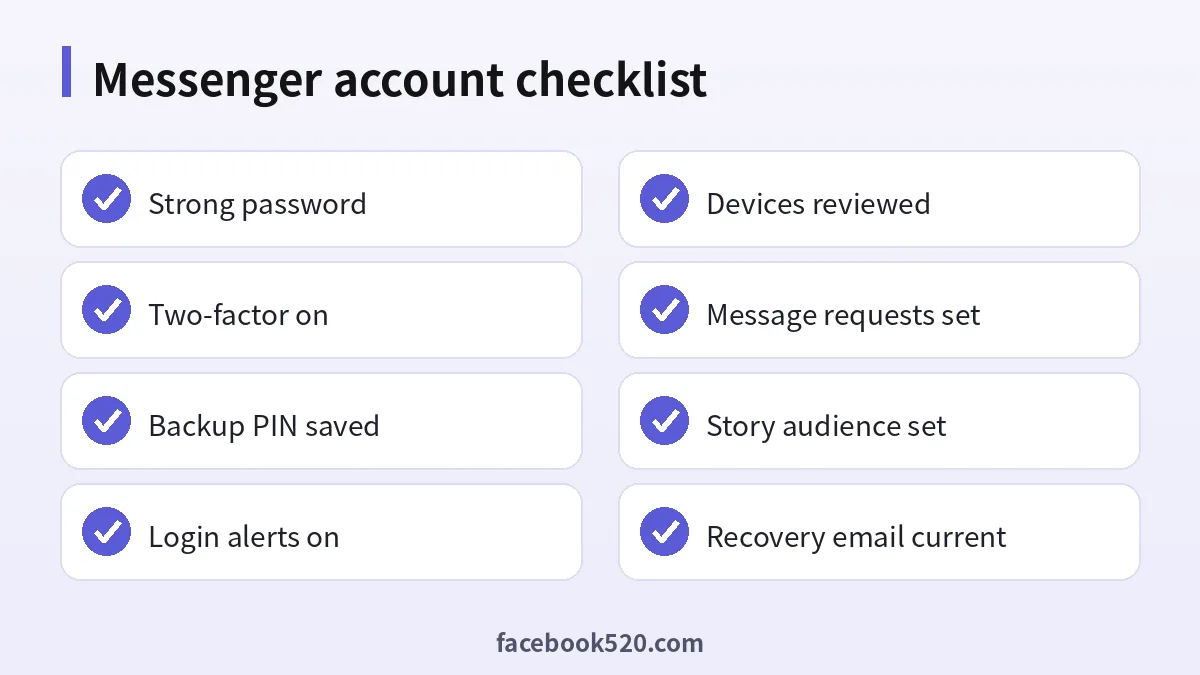
Because Messenger shares its login with Facebook, almost every Messenger takeover starts with the Facebook account. The defenses are the same:
| Protection | Where | What it stops |
|---|---|---|
| Strong, unique password | Accounts Center > Password and security | Reused passwords from leaked sites |
| Two-factor authentication | Accounts Center > Password and security | Logins with a stolen password |
| Login alerts | Accounts Center > Password and security | Silent logins on new devices |
| Where you’re logged in | Accounts Center > Password and security | Old sessions on lost phones or shared PCs |
| Backup PIN | Messenger > Privacy and safety | Losing chat history on a new phone |
| App lock (iPhone/Android) | Messenger > Privacy and safety | Someone opening Messenger on your unlocked phone |
Use an authenticator app or a security key for two-factor rather than SMS where possible. Review “Where you’re logged in” every few months and remove anything you do not recognize.
Common Messenger scams
- “Is this you in this video?” A friend’s hacked account sends a link to a fake login page. Never log in from a link received in chat.
- Fake Meta support. Messages claiming your account will be disabled unless you “verify” it. Meta does not send such warnings through ordinary chats.
- Marketplace overpayment and code requests. A buyer asks you to share a verification code “to confirm you’re real”. That code is your account login.
- Impersonation of relatives. A copied profile of a family member asks for money urgently. Call them before sending anything.
If a contact’s account is sending these, report the message and tell them through another channel.
Privacy settings that matter
Messenger’s settings menu has a Privacy and safety section. The settings worth checking:
- Message delivery / message requests. Decide whether people you are not connected with land in Chats, Message requests or not at all. Tightening this cuts spam dramatically.
- Active status. Turn off showing when you are active; you then also cannot see others’ status.
- Read receipts in encrypted chats can be turned off.
- Story controls. Choose who sees your stories and hide them from specific people.
- Restricted and blocked accounts. Restrict someone to move their chats to requests without notifying them, or block them completely.
- Meta AI. Messenger includes Meta AI chats; anything you send to Meta AI is handled differently from end-to-end encrypted personal chats. Read the in-app notice before sharing personal information with it. Meta AI’s paid tiers are covered in Meta AI pricing.
Recovering a Messenger account
Because there is no separate Messenger password, recovering Messenger means recovering the Facebook login:
- On the Messenger or Facebook login screen, tap Forgot password?
- Enter the email or mobile number on the account.
- Choose how to receive the code and reset the password.
- If the email and phone were changed by a hacker, use facebook.com/hacked to start the secure recovery flow.
- After you are back in, review “Where you’re logged in”, remove unknown sessions and turn on two-factor.
The full flow, including identity confirmation, is in our Facebook account recovery guide. If you only had a DEMA and forgot the password, the same Facebook reset flow applies.
Pausing, deactivating and deleting
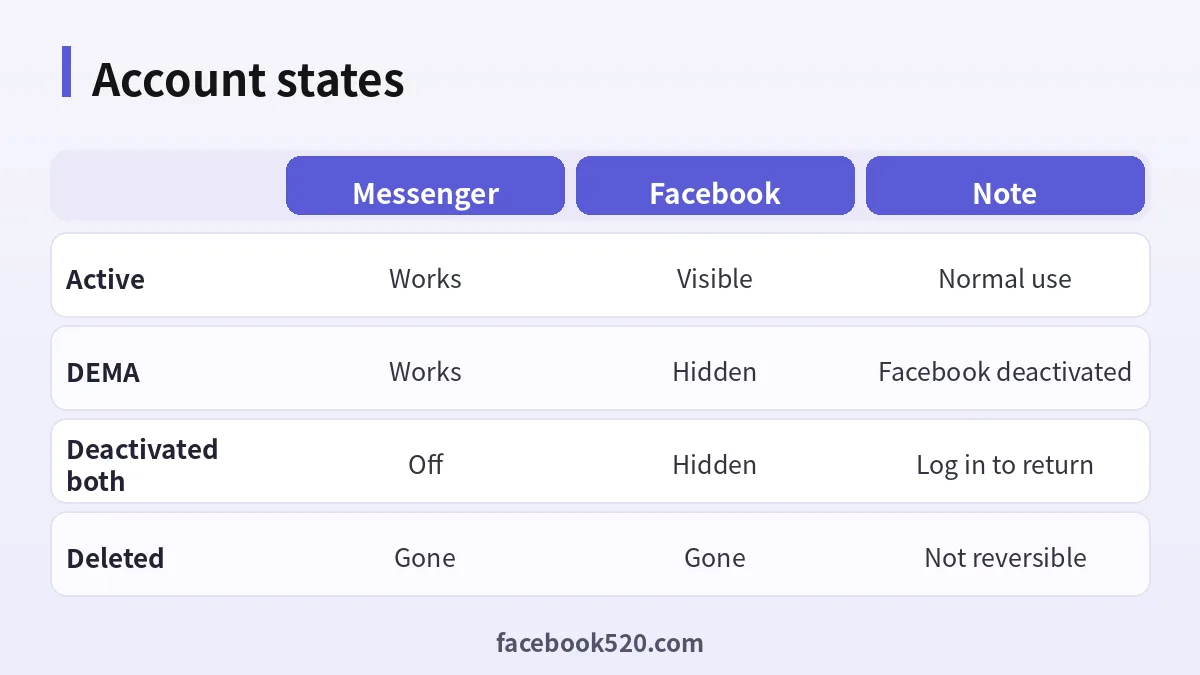
The options often get confused. This table sums them up:
| What you choose | Messenger | Facebook profile | Can you come back? |
|---|---|---|---|
| Keep everything active | Works | Visible | — |
| Deactivate Facebook, keep Messenger (DEMA) | Works | Hidden, not searchable | Yes, reactivate any time |
| Deactivate Facebook, then deactivate Messenger | Off | Hidden | Yes, log in again |
| Delete the Facebook account | Gone | Gone | No, after the grace period |
To deactivate Messenger itself, Meta says you first have to deactivate your Facebook account; only then does the option to deactivate Messenger appear in the Messenger app under Accounts Center. To reactivate, you simply log in with your username and password.
Deleting is different. When you delete the Facebook account, Messenger goes with it. Meta keeps a short grace period during which logging back in cancels the request; after that the account and its data are deleted permanently. Before deleting:
- Download your information from Accounts Center (including messages, if you want them).
- Save your encrypted chats if you need them elsewhere.
- Make sure no business Page, ad account or Marketplace sale depends on your profile.
- Remove the account from other apps where you used “Log in with Facebook”.
Switching phones without losing chats
Most “my Messenger history vanished” stories happen during a phone upgrade. A safe routine:
- On the old phone, open Messenger settings and confirm secure storage is on and you know the backup PIN or recovery code.
- Check that the email and phone number on your Facebook login are current.
- Install Messenger on the new phone from the official store and log in.
- Enter the PIN or recovery code when Messenger asks to restore encrypted chats.
- Open a few older conversations to confirm photos and messages came across.
- Only then log out of the old phone and reset it.
If you also use facebook.com/messages on a computer, you will be asked for the same PIN there the first time.
Group chats, communities and calls
A Messenger account is also your identity in group chats. Group admins can approve new members, remove people and change the group link; if a group link leaks, reset it so strangers cannot join. You can leave a group quietly, mute it, or restrict notifications to mentions only. Voice and video calls work in one-to-one and group chats over Wi‑Fi or mobile data, and calls in personal chats are covered by end-to-end encryption too. If you receive a call from someone you do not know, decline it and adjust message delivery so unknown people land in requests.
Teens, parents and supervision
Meta applies “Teen Account” protections to younger users on Facebook and Messenger: stricter default messaging limits so teens are contacted mainly by people they already follow or are connected with, and supervision tools in Meta’s Family Center that let a parent see time spent and contacts without reading message content. If your teenager uses Messenger, set it up together, keep the real birthday on the account, and walk through blocking and reporting. Remember that a teen who deletes Facebook also loses Messenger, so a DEMA is the better option if they want to step away from the feed but keep family chats.
Messenger for business pages
Businesses do not use a personal Messenger account to talk to customers. Page messages are handled in the Meta Business Suite inbox, where several team members can reply without sharing a personal login. If you manage a Page, keep two-factor on your personal account, because Page access depends on it. For the business side of Facebook, see our Facebook business account guide.
Messenger compared with other messaging apps
| App | Account identity | Web access in 2026 | Encrypted by default |
|---|---|---|---|
| Messenger | Facebook / Meta account | facebook.com/messages | Personal chats, yes |
| Phone number | WhatsApp Web (linked device) | Yes | |
| Instagram DMs | Instagram account | instagram.com | Varies |
If you are moving family chats elsewhere, our WhatsApp account guide covers the phone-number model and linked devices.
Mistakes that cost people their Messenger history
- Deleting Facebook to “get rid of it” and losing Messenger along with it.
- Never setting or writing down the backup PIN.
- Logging in from a link received in a chat.
- Leaving facebook.com/messages logged in on a shared computer.
- Keeping an old phone number as the only recovery method.
Frequently asked questions
Do I need a Facebook account to use Messenger?
Yes. Meta’s help center says you need to create a Facebook account to use Messenger. You can then deactivate Facebook and keep Messenger as a DEMA.
What is a DEMA?
A Deactivated Except Messenger Account: your Facebook profile is deactivated and hidden, but Messenger keeps working and people can still find you on Messenger.
Can I still use messenger.com?
No. Since April 2026 messenger.com redirects to facebook.com/messages. DEMA users continue on the Messenger mobile app.
Is there still a Messenger desktop app?
No. Meta discontinued the standalone Windows and Mac app. Use facebook.com/messages or the phone app.
Will using Messenger reactivate my Facebook profile?
No. Meta says using Messenger does not reactivate a deactivated Facebook account.
I had a Messenger-only account. What now?
Update it to a DEMA in the Messenger app on Android or iPhone to keep using it.
Why are my chats empty on a new phone?
Your encrypted chats need the backup PIN or recovery code. Enter it when prompted, or check secure storage in Privacy and safety.
I forgot my Messenger backup PIN. Can I reset it?
Yes, you can reset it, but older encrypted messages may not be restorable on new devices.
How do I change my Messenger password?
Change your Facebook password in Accounts Center; it is the same login.
Can I deactivate Messenger without deactivating Facebook?
No. You have to deactivate Facebook first; then the option to deactivate Messenger appears.
Does deleting Facebook delete Messenger?
Yes. Deleting the Facebook account removes Messenger access and your messages after the grace period.
How do I stop strangers from messaging me?
Adjust message delivery settings so people you are not connected with go to requests or cannot reach you, and restrict or block accounts that bother you.
Is Messenger free?
Yes. Messaging and calls are free; only your mobile data or Wi‑Fi is used. See Facebook free trial for what is and isn’t paid on Facebook.
Conclusion
A Messenger account is really your Facebook login with its own chat history on top. Keep the login strong with two-factor, set and save the backup PIN so encrypted chats follow you to new devices, use a DEMA instead of deletion if you want Messenger without Facebook, and remember that messenger.com is gone — the phone app and facebook.com/messages are where your chats live now.
Further reading: Facebook account guide, Facebook account recovery and the Facebook hub.
